
Advance and partial payment at checkout
Ask customers to pay the delivery charge or part of the order online, and collect the rest as cash on delivery.
Payments · 4:00 · In Nepali
Make cash-on-delivery shoppers pay part of the order online before it's accepted: the delivery charge, a fixed amount or a percent. You cut fake COD orders and can take pre-orders safely.
Before you start
Online payment on under Settings > Payment: Blanxer QR, or your own eSewa, Khalti or Fonepay keys.
Part 1
Turn it on
- 1
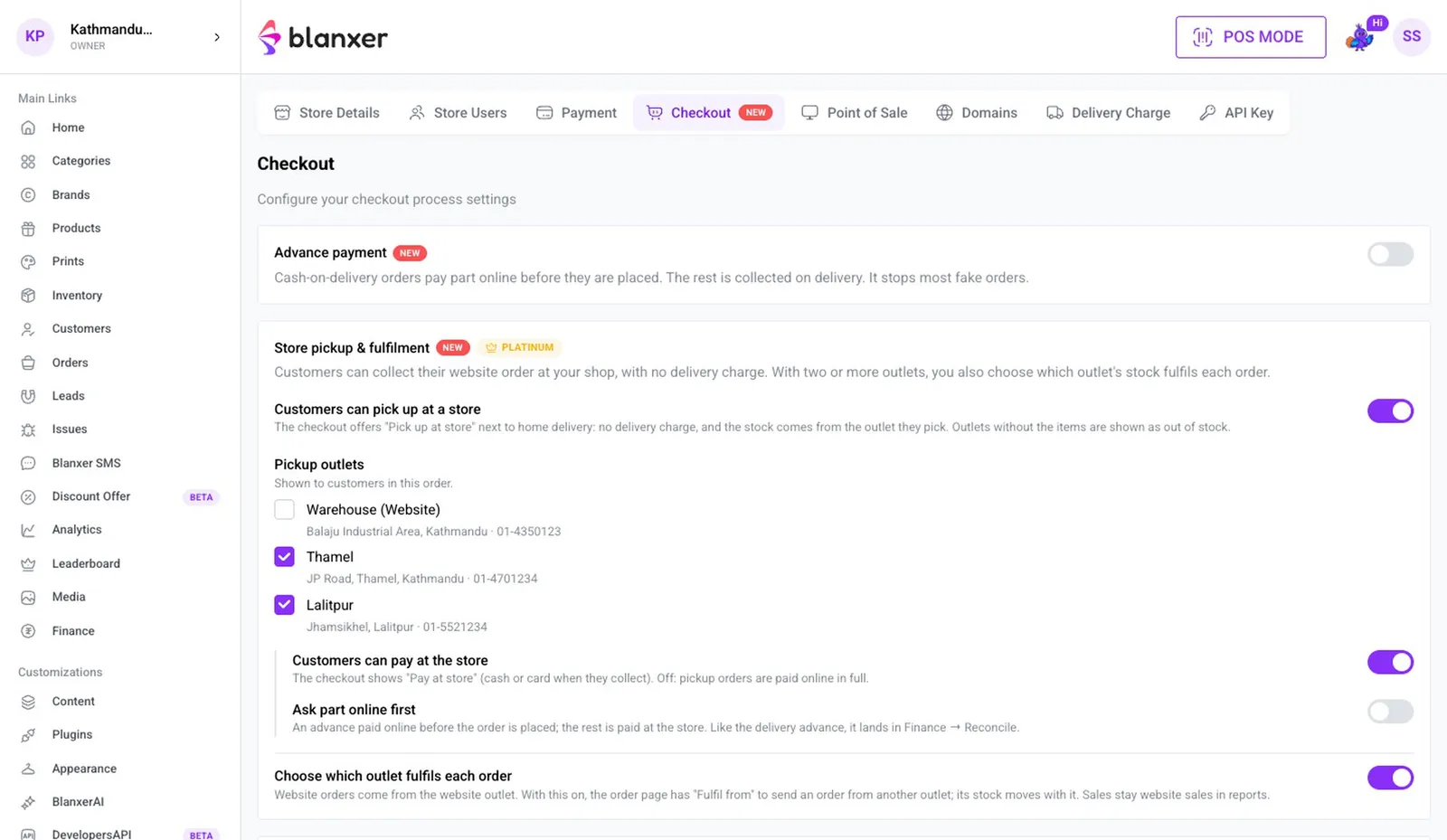
Open the Advance payment card
Go to Settings > Checkout. There's an Advance payment card.
- 2
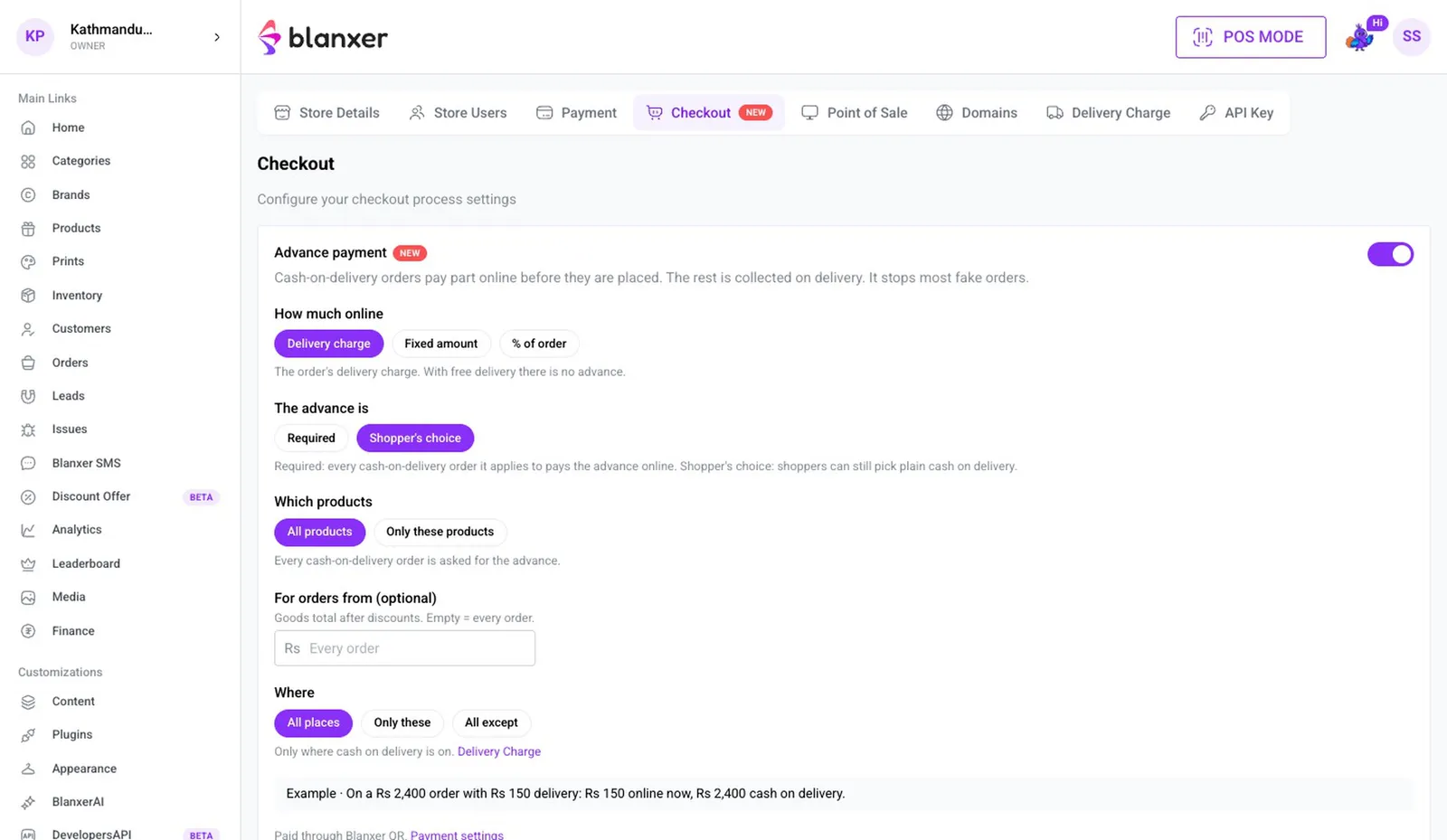
Switch it on and choose the amount
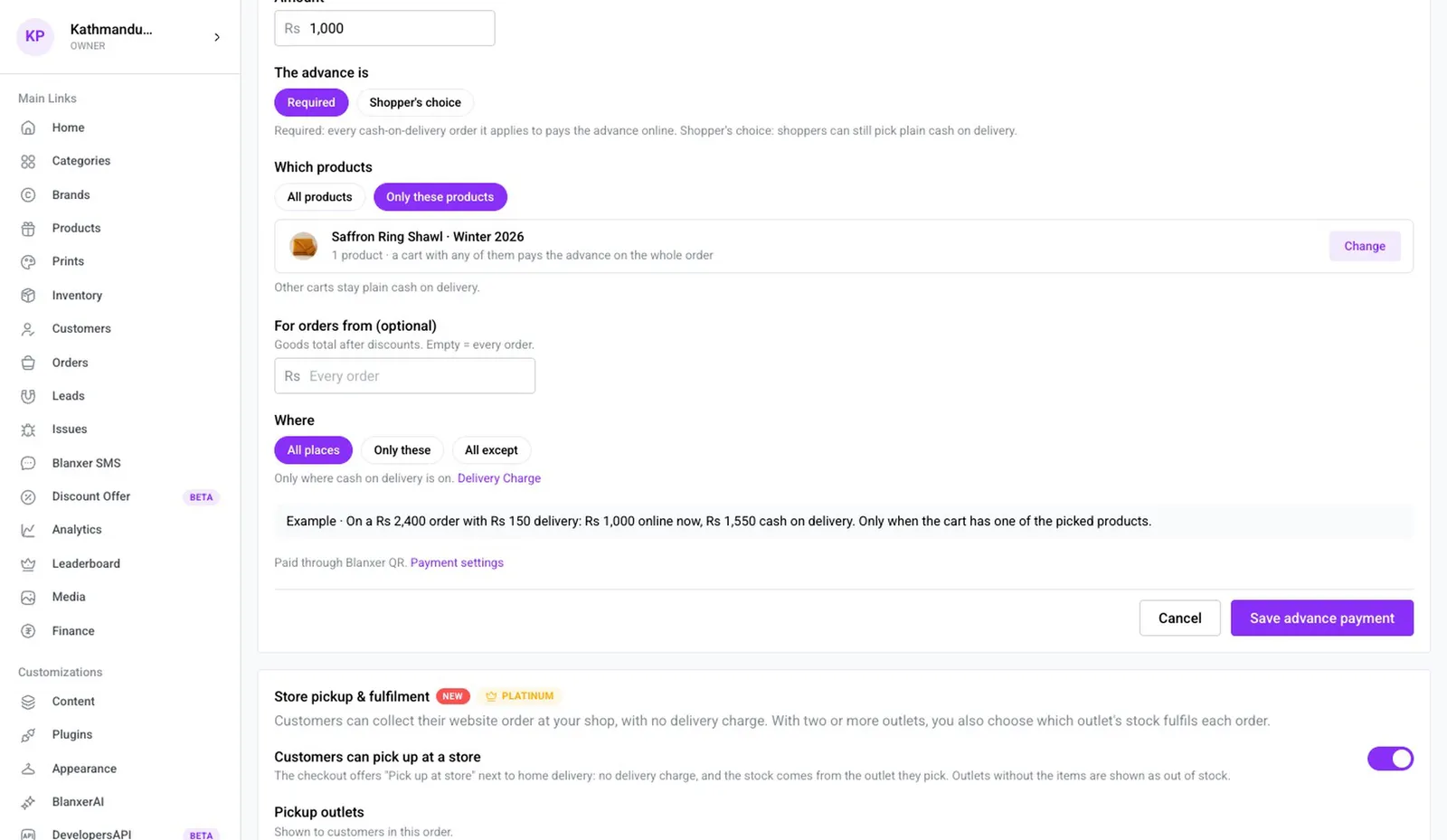
Turn the switch on and choose how much is paid online: the delivery charge only, a Fixed amount, or a percent of the order. For a pre-order, for example, choose Fixed amount and enter 1000.
- 3
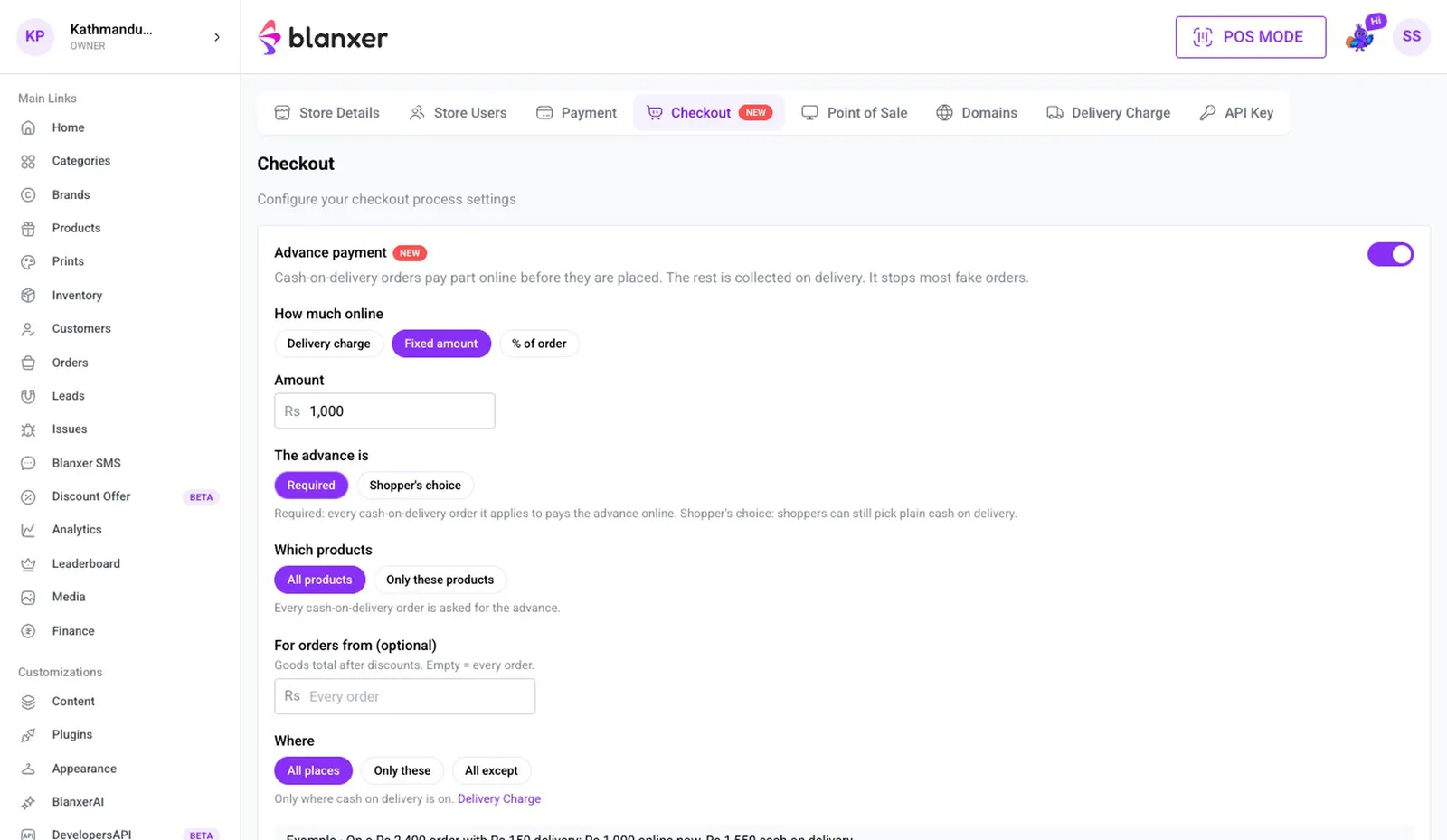
Required or Shopper's choice
Under The advance is, Required means no order without the advance. With Shopper's choice the customer can still pick full cash on delivery.
Part 2
Choose where it applies
- 4
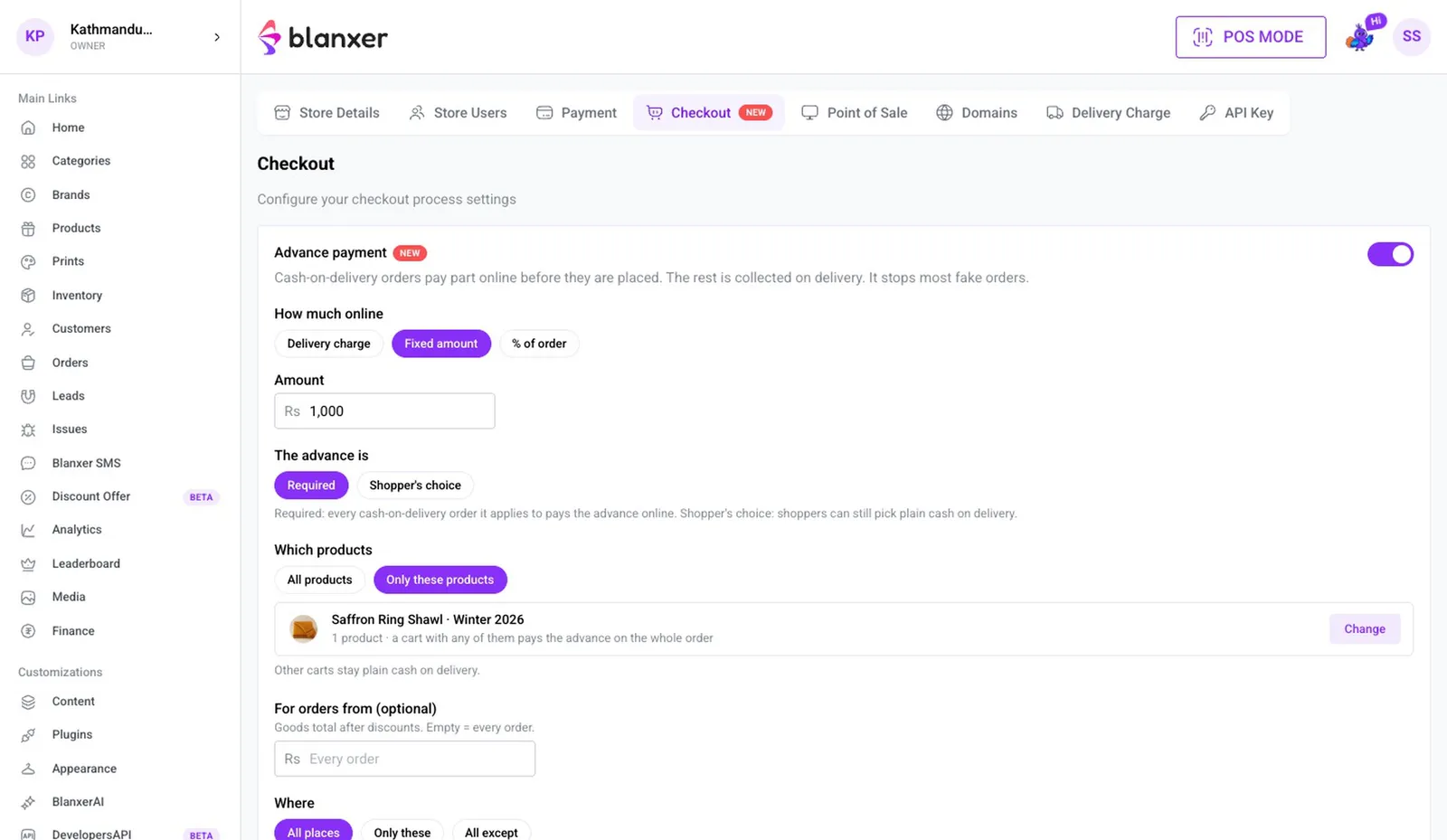
Pick the products
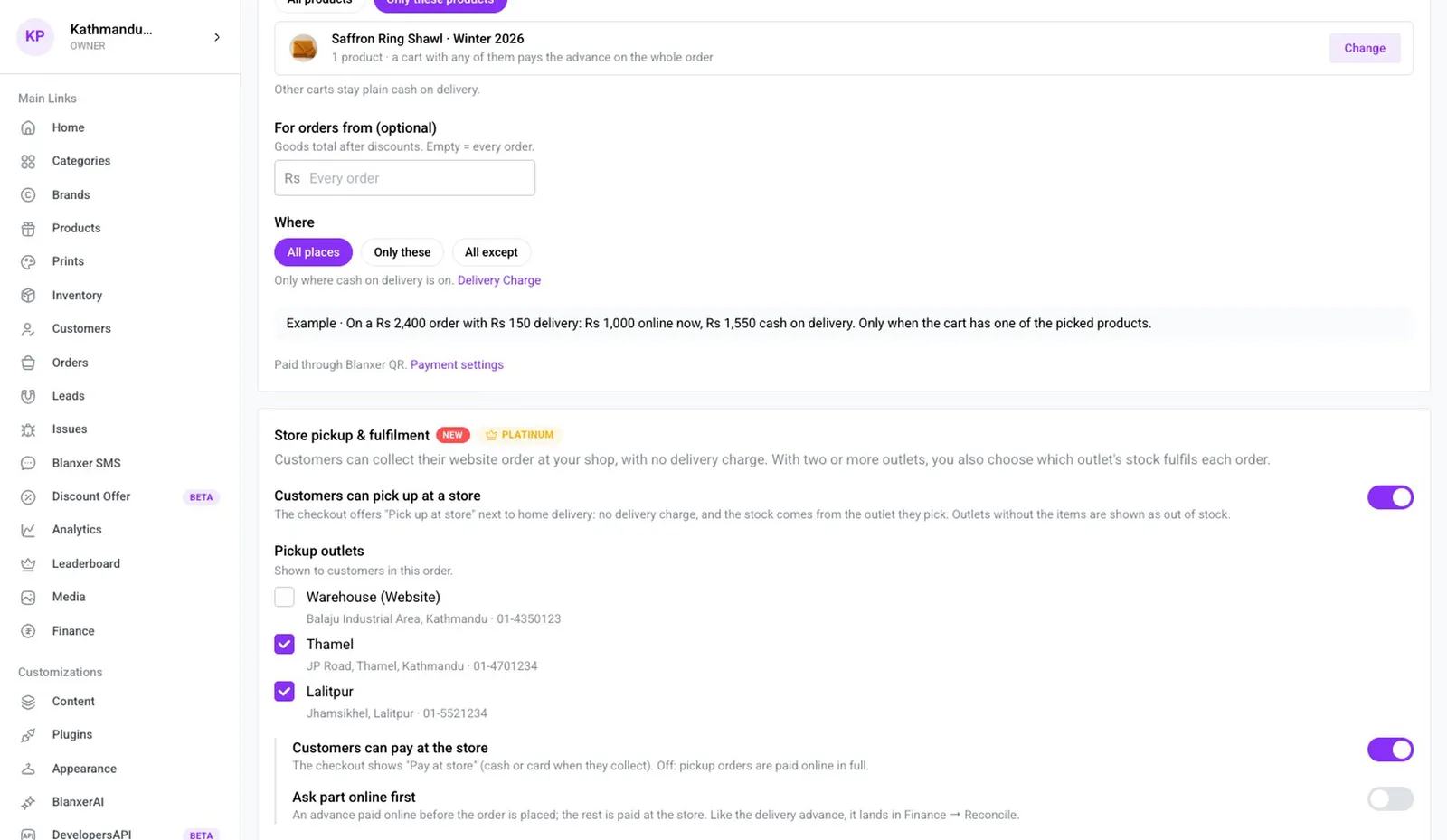
Under Which products choose Only these products and select the product. Orders for other products stay plain cash on delivery.
- 5
Limit it by amount or place
If you want, apply it only above an order amount, or only in places you choose, such as far districts.
- 6
Save
The Example shows what the customer will pay. Click Save advance payment.
Part 3
What your customer sees
- 7
The Cash on delivery tile
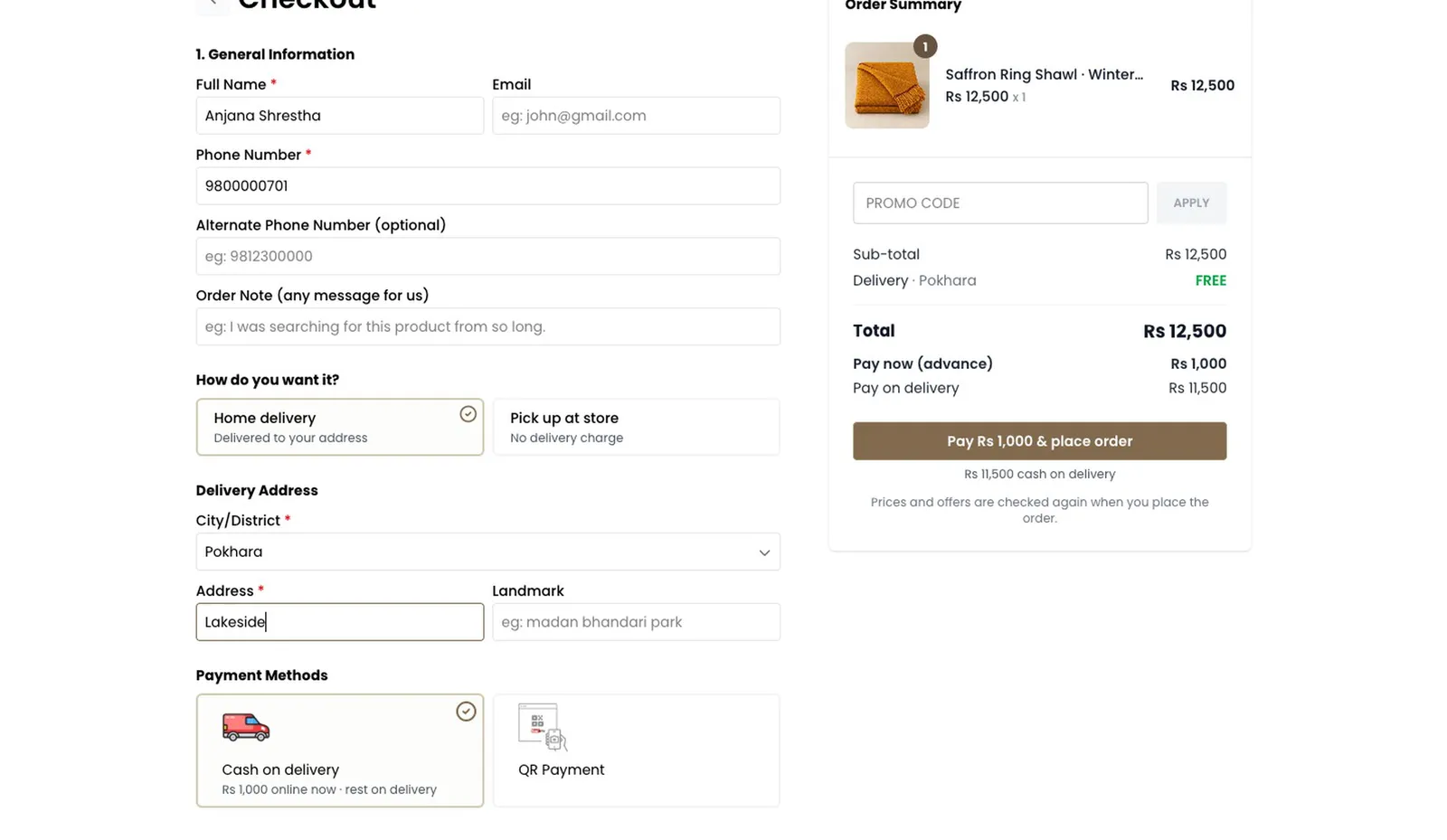
At checkout the Cash on delivery tile says Rs 1,000 now online, rest on delivery. No email is needed.
- 8
Pay now and pay on delivery
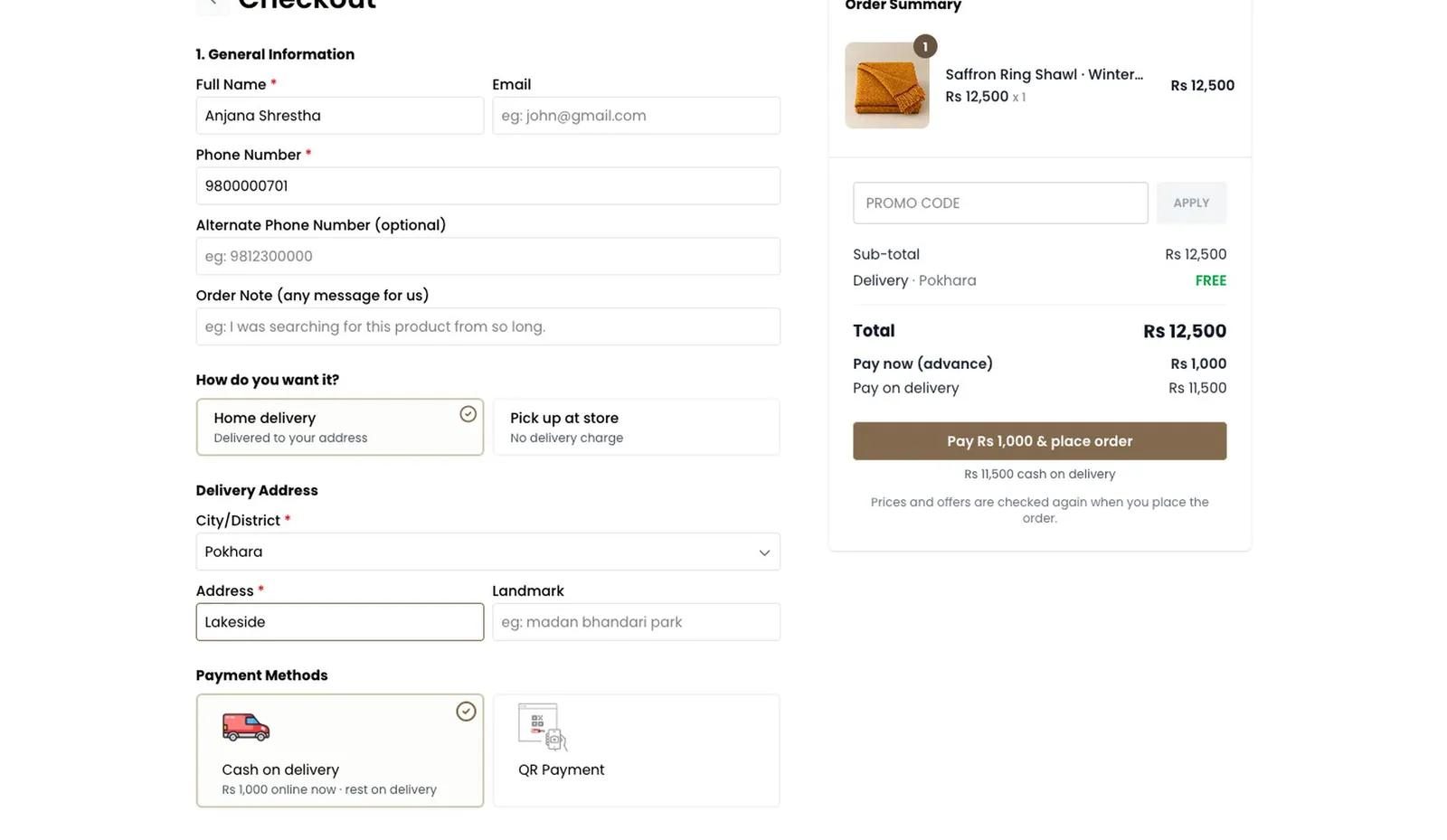
The summary shows what to pay now and what to pay on delivery separately.
- 9
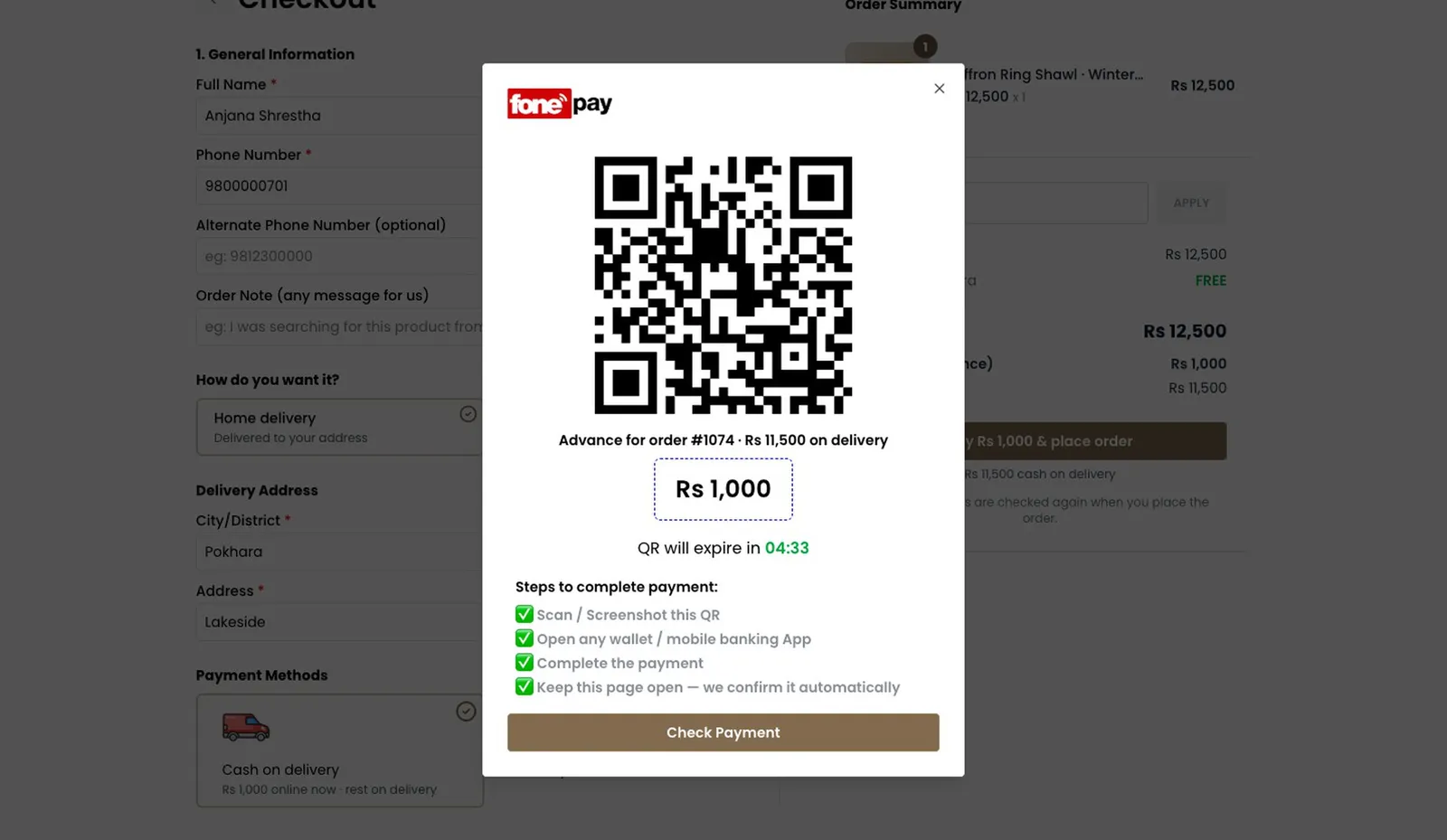
Pay by QR
Clicking Pay Rs 1,000 & place order opens a Fonepay QR that any wallet or mobile banking app can scan.
- 10
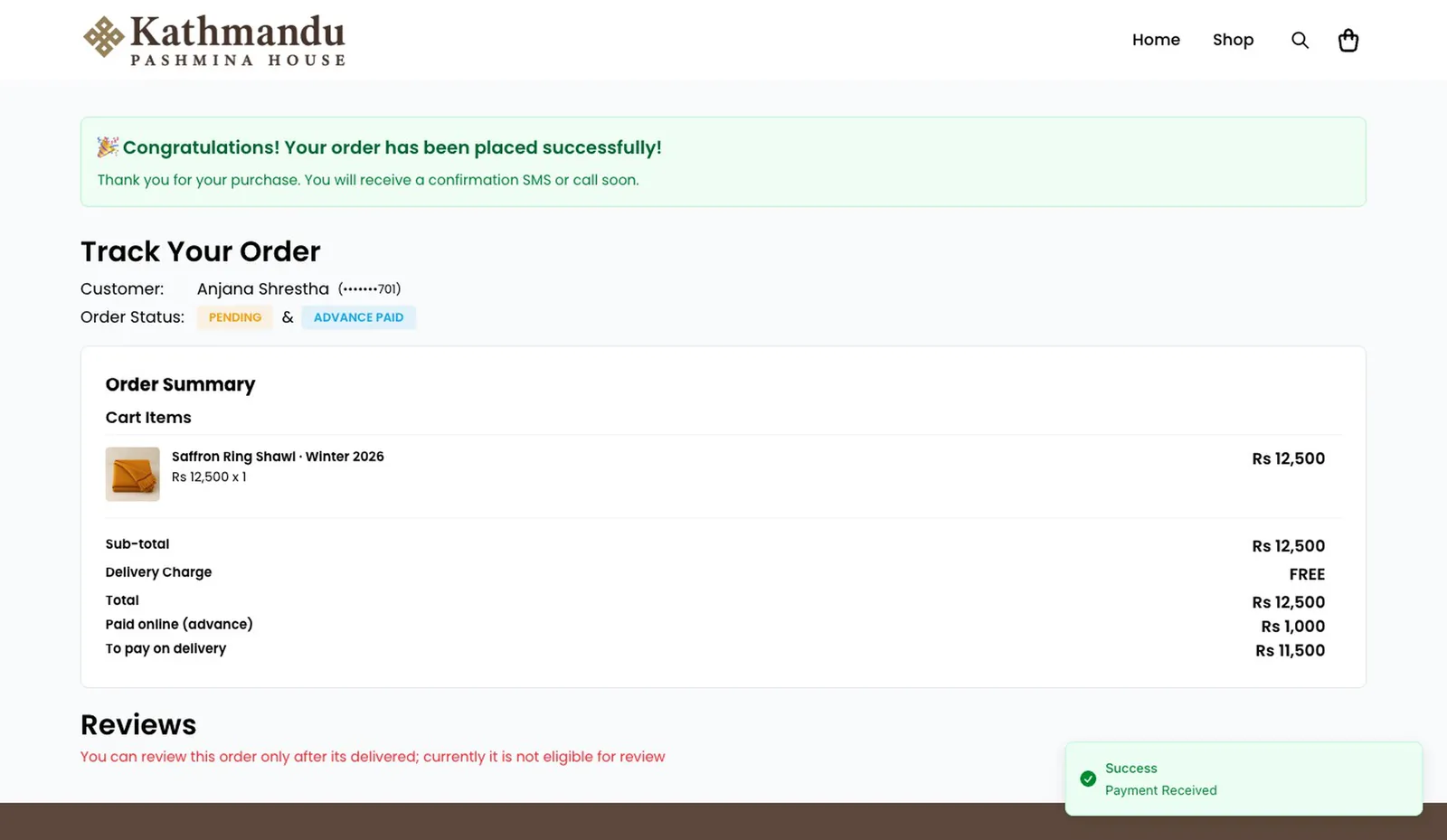
Order confirmed
Blanxer detects the payment by itself and confirms the order. The rest is paid on delivery.
Part 4
What you see
- 11
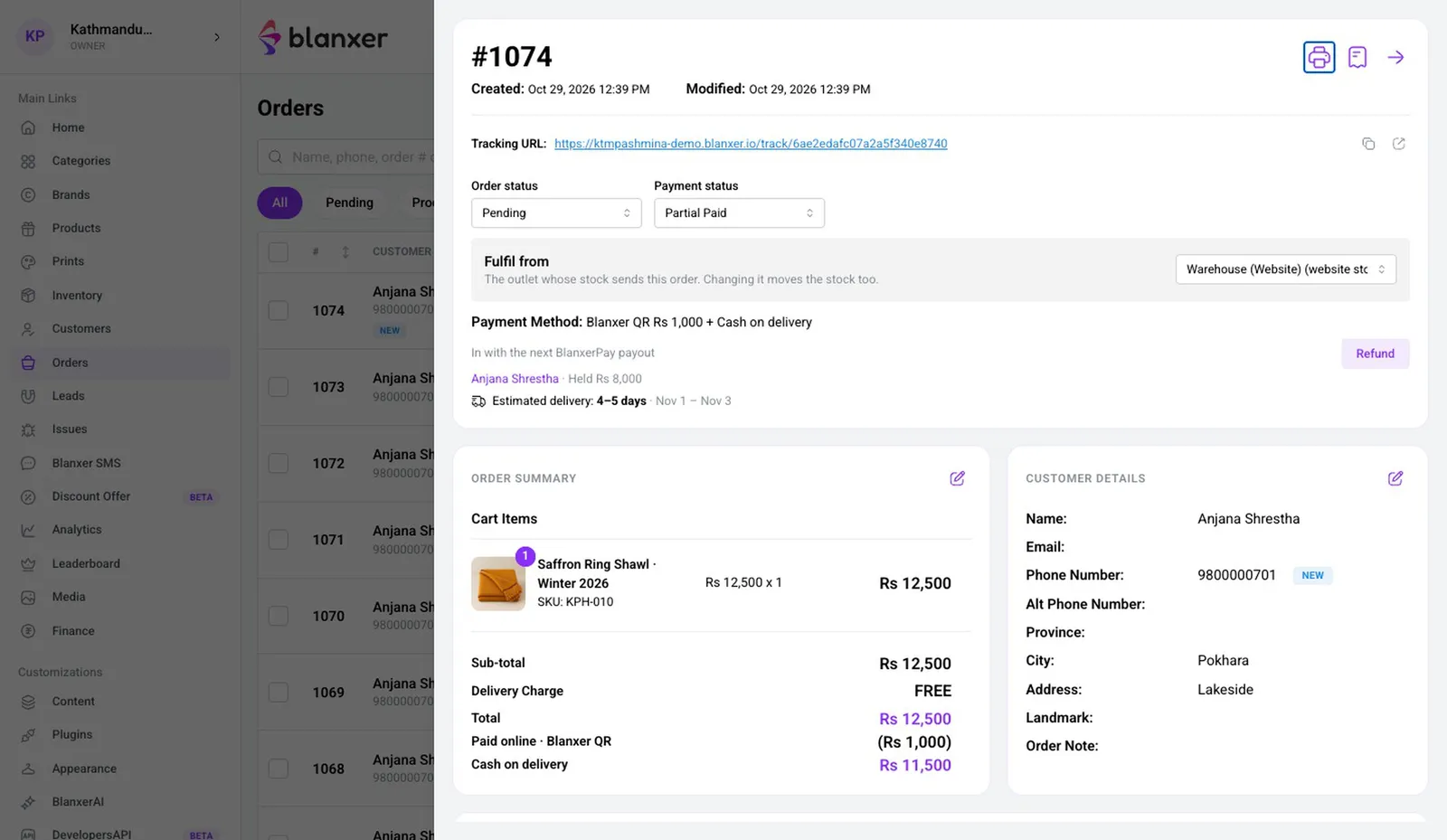
Advance and balance on the order
In Orders, the order shows the advance received, for example via Blanxer QR, and the balance to collect on delivery as a separate line.
- 12
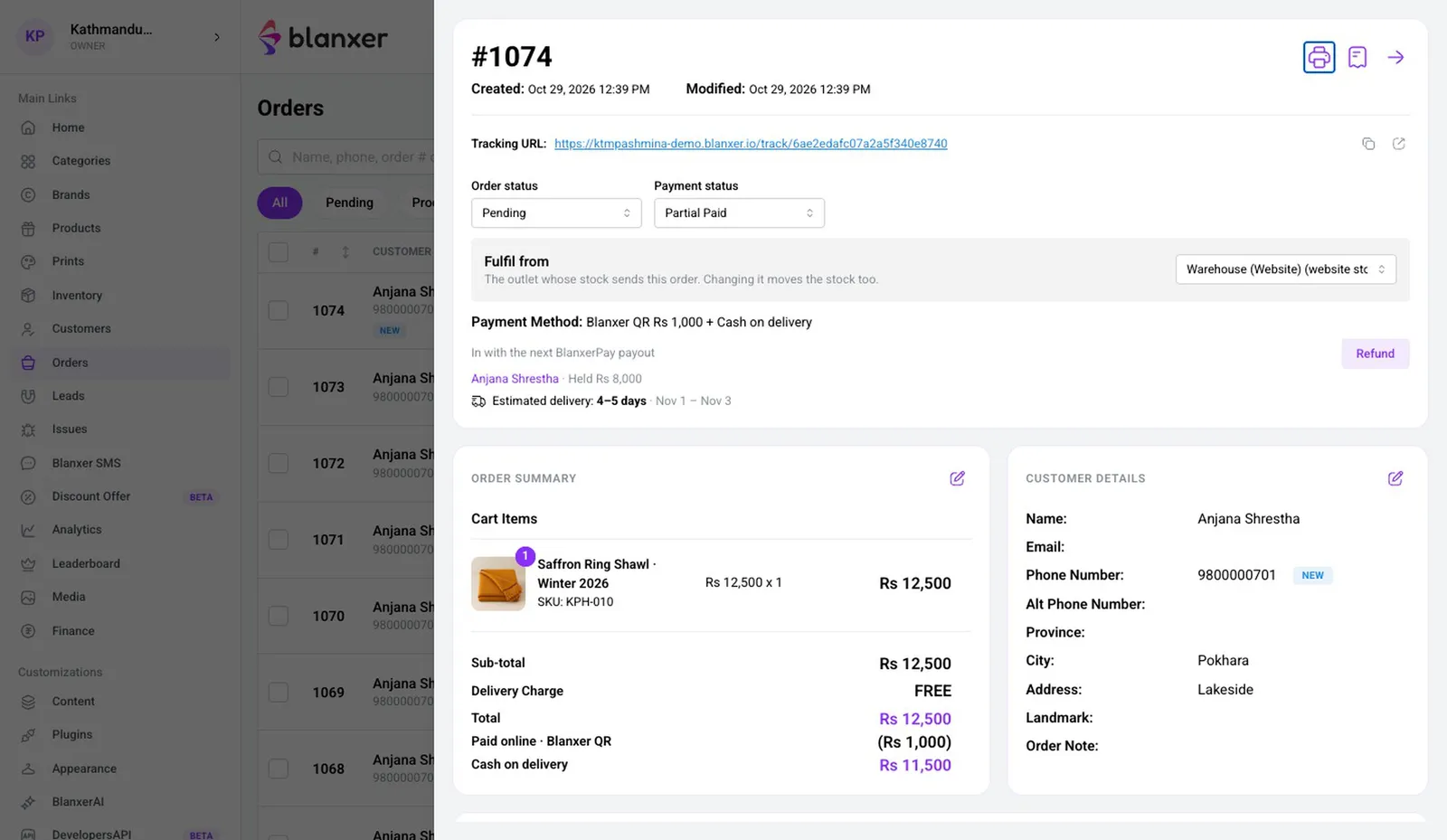
Only the balance goes to the courier
When you send the order to a courier, only the balance goes as COD. Orders where the advance wasn't paid stay in Leads and don't appear in Orders.
Good to know
- Online payment must be on first: Blanxer QR, or your own eSewa, Khalti or Fonepay keys.
- With Shopper's choice, customers can still choose full cash on delivery.
- Orders where the advance isn't paid stay in Leads, not Orders.
More videos
All 33 videos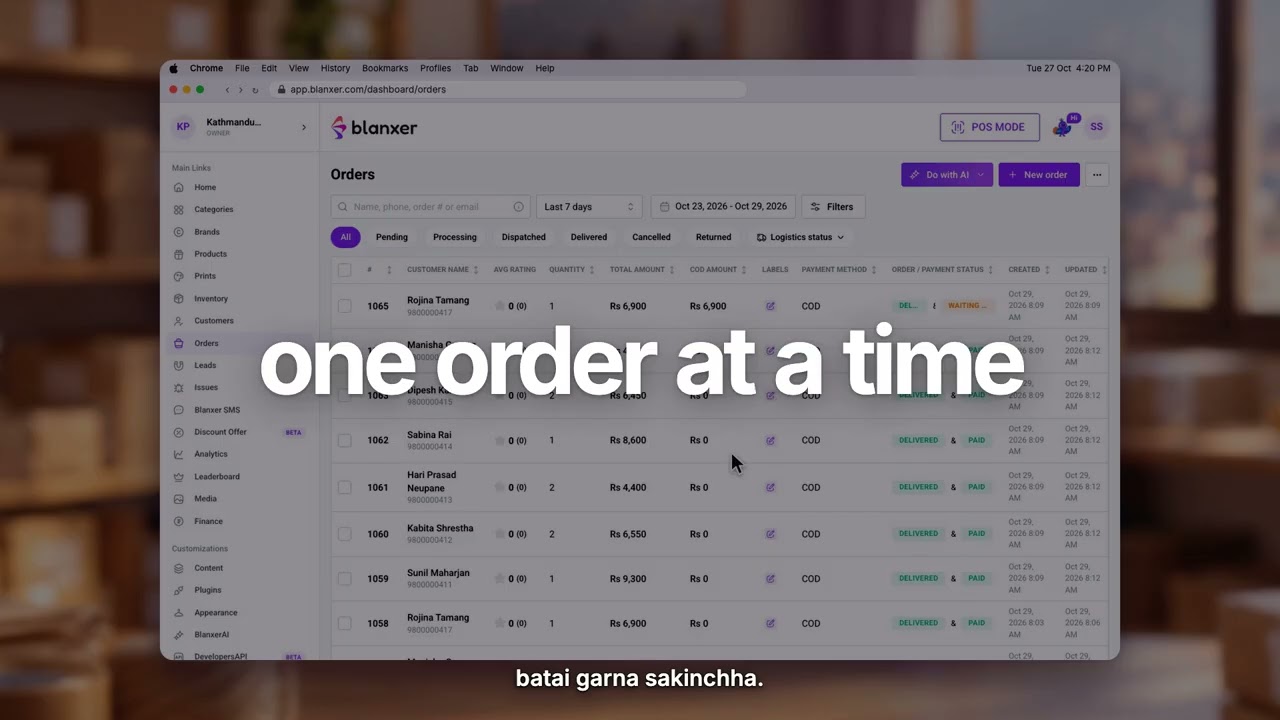 4:43
Payments
Reconcile COD orders
Match the cash your courier sends back against your delivered COD orders, and record it in the right account.
 1:12
Getting started
What is Blanxer?
Start here: what Blanxer is and what it does for your business, before the videos on each feature.
 5:43
Products
Add products (normal inventory)
Add a product with its photos, price, variants and stock, for stores on normal inventory.
See Blanxer with your own business in mind.
Book a demo. We'll show you the store, checkout, POS and dashboard, and tell you honestly which plan you need.
Prefer to talk directly?
Already a customer? Support on WhatsApp +977 9802344850, Sun–Fri, 9 AM – 6 PM.
Follow Blanxer
 A Blanxer product
One AI inbox for every customer conversation.
Sambad.io brings WhatsApp, Instagram, Facebook, website chat and email into one inbox. Connect your Blanxer store and its AI answers from your catalogue, checks stock, quotes delivery and places the order right in the chat.
- Website chat
- Gmail
- Outlook
- Zoho Mail