
Advanced Inventory: track every batch
Keep stock per outlet and per batch, with its own cost and expiry, so you always know what you have, where, and what it cost.
Inventory · 8:32 · In Nepali
Track stock separately for your warehouse, each shop and the website, batch by batch with its own cost and expiry. Sales, returns and transfers update it on their own, so you always know what you have and where.
Part 1
Set it up once
- 1
Enable Advanced Inventory
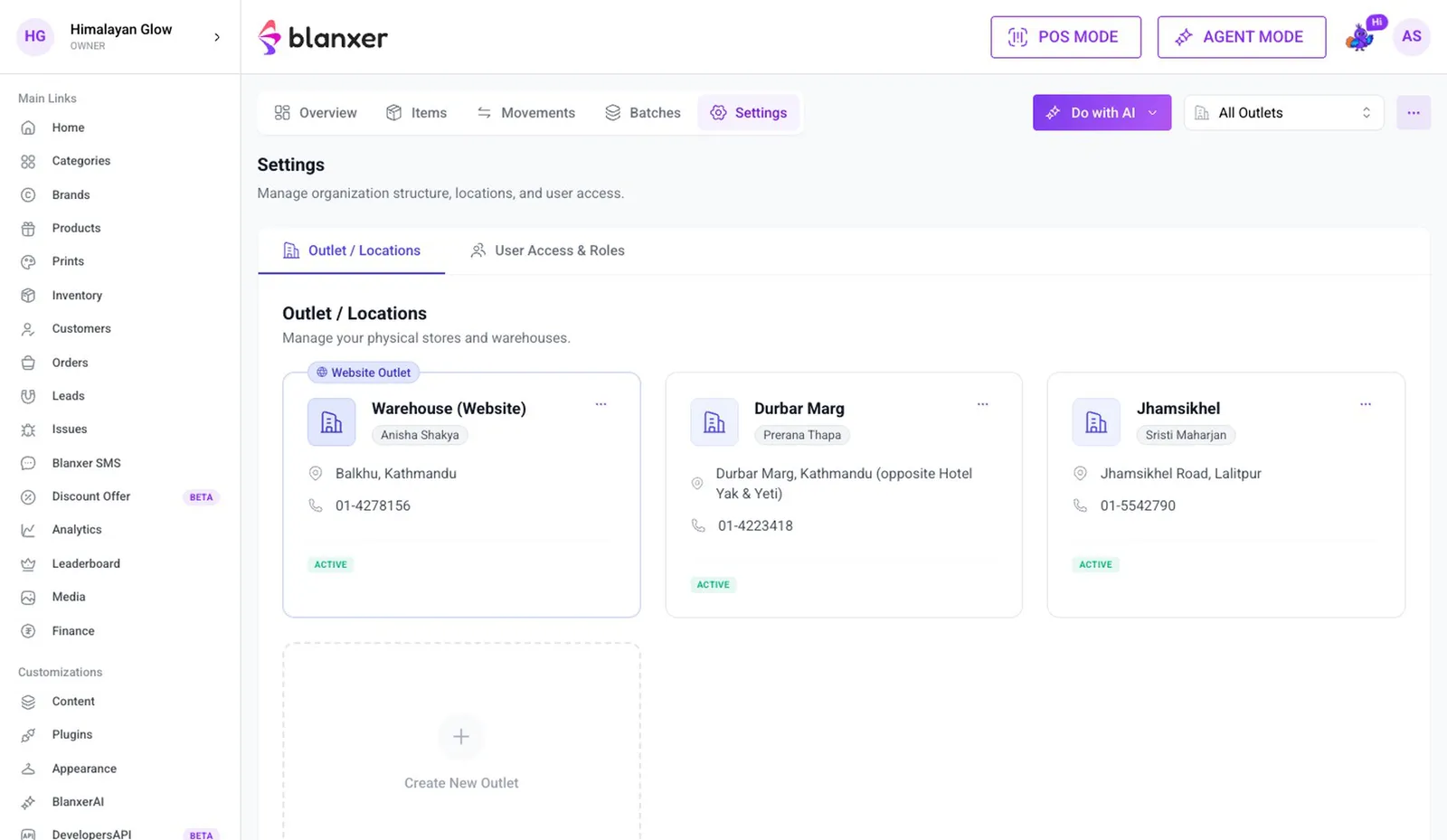
In Inventory, click Enable Advanced Inventory and create your first outlet. That first outlet becomes the website outlet. This is done once and can't be undone.
- 2
Add your shops
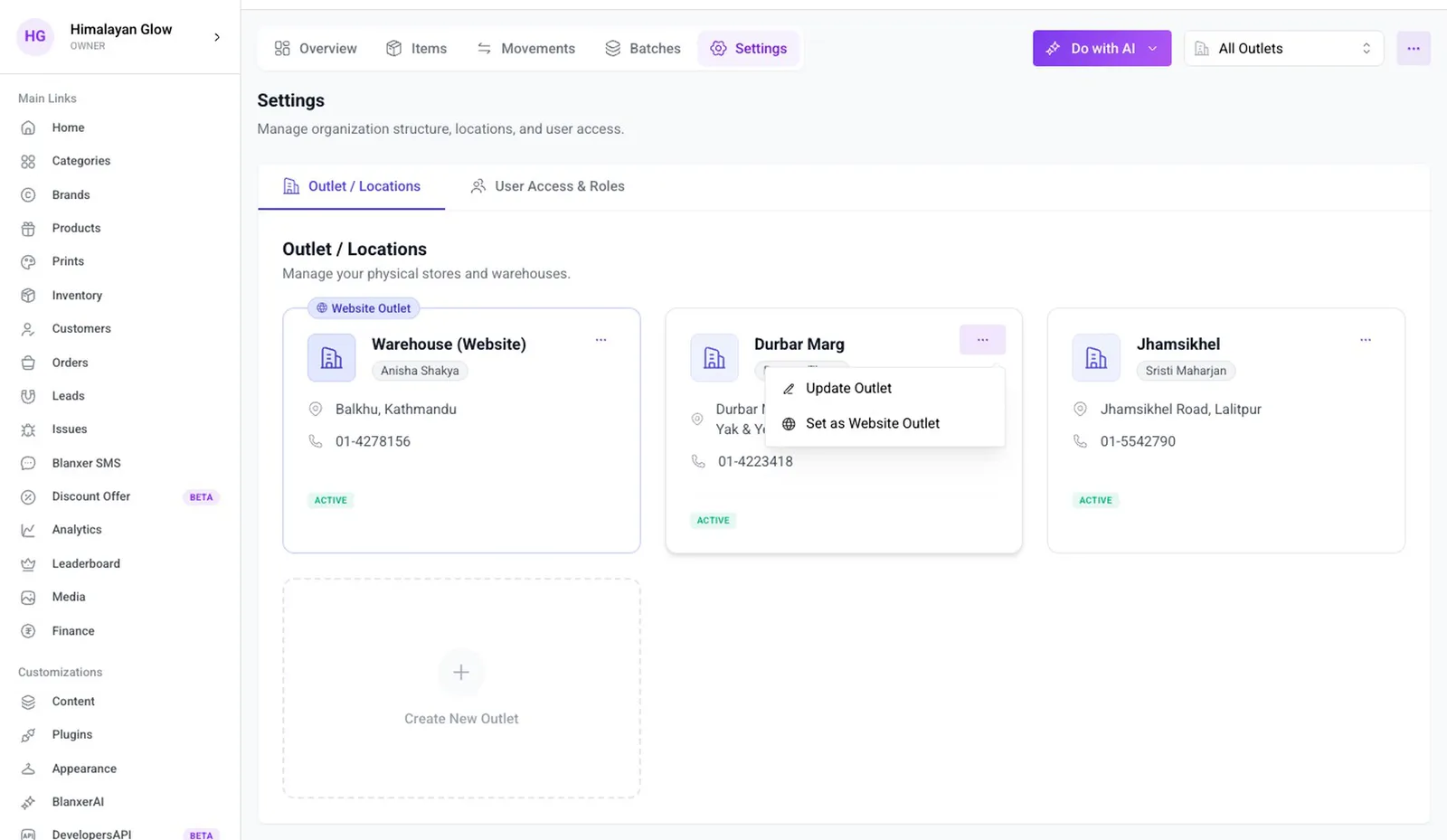
When you open a new shop, add it with Create New Outlet. To serve the website from a different outlet, use Set as Website Outlet.
Part 2
Know where stock comes from
- 3
Website and manual orders
Website and manual orders take stock from the website outlet.
- 4
POS and store pickup
A POS sale takes stock from that shop. A store-pickup order takes it from the shop the customer chose.
- 5
See stock per outlet
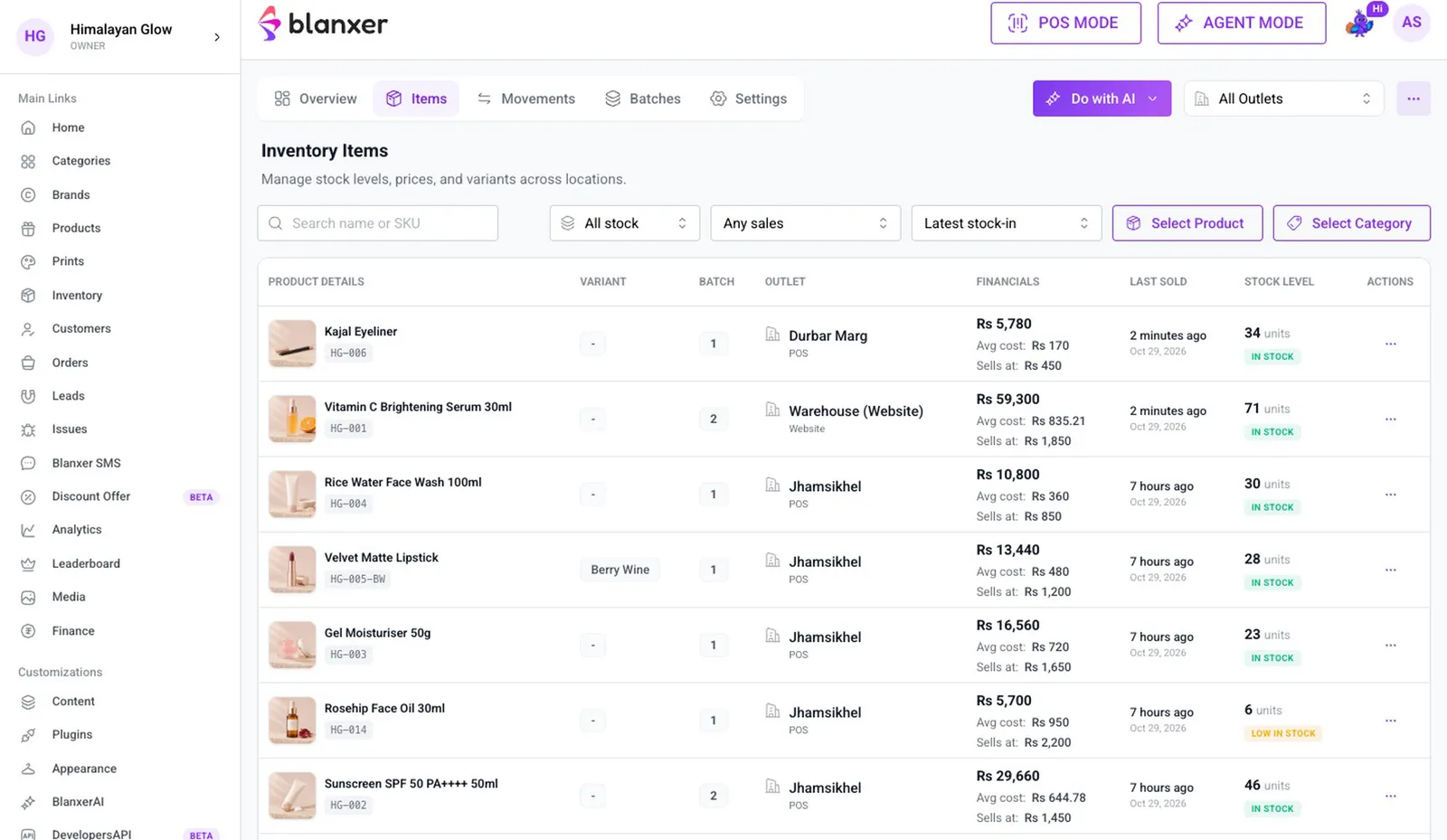
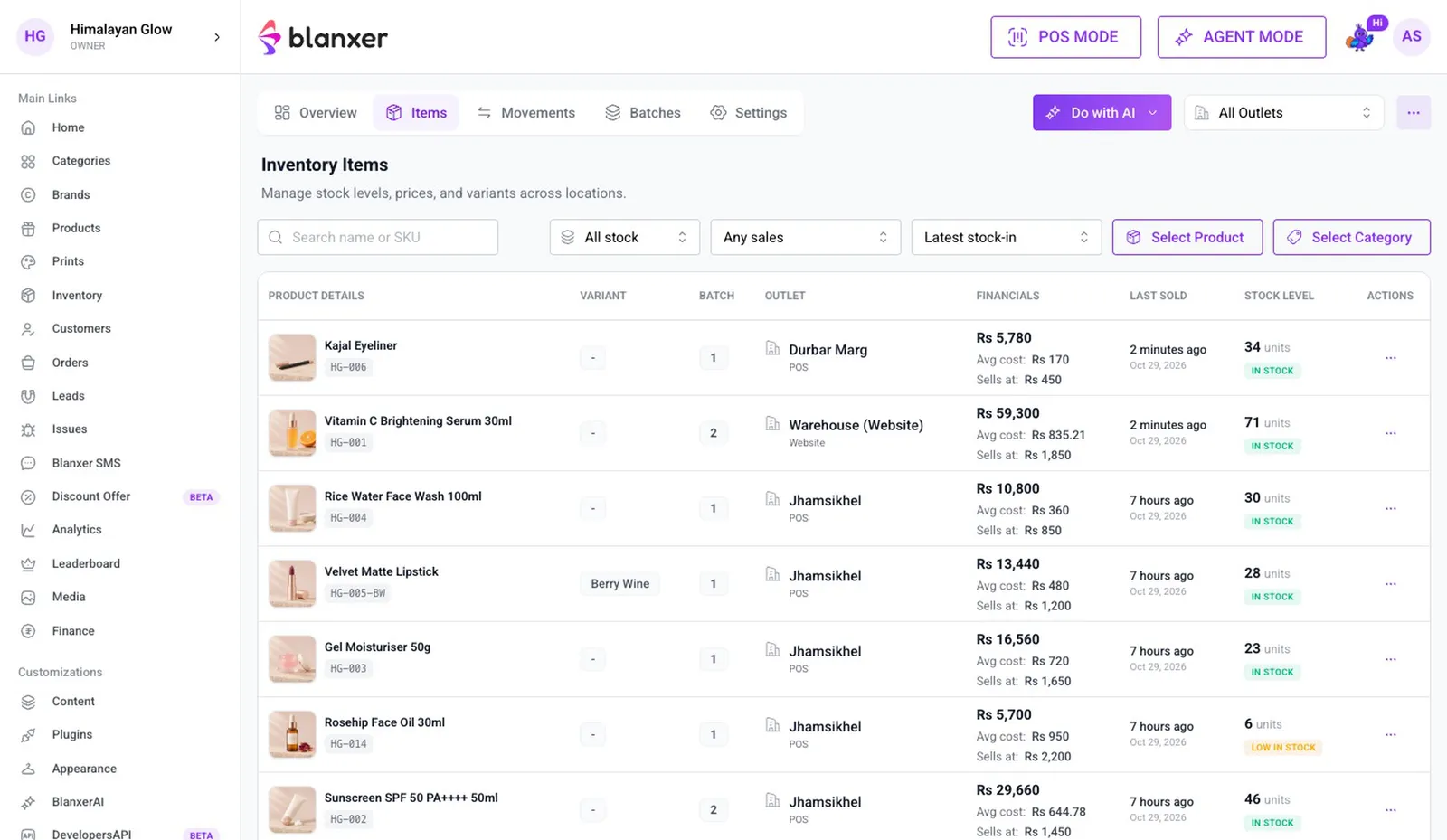
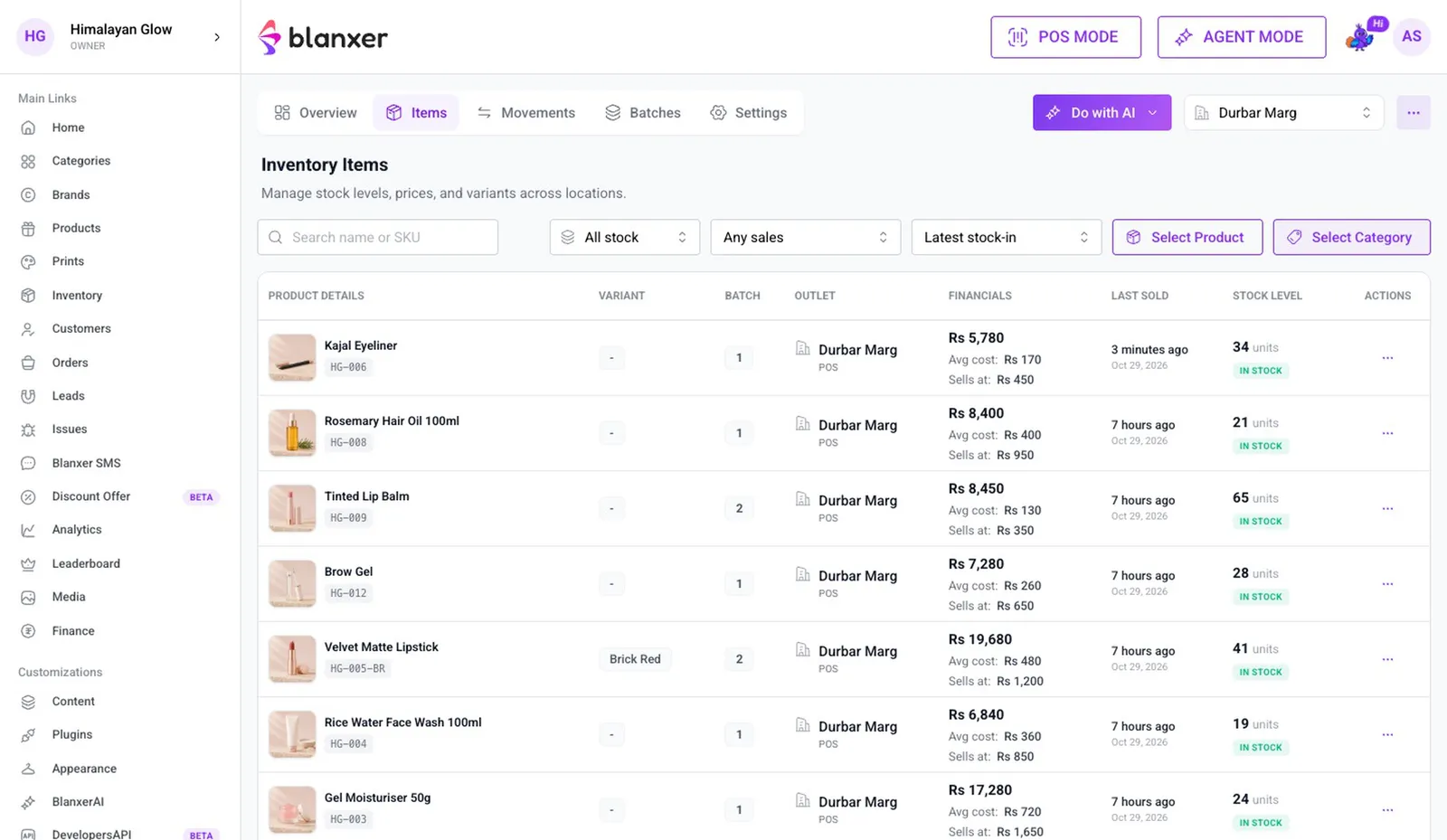
Items shows each product's stock in each outlet, average cost, selling price and stock status. Pick one shop from All Outlets to see only its stock.
Part 3
Stock in, batch by batch
- 6
Open Stock In
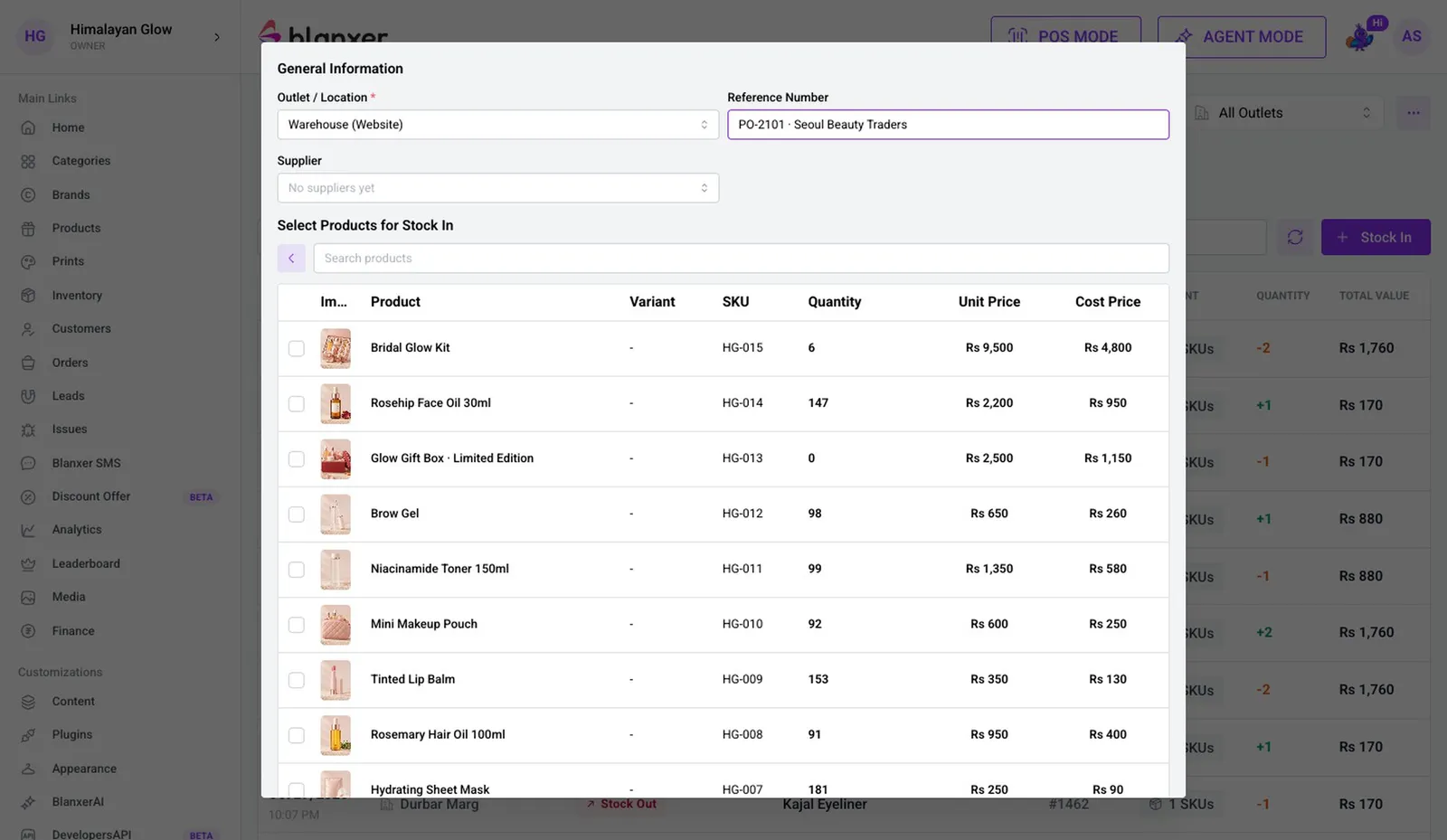
In Movements, open Stock In. Choose the outlet the goods arrived at and type the supplier's bill number.
- 7
Add products, cost and expiry
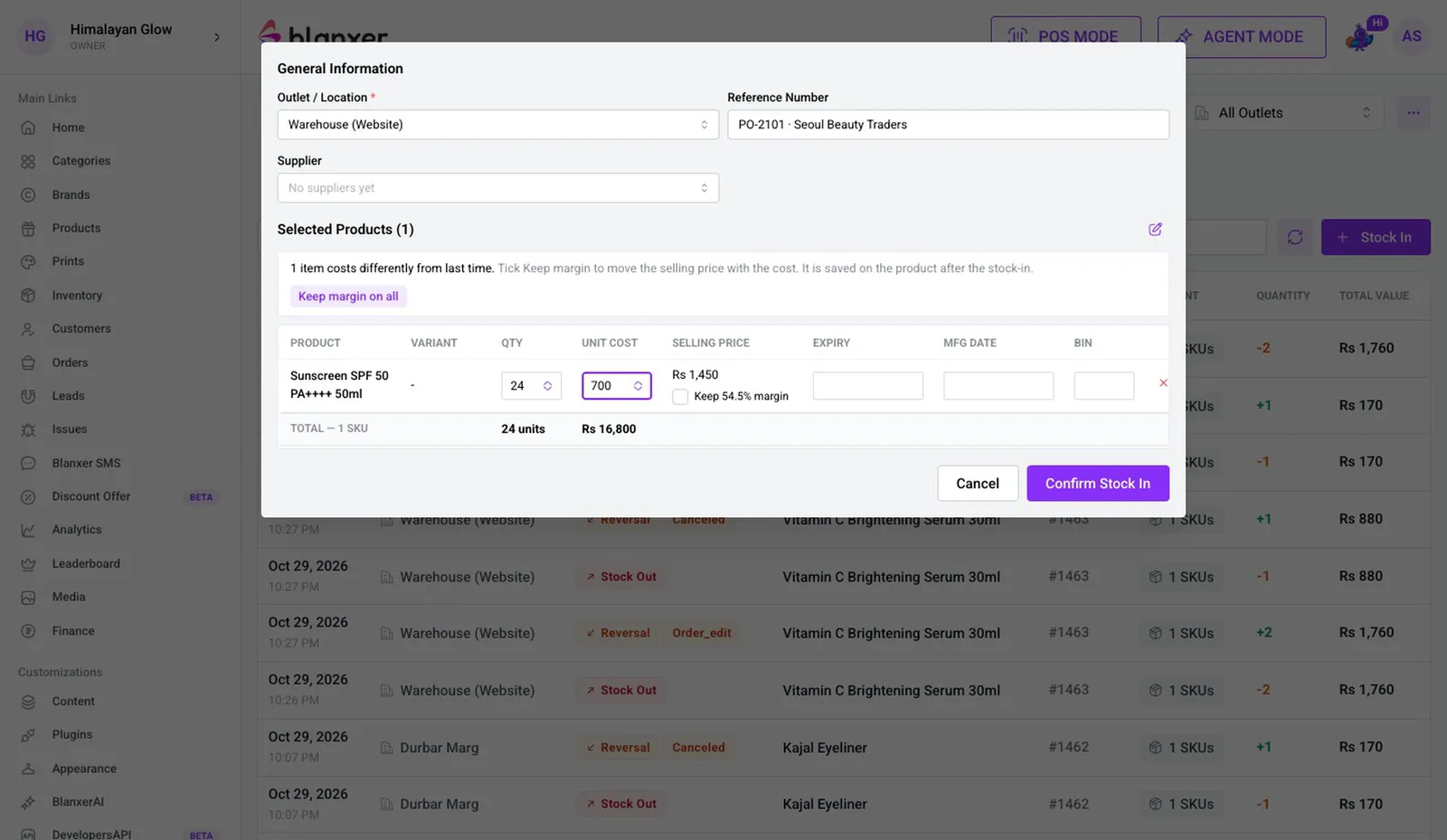
Pick each product and enter the quantity, the cost of one unit and the expiry date. Each stock-in becomes its own batch with its own cost and expiry.
- 8
Keep margin
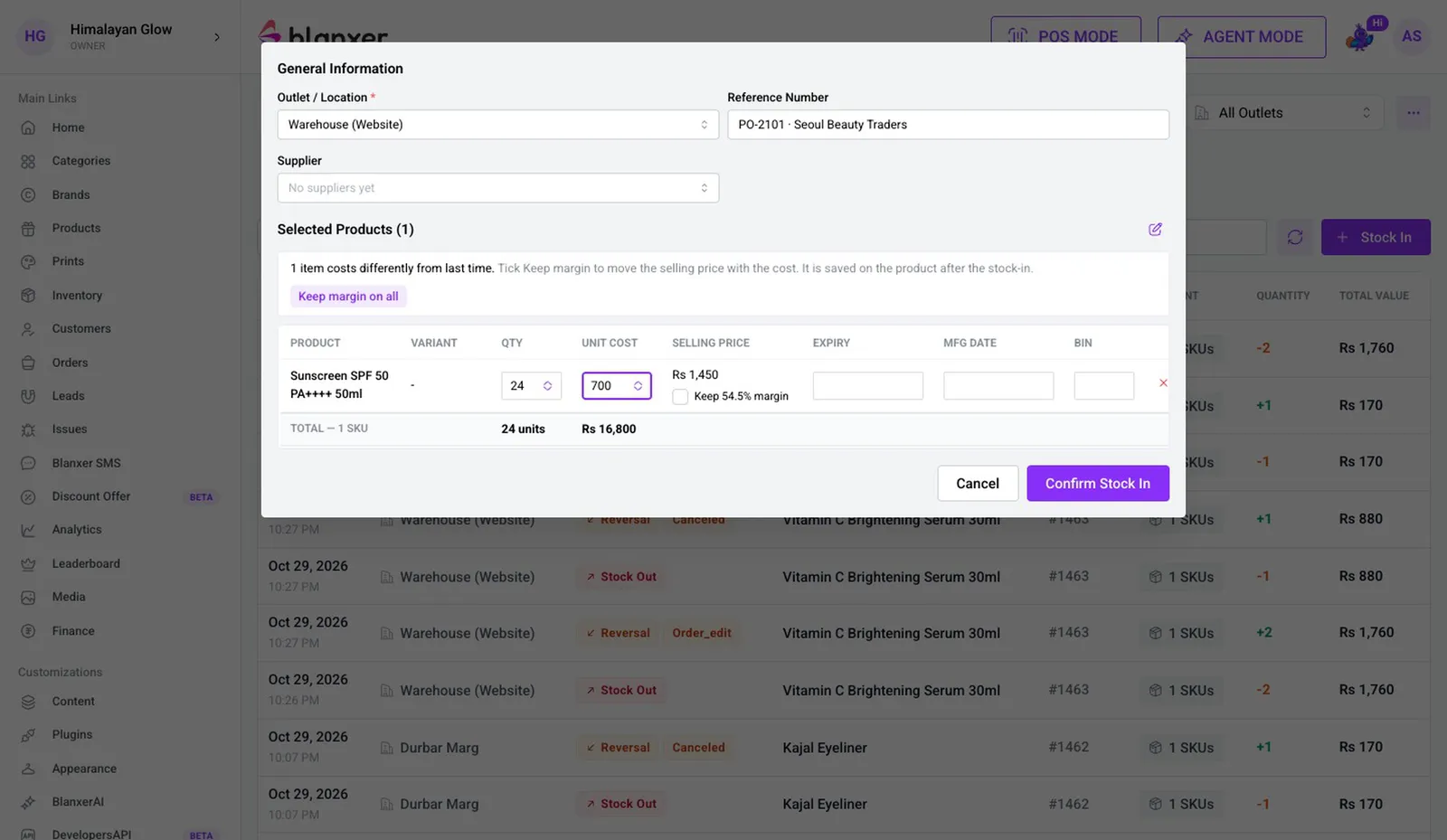
If the cost is different from before, Keep margin offers to adjust the selling price too.
- 9
Confirm Stock In
Click Confirm Stock In. The new stock is added to the outlet as its own batch.
Part 4
Batches, transfers and write-offs
- 10
See every batch
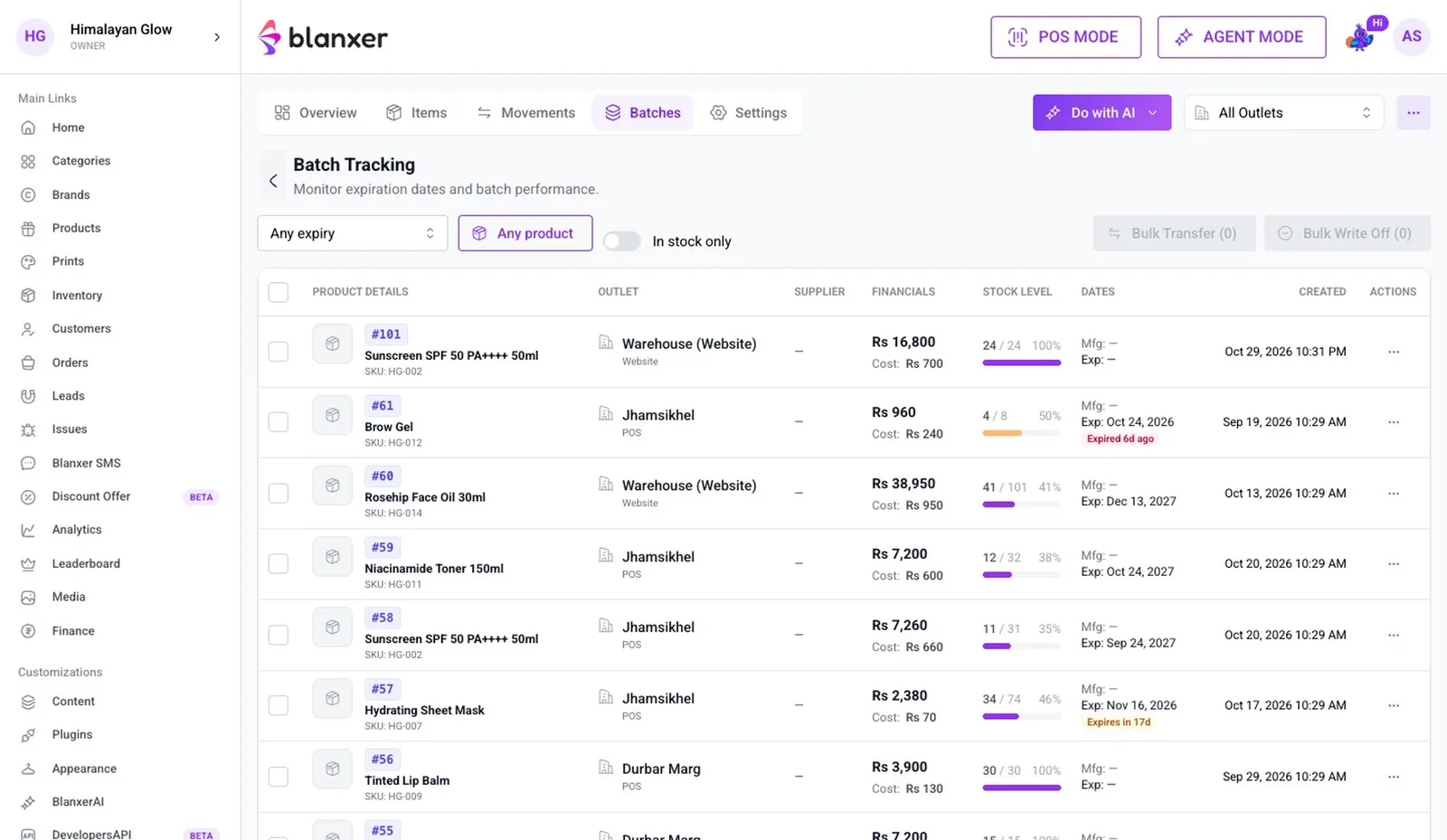
Batches shows which outlet each batch is in, its cost, how much is left and when it expires. The batch that expires first is sold first.
- 11
Find what expires soon
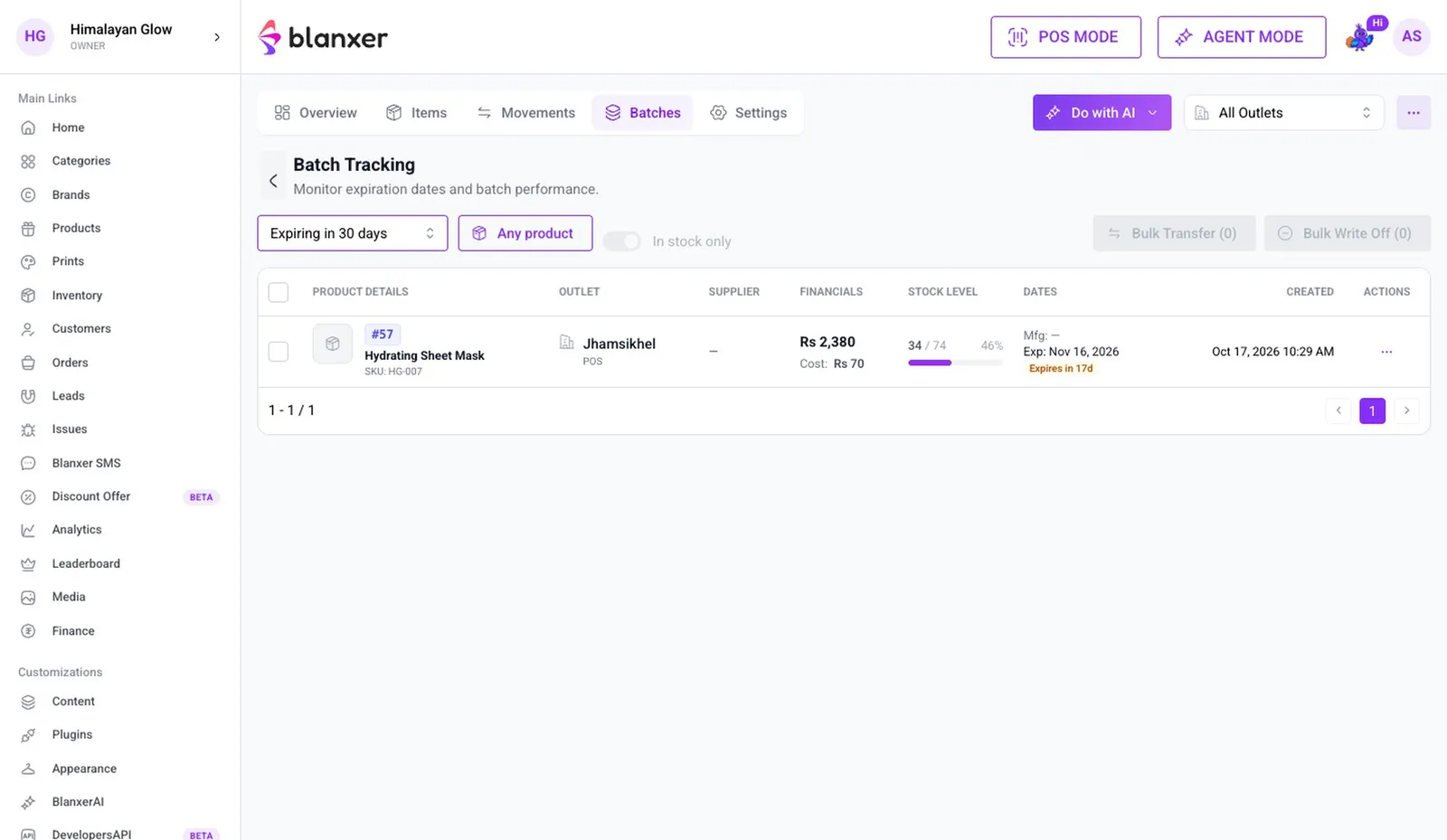
Click Expiring in 30 days to see only batches close to expiry, and run an offer to sell them first.
- 12
Move stock between shops
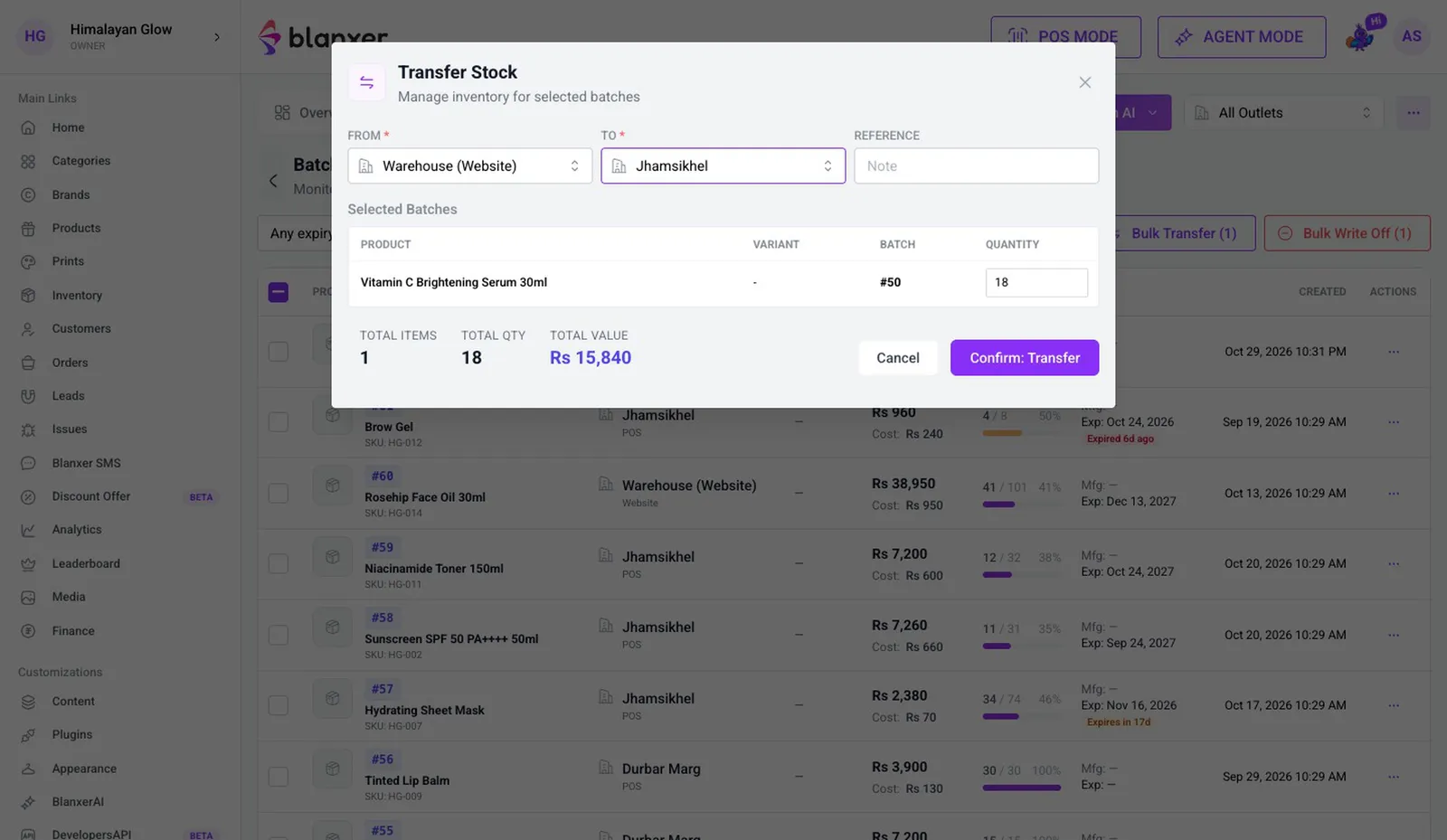
Select the batch, click Bulk Transfer and pick the shop to send it to. One shop goes down, the other goes up, and total stock stays the same.
- 13
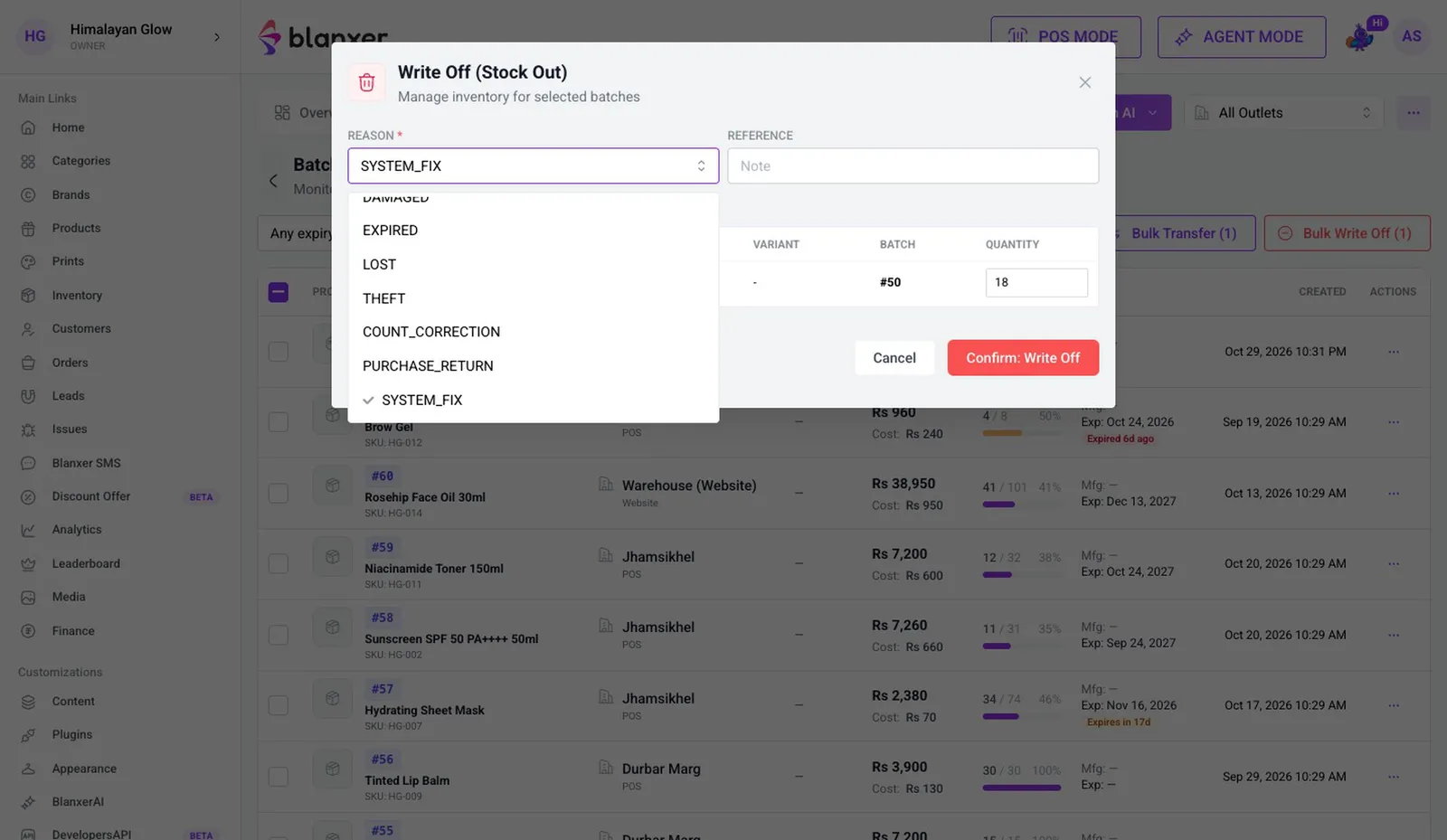
Write off or correct a count
Remove broken, expired or lost goods with Bulk Write Off and a reason. If a count doesn't match, use Count correction. Everything is logged in Movements.
Part 5
Orders move the stock
- 14
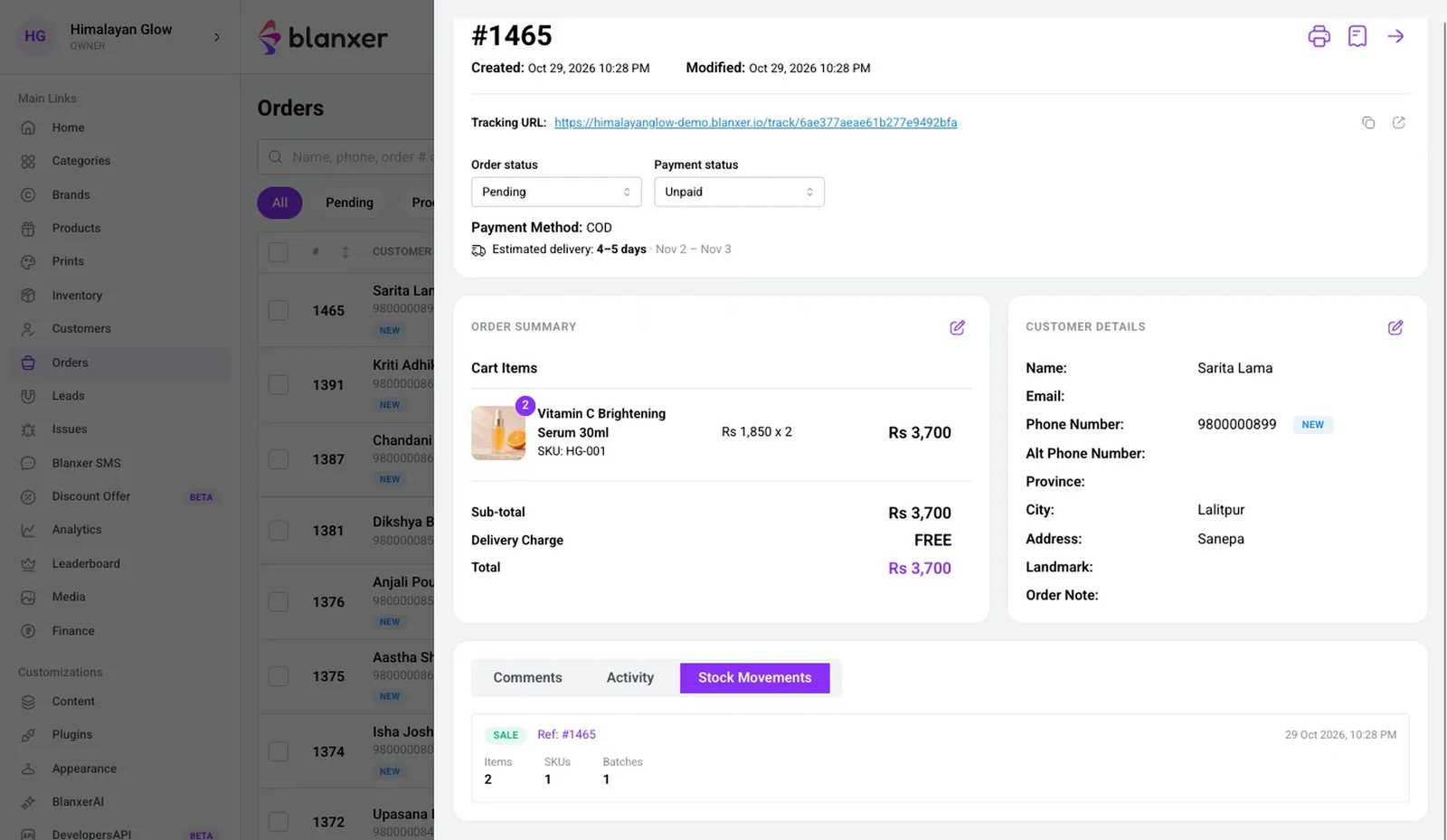
Stock drops when the order comes in
Stock goes down as soon as the order is placed, not again at dispatch or delivery. Open the order and click Stock Movements to see which batch it came from.
- 15
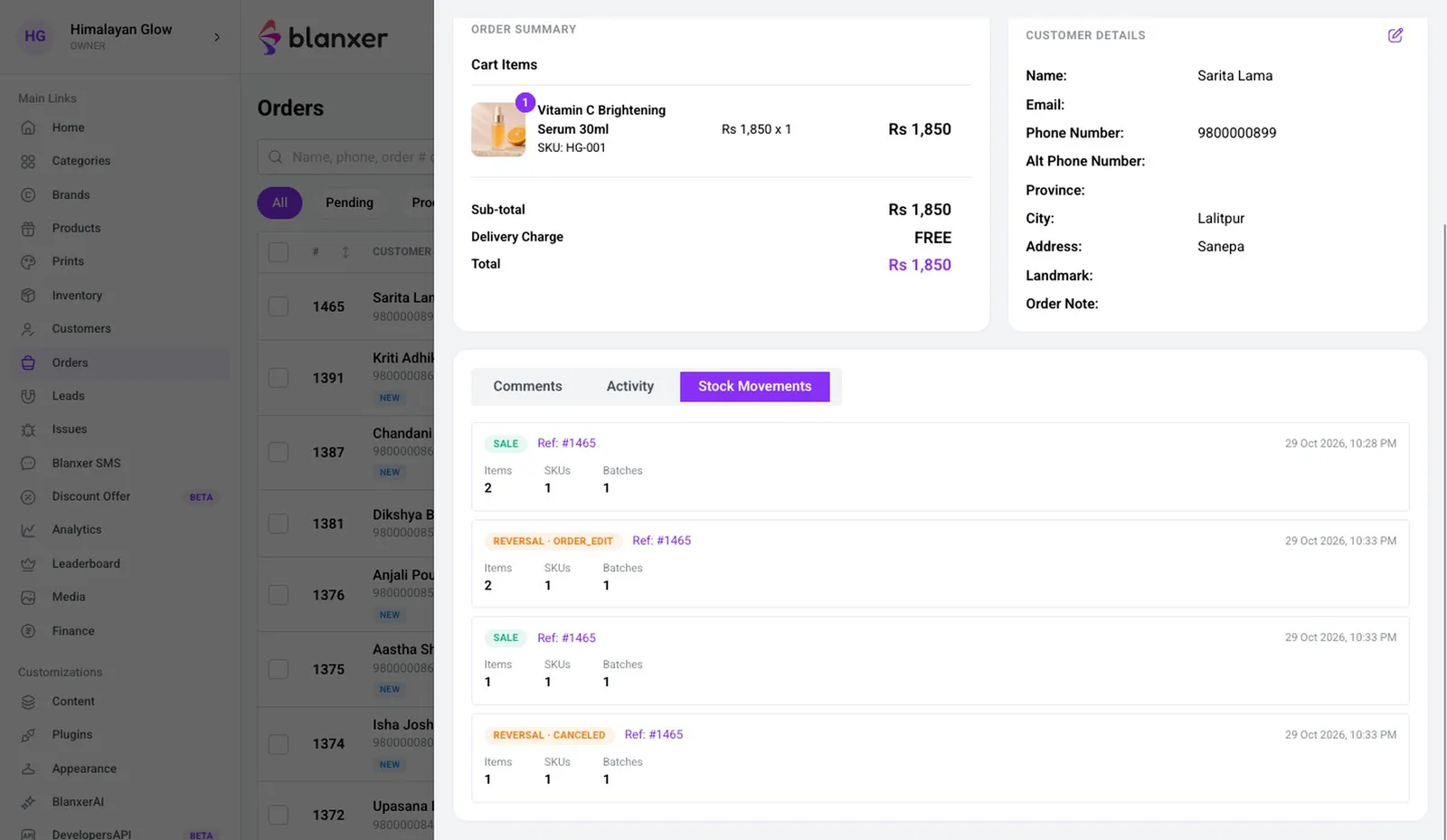
Edits and cancels go back to the same batch
Lower the quantity in Order Summary, or set the status to Cancelled, and the stock goes back to the exact batch it came from. Returns work the same way.
- 16
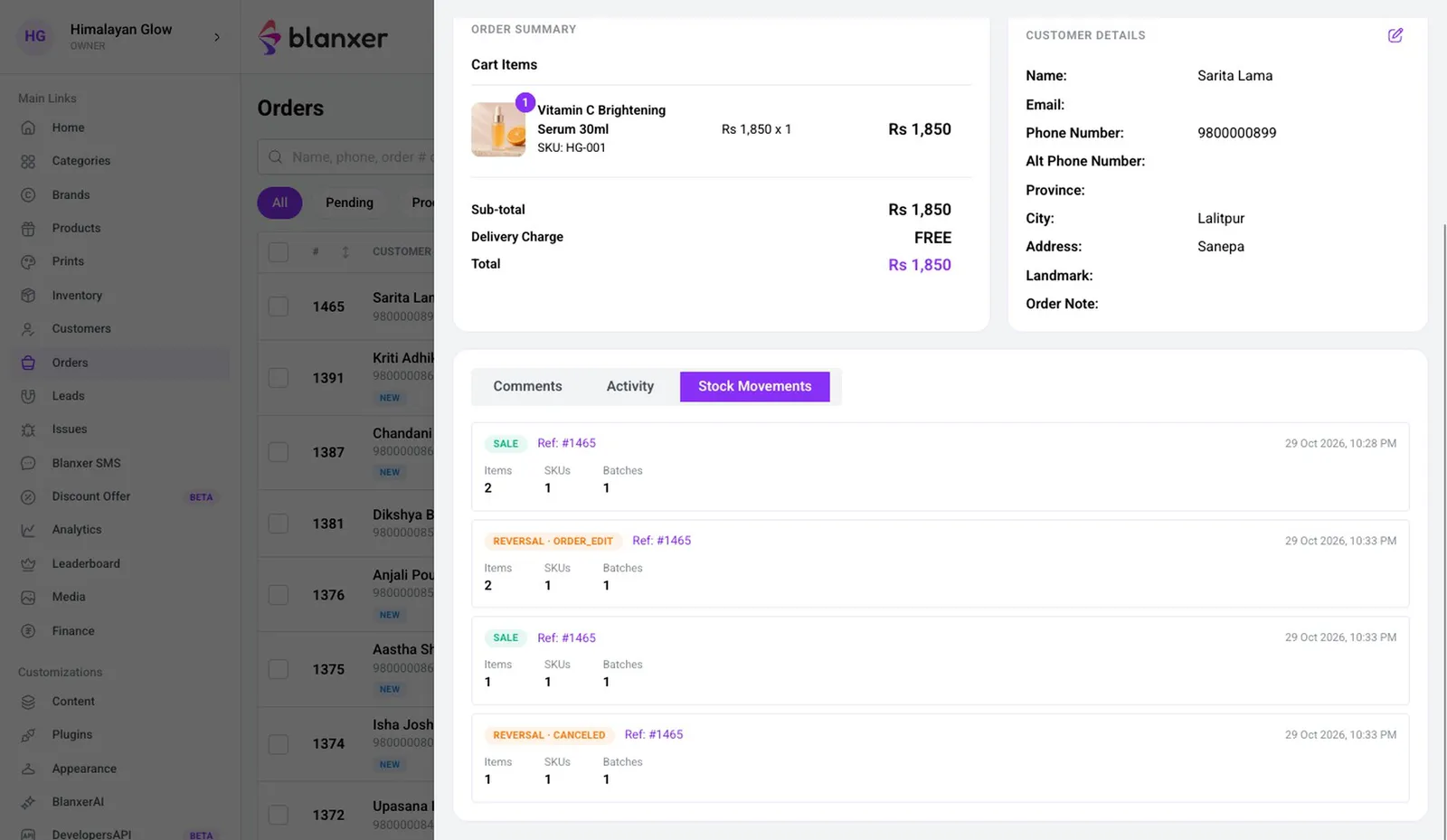
A short hold for online payments
While a customer pays online, the stock is held for 5 minutes, so you never sell more than you have.
Part 6
At the counter
- 17
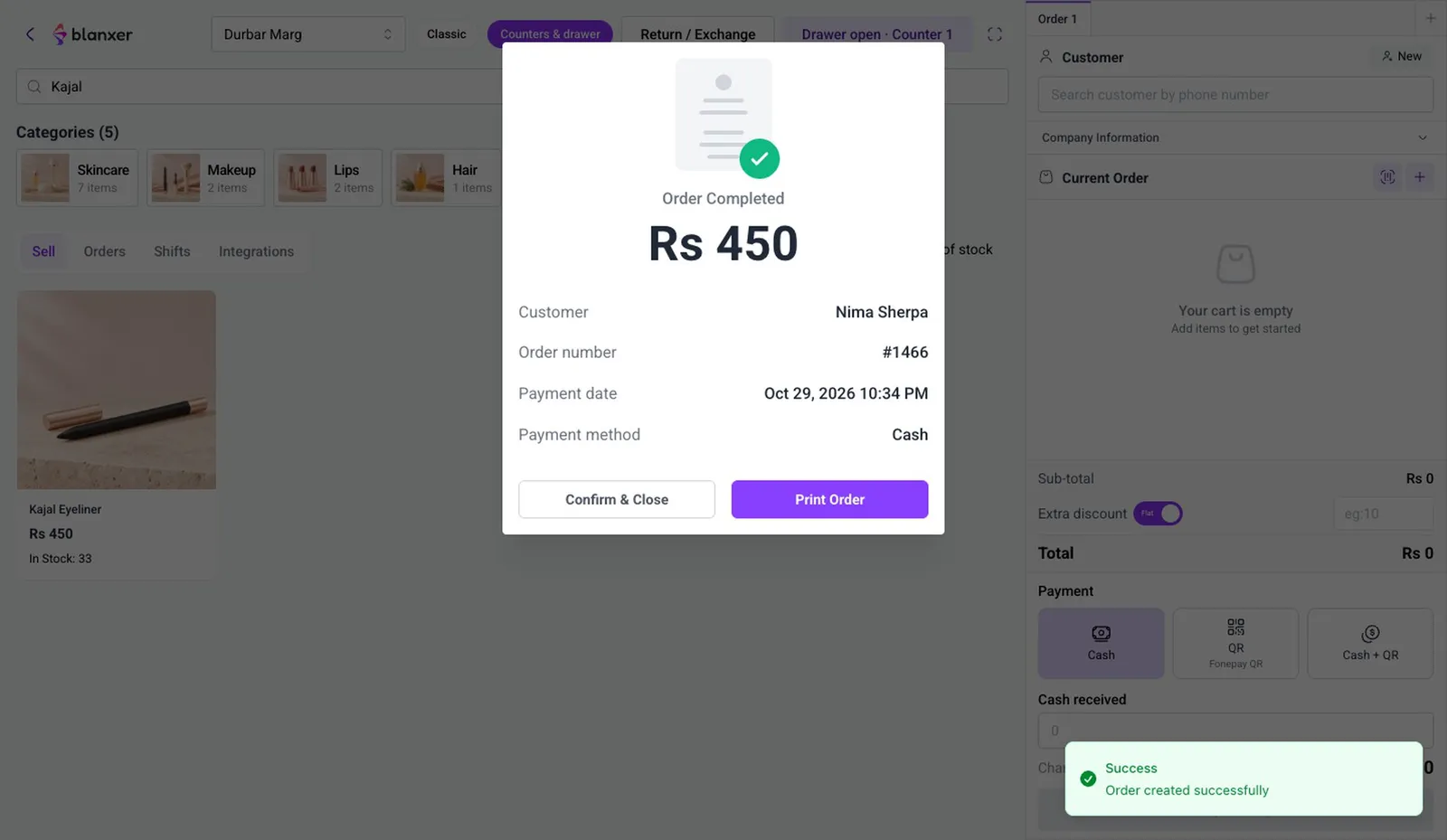
A POS sale uses that shop's stock
A sale at a shop's POS takes stock from that shop, from the batch that expires first.
- 18
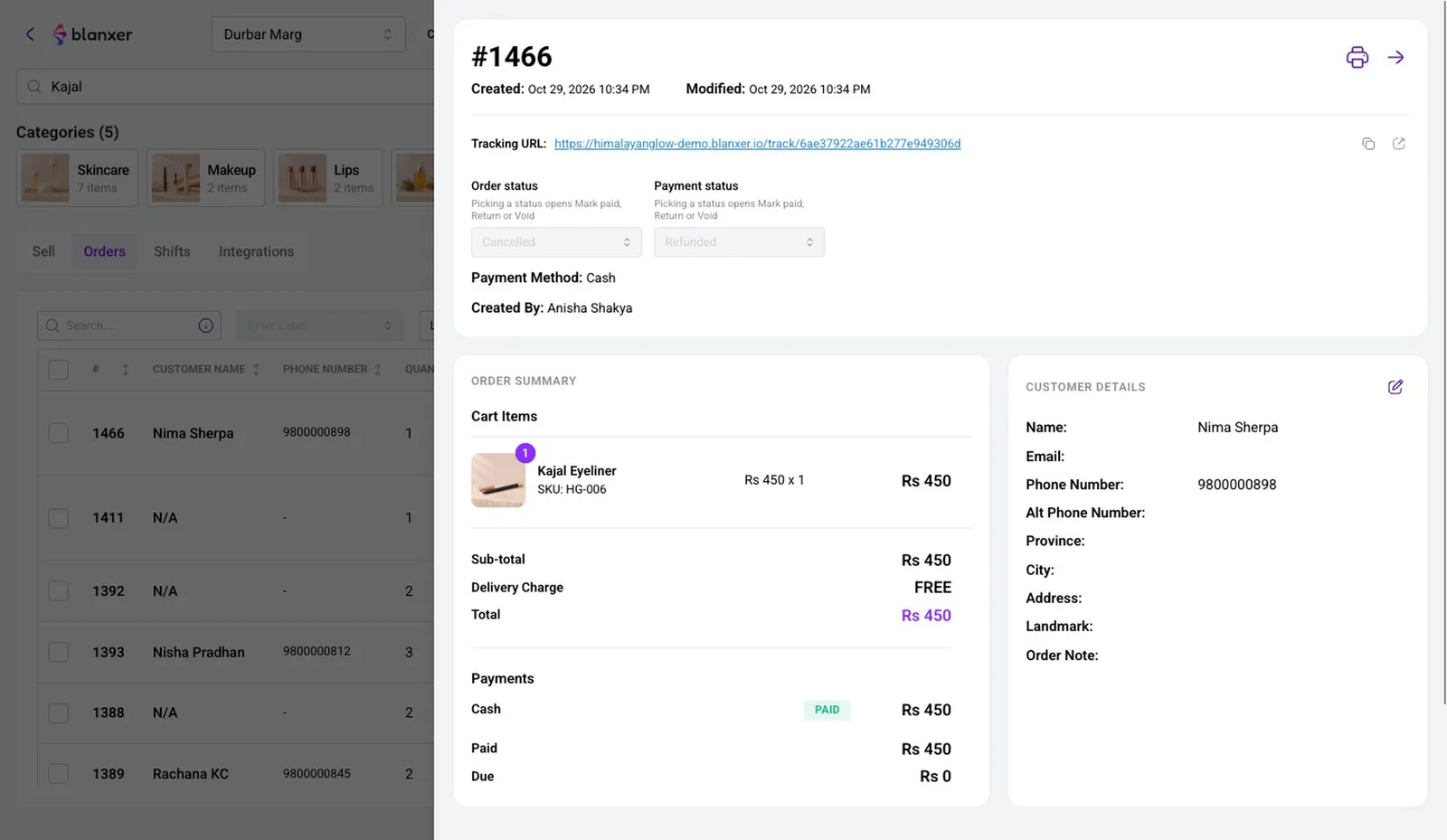
Void a mistake
In the POS Orders, open the sale, click Void and type a reason, then Void sale. The item goes back to the same batch. To swap items with money involved, use Return and Exchange.
Part 7
Trace every unit and check stock health
- 19
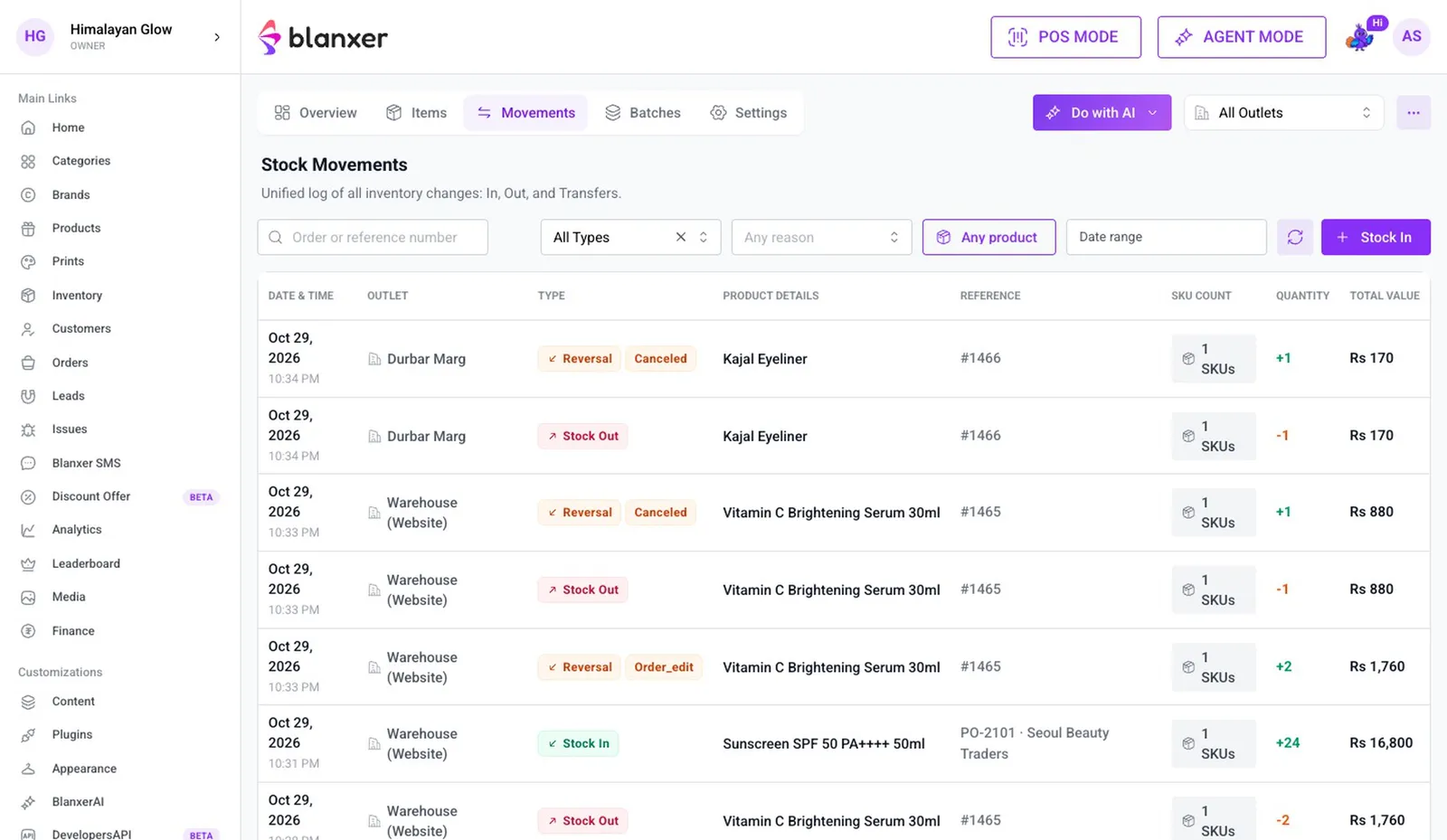
Movements
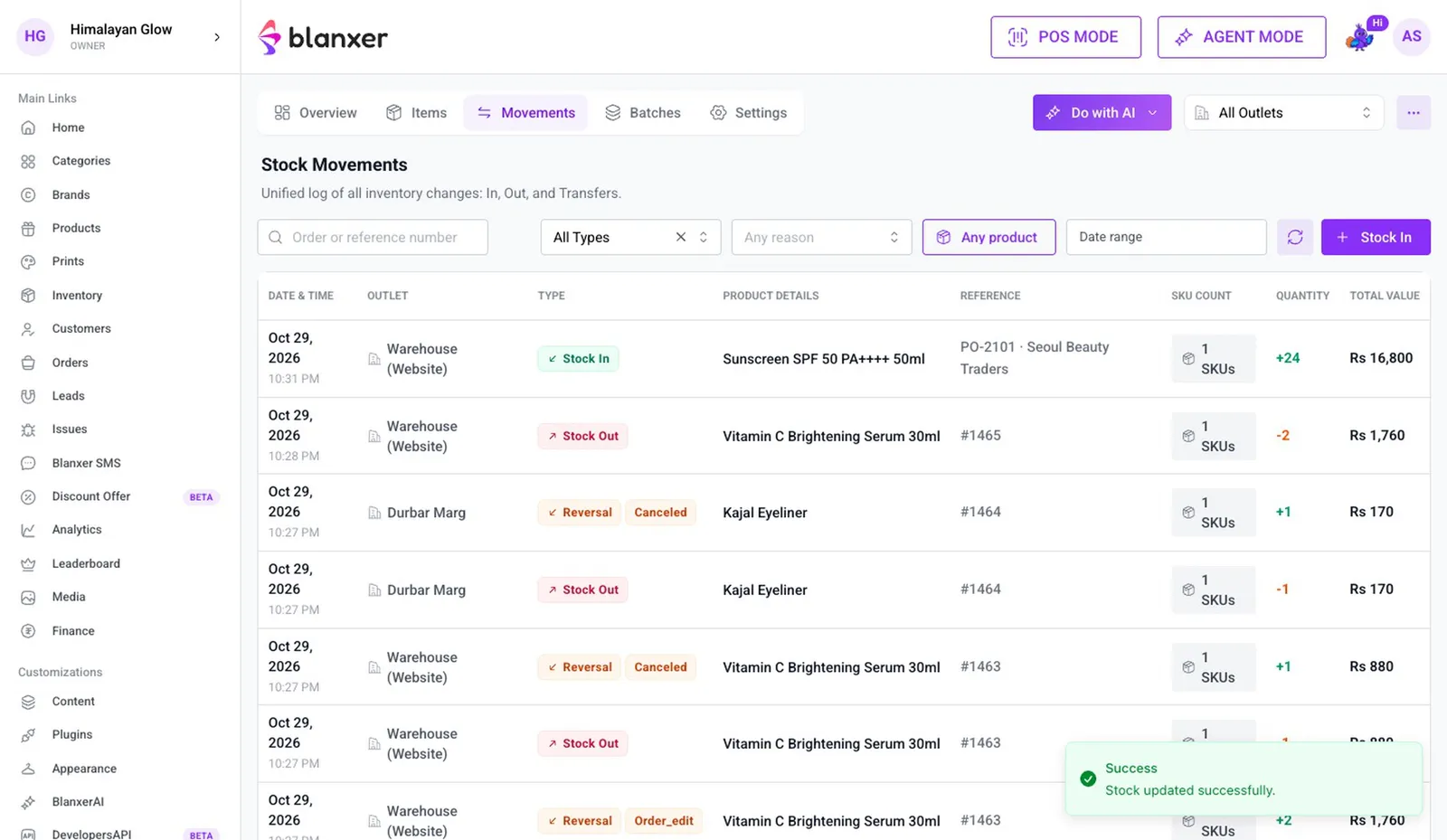
Every stock change is logged: stock in, sales, write-offs, transfers and returns. Filter by type, reason, product or date.
- 20
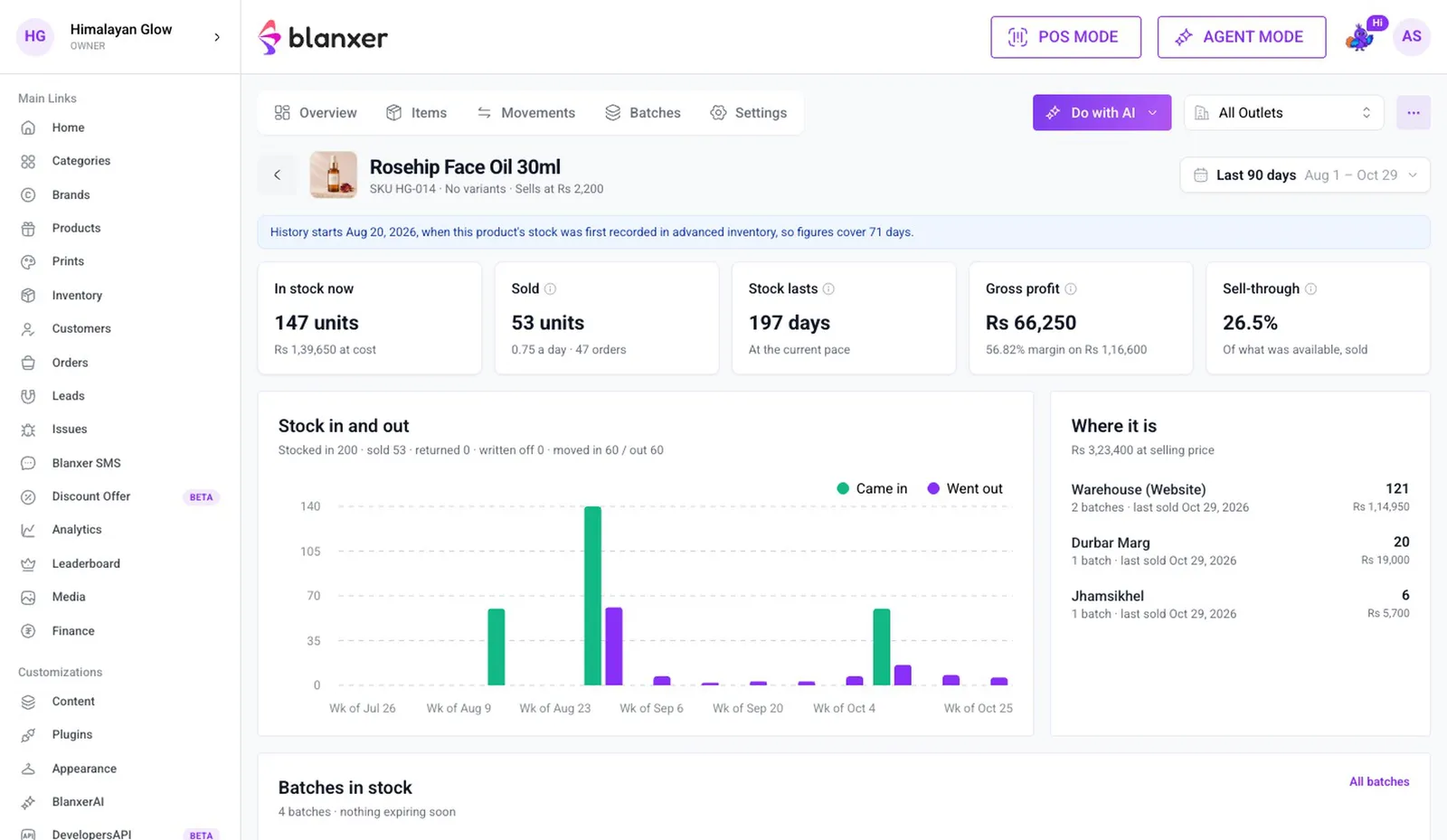
Each product's page
See stock now, units sold, how many days the stock will last and the profit, plus stock in each shop and each batch's expiry.
- 21
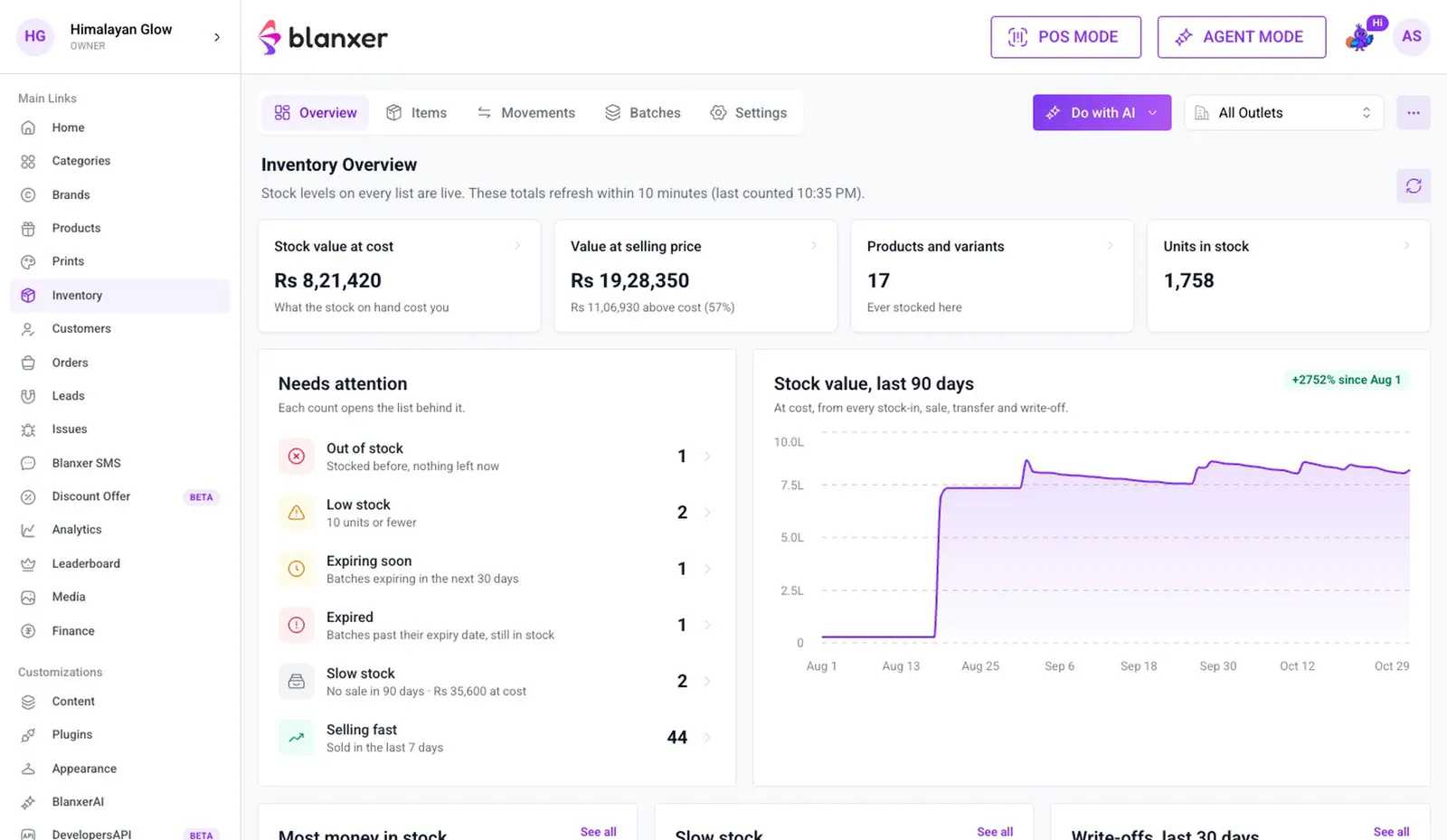
Overview and Needs attention
Overview shows stock value at cost and at selling price, and total units. Needs attention gathers out-of-stock, low and expiring items; click a count to see the list.
- 22
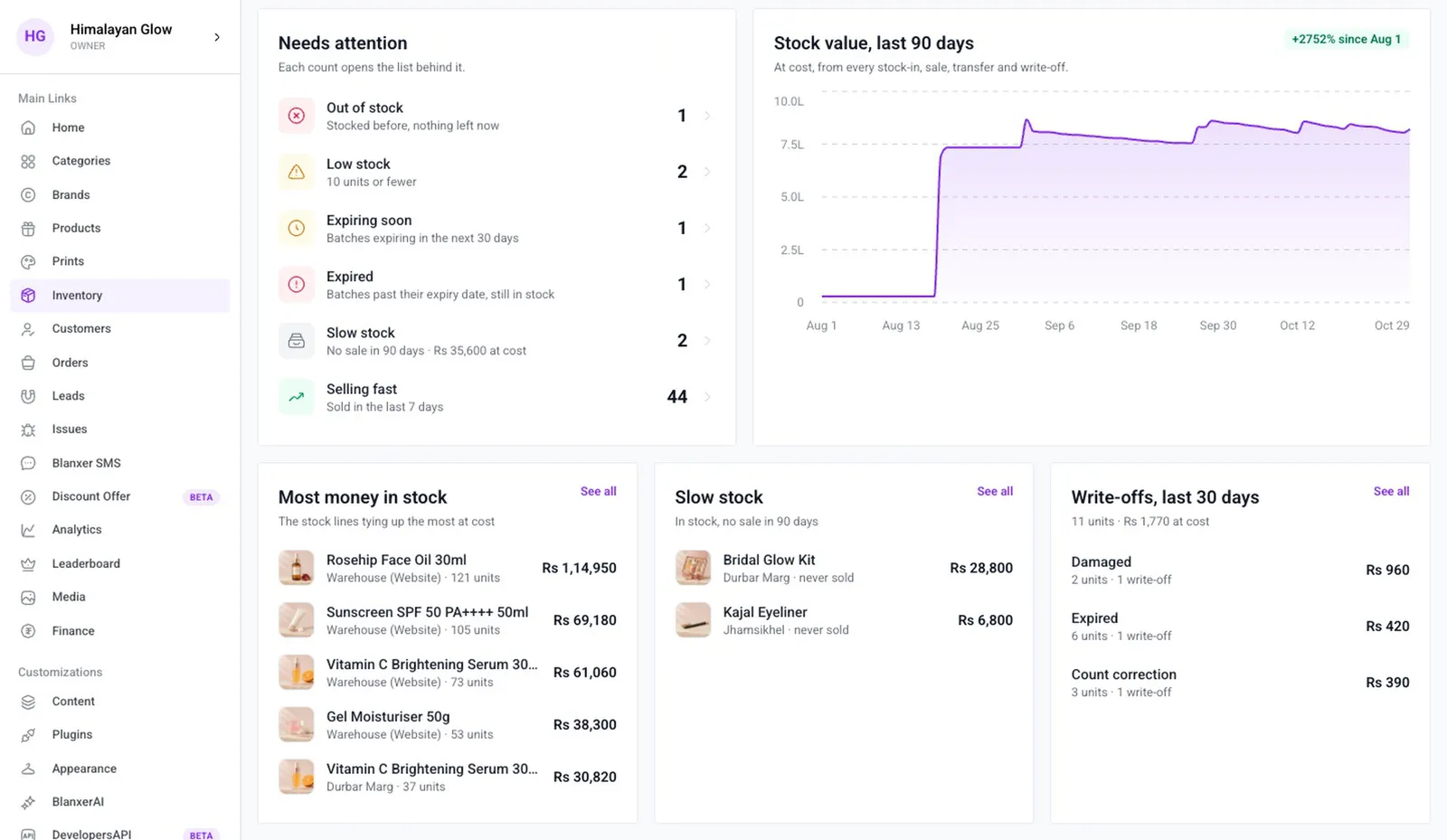
Slow stock and Most money in stock
See what isn't selling and where most of your money is stuck, then clear it with a Discount Offer bundle or a flash sale.
Part 8
Who can do what
- 23
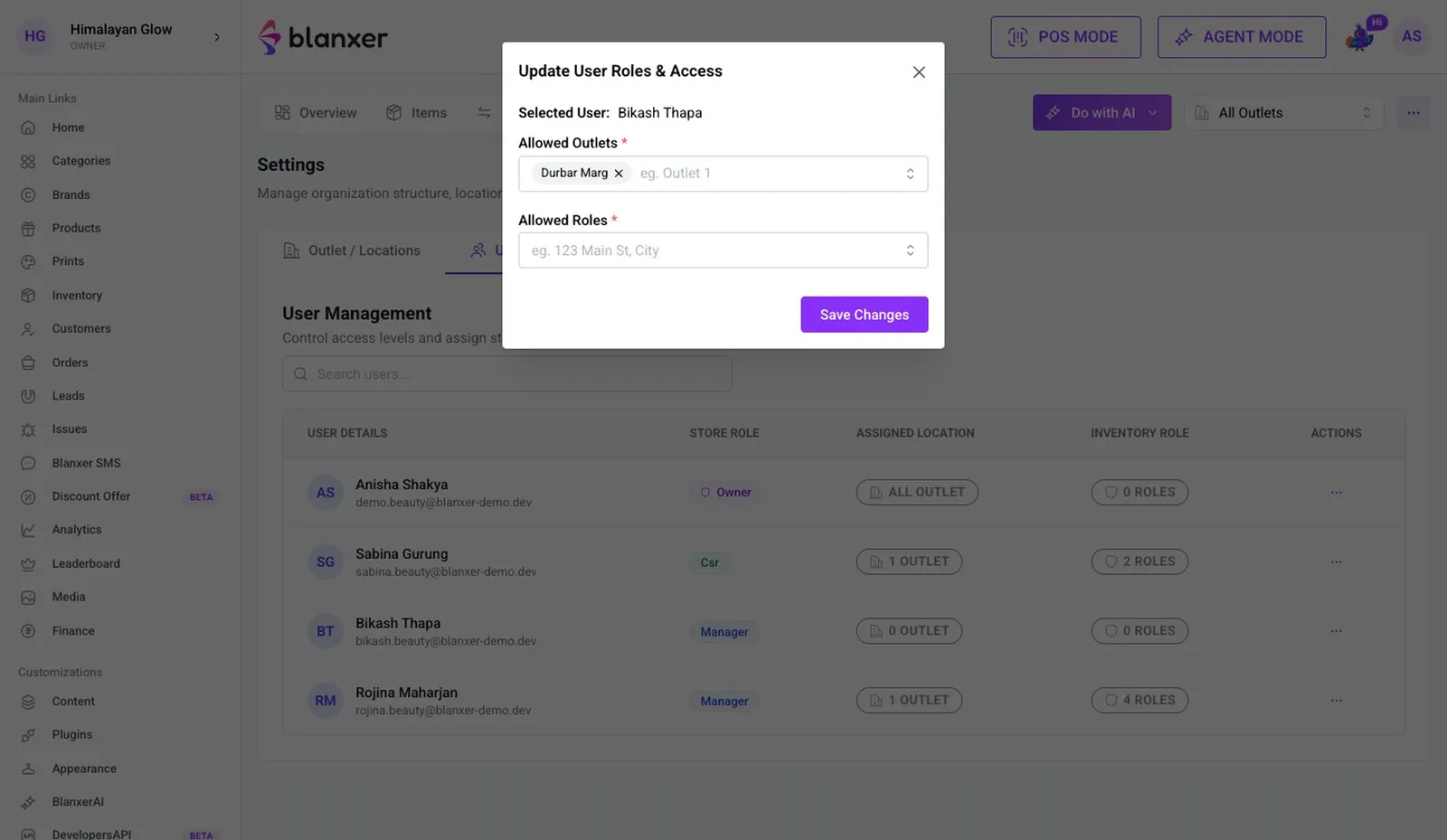
Allowed Outlets and Allowed Roles
In User Access and Roles, click Edit access on a staff member. Pick their Allowed Outlets and, in Allowed Roles, what they can do: stock in, transfer, write off or reports.
- 24
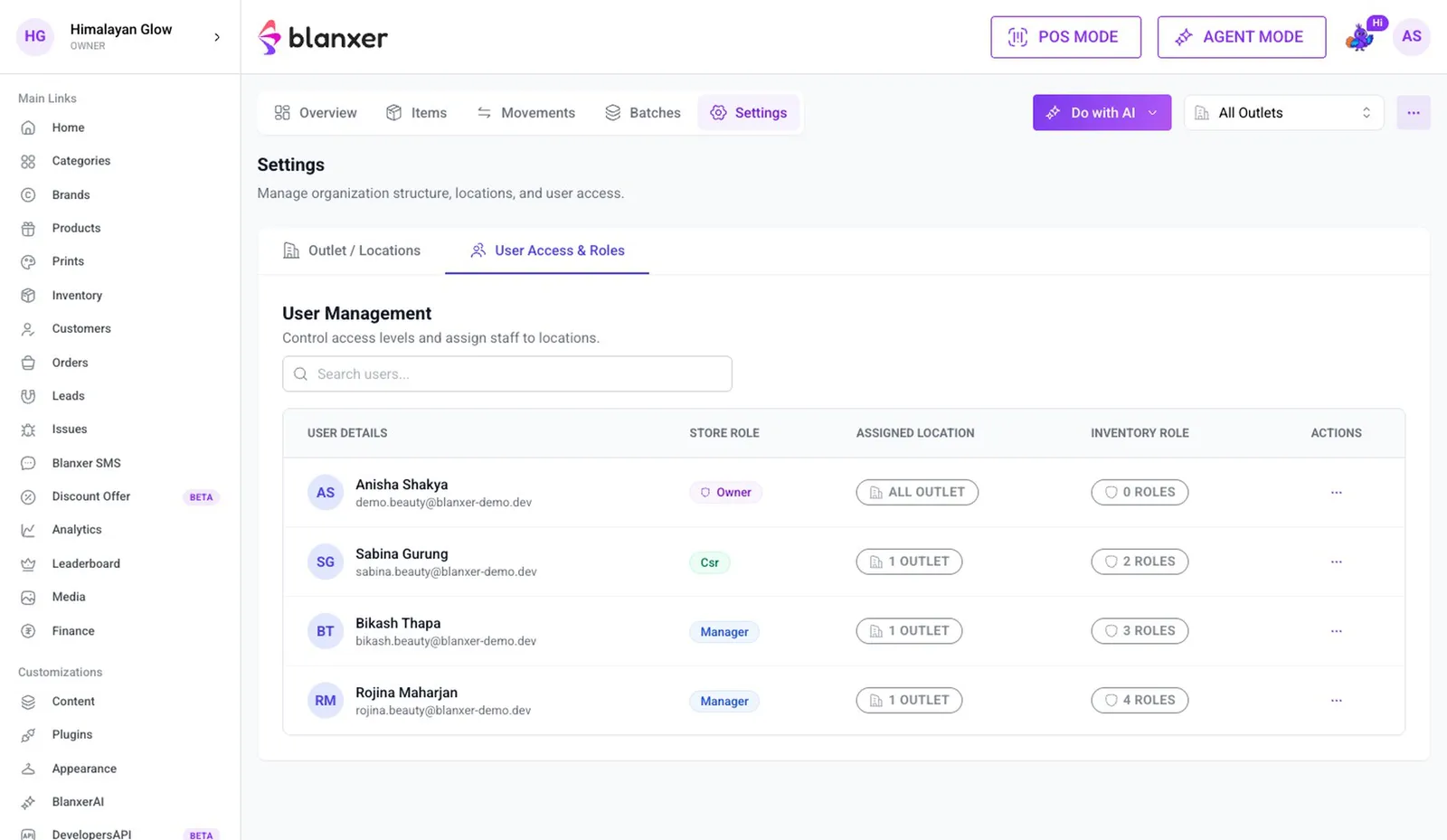
Save
Click Save Changes. The staff member sees only their own shop's stock and can do only what you allowed.
Good to know
- Turning on Advanced Inventory is one-time and can't be undone.
- A wrong batch cost can be fixed with Correct cost in Batches, and BlanxerAI can fix many at once.
More videos
All 33 videos 1:12
Getting started
What is Blanxer?
Start here: what Blanxer is and what it does for your business, before the videos on each feature.
 5:43
Products
Add products (normal inventory)
Add a product with its photos, price, variants and stock, for stores on normal inventory.
 6:18
Products
Add products (advanced inventory)
Add a product and stock it in per outlet, with its cost, for stores on advanced inventory.
See Blanxer with your own business in mind.
Book a demo. We'll show you the store, checkout, POS and dashboard, and tell you honestly which plan you need.
Prefer to talk directly?
Already a customer? Support on WhatsApp +977 9802344850, Sun–Fri, 9 AM – 6 PM.
Follow Blanxer
 A Blanxer product
One AI inbox for every customer conversation.
Sambad.io brings WhatsApp, Instagram, Facebook, website chat and email into one inbox. Connect your Blanxer store and its AI answers from your catalogue, checks stock, quotes delivery and places the order right in the chat.
- Website chat
- Gmail
- Outlook
- Zoho Mail