
Manage your cash and bank accounts
Keep your cash, bank and wallet accounts in Blanxer, and see the money from sales, COD and expenses land in each one.
Finance · 4:28 · In Nepali
Keep your bank, wallet, cash safe and Fonepay balances inside Blanxer with the Bank & cash accounts plugin. Every payment then records which account the money went to, and money that came in earlier can be matched up.
Part 1
Install the plugin
- 1
Install Bank & cash accounts
In Plugins, click Install Bank & cash accounts. Each connected payment channel, such as the counter's Fonepay QR, gets its own account, and a table shows which channel goes to which account.
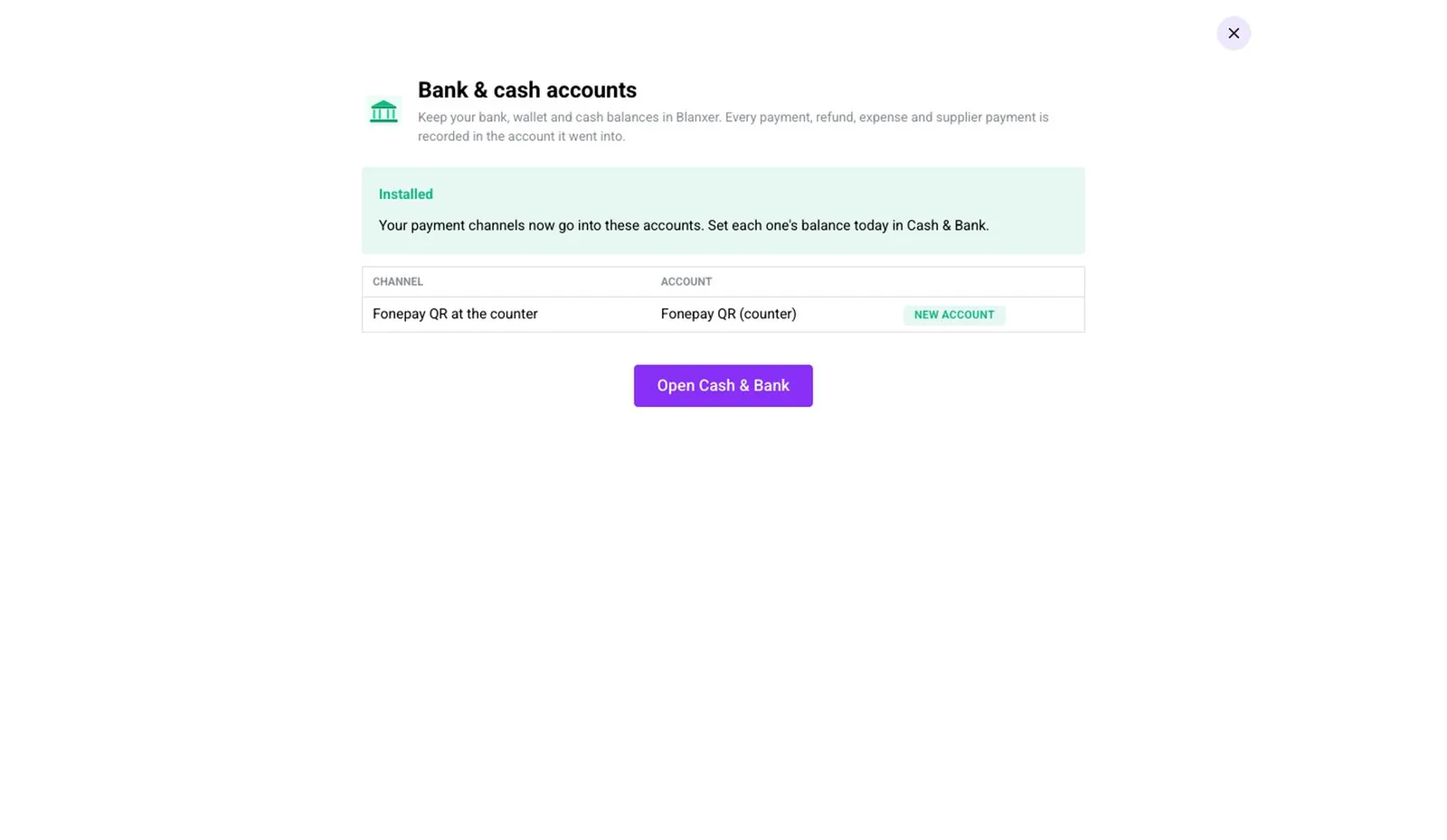
- 2
Open your accounts
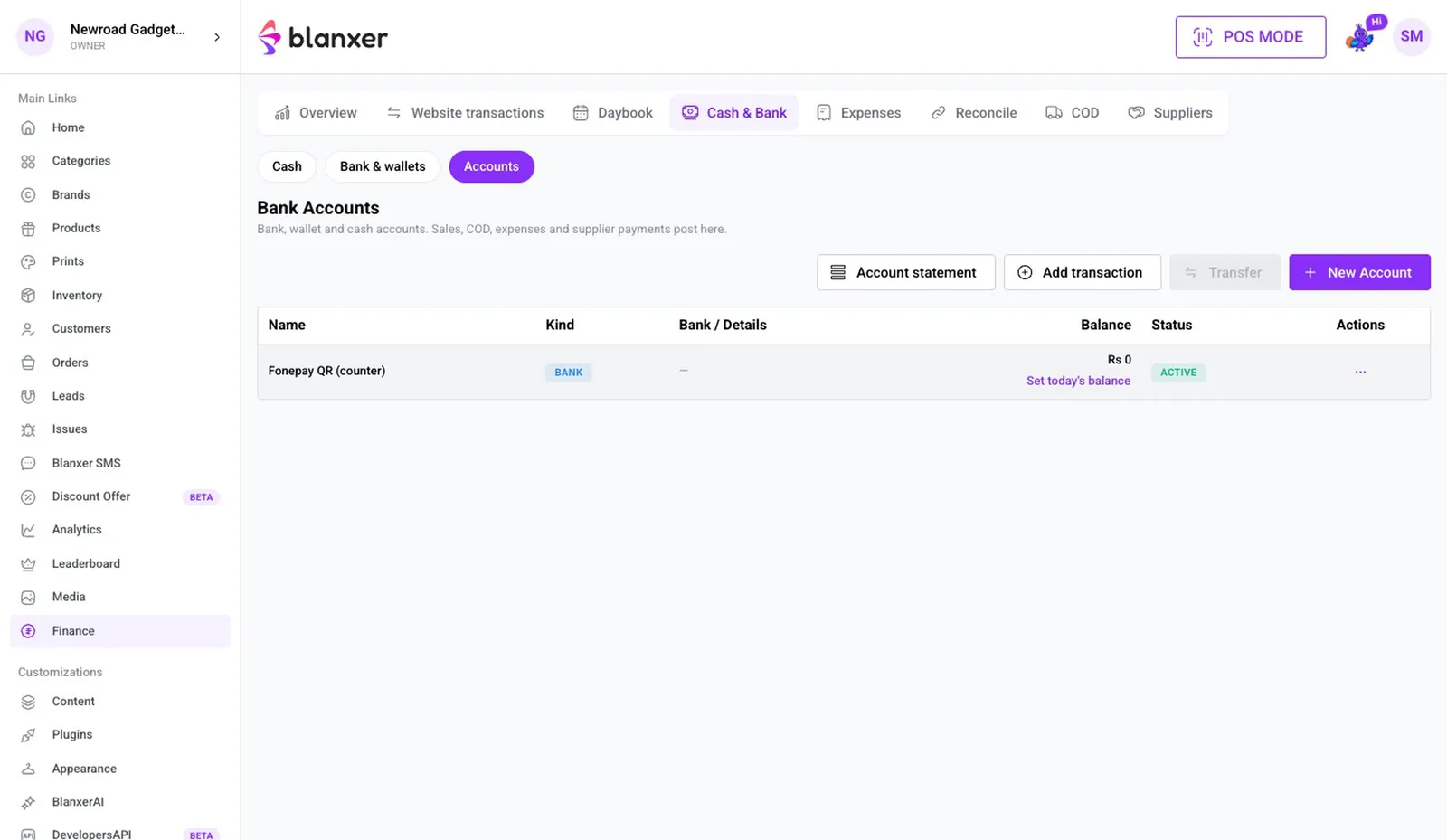
Click Open Cash & Bank to see every account. Use Set today's balance to correct a balance.
Part 2
Add your accounts
- 3
Add a bank account
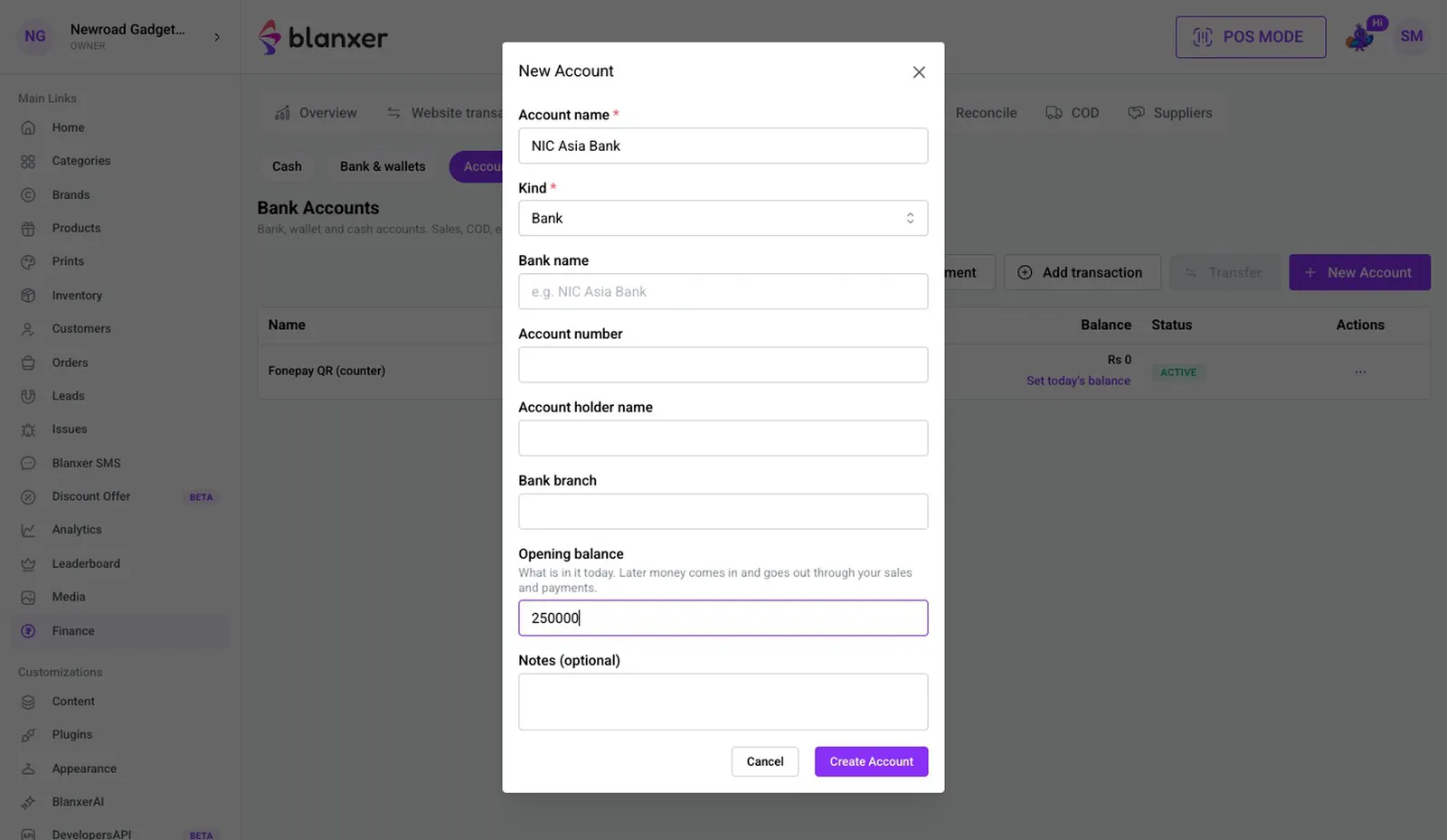
Click New Account, type a name, choose the Kind (Bank) and enter how much is in it today, then Create Account. Wallets like eSewa or Khalti are added the same way.
- 4
Add your cash safe
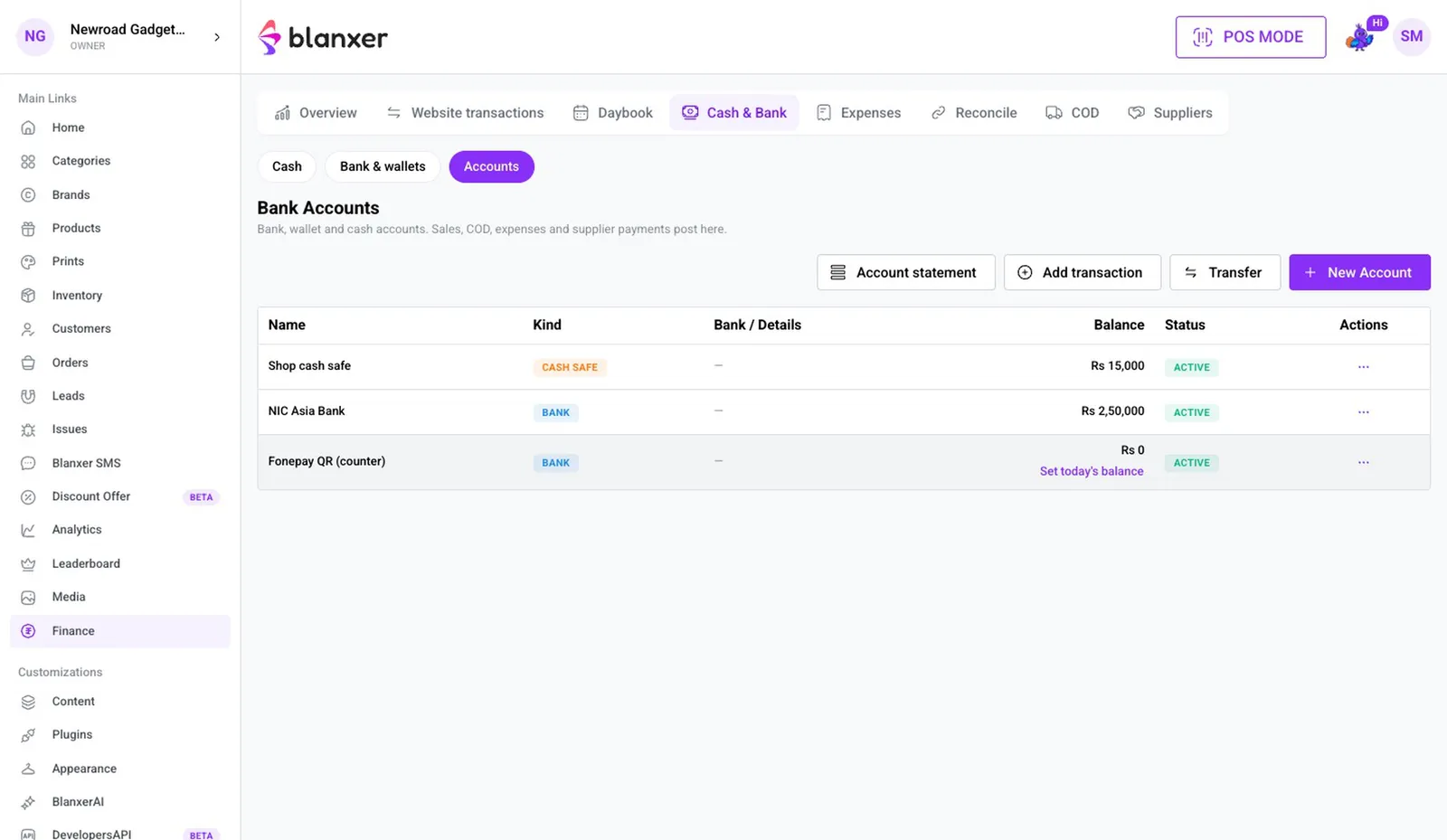
Create another account with Kind Cash safe and the cash in the safe right now as its opening balance. Bank, Fonepay and safe balances now show in one place.
Part 3
Book money that came in earlier
- 5
Tick orders deposited together
Reconcile lists orders that were paid but aren't in any account yet, including everything from before you installed the plugin. Tick the ones that went into the bank in one deposit.
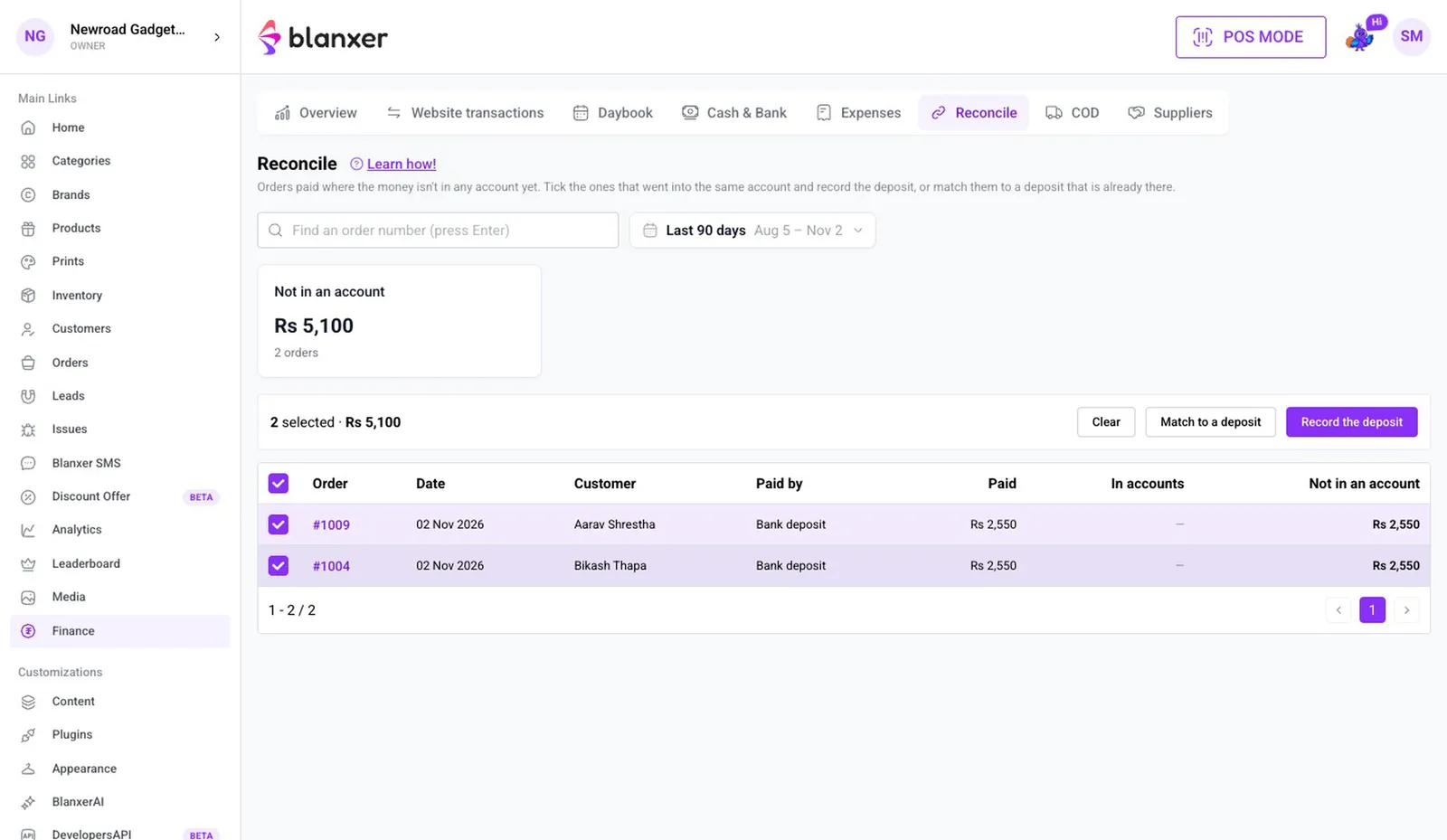
- 6
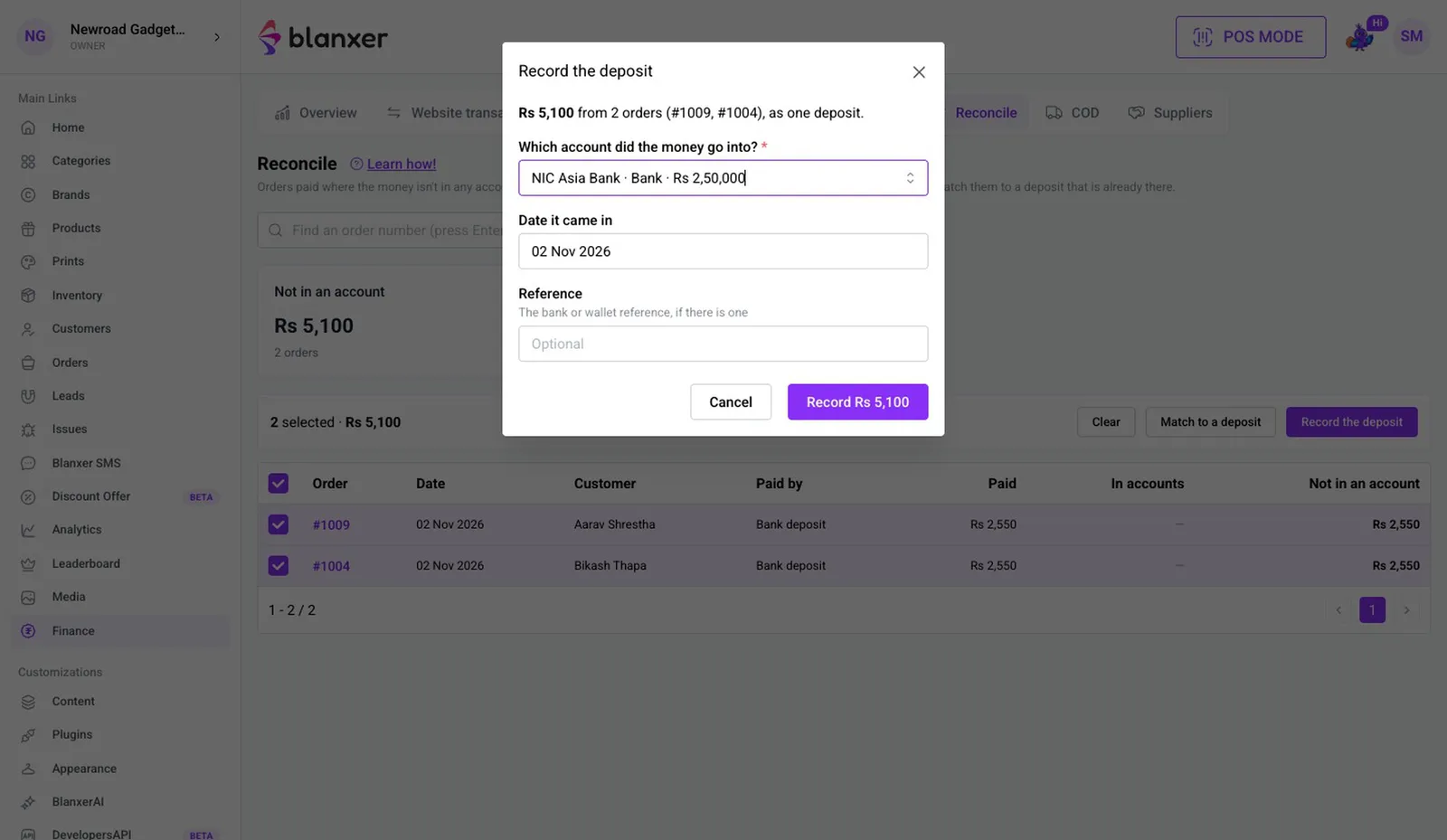
Record the deposit
Click Record the deposit, pick the account and date, and record it. The amount reaches the account and those orders leave Reconcile. You can also match against an amount that's already in the bank.
Part 4
An account on every payment
- 7
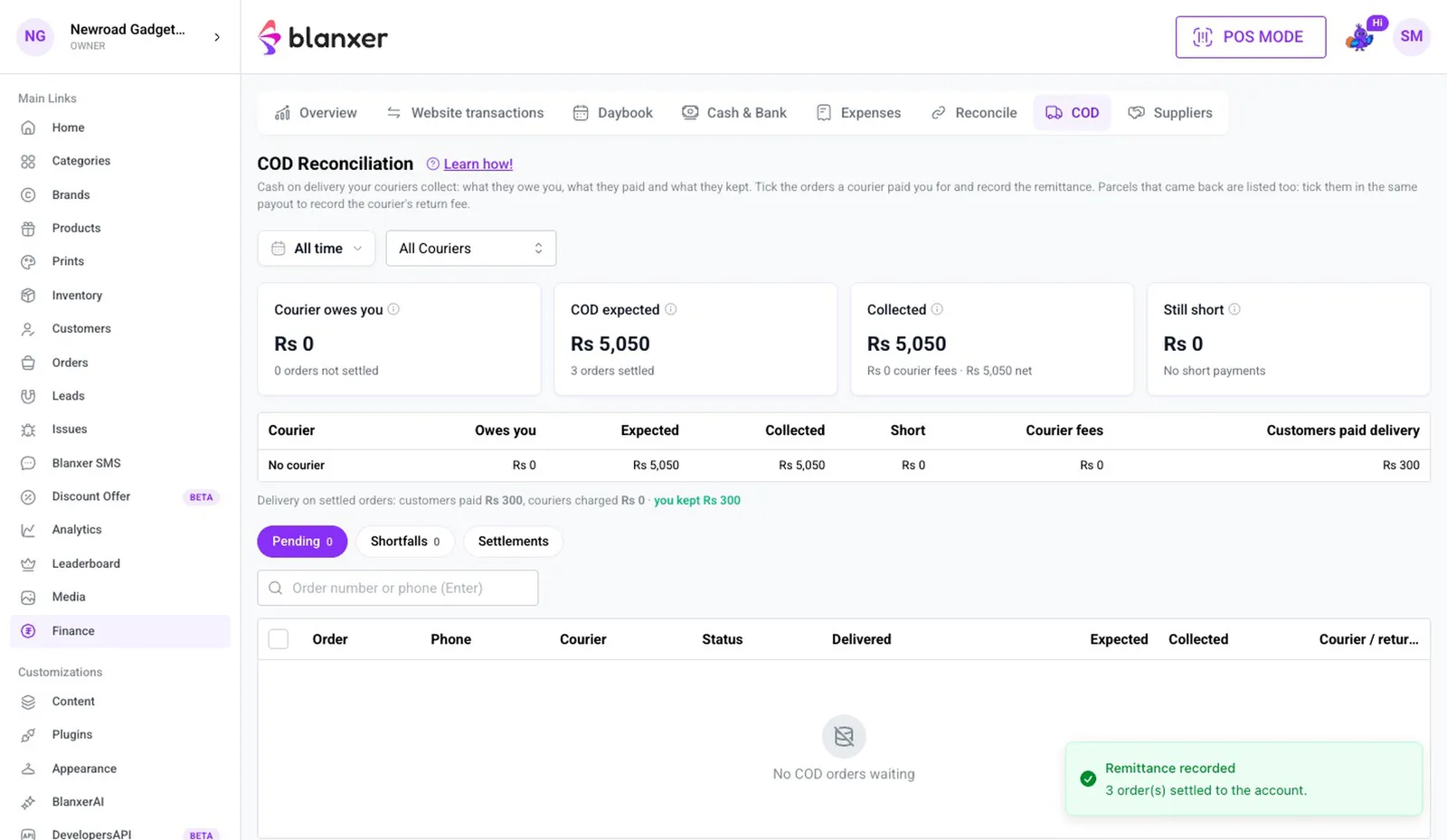
COD money from a courier or rider
When cash on delivery money is handed over, open COD Reconciliation, click Record the remittance, choose the Deposit account and click Confirm remittance.
- 8
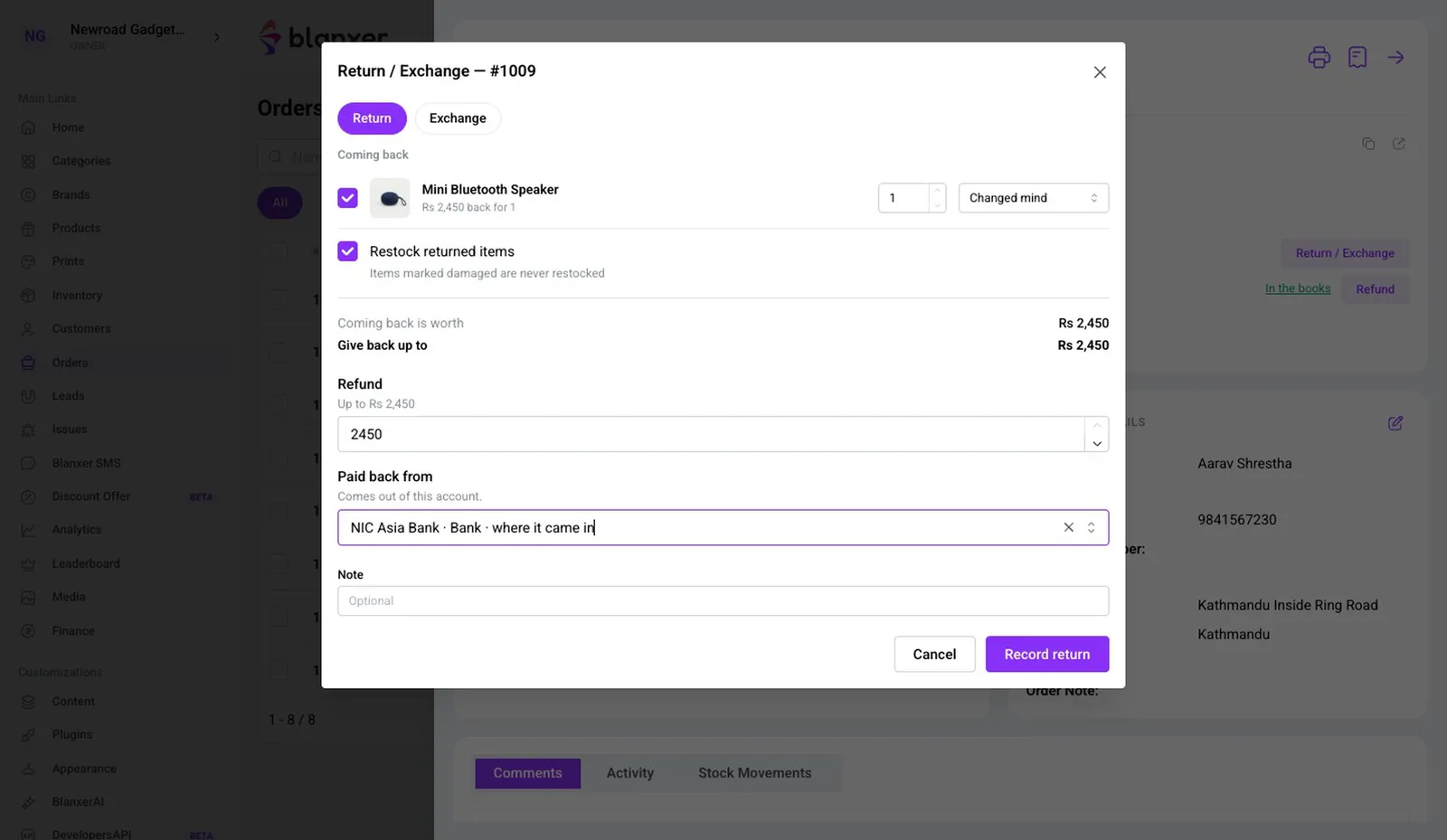
Refunds on returns
In the order's Return / Exchange, pick the account the refund came from in Paid back from, then Record return. Not sure? Leave it blank and book it later from Reconcile.
- 9
Expenses and supplier payments
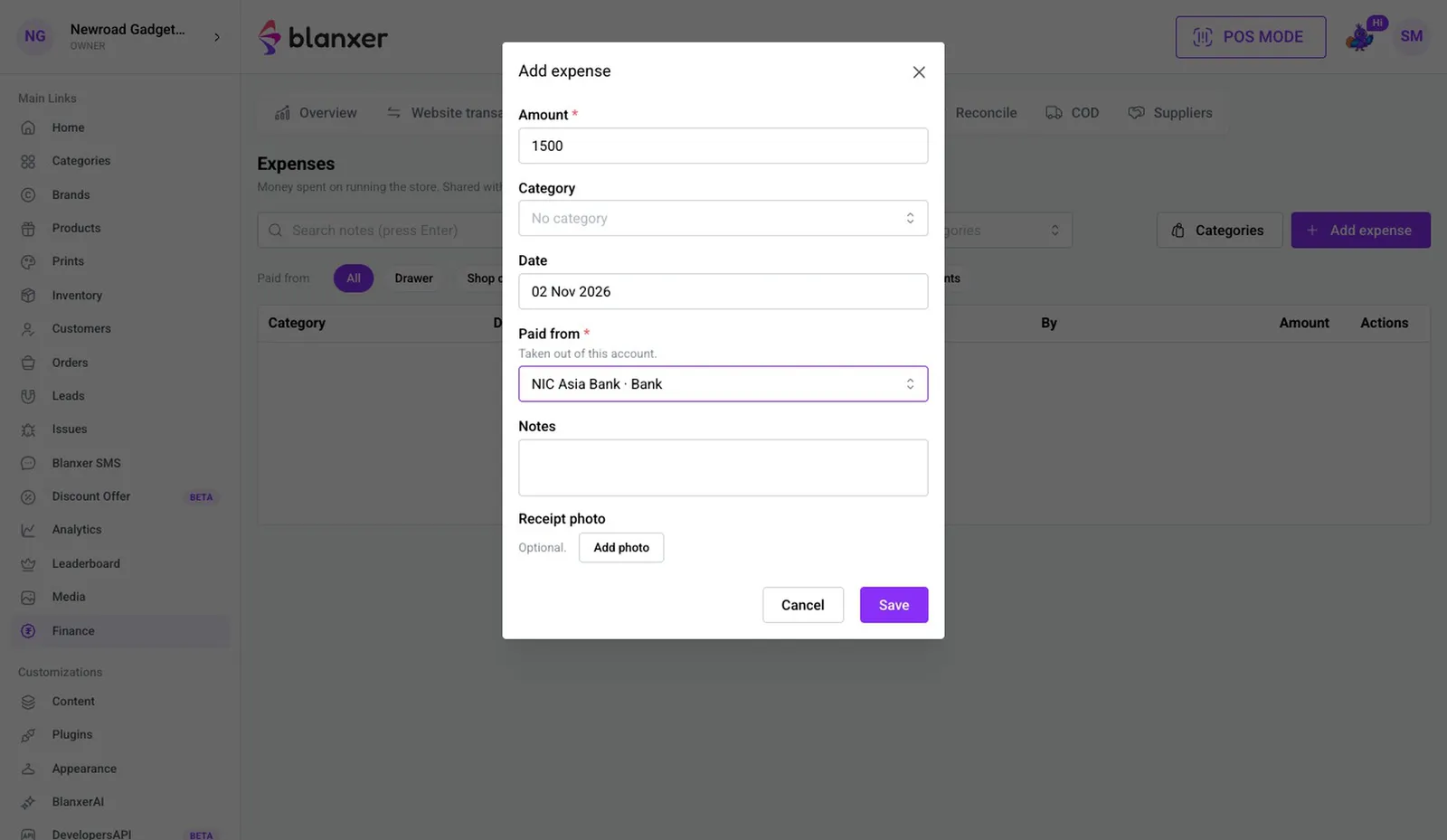
When you add an expense or pay a supplier, pick the account in Paid from, e.g. an internet bill paid from the bank. Supplier dues and account balances both stay right.
Part 5
Transfers and statements
- 10
Move money between accounts
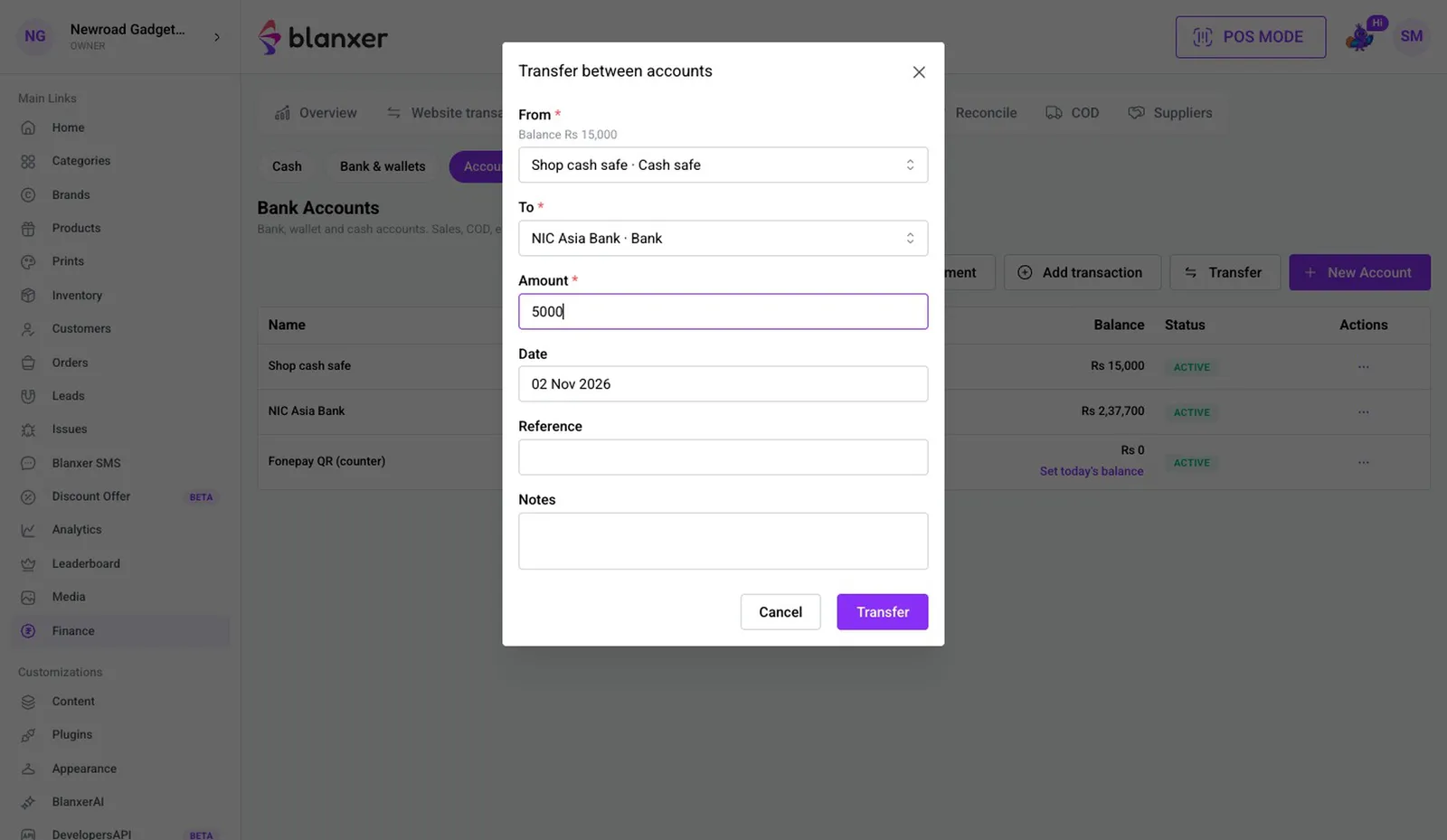
To deposit safe cash in the bank, click Transfer and fill in From, To and the amount. A transfer isn't counted in profit and loss.
- 11
Check against your bank statement
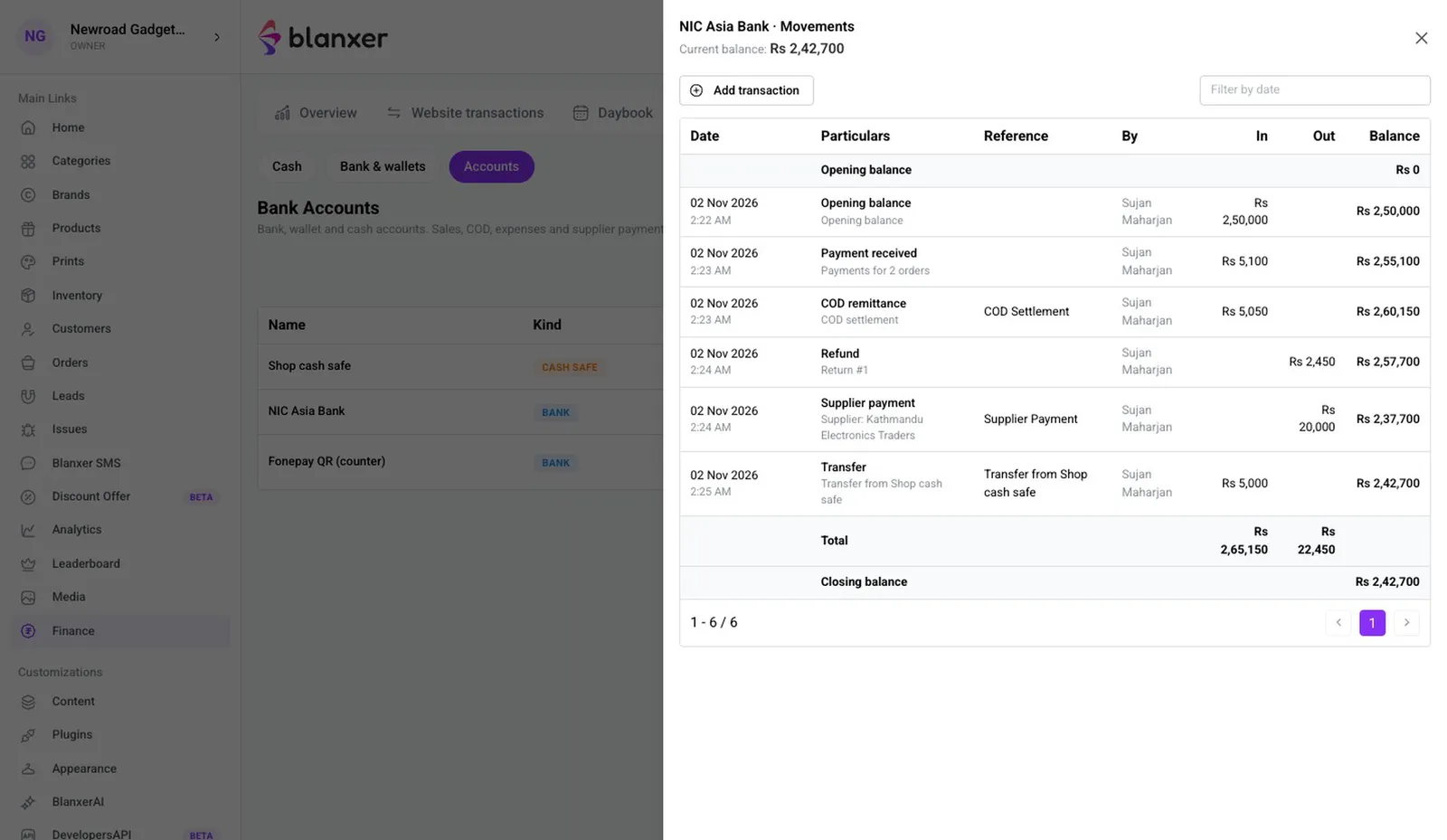
Open View movements on any account to see money in, money out and the balance by date.
- 12
Choose where each payment goes
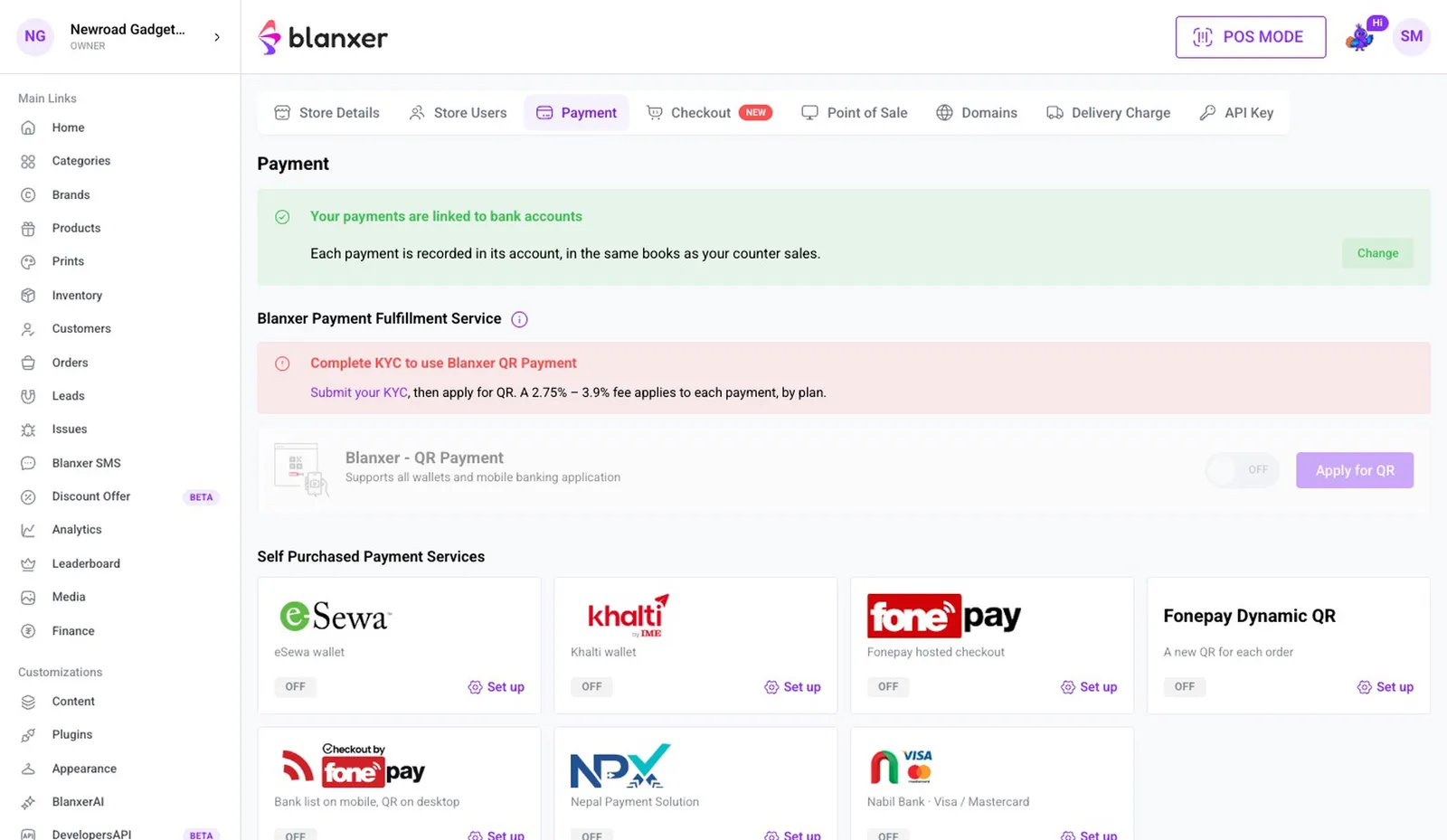
In Settings → Payment, map each online payment, BlanxerPay and the counter's Fonepay to an account, all in one place.
Good to know
- It's an optional plugin. Without it, Finance has no Cash & Bank or Reconcile, and payments don't ask which account the money went to.
- Uninstalling hides Cash & Bank, Reconcile and the account pickers, but your accounts and their history are kept. Reinstall and they come back exactly as they were.
More videos
All 33 videos 3:58
Finance
IRD tax invoices with Tigg Accounting
Connect Tigg Accounting, link your products, sync an order or a POS sale and print the IRD tax invoice, with VAT worked out and stock kept in step.
 1:12
Getting started
What is Blanxer?
Start here: what Blanxer is and what it does for your business, before the videos on each feature.
 5:43
Products
Add products (normal inventory)
Add a product with its photos, price, variants and stock, for stores on normal inventory.
See Blanxer with your own business in mind.
Book a demo. We'll show you the store, checkout, POS and dashboard, and tell you honestly which plan you need.
Prefer to talk directly?
Already a customer? Support on WhatsApp +977 9802344850, Sun–Fri, 9 AM – 6 PM.
Follow Blanxer
 A Blanxer product
One AI inbox for every customer conversation.
Sambad.io brings WhatsApp, Instagram, Facebook, website chat and email into one inbox. Connect your Blanxer store and its AI answers from your catalogue, checks stock, quotes delivery and places the order right in the chat.
- Website chat
- Gmail
- Outlook
- Zoho Mail