
Create an order (for your sales team)
The most important one: how your team takes an order from a customer and creates it in Blanxer, step by step.
Orders · 6:54 · In Nepali
Take any order by hand from Orders, New order, even for things you never uploaded as products. The same form handles part or full payment, discounts, delivery charge, offers and codes.
Part 1
Add the customer
- 1
Search the phone number
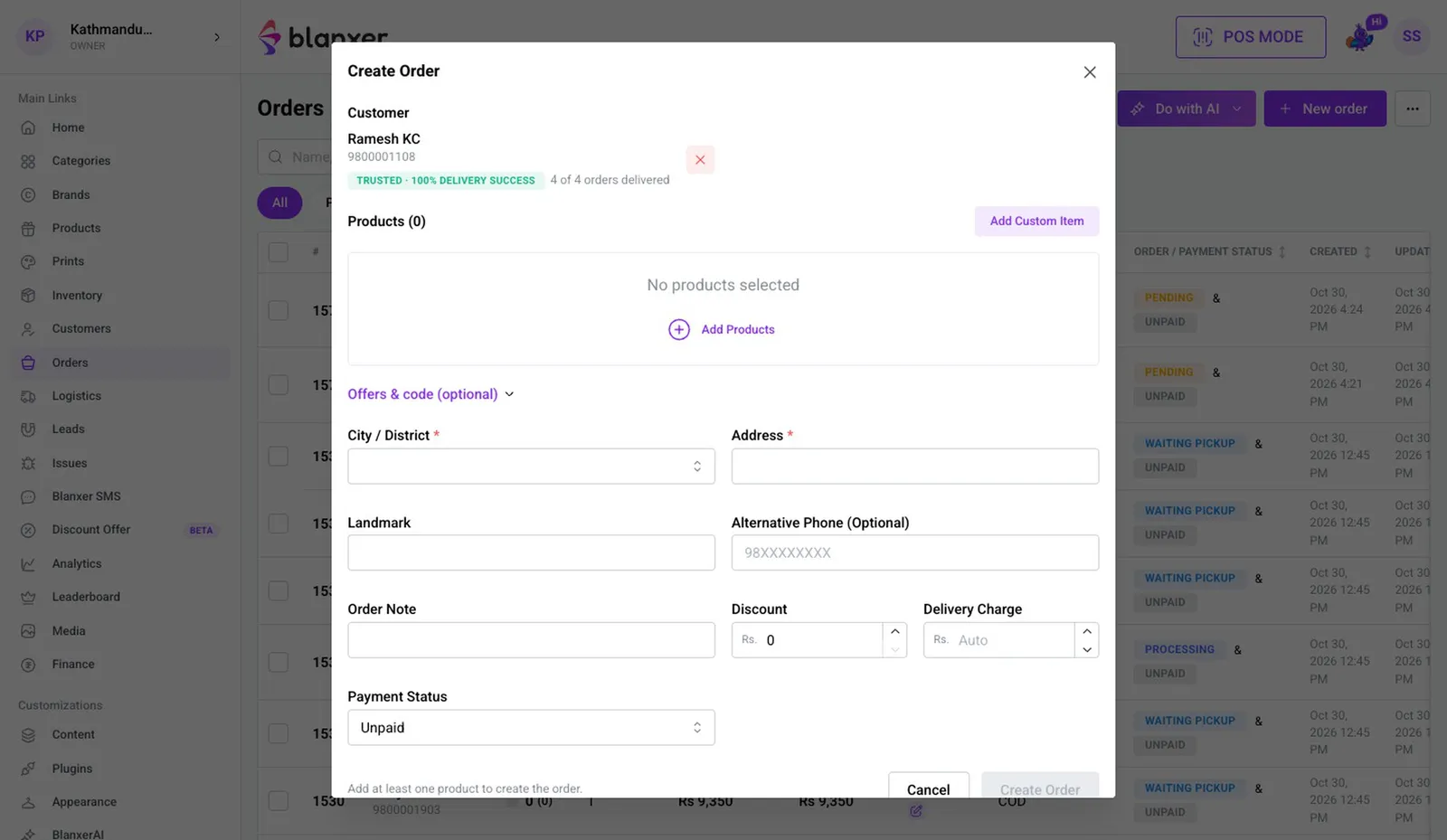
In Orders, click New order, type the phone number and click Search Customer. An existing customer fills in by name, with their record of parcels taken and returned.
- 2
Or create a new customer
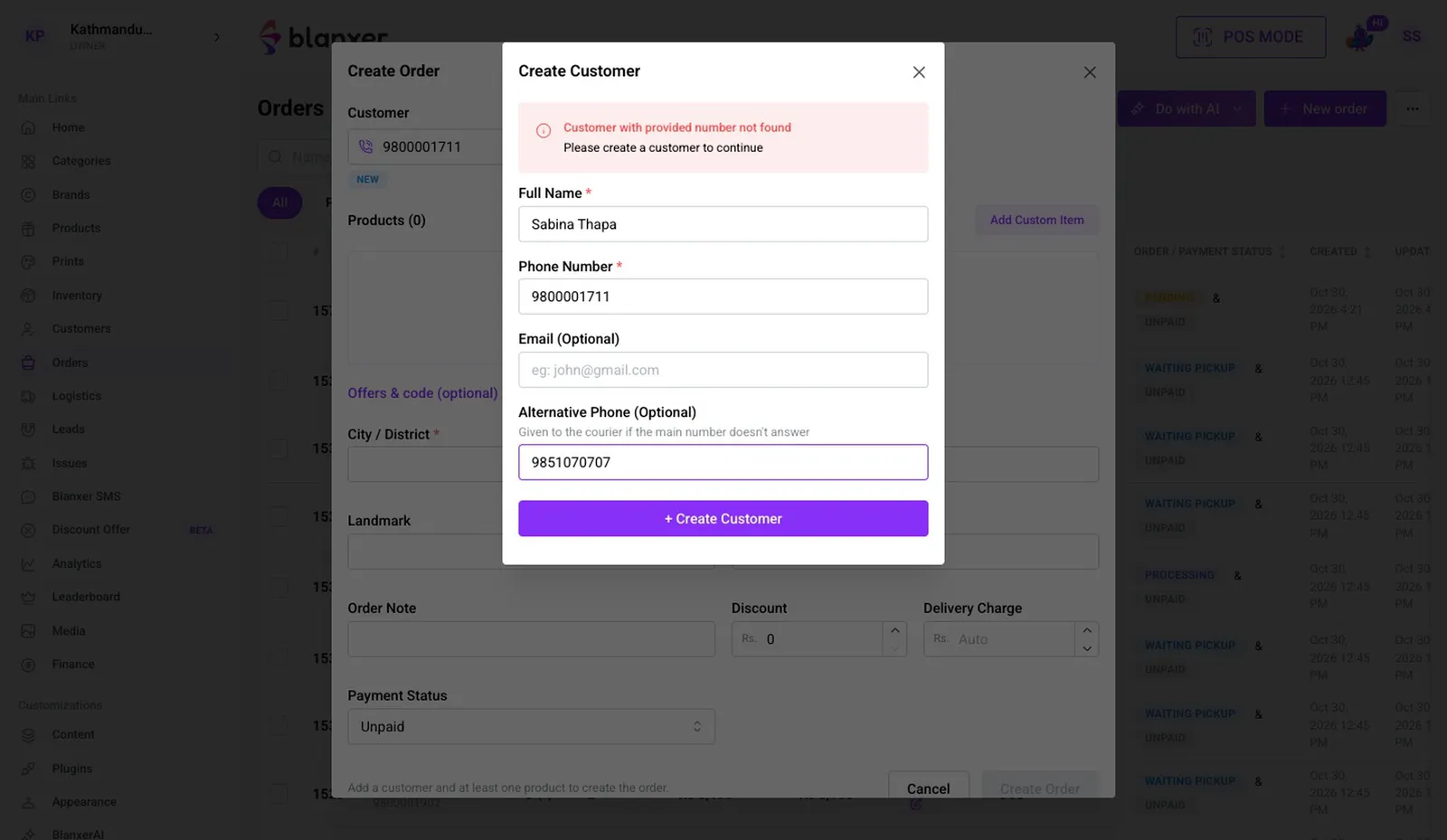
For a new number, a form opens with the phone already filled. Type the name, add an Alternative Phone the courier can call if the first doesn't answer, and click Create Customer.
Part 2
Add what they're buying
- 3
No product? Add Custom Item
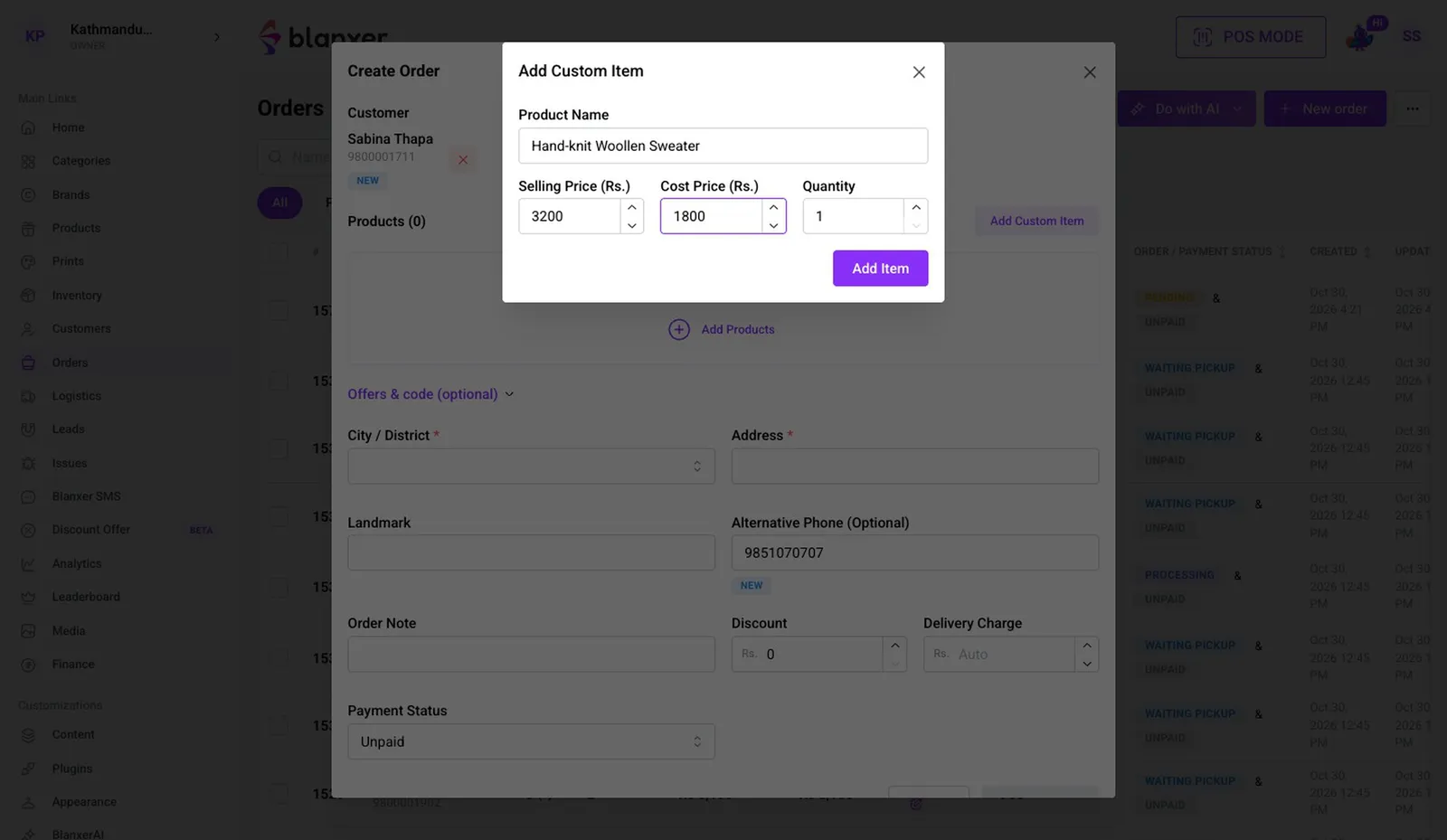
Click Add Custom Item, type the name and selling price, and click Add Item. The cost is optional; add it and the order's profit shows in reports. Custom items don't take anything from stock.
- 4
Or pick from your products
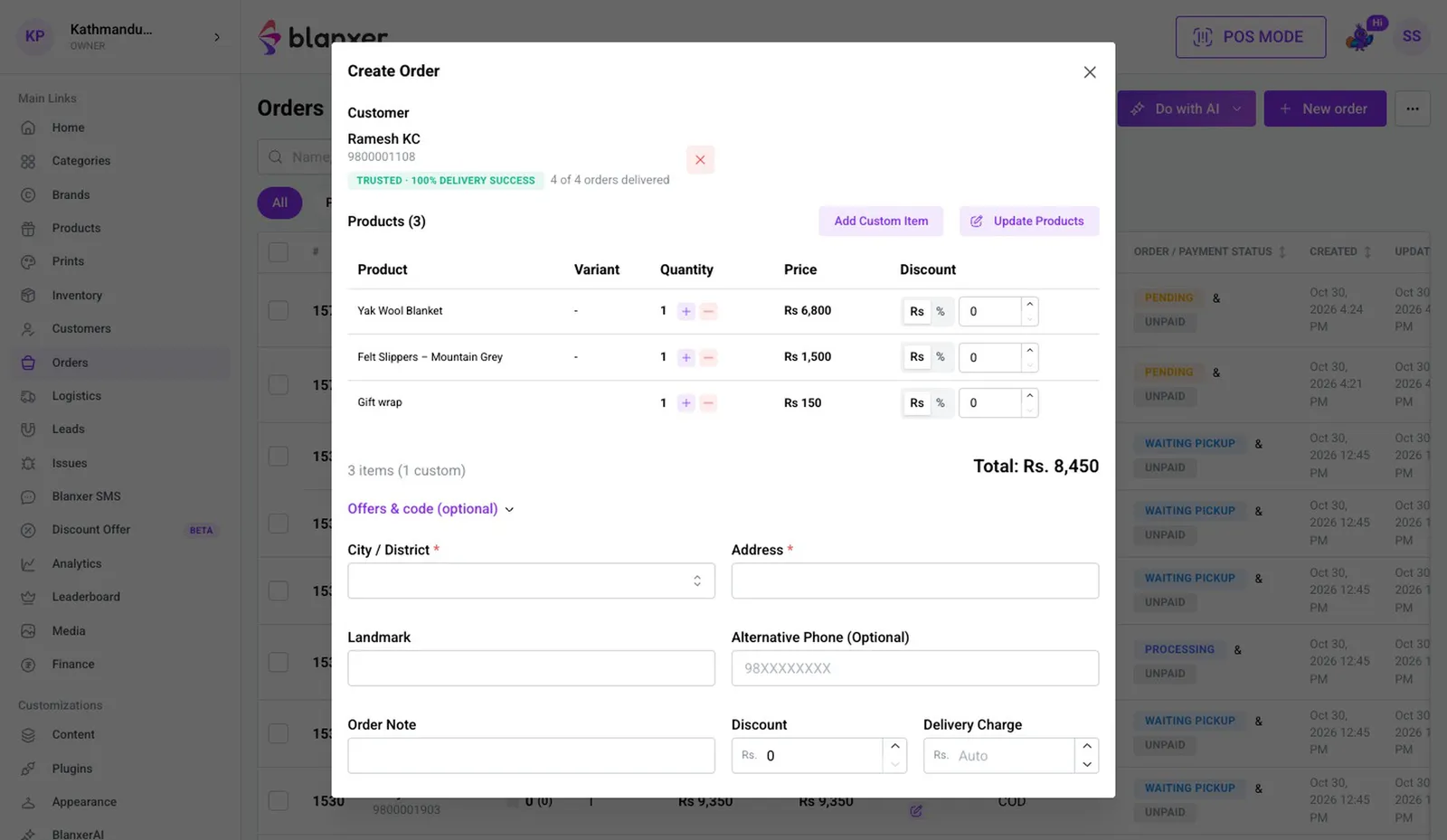
Click Add Products, tick what you need (stock shows for each) and click Confirm Select. You can mix products and custom items, like gift wrap, in one order.
Part 3
Address and delivery
- 5
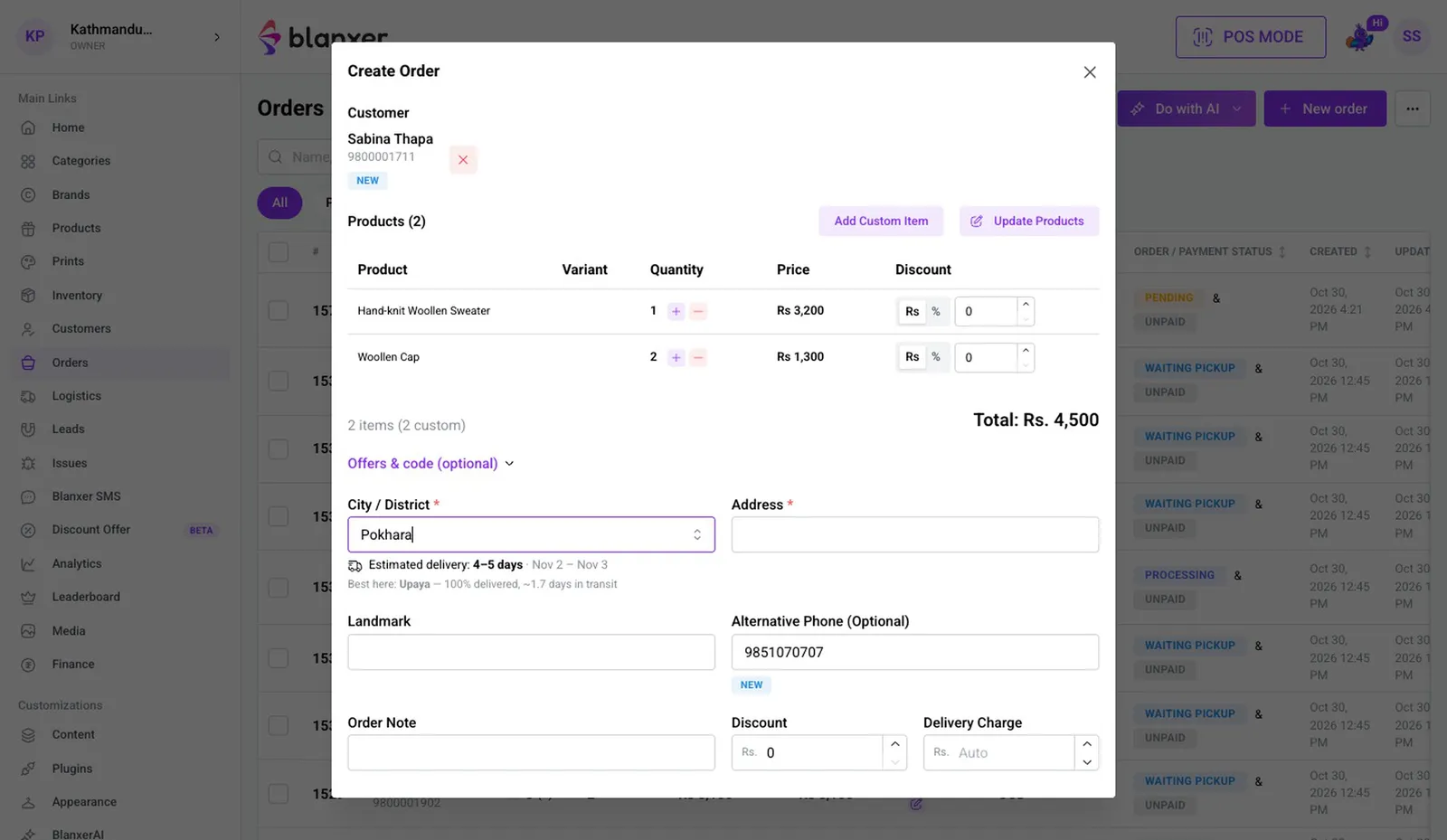
Choose the city first
As soon as you pick the city, you see how many days the parcel takes there and which courier is best.
- 6
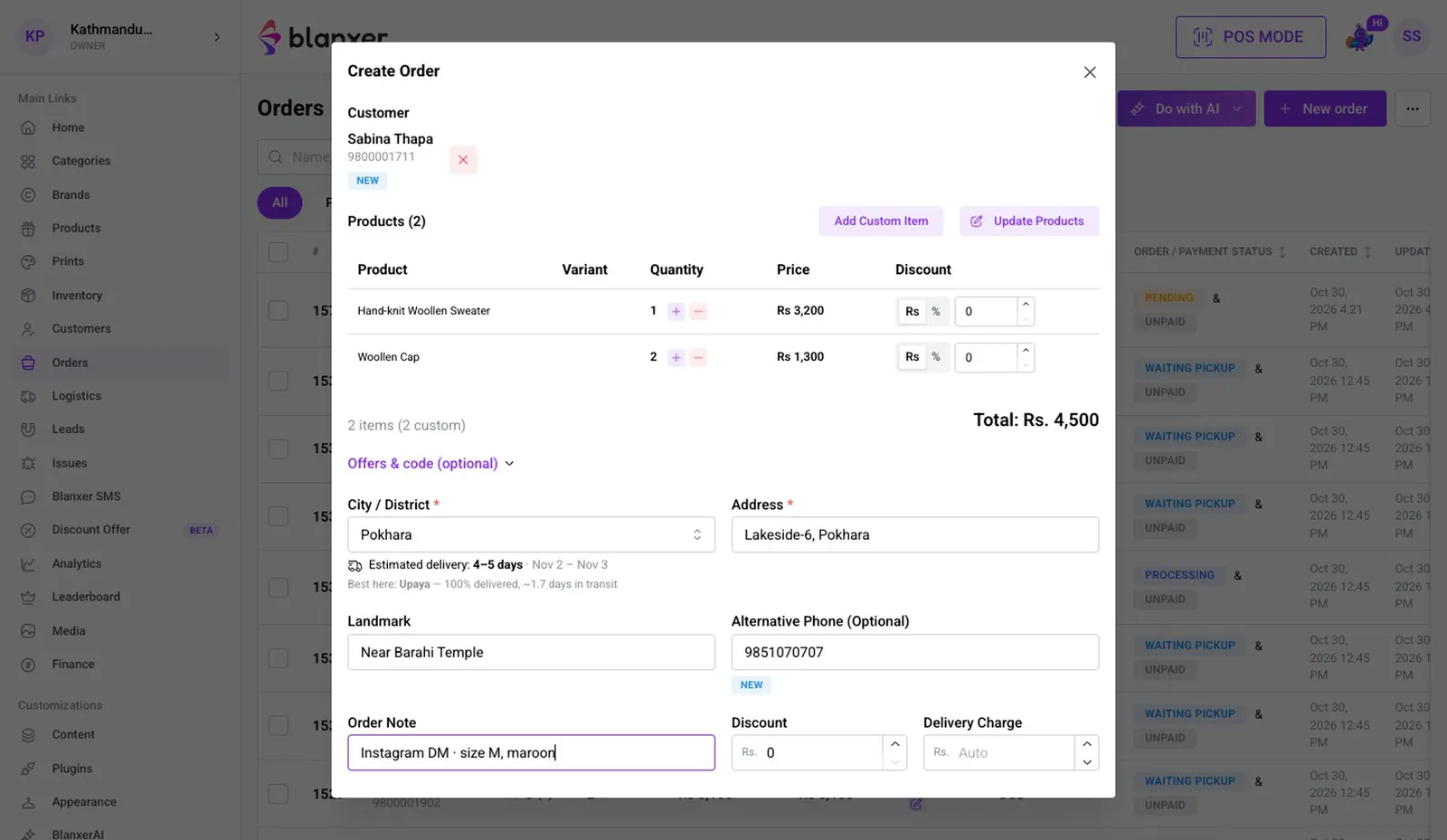
Address, landmark and Order Note
Type the address and a landmark so the courier finds the house. In Order Note, write where the order came from, or the size and colour.
- 7
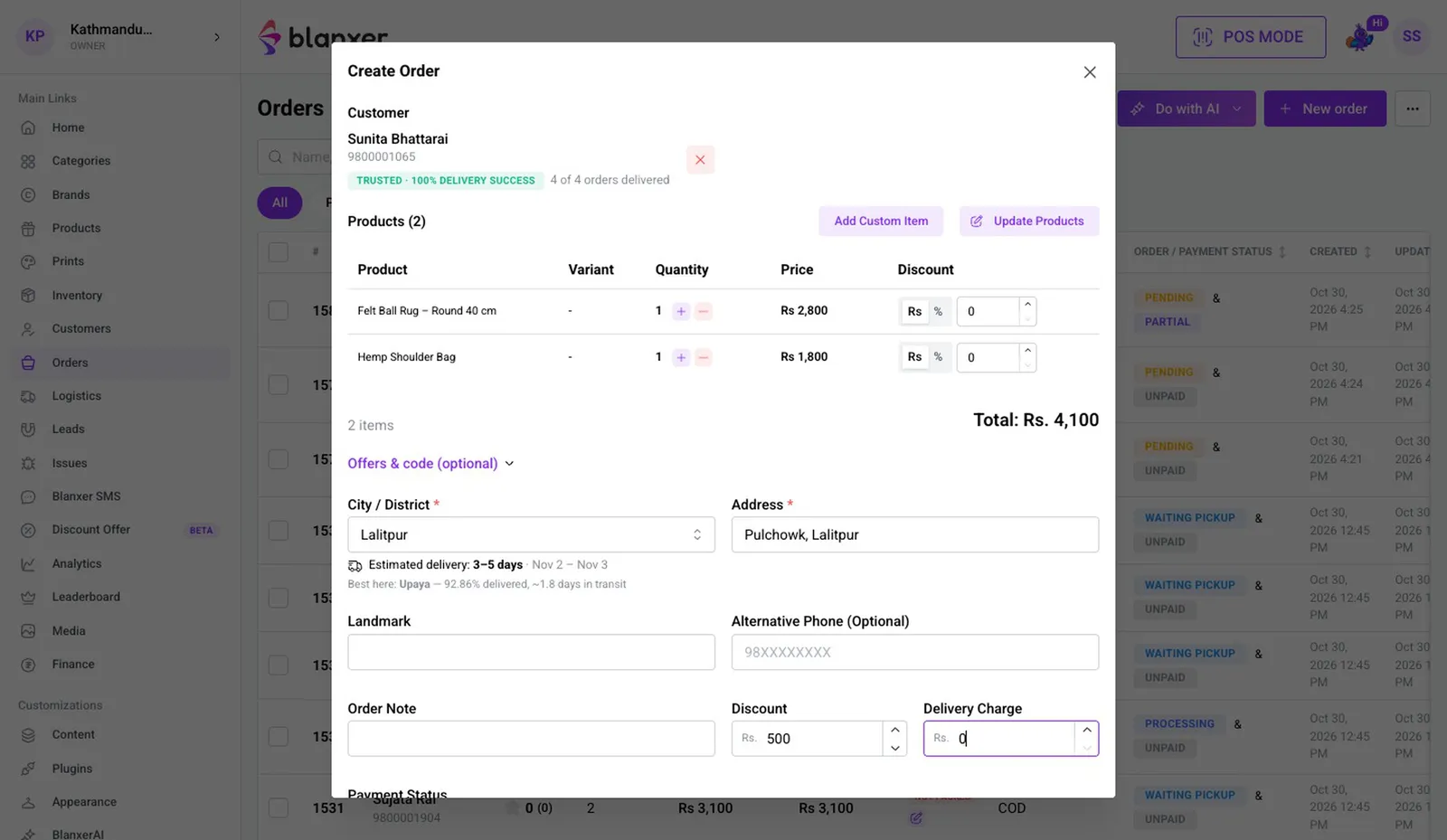
Delivery Charge
Auto uses the city's charge from Settings. You can type your own, or 0 for free delivery.
Part 4
Payment
- 8
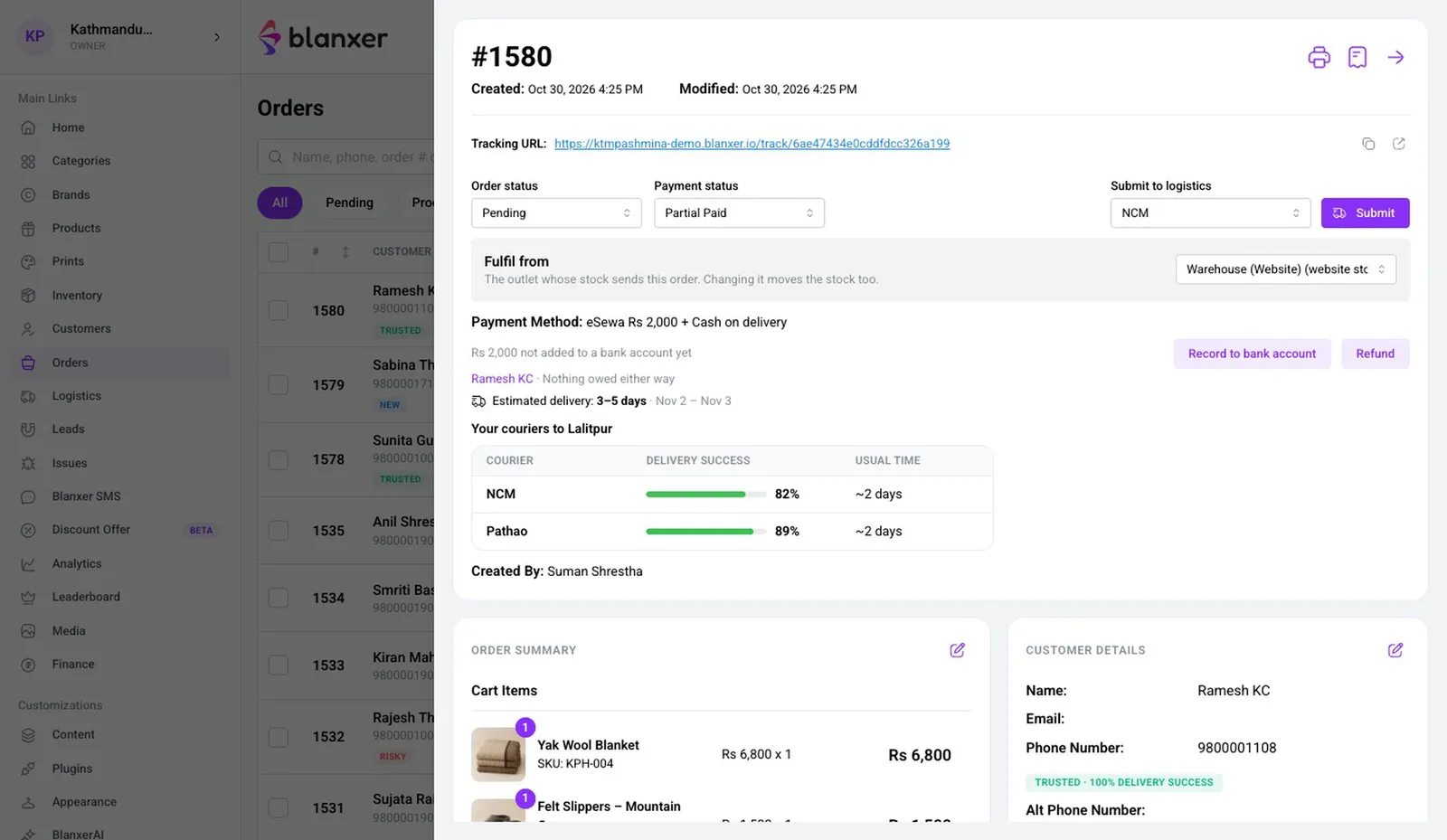
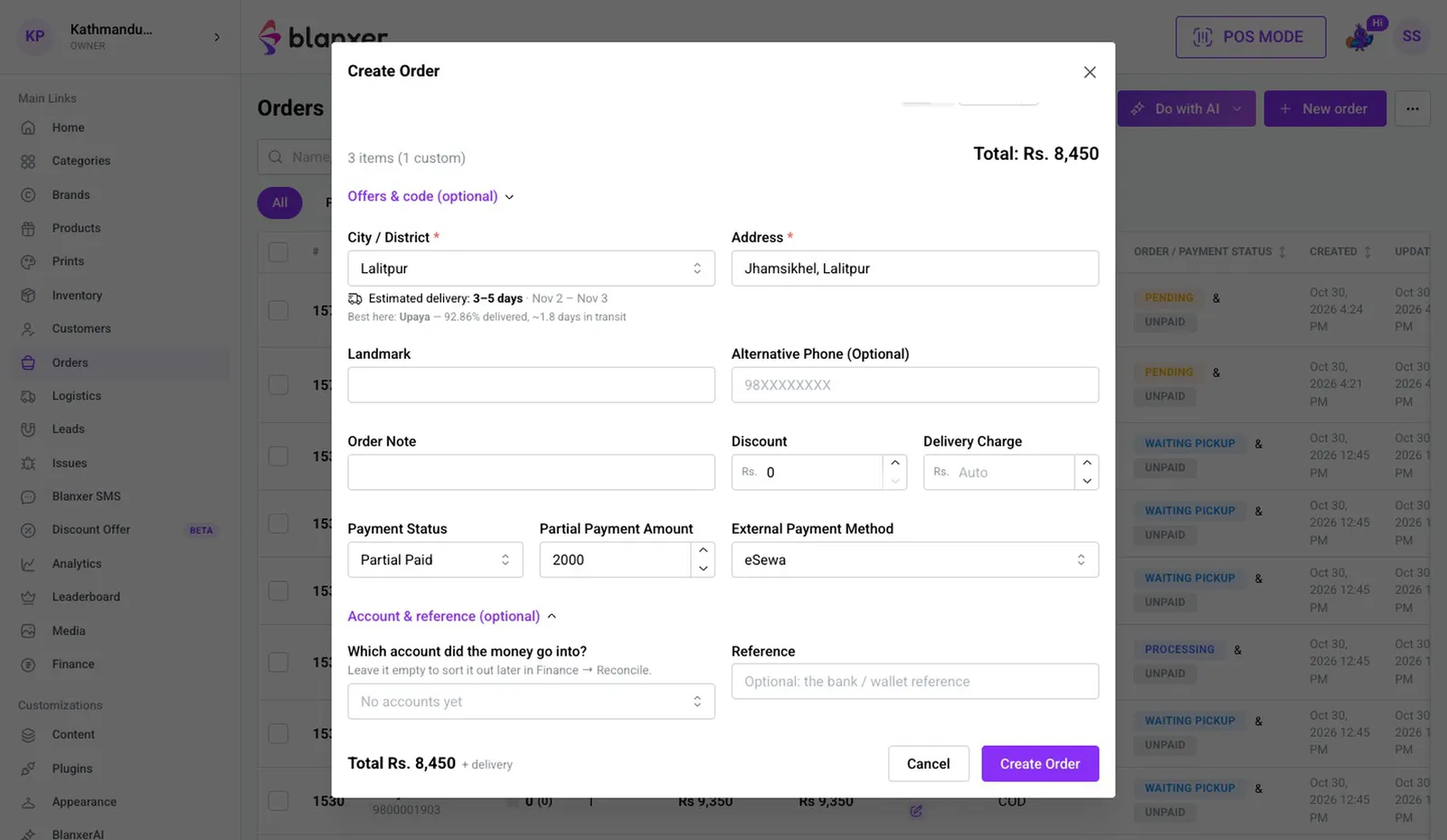
Unpaid, Partial Paid or Full Paid
Unpaid means full cash on delivery. For Partial Paid, type the amount and method, like eSewa, and the courier collects only the rest. Full Paid with a method like Fonepay means the courier collects nothing.
- 9
Which account, if you know
You can set the account the money went to, or leave it blank and match it later in Finance, Reconcile.
Part 5
Discounts, offers and codes
- 10
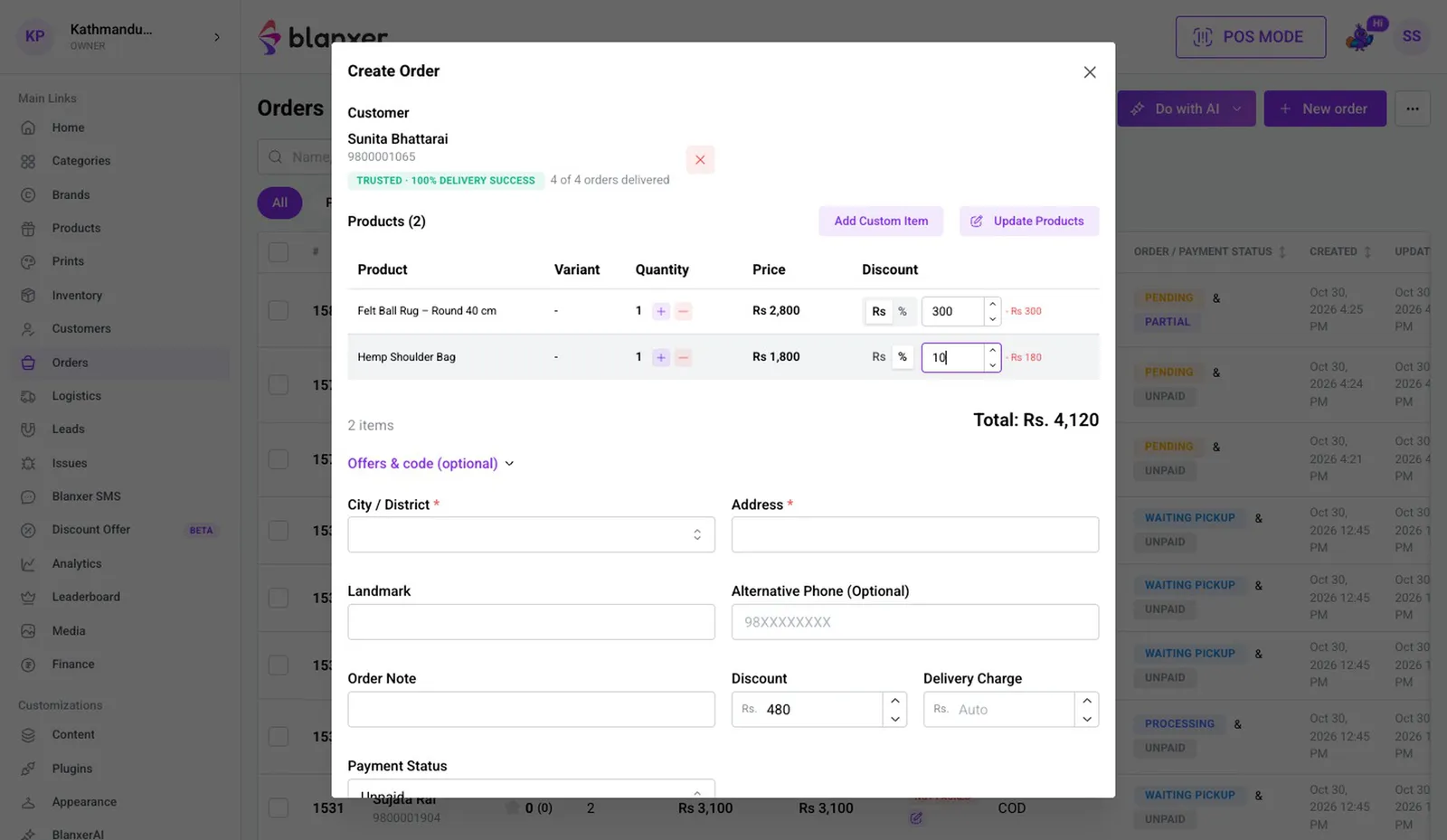
Discount items or the whole order
Give each item a discount in rupees or percent; the total shows in Discount. Typing an amount there instead replaces the item discounts with one order discount.
- 11
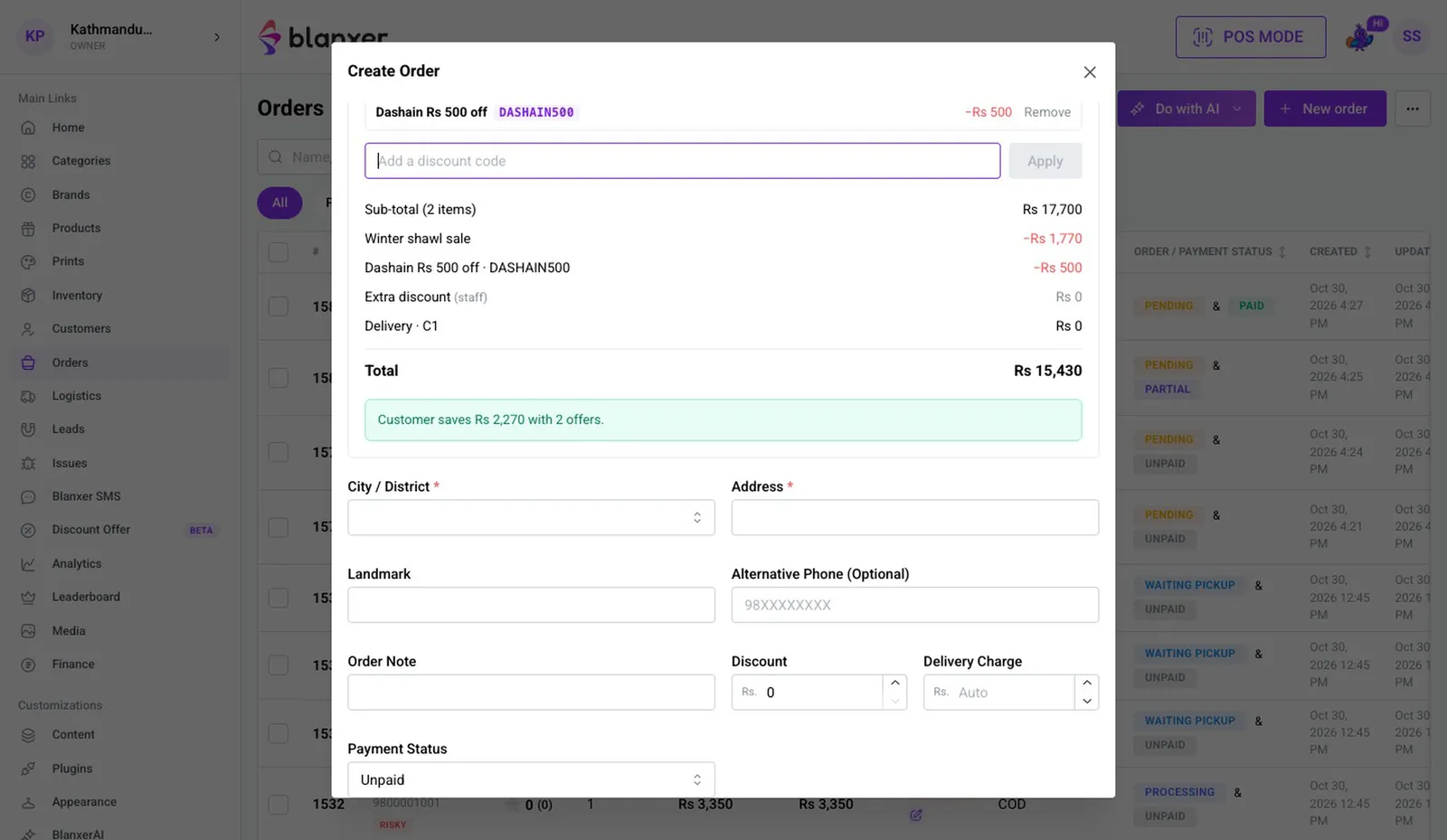
Offers apply on their own
Active offers apply by the same rules as your website, if they're set to run on manual orders. Type a discount code if the customer has one, and use Remove or Add back on any offer.
Part 6
Create it
- 12
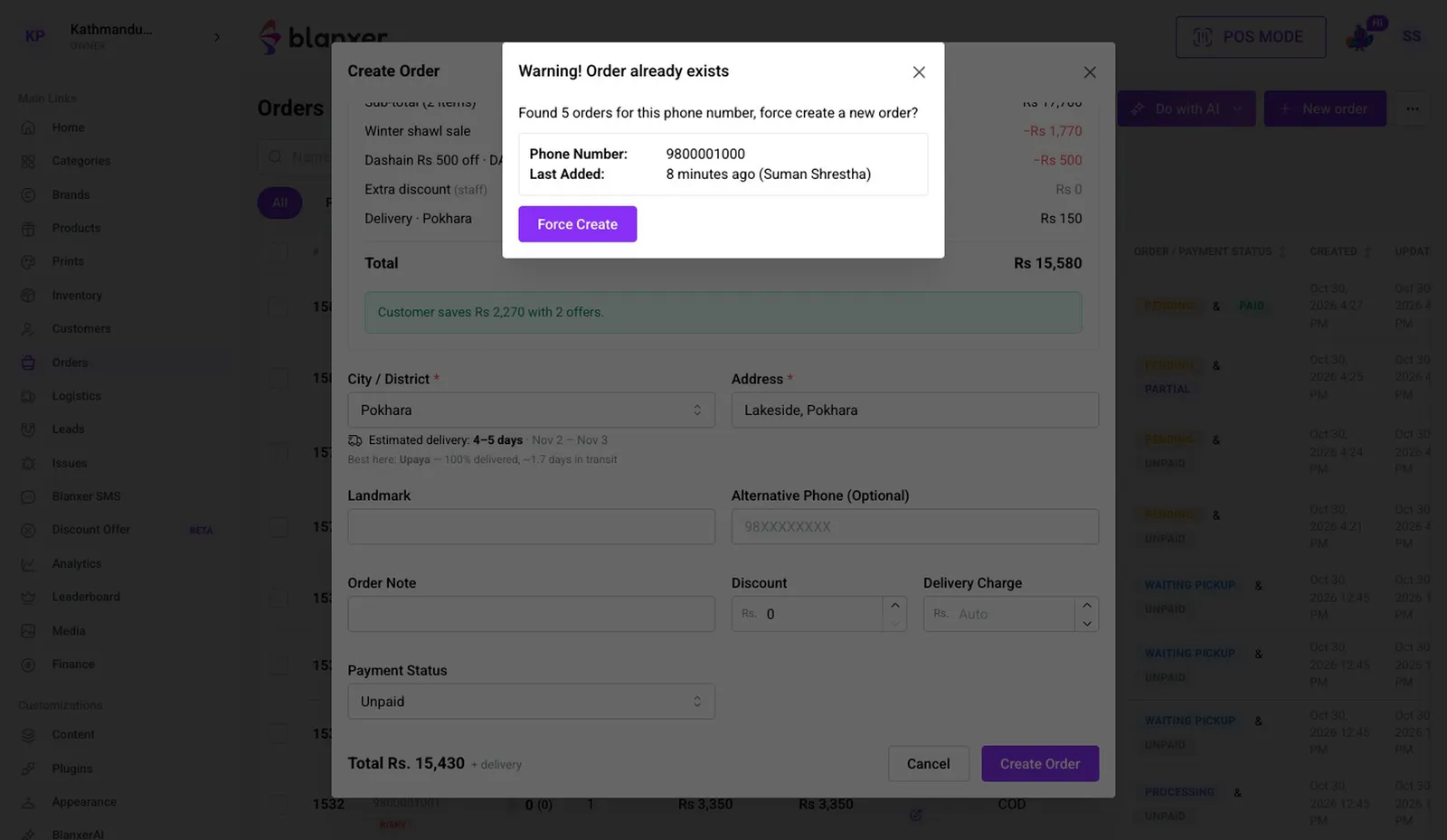
Create Order, with a duplicate check
Click Create Order. If the same customer already has an order from the last 7 days, Blanxer shows when and by whom; click Force Create if it really is new. The order shows its items, charges and applied offers by name.
Good to know
- Custom items don't reduce stock and don't count as product sales. Uploading products gives you stock tracking, offers and product reports.
- Only offers set to run on manual orders apply here.
- The duplicate check looks back 7 days for the same customer.
More videos
All 33 videos 8:45
Orders
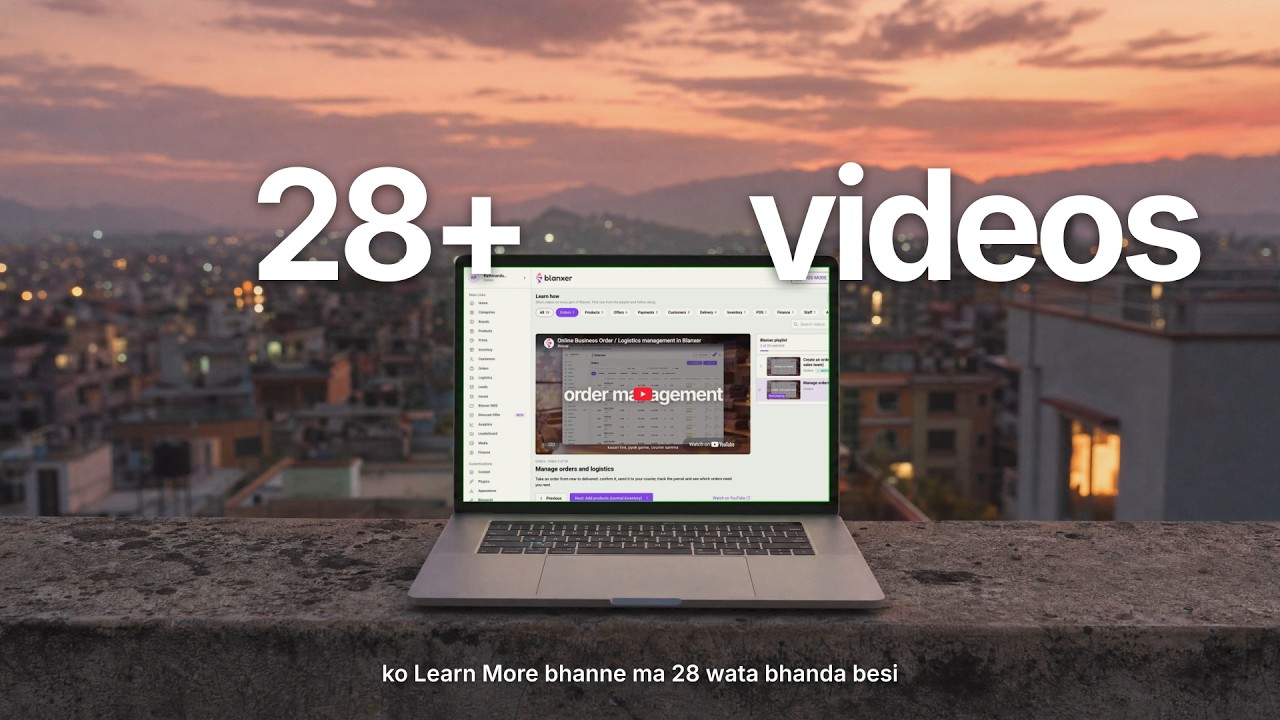
Manage orders and logistics
Take an order from new to delivered: confirm it, send it to your courier, track the parcel and see which orders need you next.
 1:12
Getting started
What is Blanxer?
Start here: what Blanxer is and what it does for your business, before the videos on each feature.
 5:43
Products
Add products (normal inventory)
Add a product with its photos, price, variants and stock, for stores on normal inventory.
See Blanxer with your own business in mind.
Book a demo. We'll show you the store, checkout, POS and dashboard, and tell you honestly which plan you need.
Prefer to talk directly?
Already a customer? Support on WhatsApp +977 9802344850, Sun–Fri, 9 AM – 6 PM.
Follow Blanxer
 A Blanxer product
One AI inbox for every customer conversation.
Sambad.io brings WhatsApp, Instagram, Facebook, website chat and email into one inbox. Connect your Blanxer store and its AI answers from your catalogue, checks stock, quotes delivery and places the order right in the chat.
- Website chat
- Gmail
- Outlook
- Zoho Mail