
Manage orders and logistics
Take an order from new to delivered: confirm it, send it to your courier, track the parcel and see which orders need you next.
Orders · 8:45 · In Nepali
Take, pack, label, ship and track every order in one place, from a social media DM to the courier and the money. Website orders arrive on their own, and staff add Facebook, Instagram and TikTok orders in the same list.
Part 1
Take an order from social media
- 1
New order
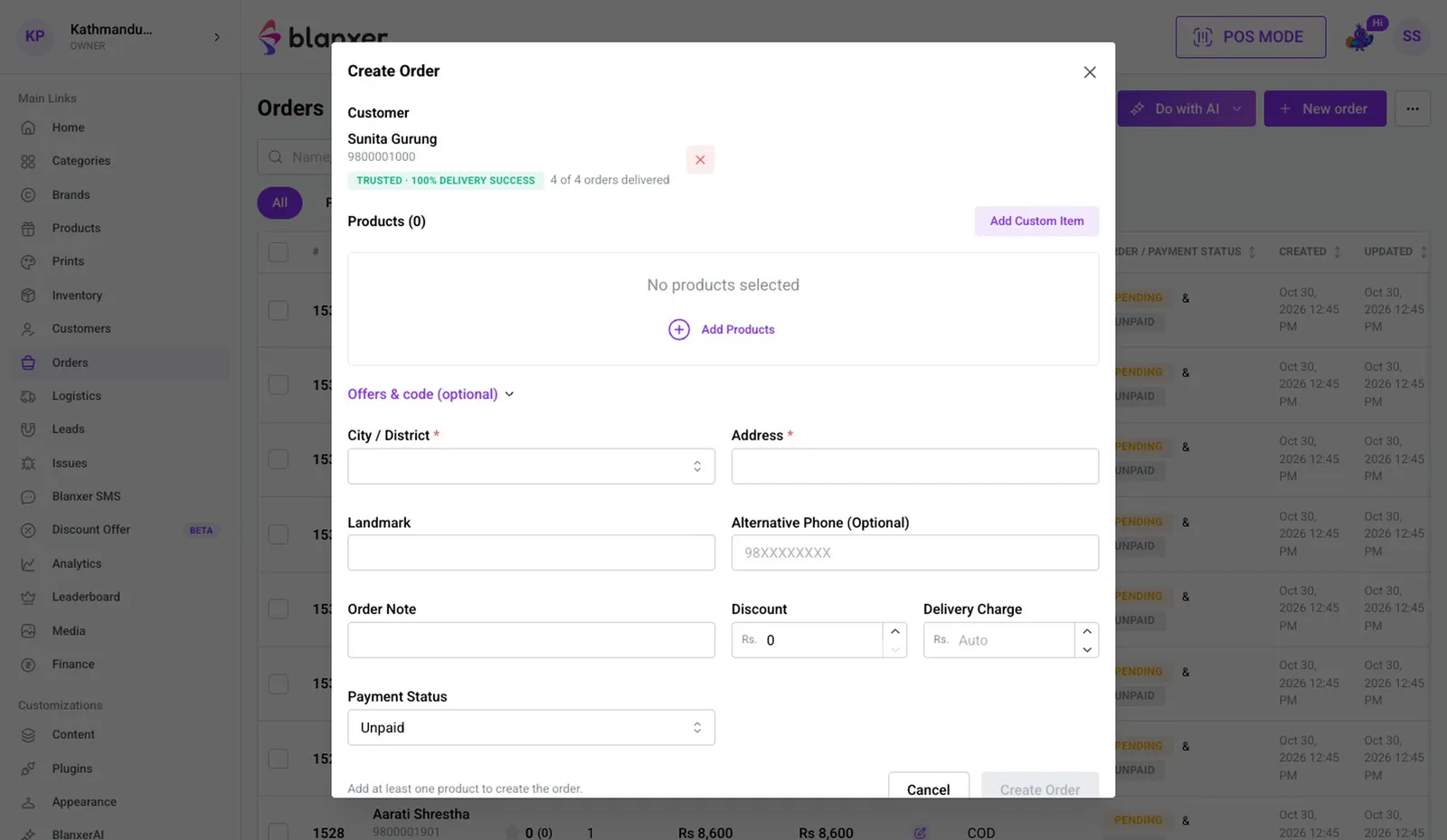
In Orders, click New order. Type the customer's phone number and click Search Customer; an existing customer fills in, with their record of parcels taken and returned across Blanxer shops.
- 2
Add products
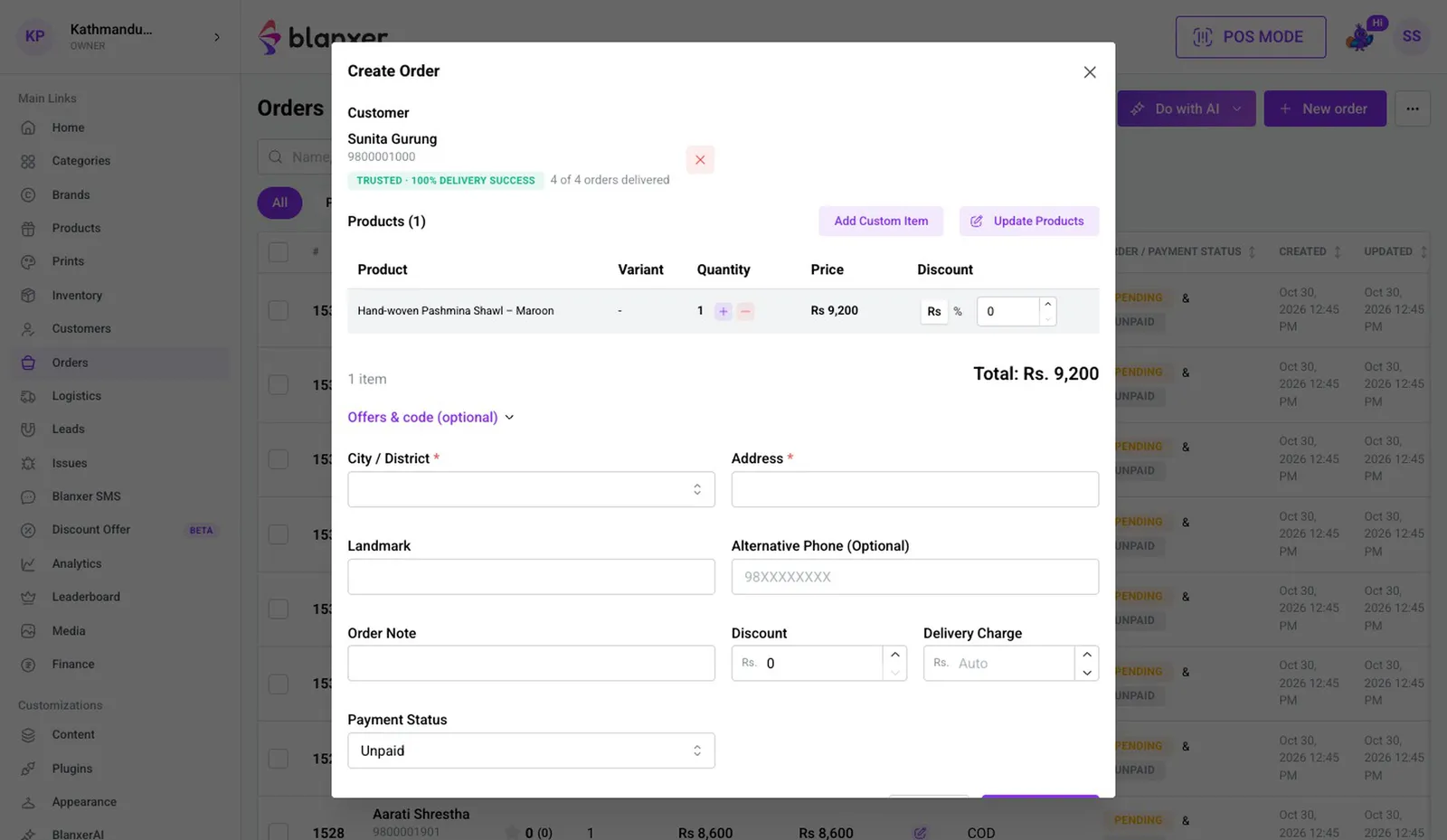
In Add Products, search and pick the product, then Confirm Select. You can add several at once.
- 3
Choose the city
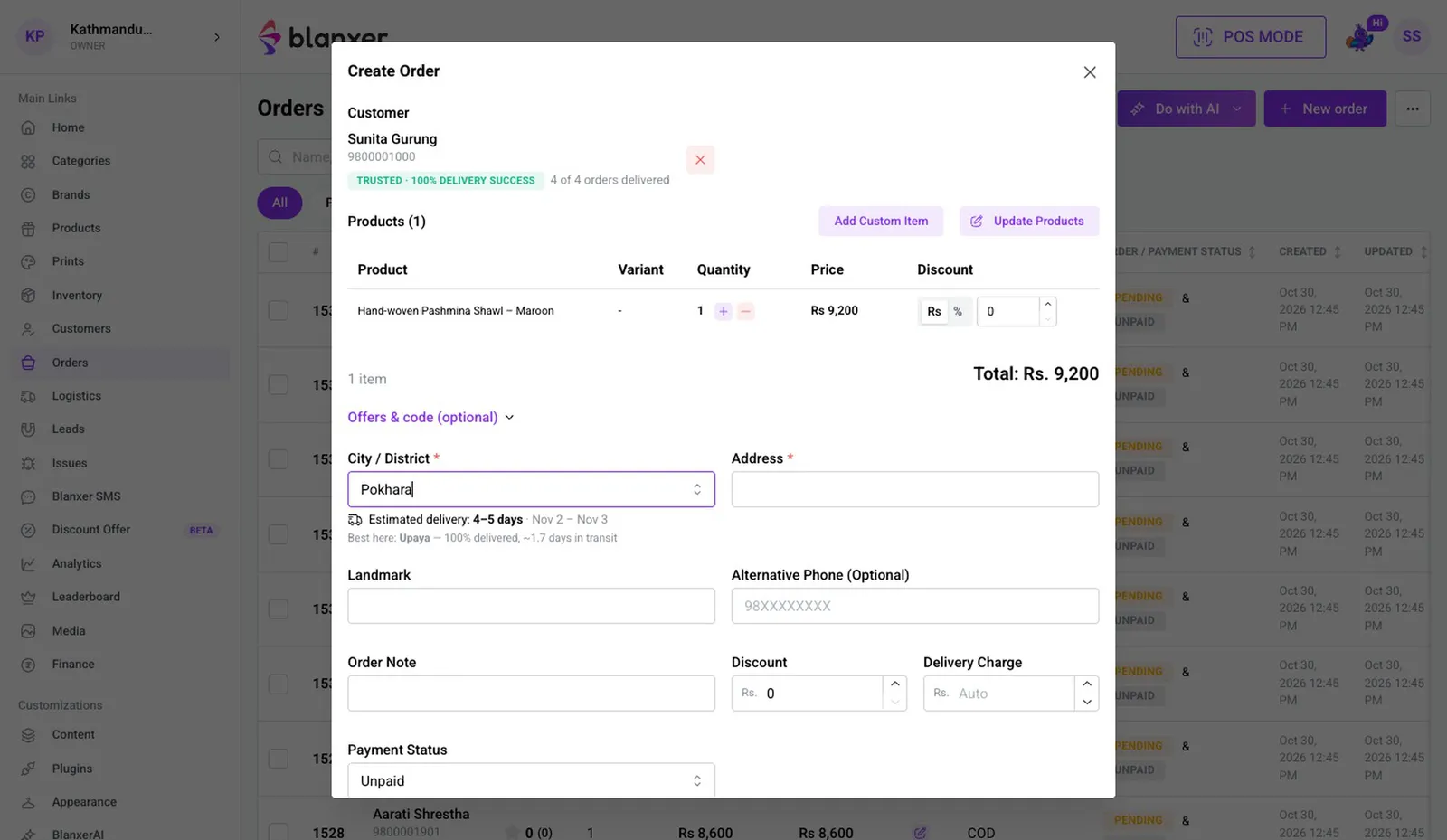
Pick the city, and Blanxer shows how many days the parcel will take and which courier does best there.
- 4
Address, Note and Create Order
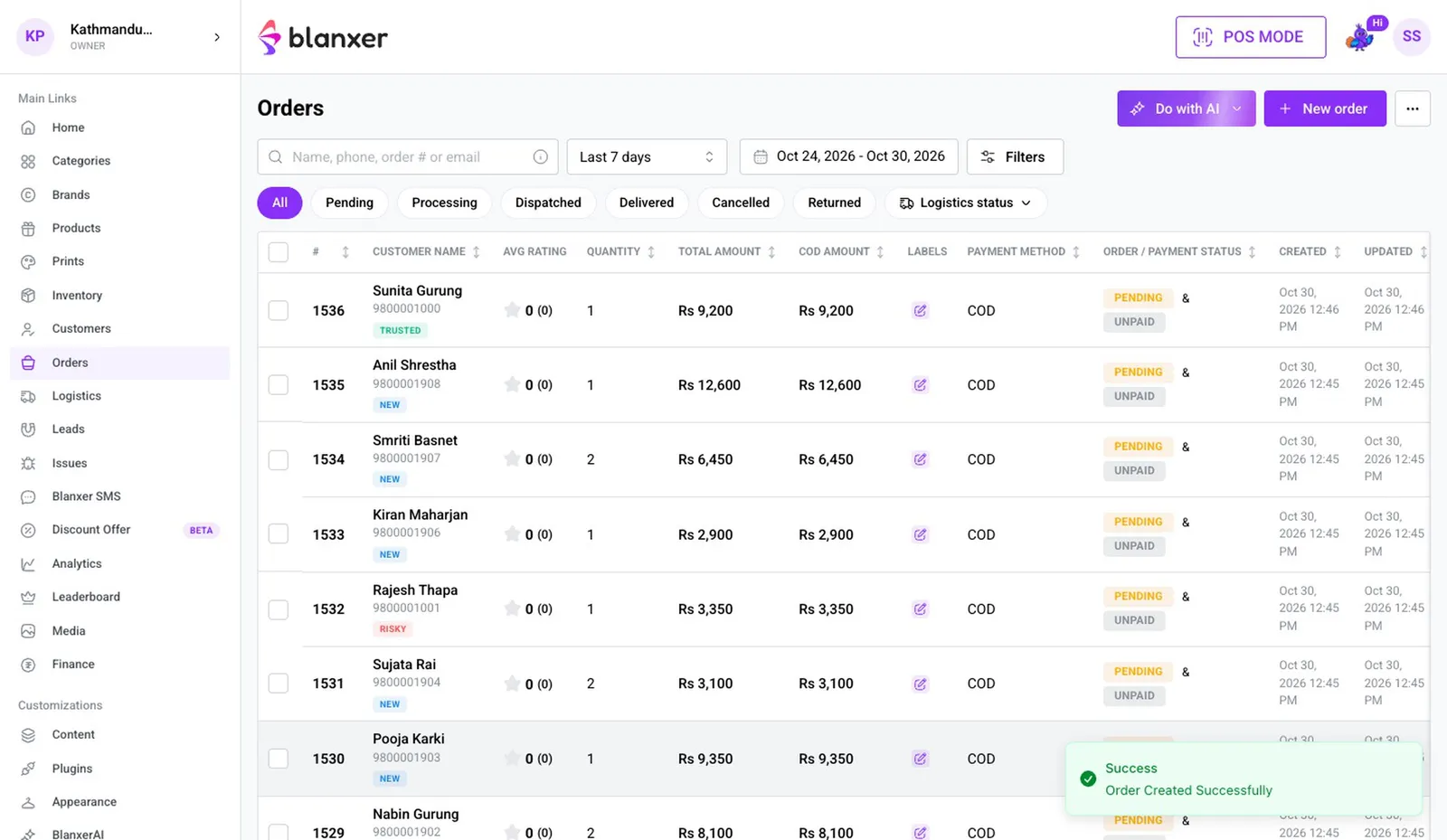
Type the address, and in Note write where the order came from, like Instagram DM. Click Create Order and it waits in Pending. Staff can also create orders in the Blanxer iPhone and Android app.
Part 2
Every order in one list
- 5
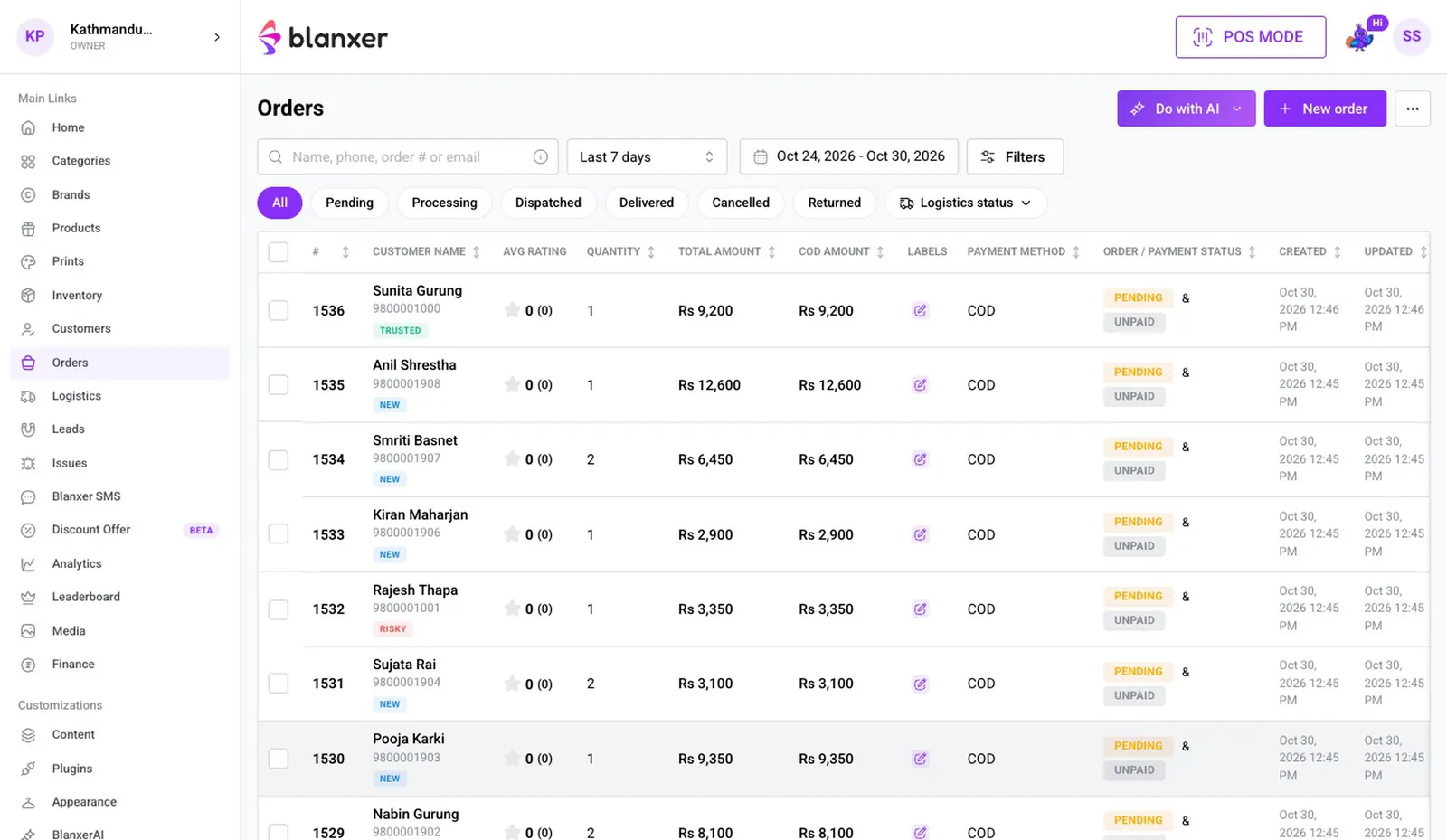
Statuses
Pending when it comes in, Processing once confirmed by phone, Waiting Pickup after you submit to a courier, Dispatched when picked up, and Delivered. Logistics status shows parcels awaiting pickup, in transit, delivering today or returning.
- 6
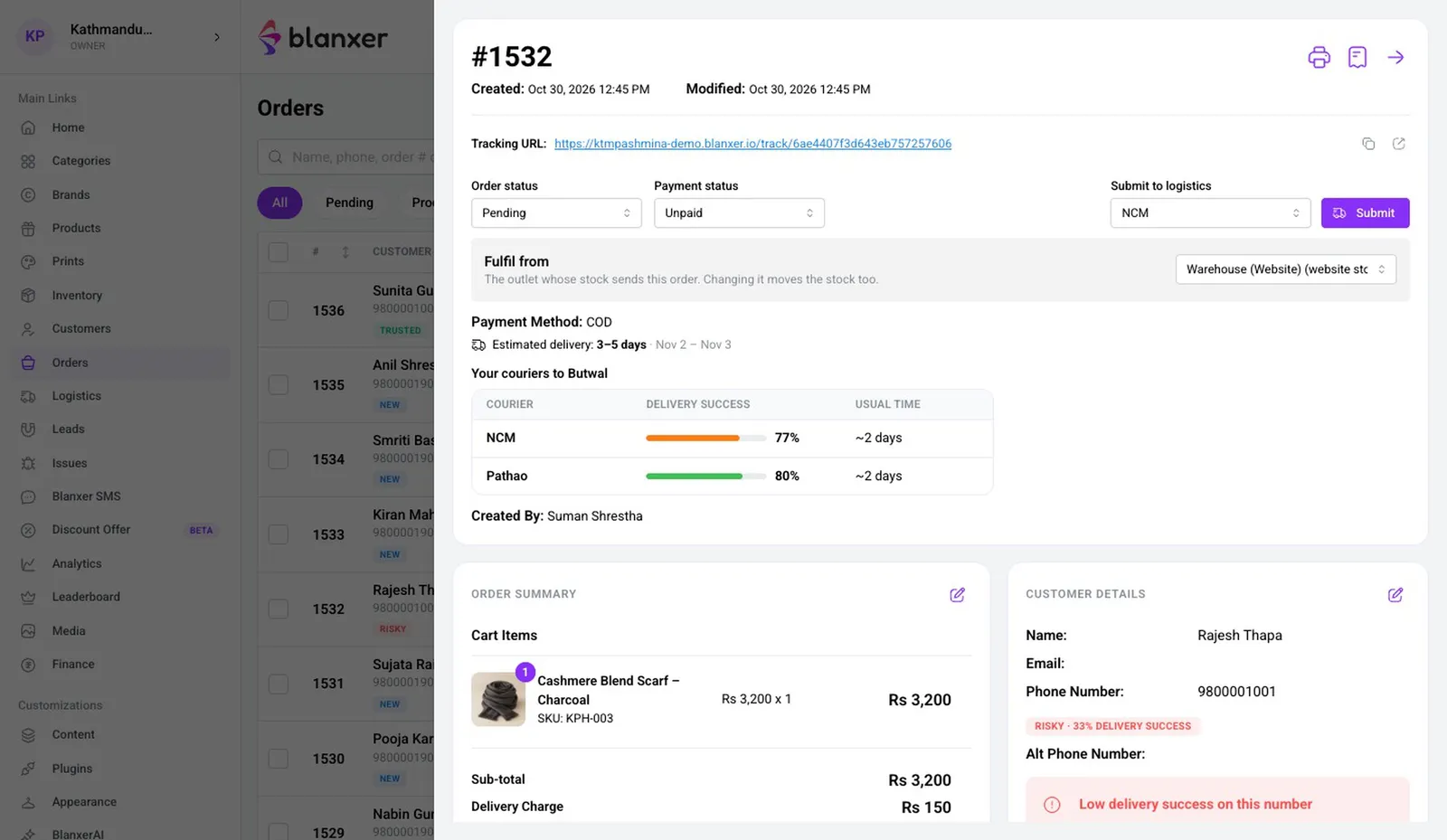
Watch for risky customers
A badge by the name shows if the customer has returned parcels before. Open the order for advice, like asking for another number and calling before you send.
- 7
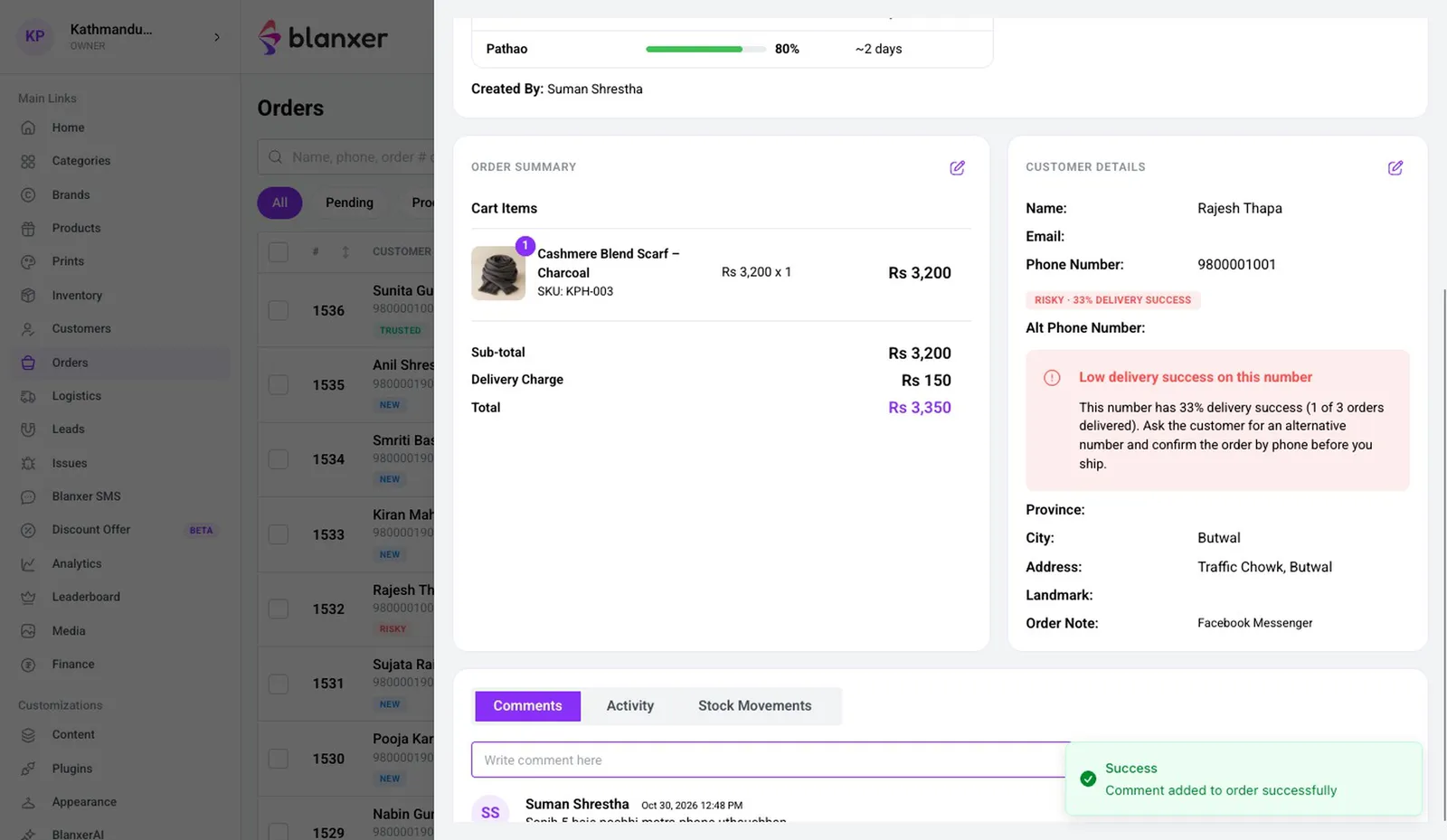
Confirm and add notes
After confirming by phone, set the status to Processing. Notes for your team go in Comments.
Part 3
Labels for packing
- 8
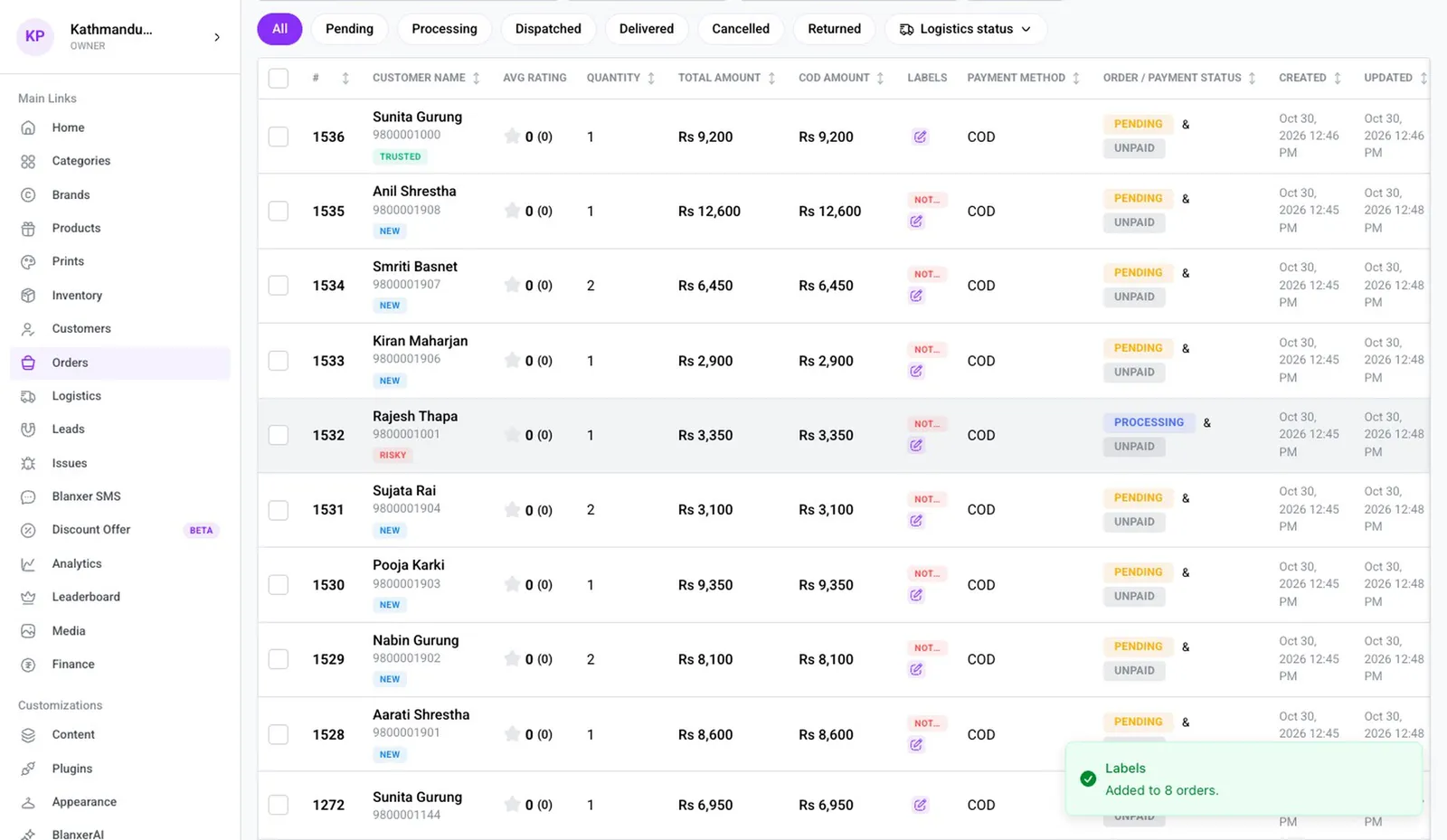
Mark the day's orders
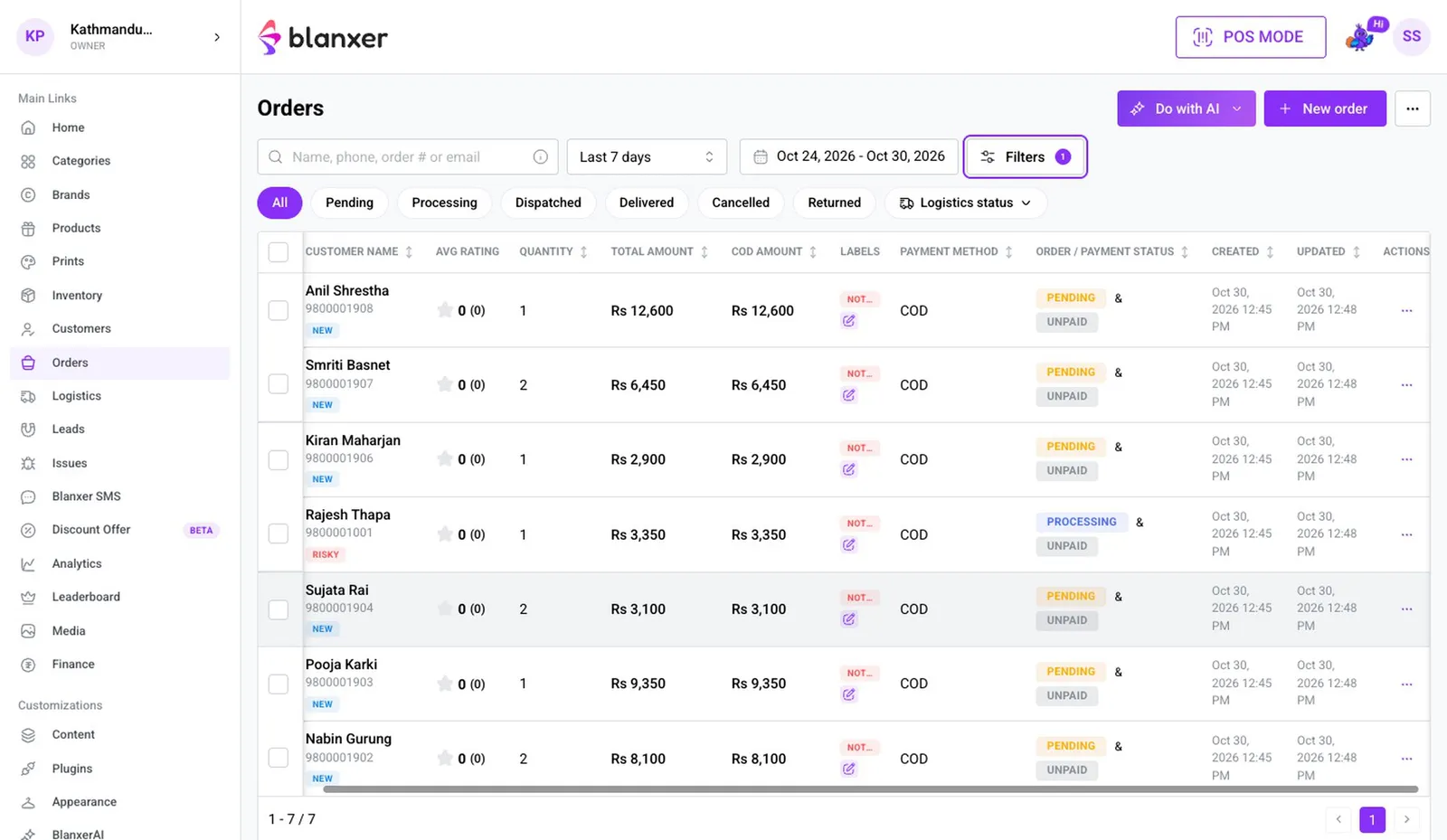
Each morning, select the new orders and use Add Label to tag them Not packed. You make labels in your own name and colour: Packed, Fragile, Gift wrap and so on.
- 9
Packing list
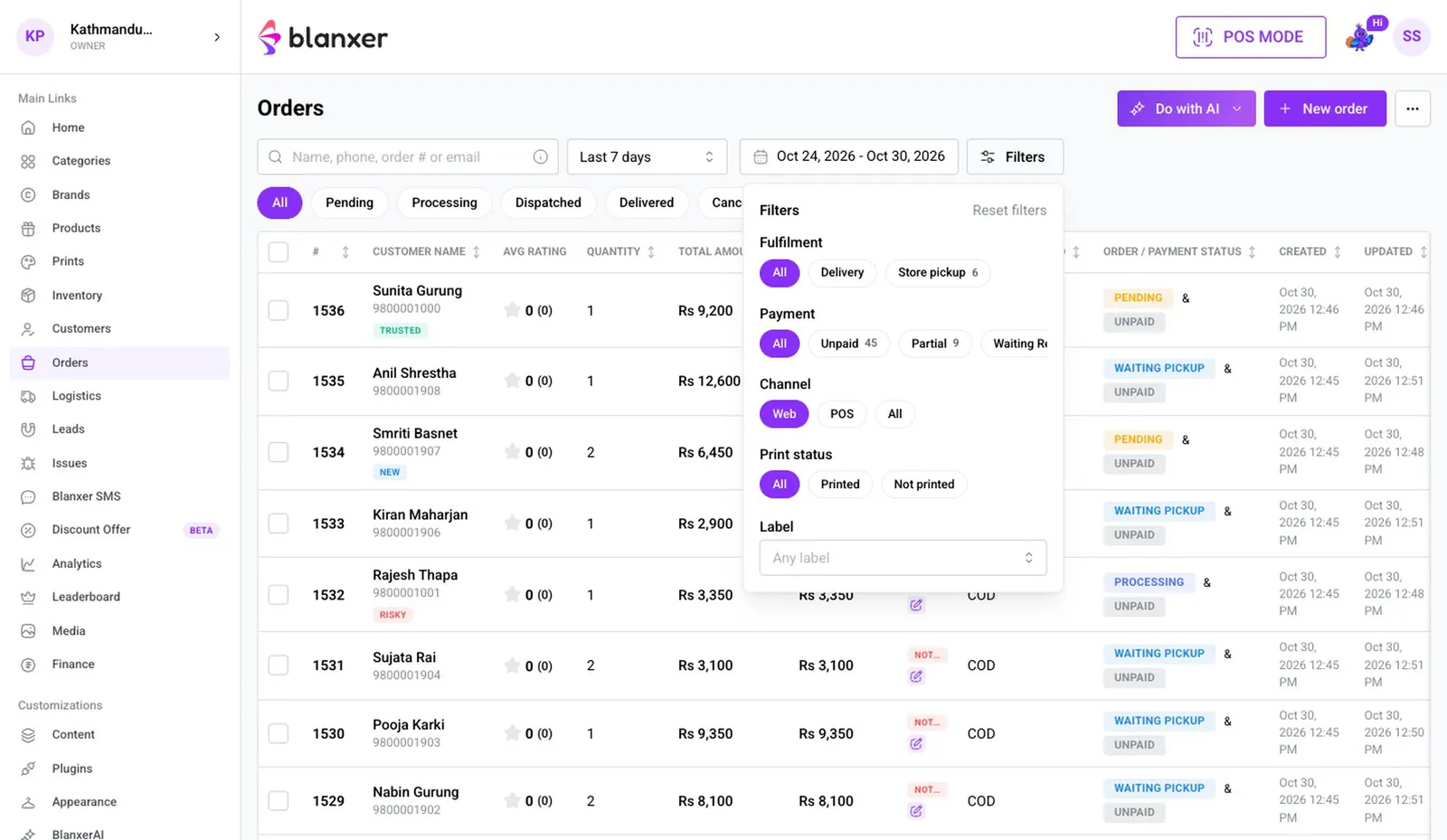
When an order is packed, swap Not packed for Packed. In Filters, choose the Not packed label to get the list for whoever packs.
- 10
Own rider or courier portal
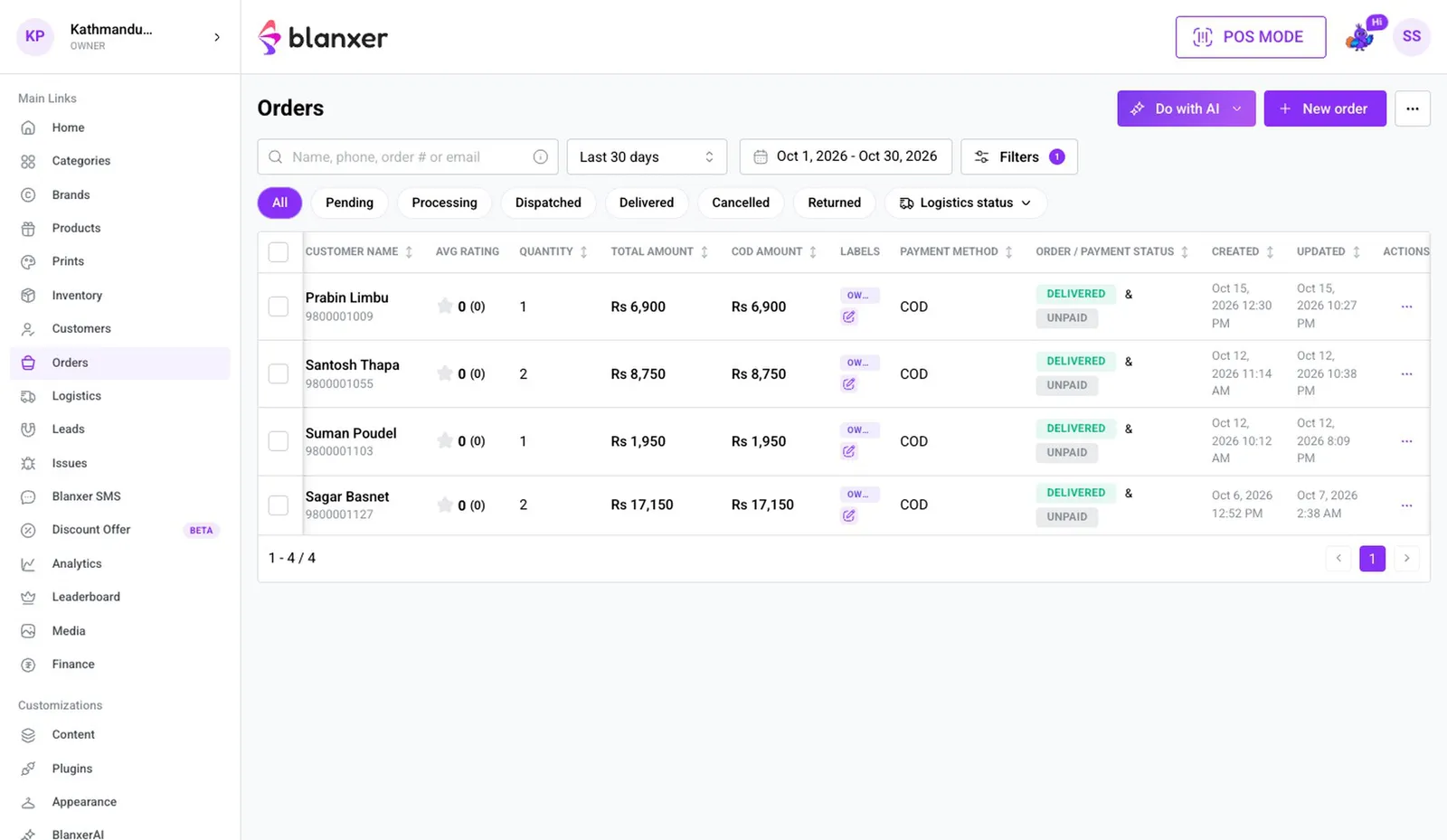
For orders sent with your own rider or through a courier's own portal, add a label like Own rider and mark them Dispatched.
Part 4
Send to a courier
- 11
Know before you send
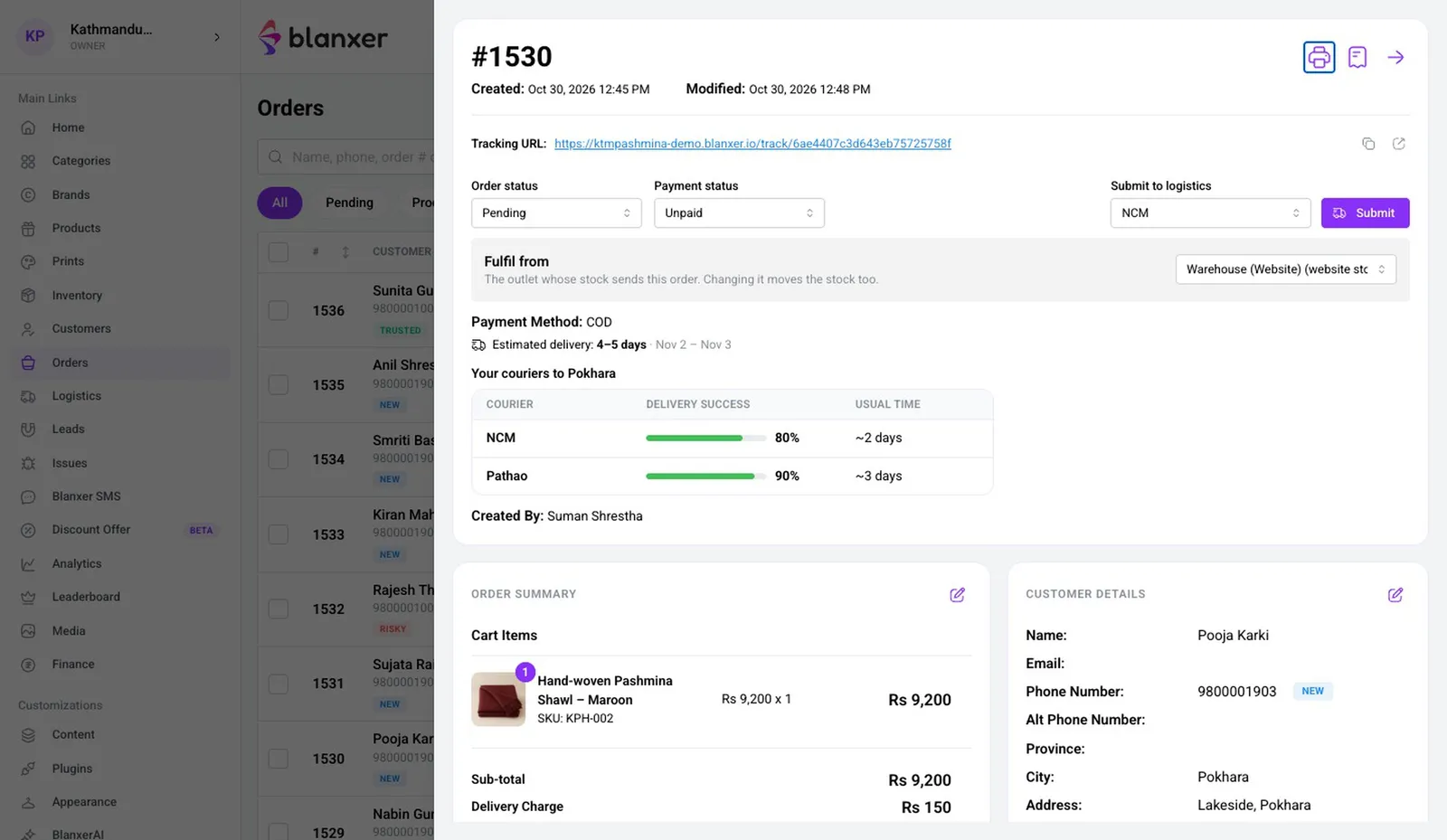
Inside the order you see when the parcel should arrive and how well each courier does in that city, based on thousands of Blanxer deliveries. Other shops' names are never shown.
- 12
Send one order
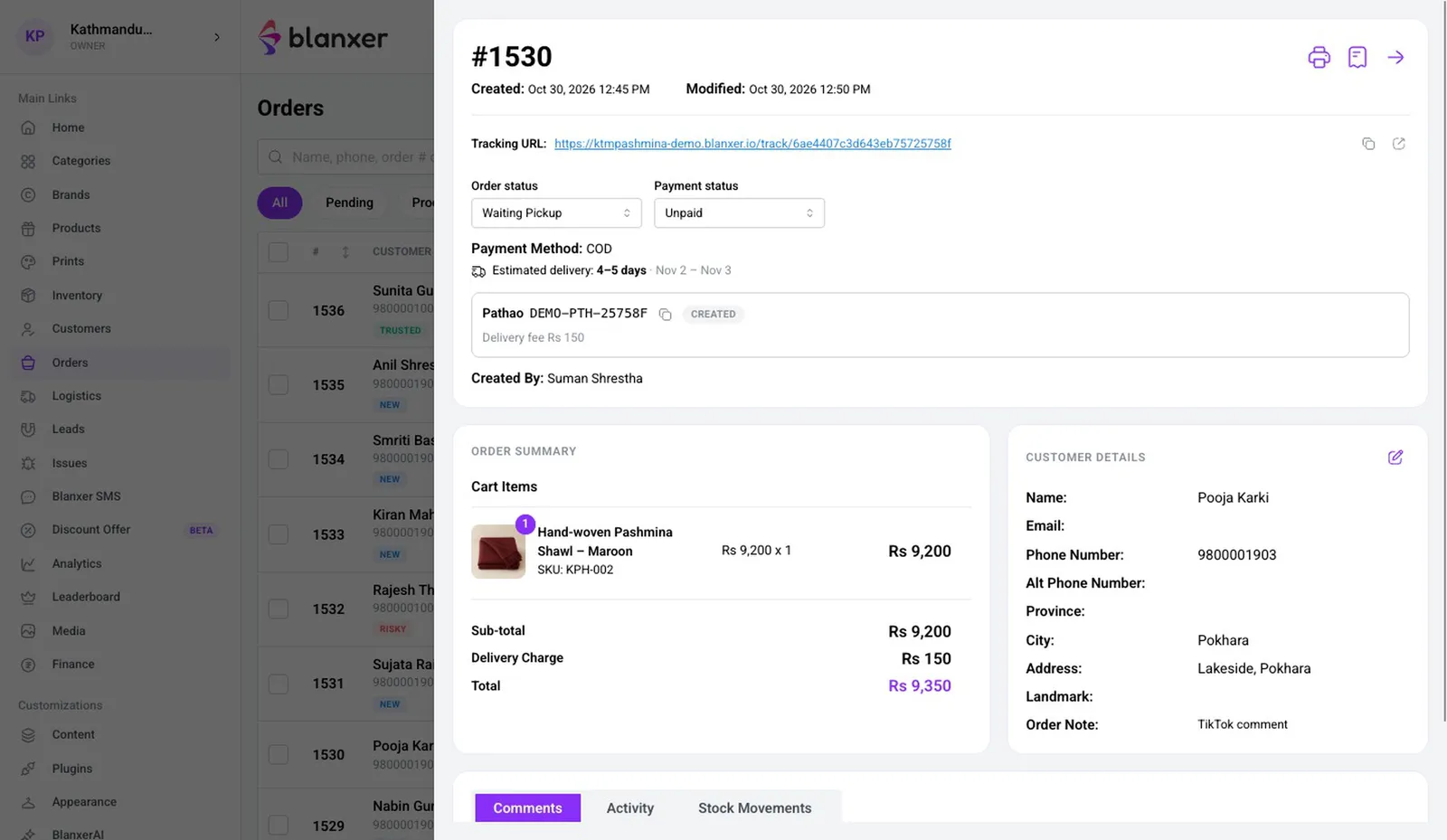
Click Submit to logistics, choose Pathao and Submit, and check the Pathao address, COD amount, weight and charge. Click Send to Pathao; a tracking number comes back and the order moves to Waiting Pickup.
- 13
Send many at once
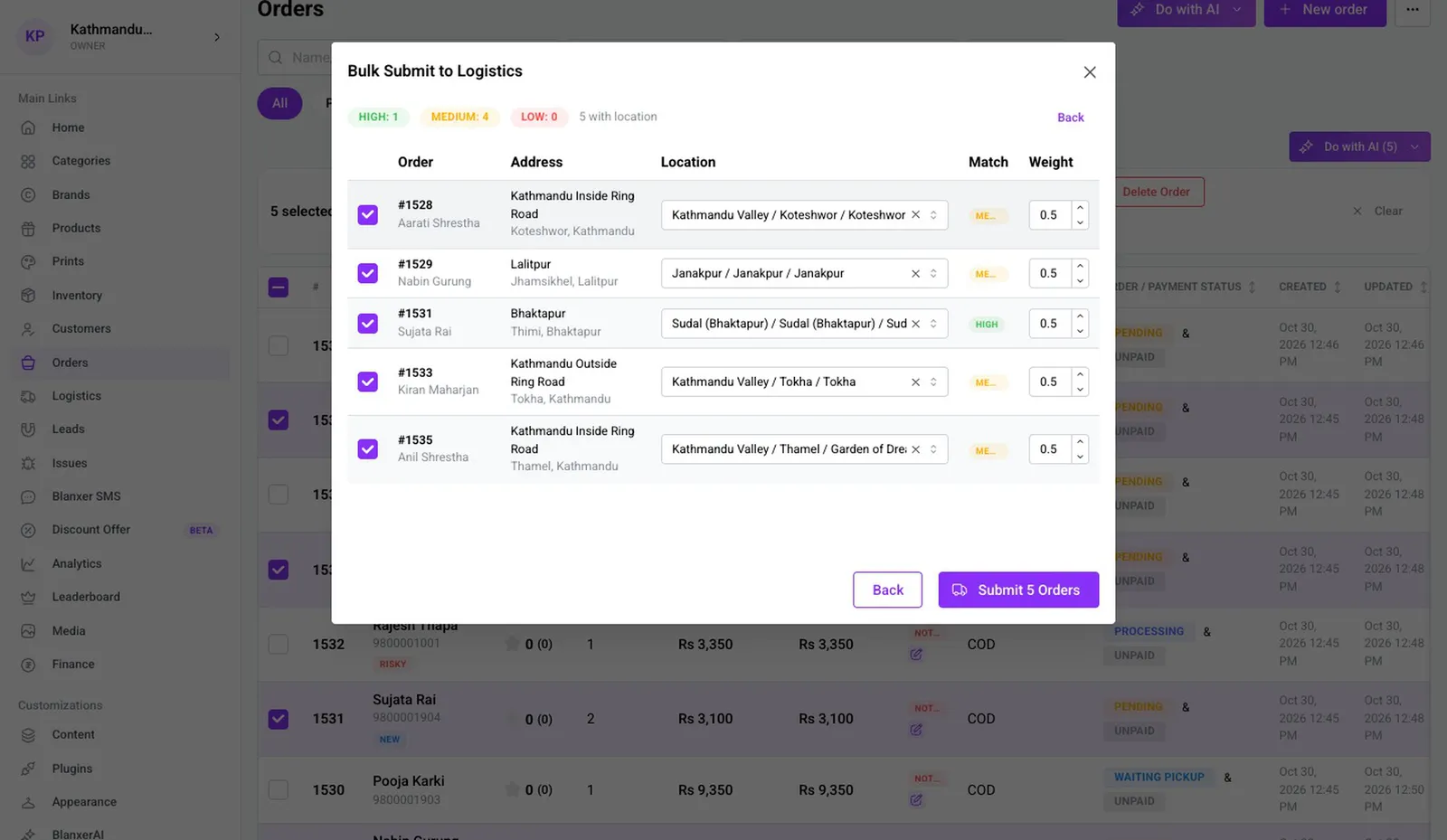
Select the packed orders and click Submit to Logistics. Choose the Logistics Provider and click Preview Matches; each address is matched to the courier's area.
- 14
Check the matches
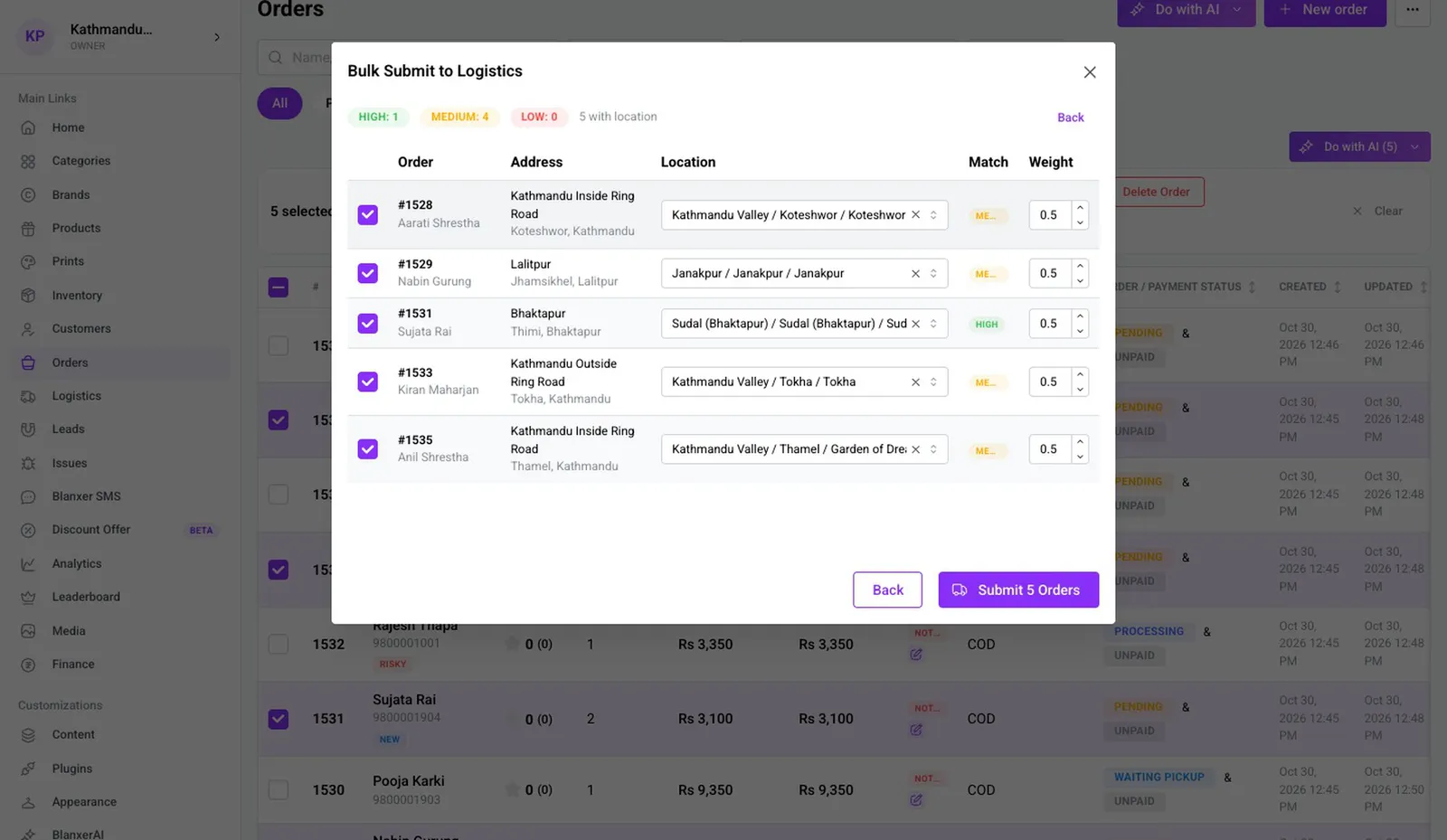
High, Medium and Low show how sure the match is. If an address doesn't fit, pick the courier's area yourself, then Submit.
Part 5
Print shipping labels
- 15
Submit first, then print
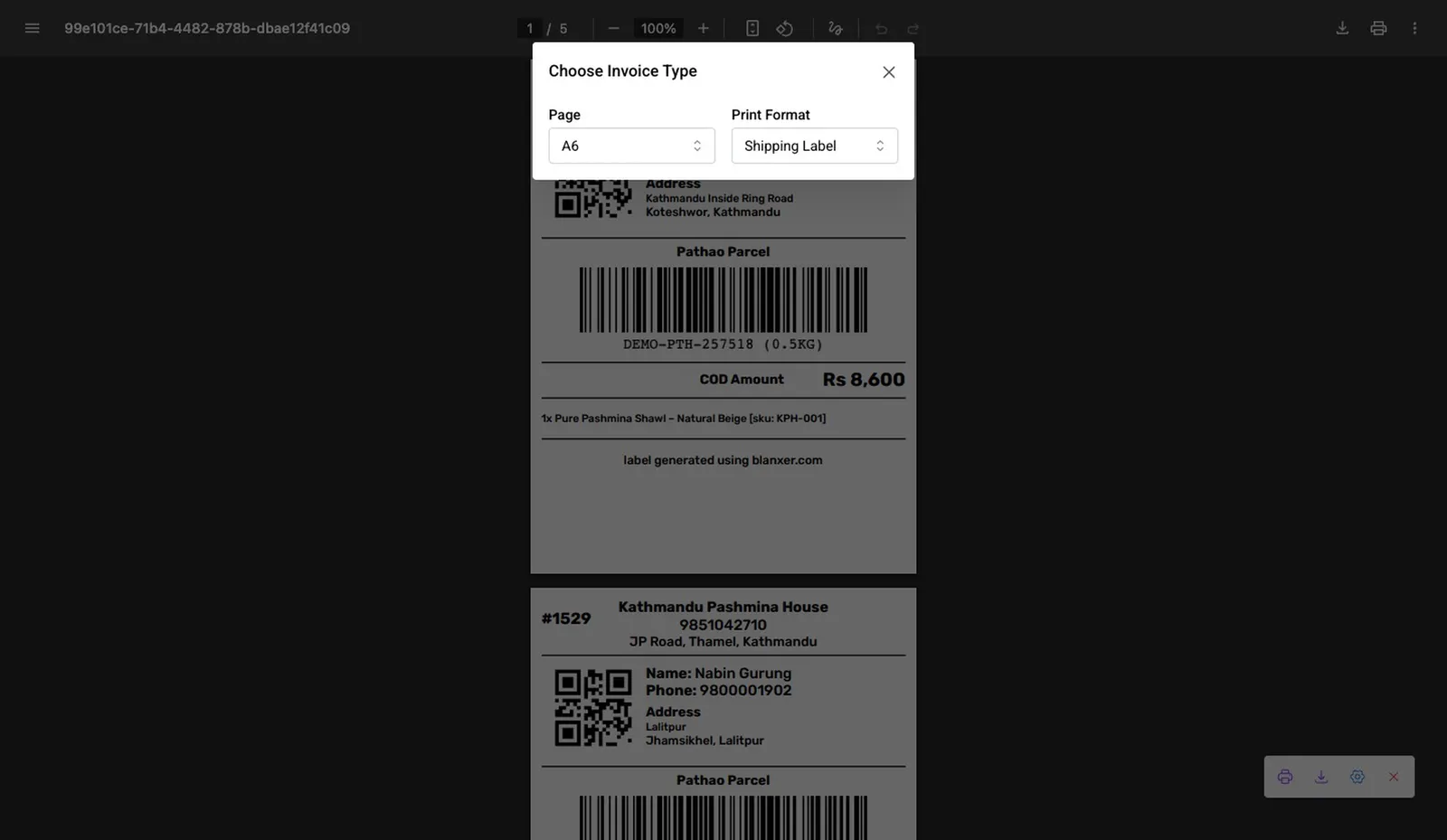
The courier's tracking barcode and QR only reach the label after you submit, so print afterwards. In Print Setting, choose one A6 label or four on A4.
- 16
Nothing gets missed
Printed orders are marked Printed. Labels can also print from the phone app, and label printers are sold at Blanxer Supply.
Part 6
Statuses move by themselves
- 17
Dispatched to Delivered
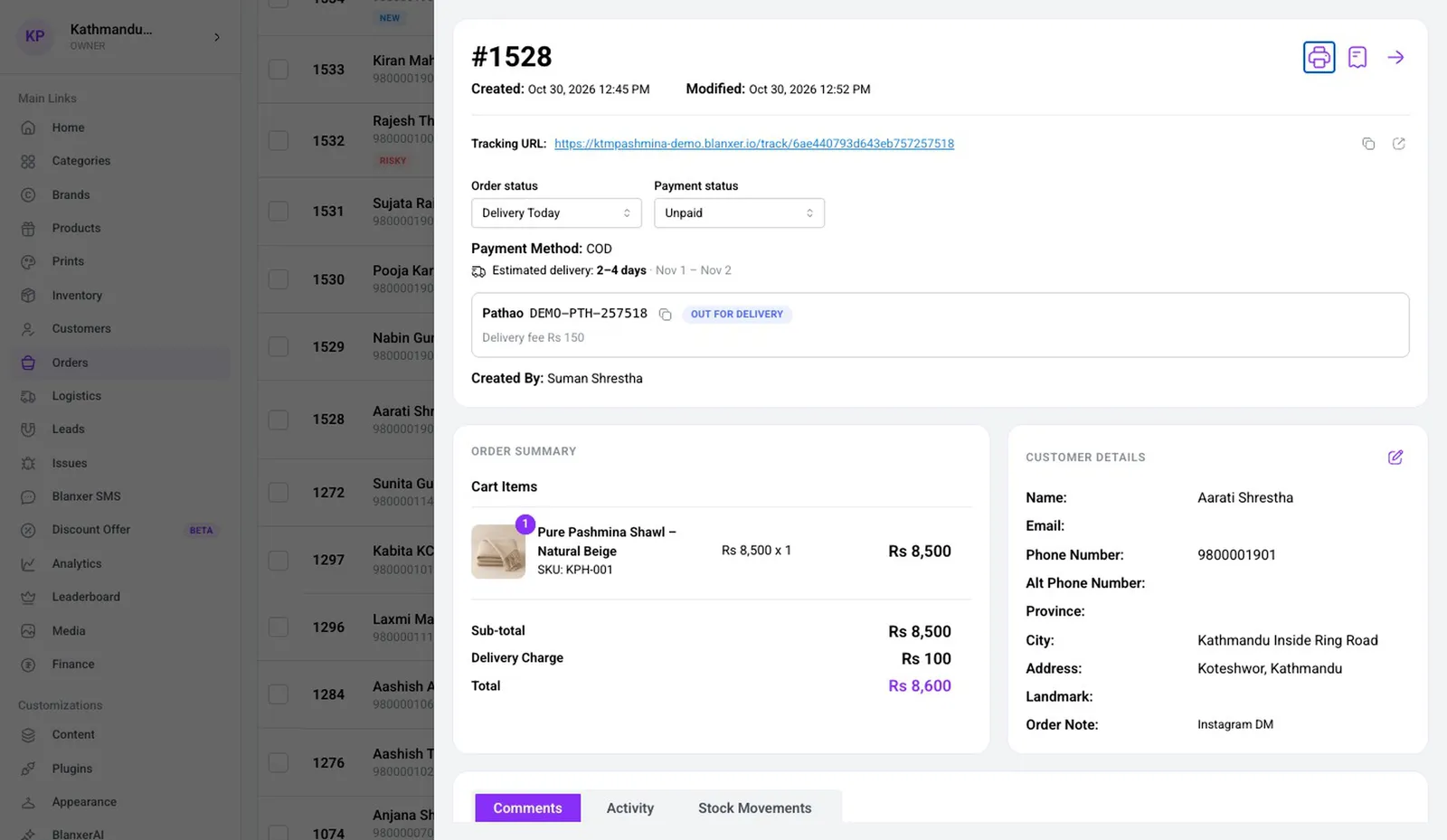
As soon as the courier picks up, the order becomes Dispatched, then In transit and Delivering today. The customer gets an SMS at each step with the courier's tracking number.
- 18
Delivered: Waiting Reconcile
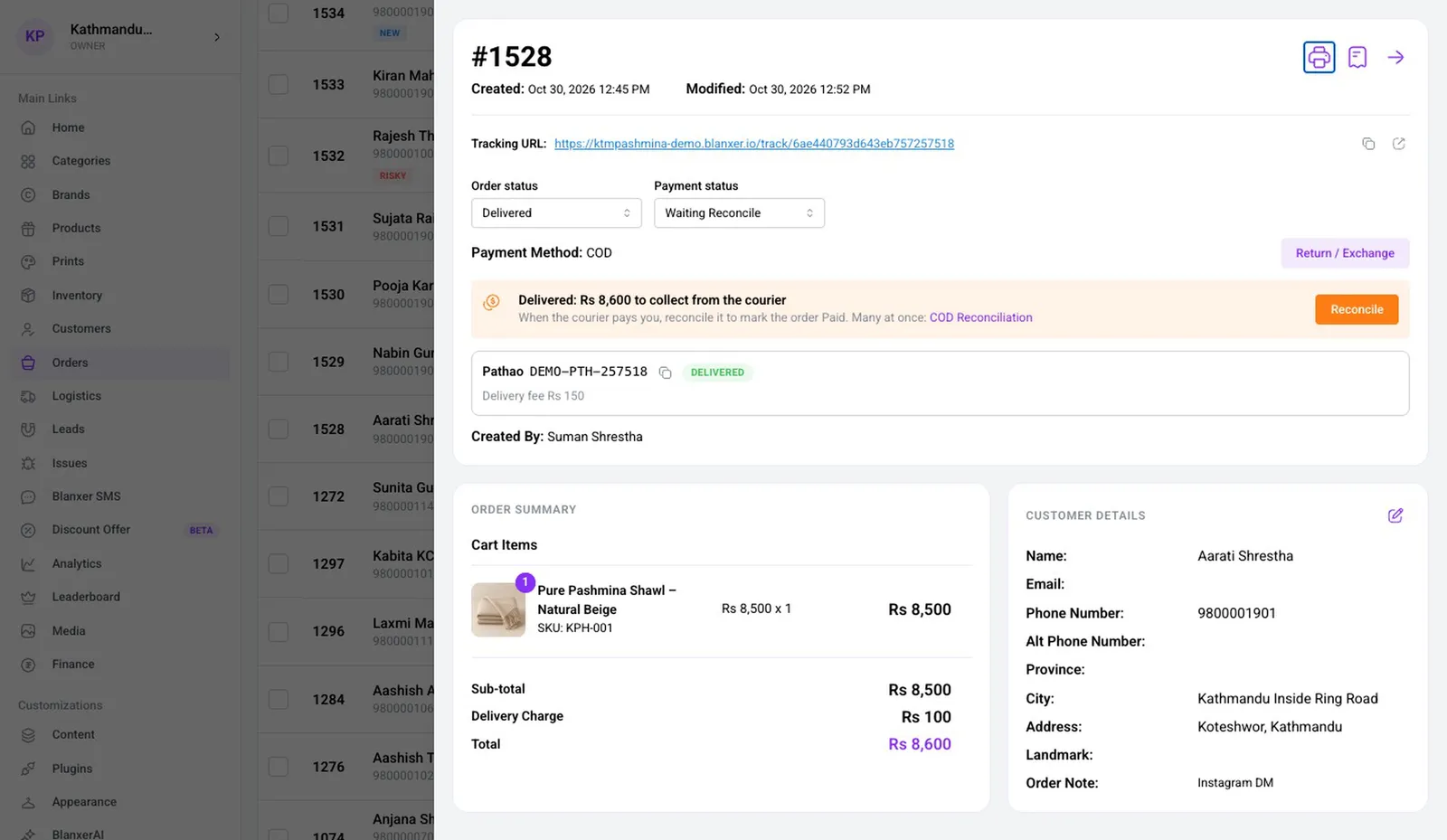
A delivered COD order shows Waiting Reconcile, because the cash is still with the courier. Once the courier pays and you Reconcile, it becomes Paid.
- 19
Activity
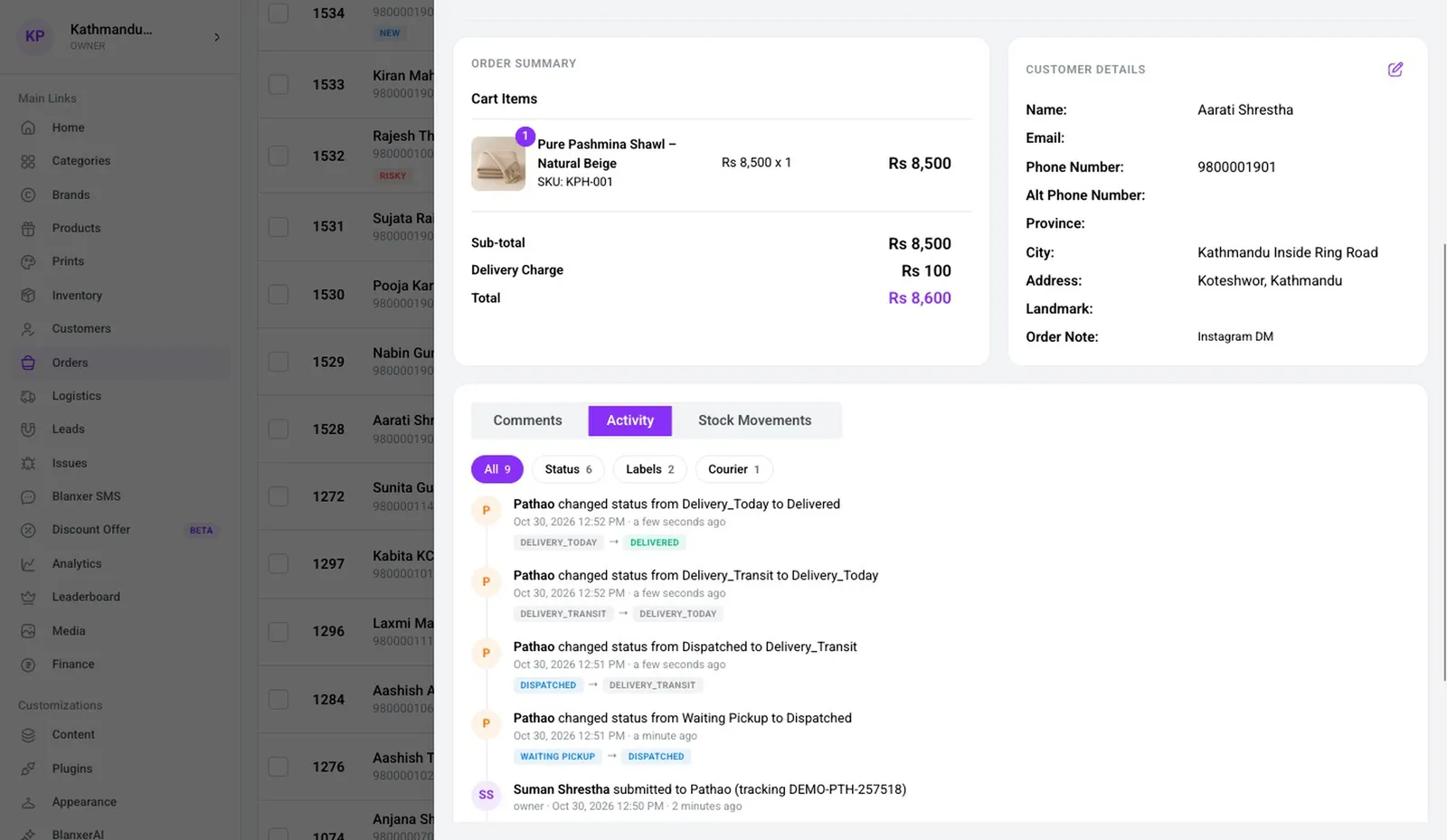
Activity shows who did what and when, including every courier step.
Part 7
Every parcel, right now
- 20
Open Logistics
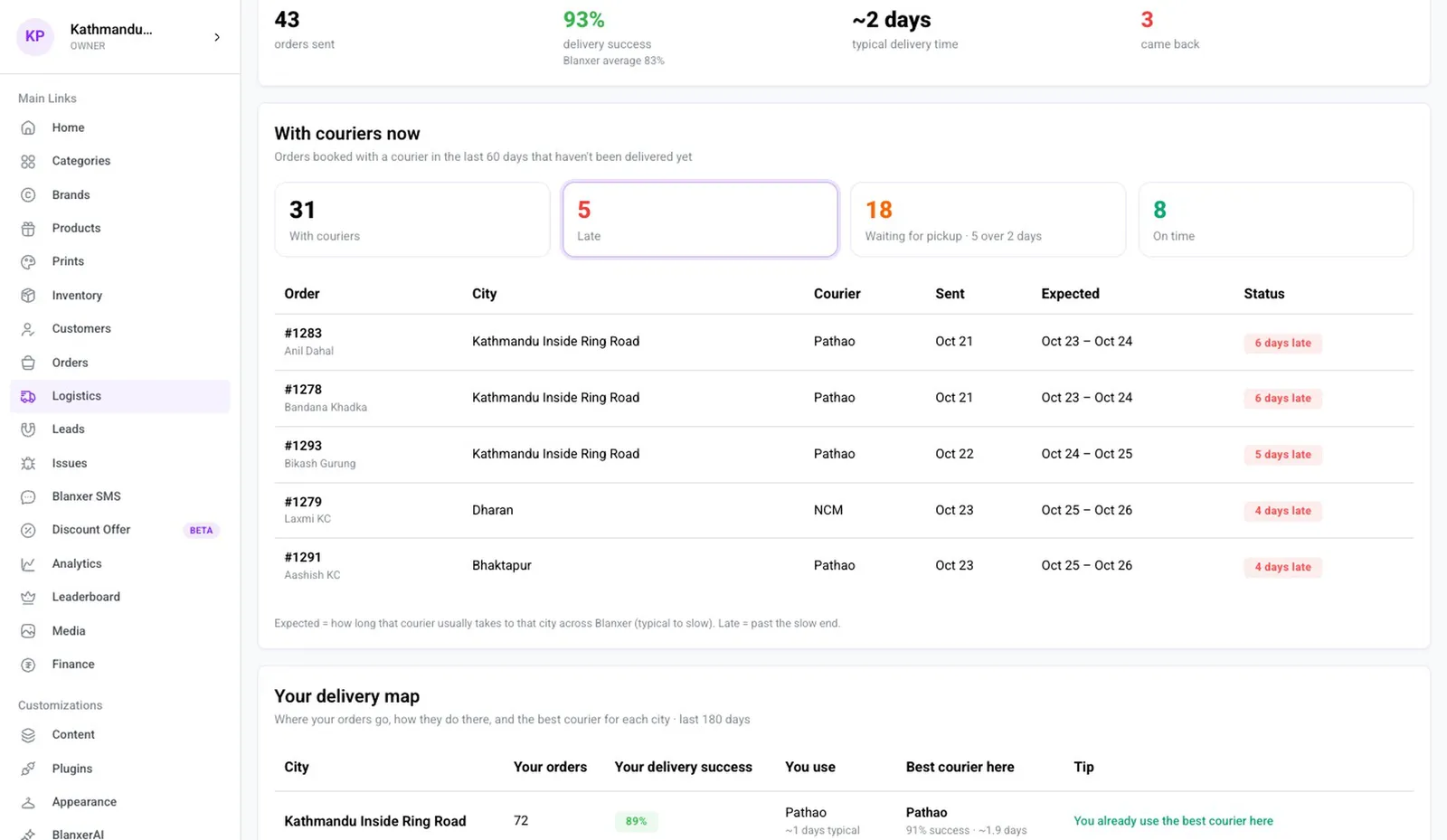
With couriers now lists every parcel the couriers hold, including late ones and ones not picked up for more than two days. Click Late for only the late parcels.
- 21
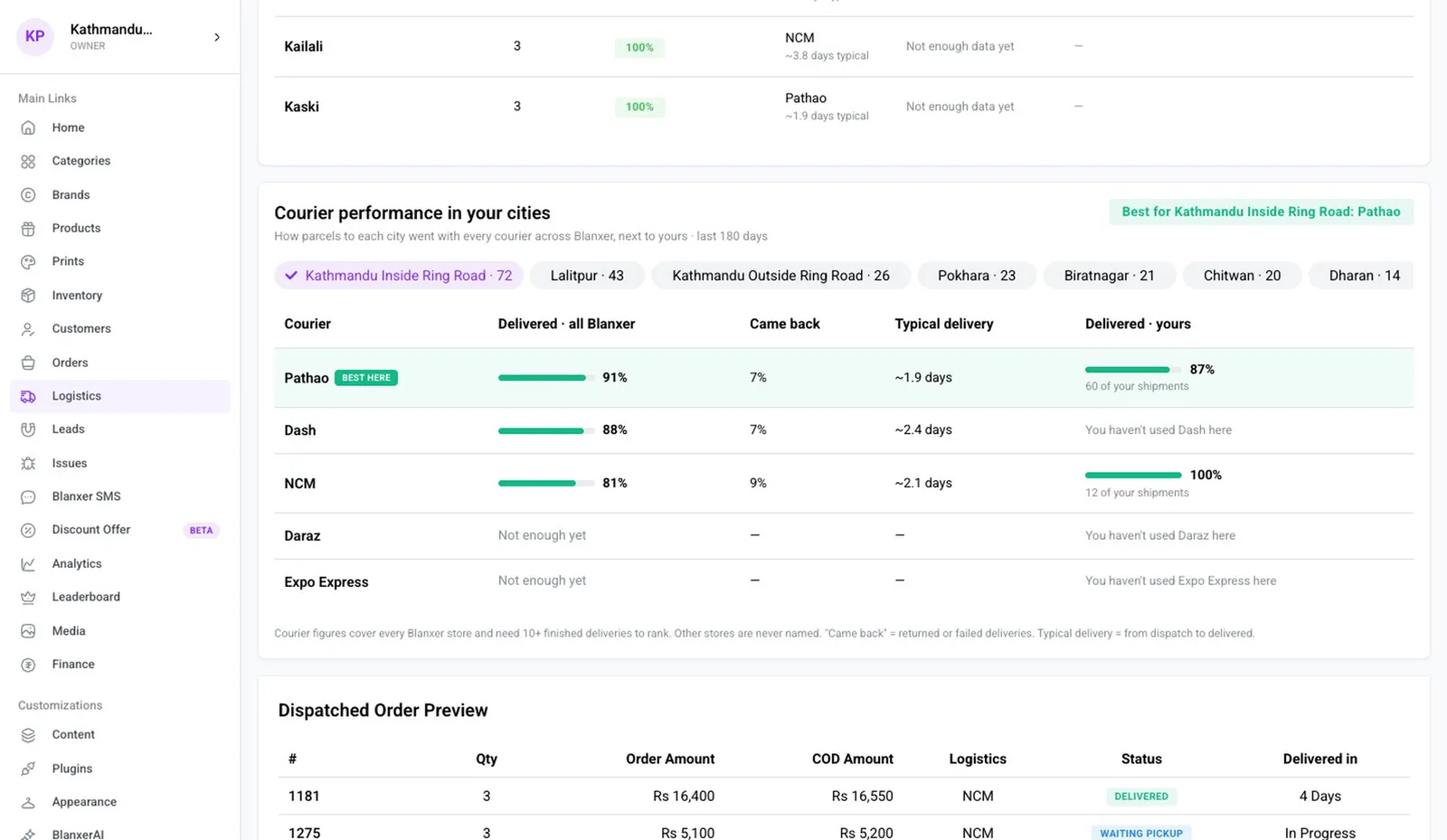
Success by city and Courier performance
See your delivery success in each city with the best courier there, and Courier performance against the Blanxer-wide average.
- 22
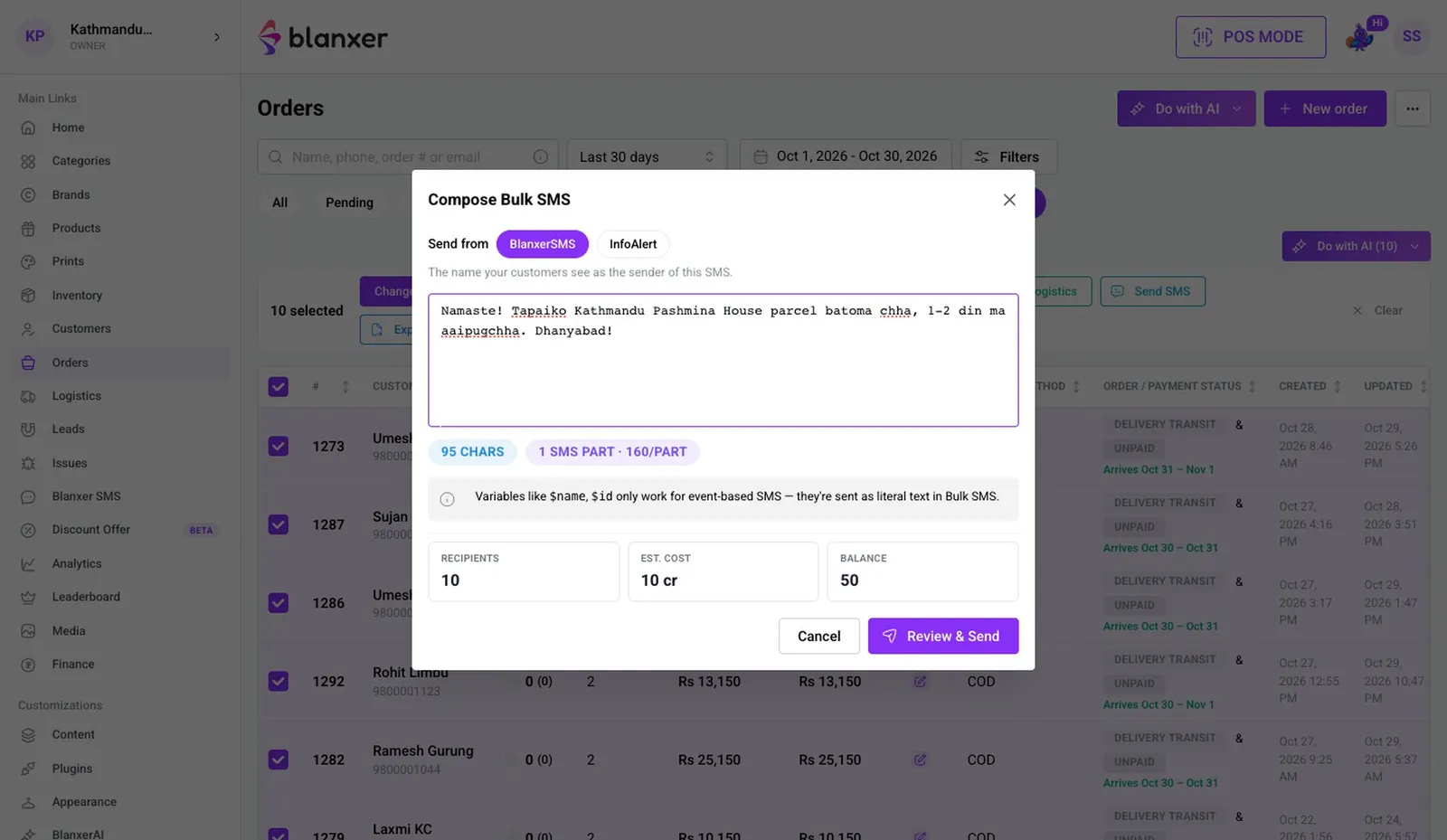
Tell late customers
In Orders, select the late orders, click Send SMS and write a short message.
Part 8
Returns and exchanges
- 23
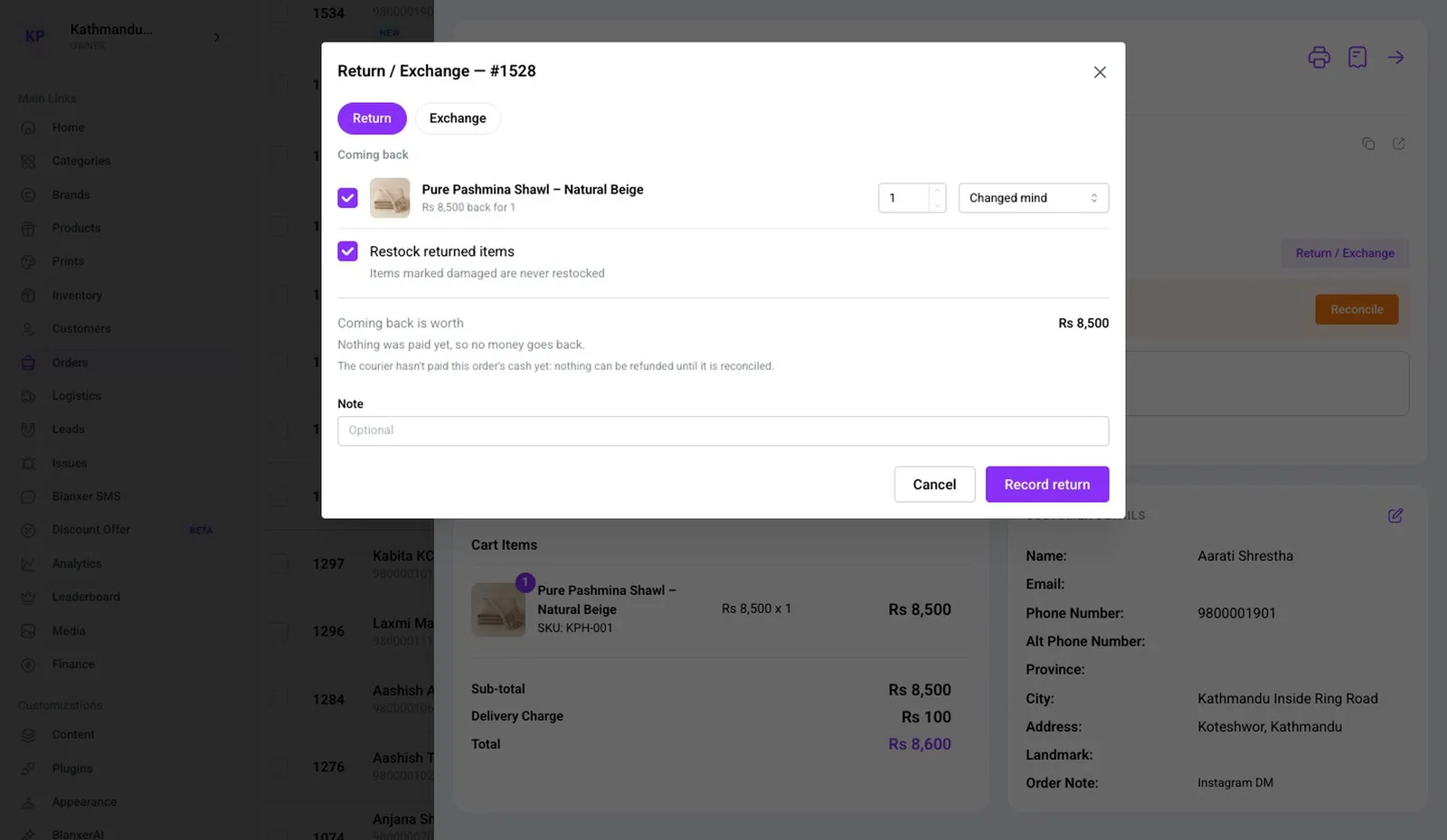
Return / Exchange
When a customer sends goods back or swaps them, use Return / Exchange on the order. Stock and money are both adjusted. This only records it in Blanxer; ask the courier for the return yourself.
- 24
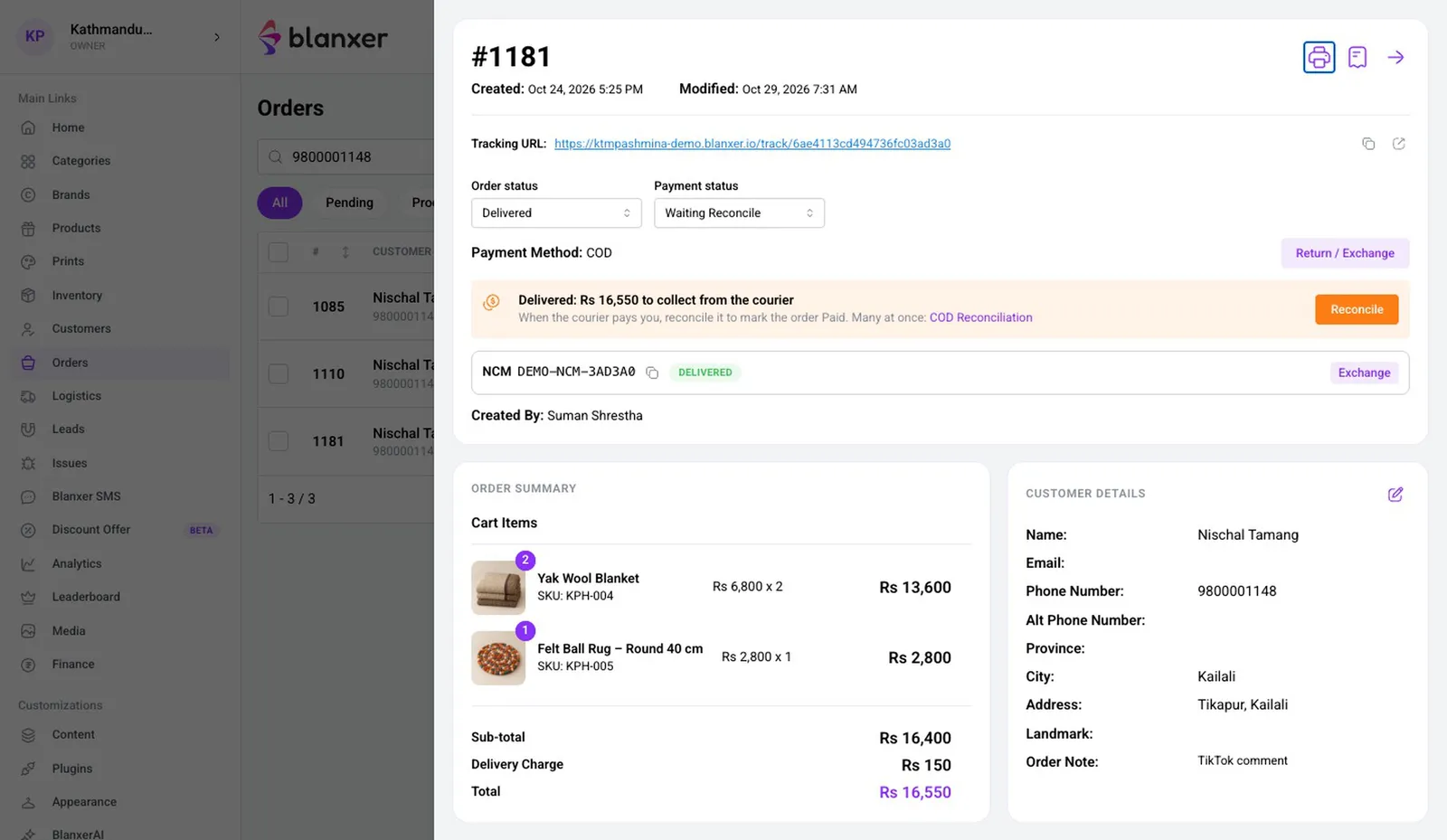
With NCM, ask from Blanxer
With NCM, you can request returns and exchanges from Blanxer itself.
Good to know
- Return / Exchange records the return in Blanxer only. Except with NCM, you have to ask the courier for the return yourself, because not every courier offers it through their API.
- Delivered COD orders stay in Waiting Reconcile until you record the courier's payment.
- Print labels after submitting to the courier, or the tracking barcode and QR won't be on them.
More videos
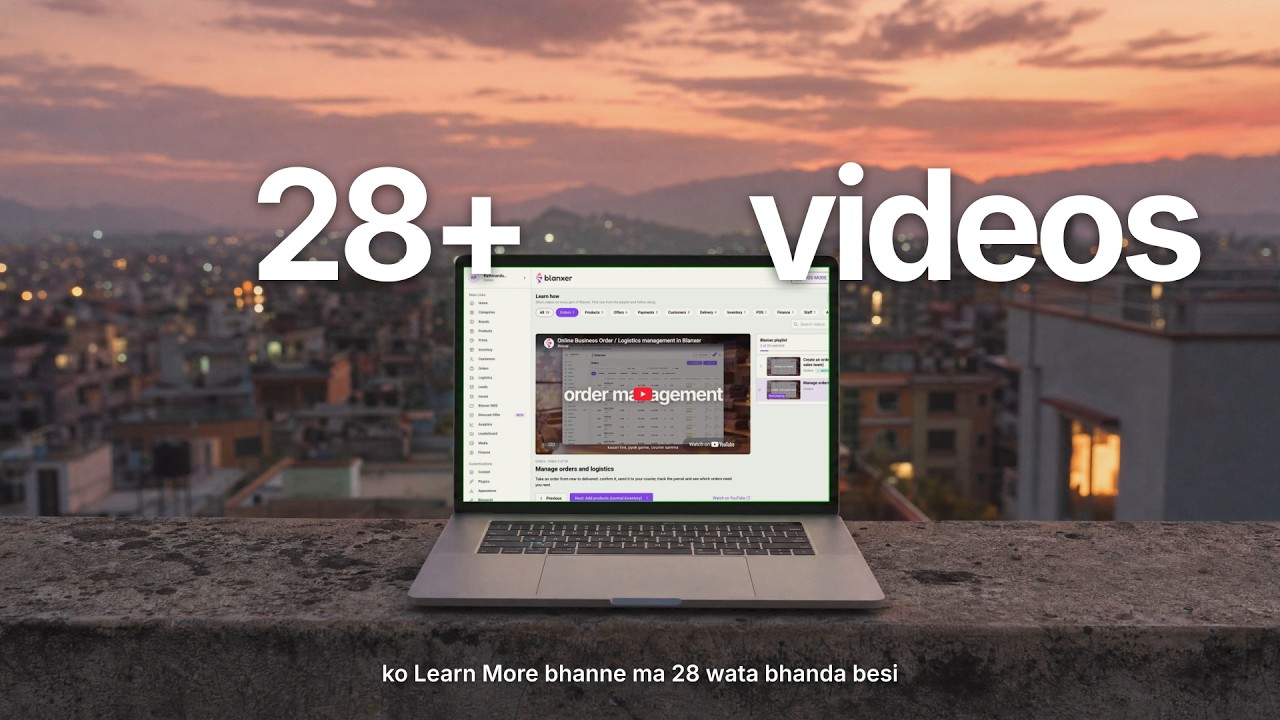
All 33 videos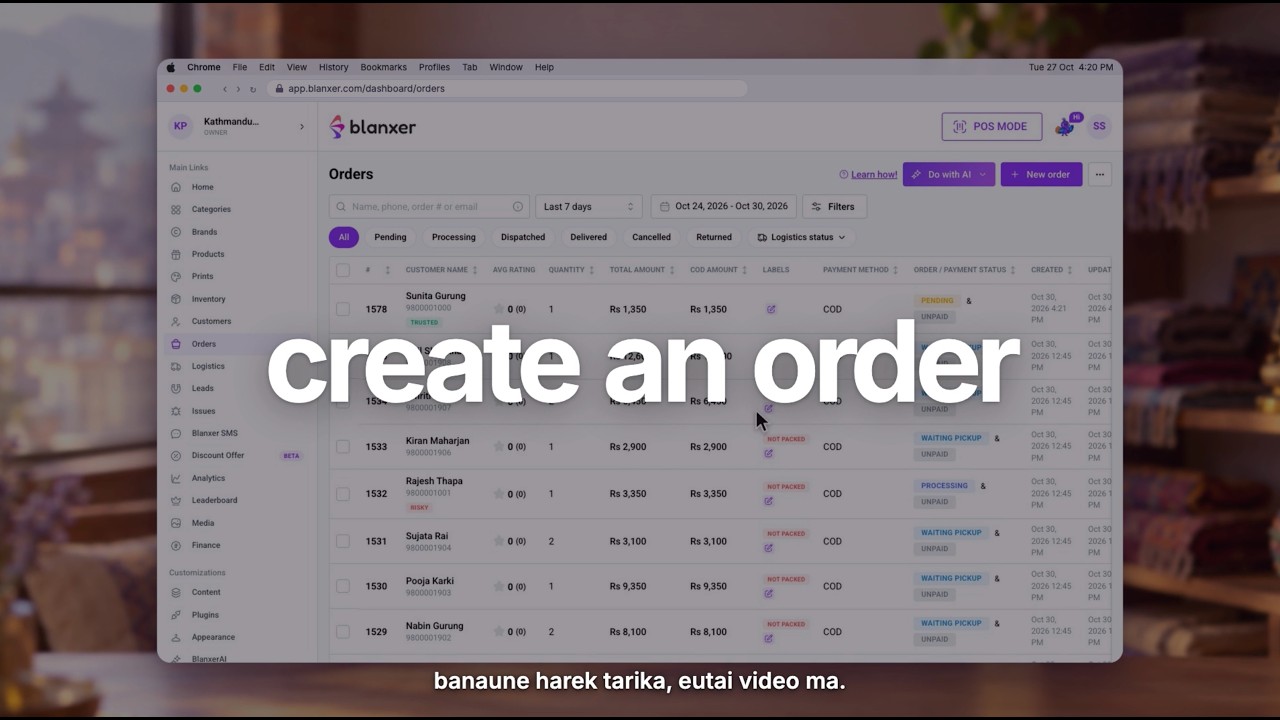 6:54
Orders
Create an order (for your sales team)
The most important one: how your team takes an order from a customer and creates it in Blanxer, step by step.
 1:12
Getting started
What is Blanxer?
Start here: what Blanxer is and what it does for your business, before the videos on each feature.
 5:43
Products
Add products (normal inventory)
Add a product with its photos, price, variants and stock, for stores on normal inventory.
See Blanxer with your own business in mind.
Book a demo. We'll show you the store, checkout, POS and dashboard, and tell you honestly which plan you need.
Prefer to talk directly?
Already a customer? Support on WhatsApp +977 9802344850, Sun–Fri, 9 AM – 6 PM.
Follow Blanxer
 A Blanxer product
One AI inbox for every customer conversation.
Sambad.io brings WhatsApp, Instagram, Facebook, website chat and email into one inbox. Connect your Blanxer store and its AI answers from your catalogue, checks stock, quotes delivery and places the order right in the chat.
- Website chat
- Gmail
- Outlook
- Zoho Mail