
Staff roles and permissions
Invite your staff and give each one a role, so they see and do only what their job needs.
Staff · 5:28 · In Nepali
Give each staff member a role, the outlets they work at and the exact actions they're allowed. POS, stock and money stay in your control, and each person sees only what their job needs.
Part 1
Give each person a role
- 1
Invite a manager
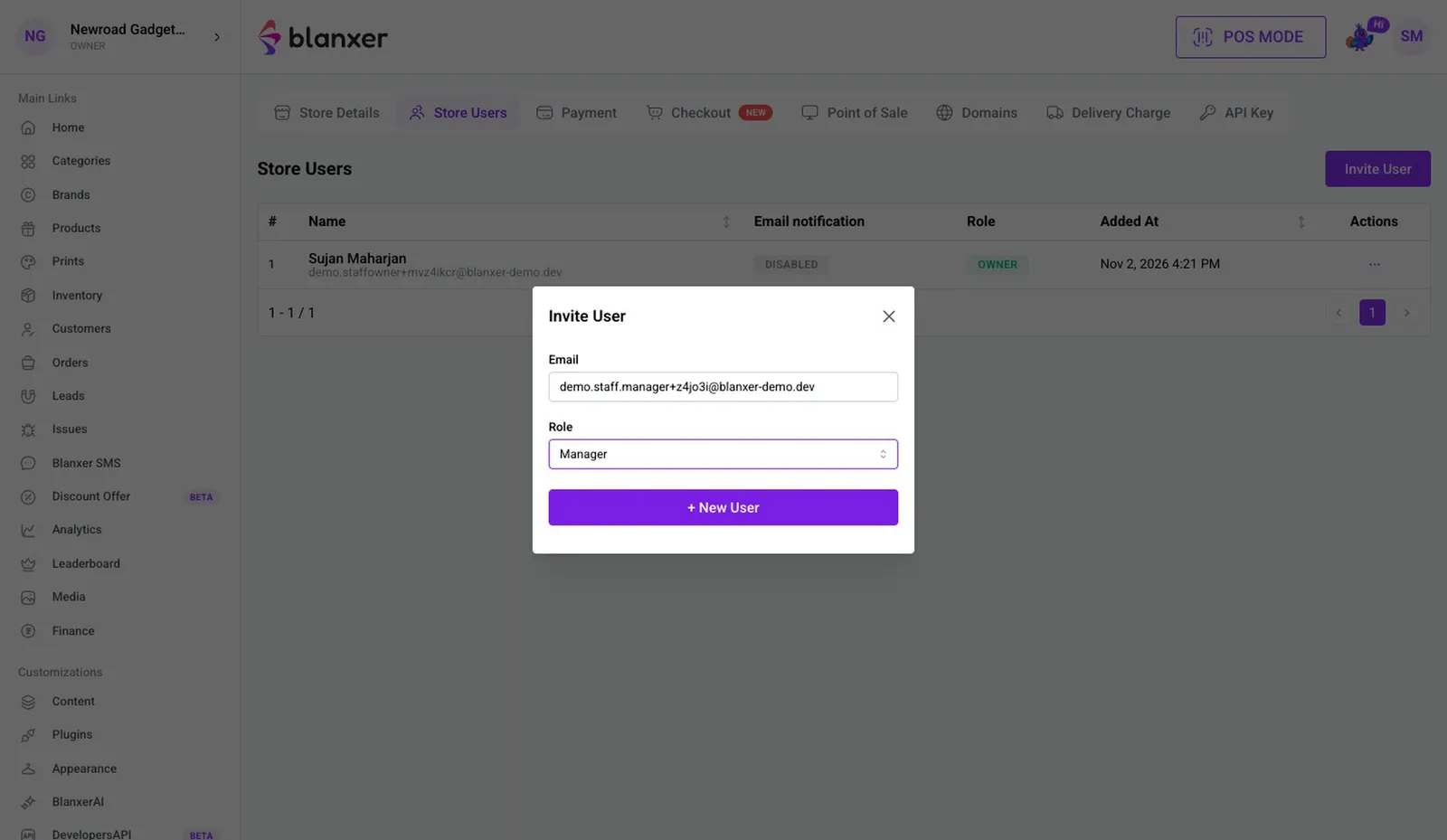
In Settings → Store Users, click Invite User, type the email and pick Role Manager. The invitation goes by email. A manager can do almost everything you can: products, orders, Finance, Analytics and settings.
- 2
Invite a cashier as CSR
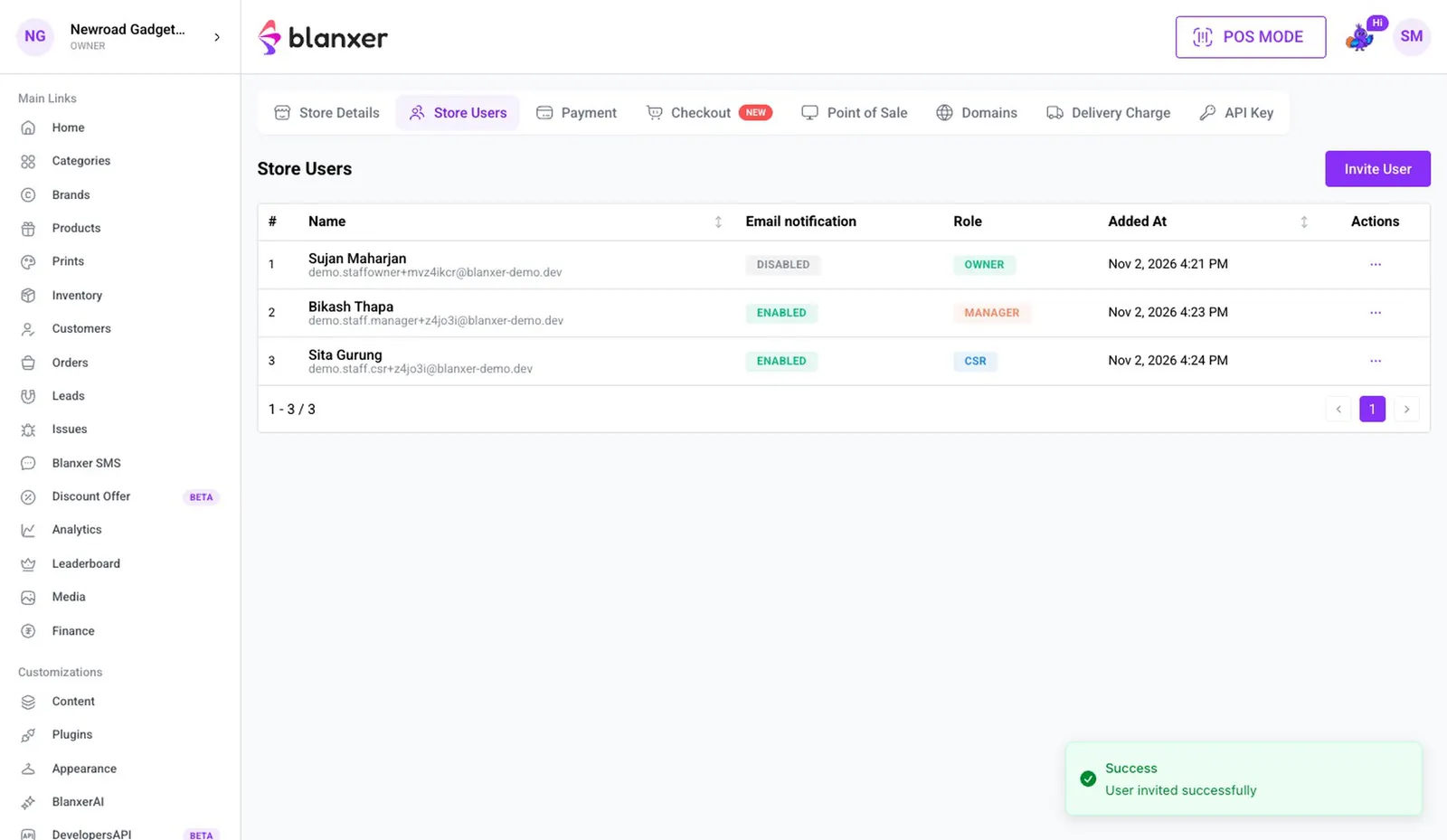
Give cashiers the CSR role: they handle orders, customers and POS sales, but not settings, Finance or product editing. A Viewer can only look, which suits a partner who checks the books.
Part 2
Set outlets and permissions
- 3
Choose their outlets
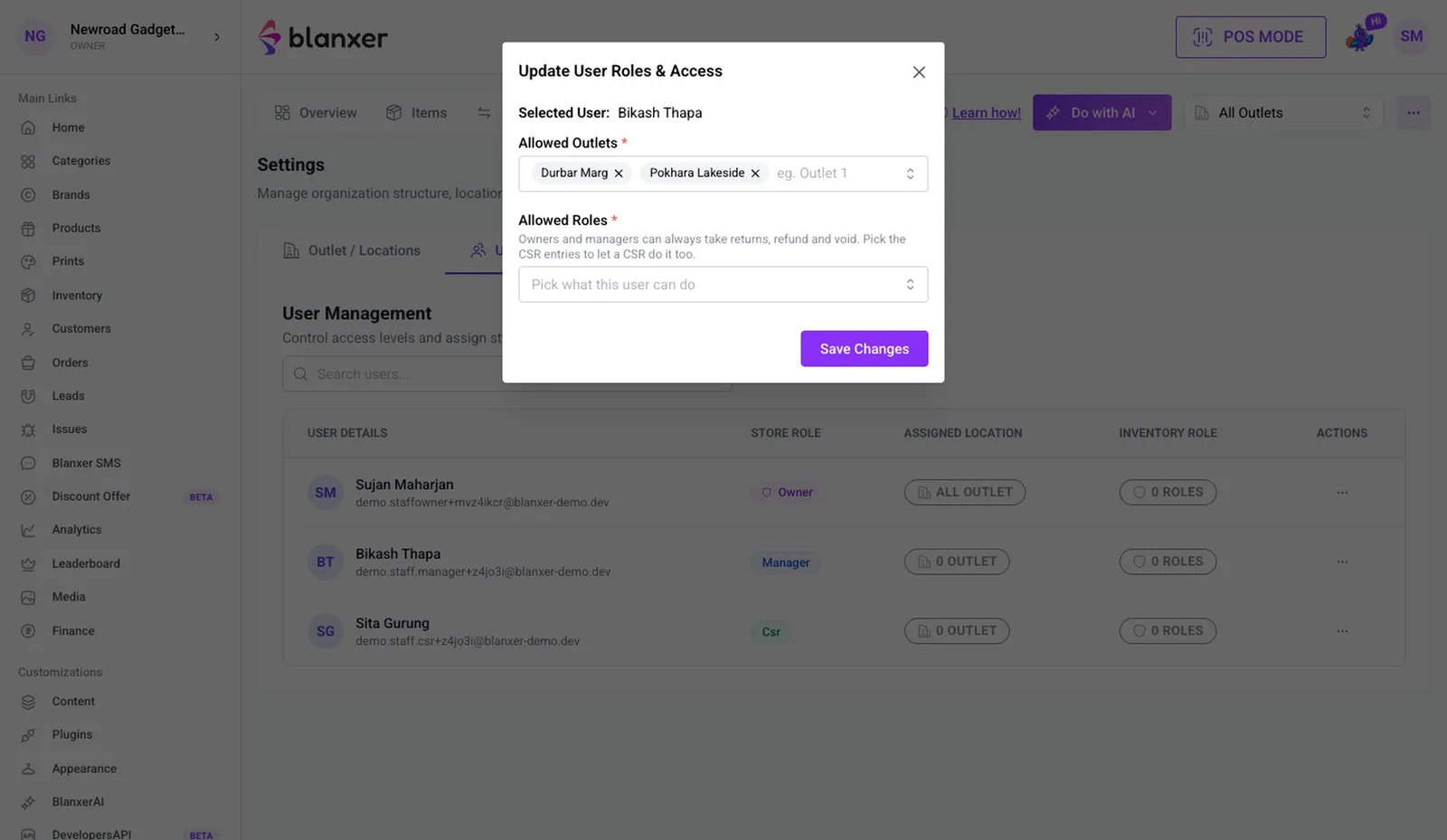
In Inventory settings, open User Access & Roles and click Edit access for a person. In Allowed Outlets pick only the outlets they work at, e.g. Durbar Marg and Pokhara Lakeside.
- 4
Choose what they can do
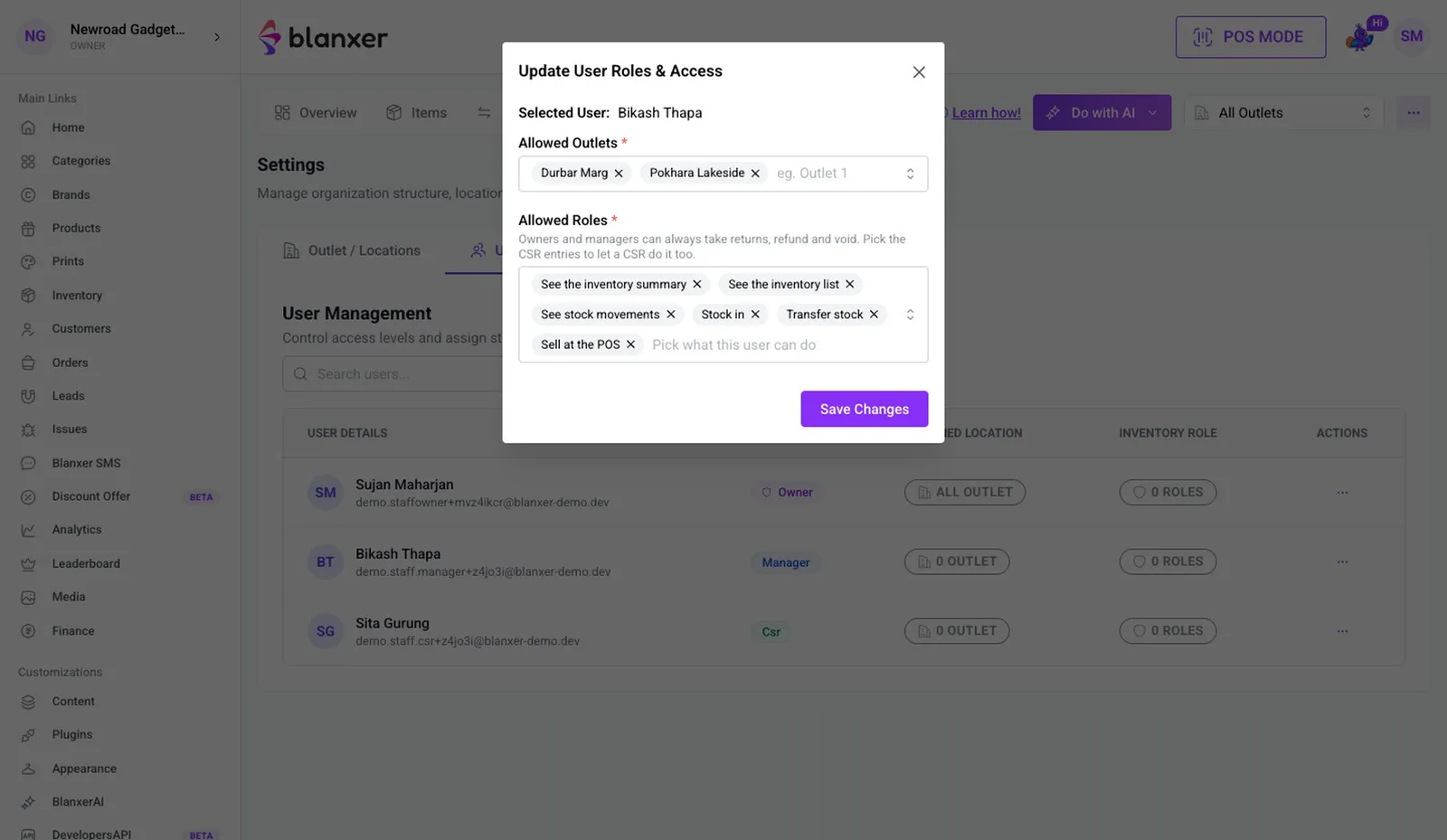
In Allowed Roles tick their actions, e.g. See the inventory summary, See the inventory list, See stock movements, Stock in, transfer and selling on POS. Leave out write-off if they shouldn't have it, then Save Changes.
- 5
Set up a cashier
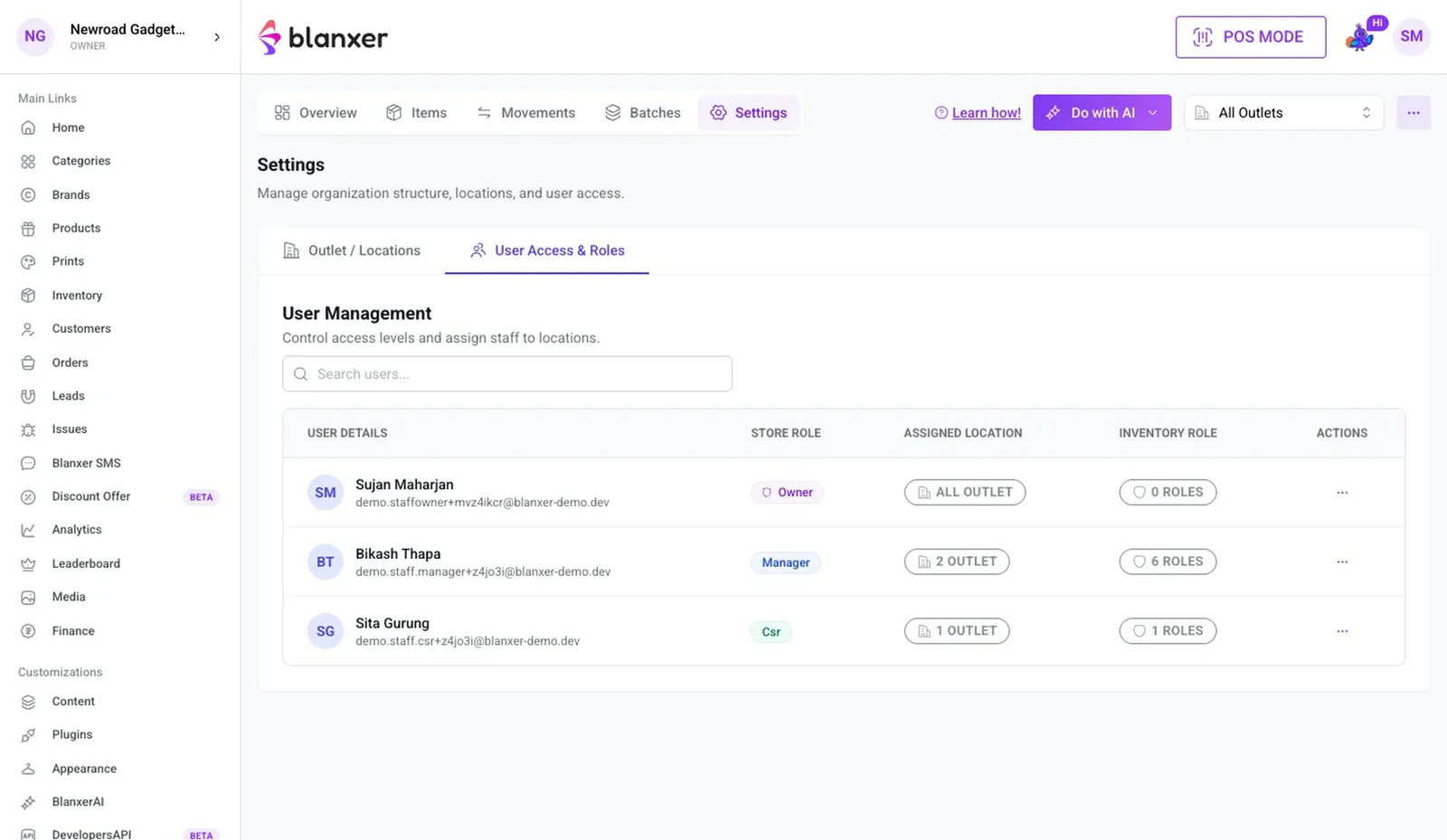
For a cashier, give one outlet and only selling on POS, then Save Changes. The table shows how many outlets and permissions each person has.
Part 3
What the cashier sees
- 6
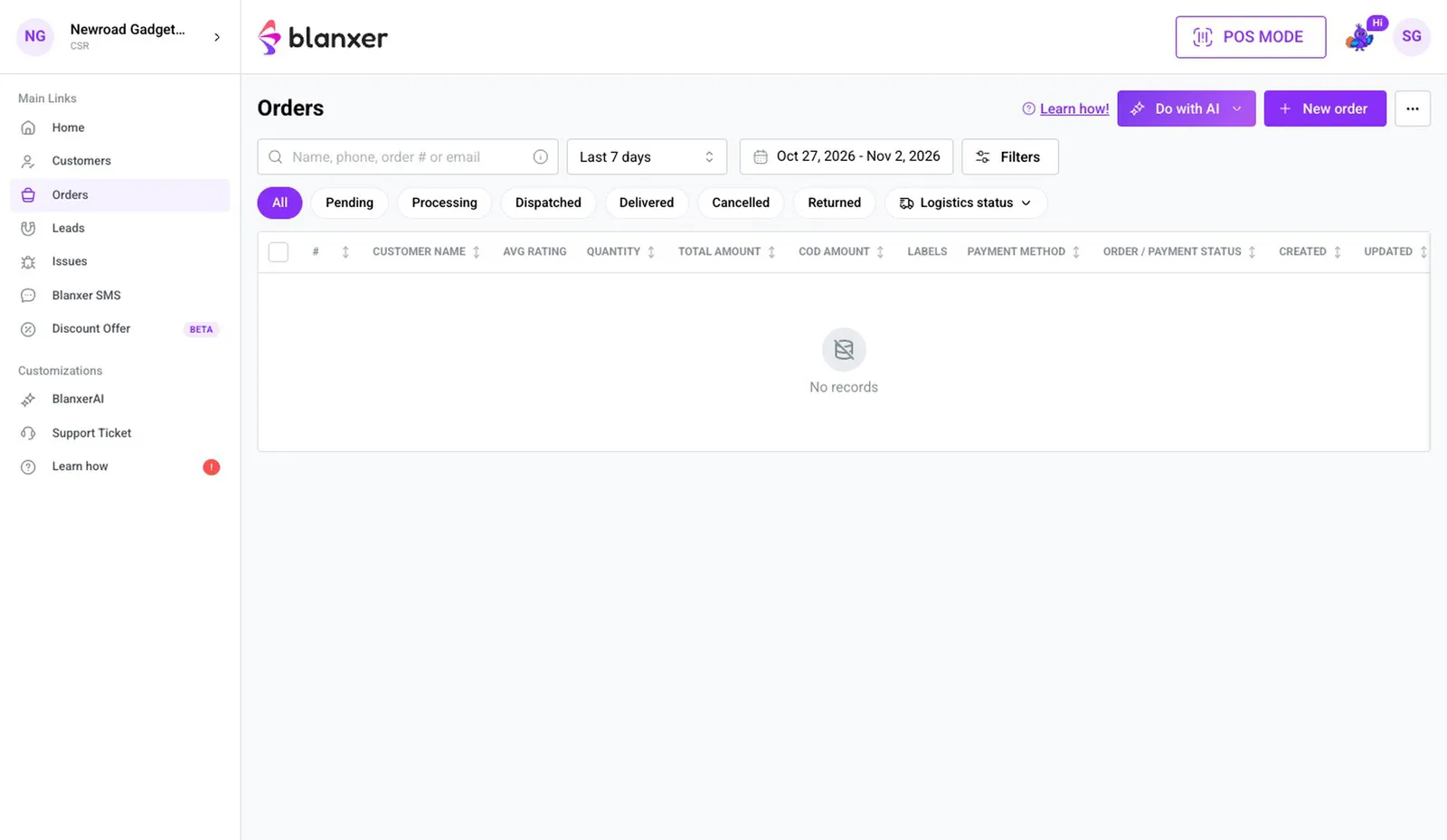
Only sales pages
The cashier's menu shows sales pages such as orders and customers. Products, Inventory, Finance and settings are hidden.
- 7
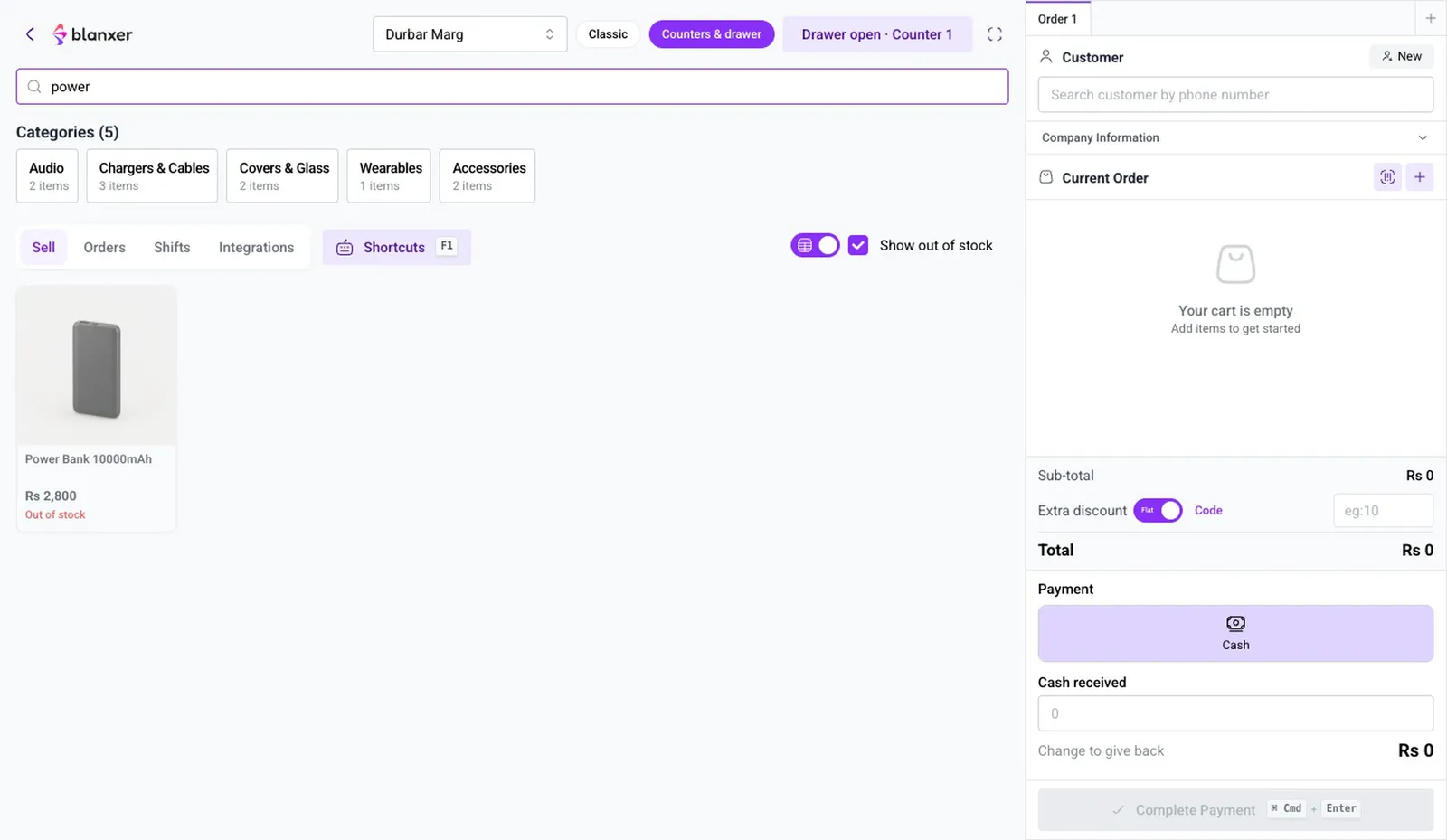
Only her outlet's stock
She can sell and open a drawer only at her outlet, and product search shows only that outlet's stock. Other outlets' stock never appears.
- 8
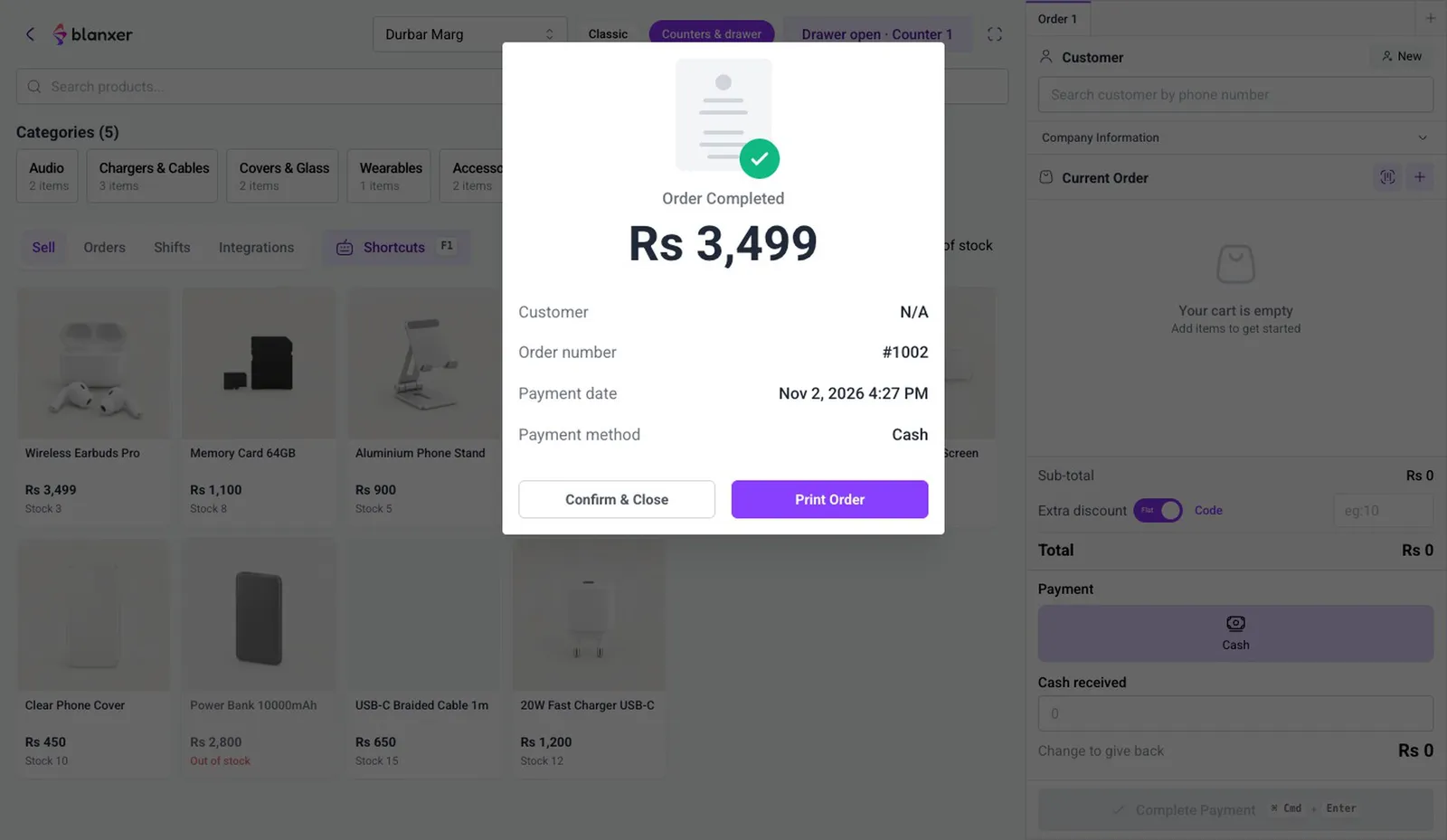
Sales carry her name
Each sale is recorded against the counter and the cashier's name.
Part 4
Let a cashier take returns, refunds or voids
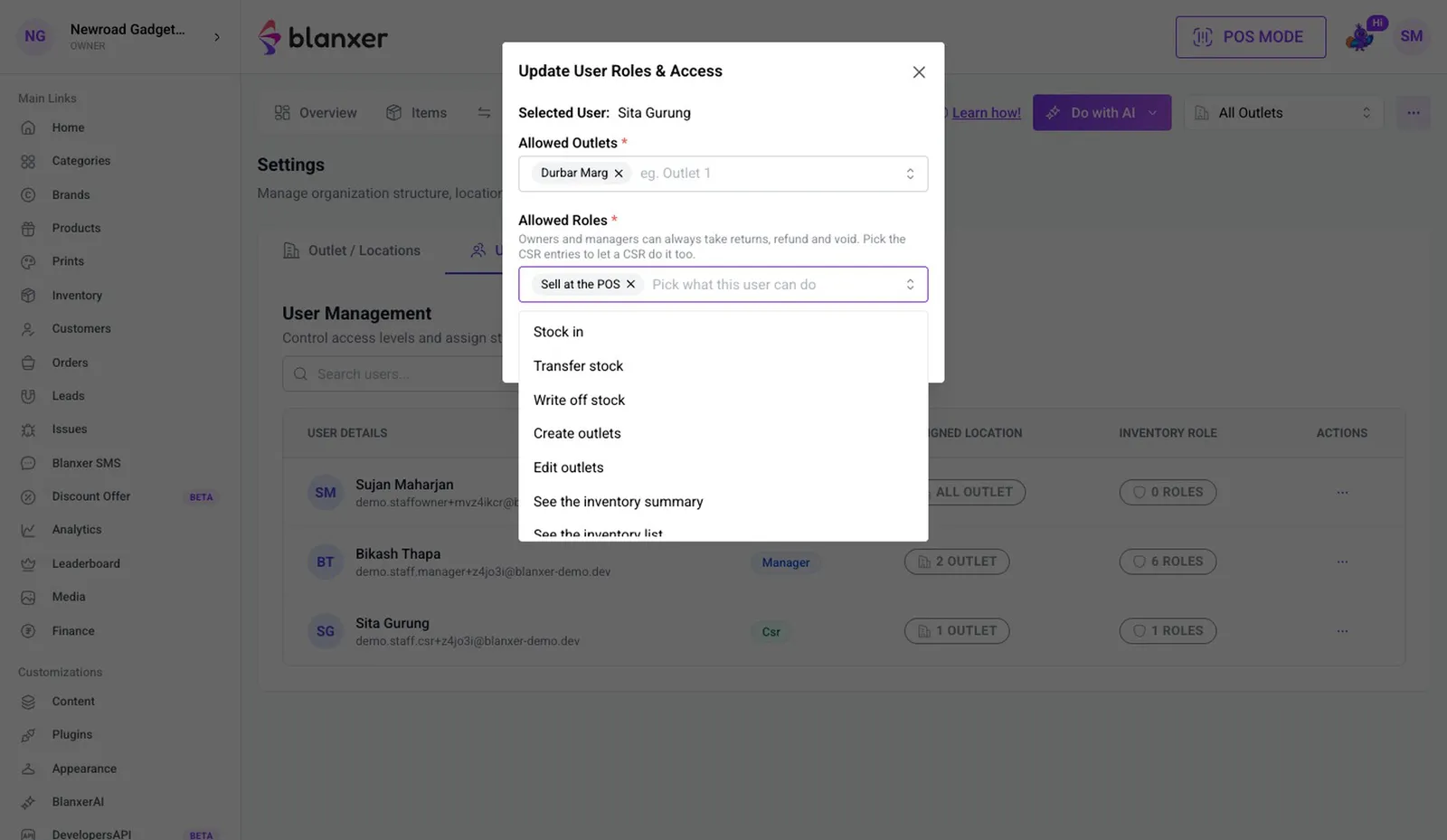
- 9
Find the three CSR permissions
Open the cashier's Edit access. At the end of Allowed Roles are Returns & exchanges (CSR) for goods back and exchanges, Refund for money back without goods, and Void to cancel a sale.
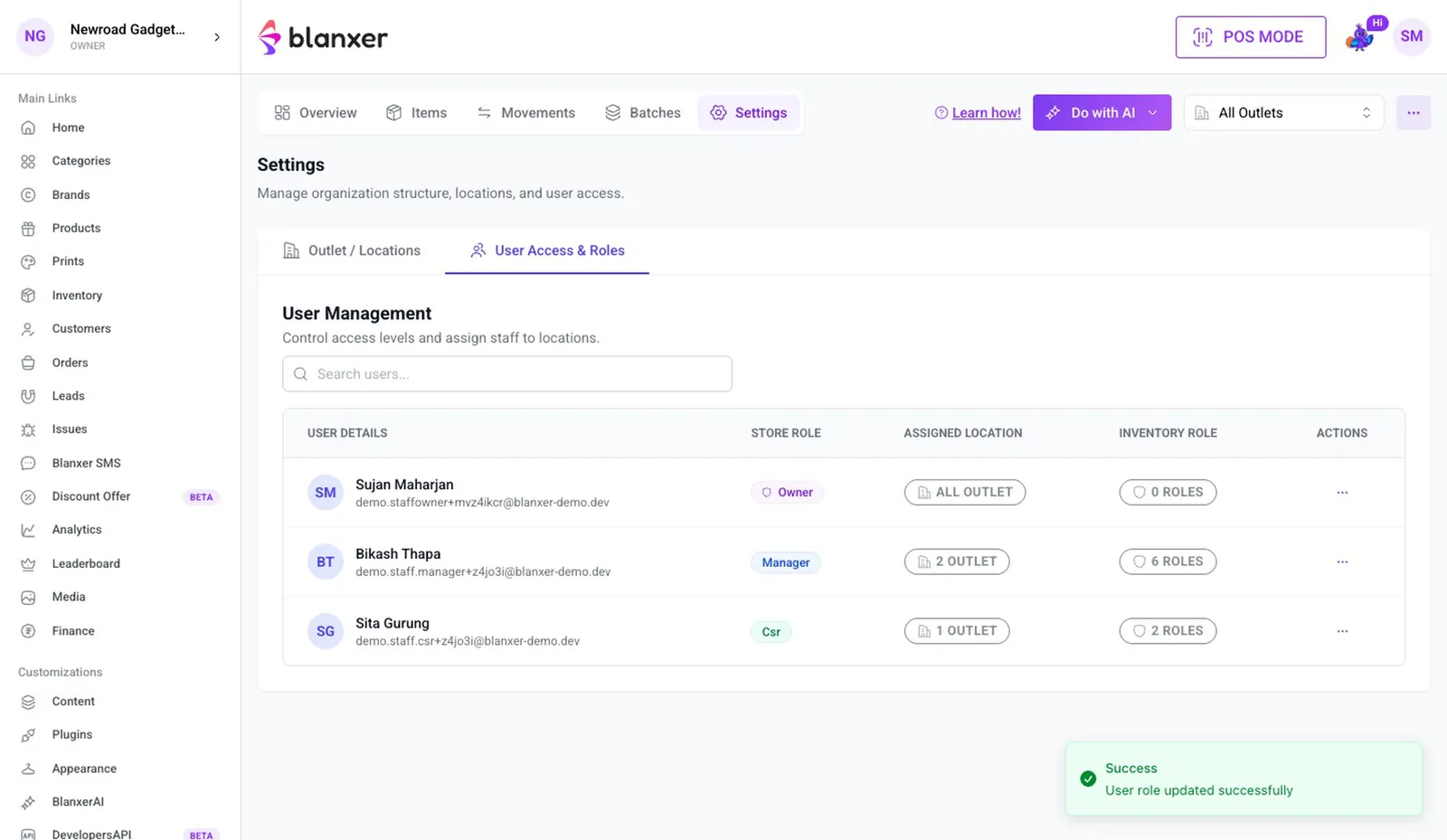
- 10
Grant the ones she needs
Tick what her job needs, e.g. Returns & exchanges (CSR), and Save Changes. Until one is granted, those buttons don't appear on her screen.
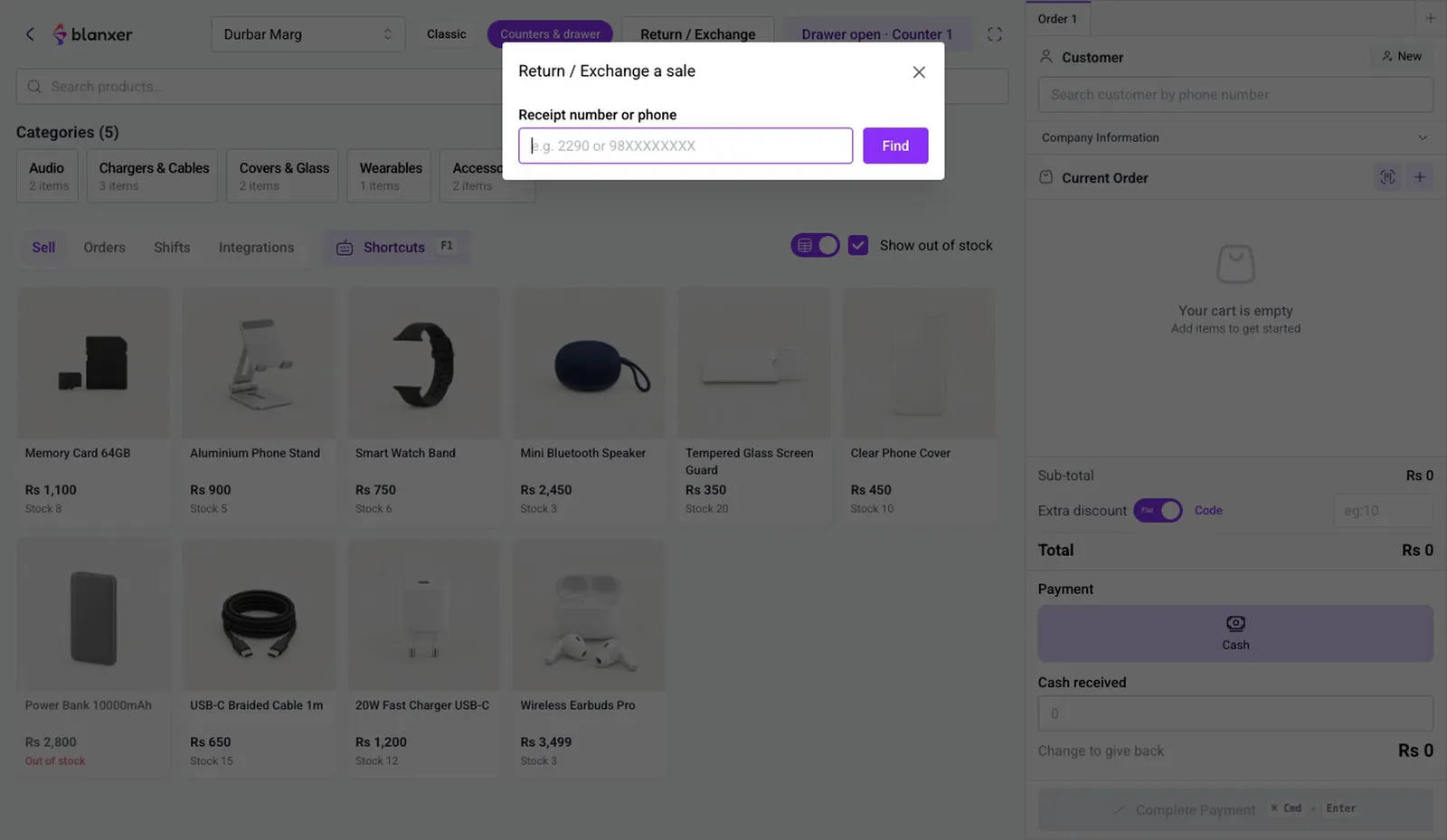
- 11
Return Exchange appears
Return Exchange now shows on her screen, and she finds the sale by receipt number or phone. Only what you granted appears, so Void stays hidden unless you give it too.
Part 5
What the manager sees
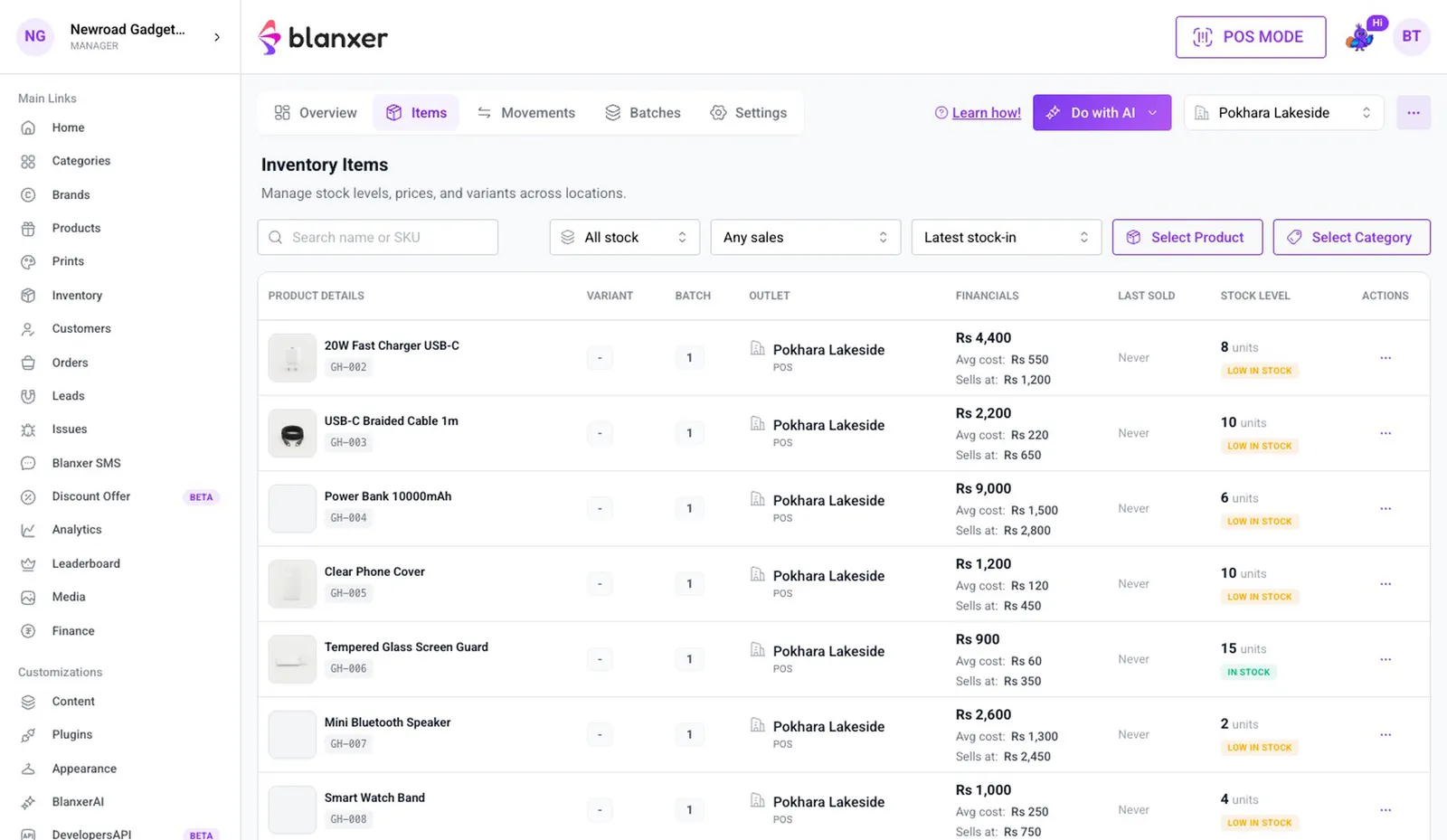
- 12
Only their outlets
In Inventory a manager sees only their allowed outlets, and stock search covers only the outlet selected. In POS they pick one of their outlets to sell.
- 13
Only the actions you gave
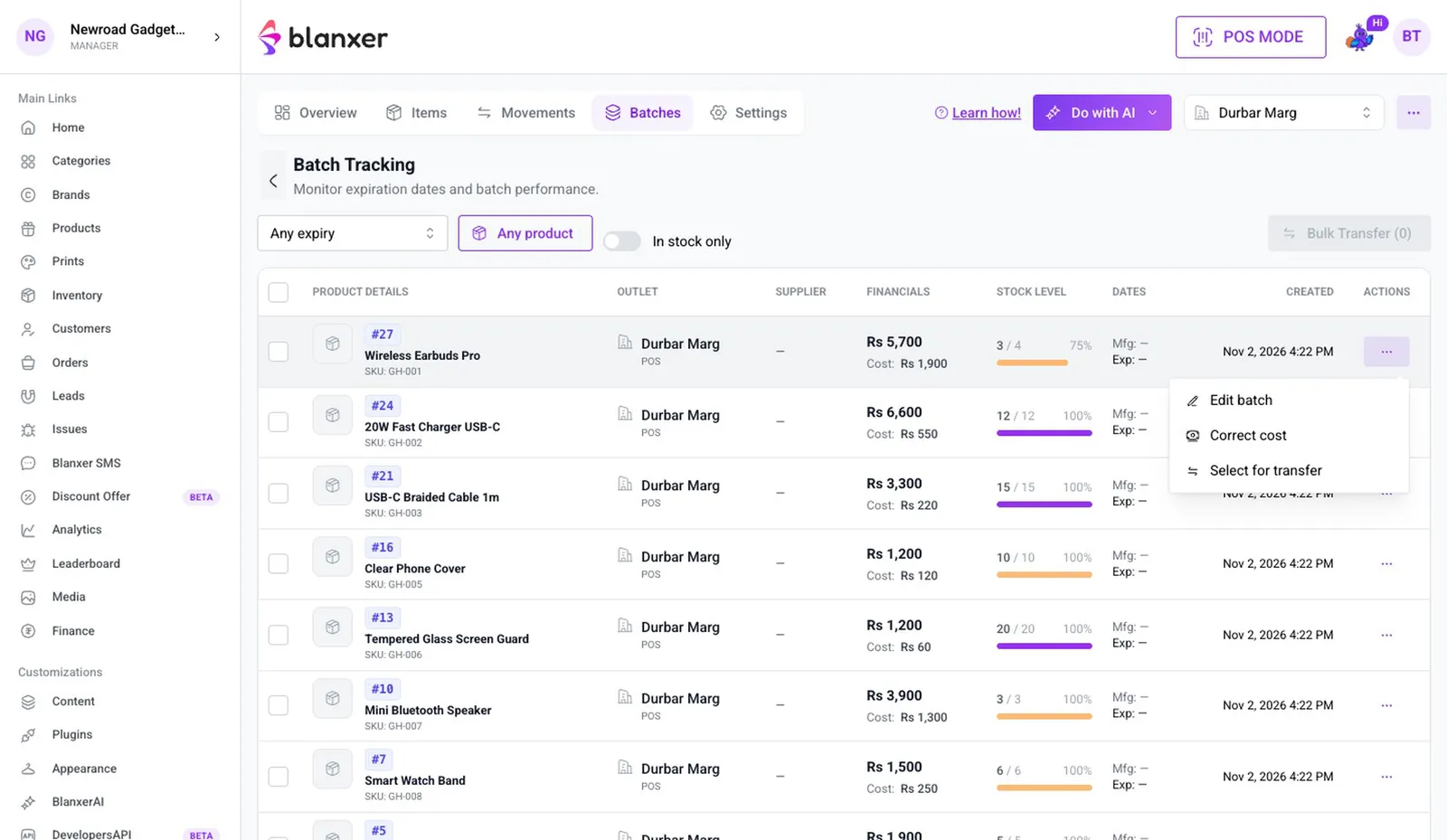
Stock in and transfer show because they were granted. Write-off wasn't, so there's no write-off option on batches.
Good to know
- Only the owner can add or remove staff, change roles or grant permissions. Managers can't do this in Store Users.
- Managers need the stock permissions too. Anything not granted doesn't appear on their screen.
- Managers and owners can always take returns and void sales.
More videos
All 33 videos 1:12
Getting started
What is Blanxer?
Start here: what Blanxer is and what it does for your business, before the videos on each feature.
 5:43
Products
Add products (normal inventory)
Add a product with its photos, price, variants and stock, for stores on normal inventory.
 6:18
Products
Add products (advanced inventory)
Add a product and stock it in per outlet, with its cost, for stores on advanced inventory.
See Blanxer with your own business in mind.
Book a demo. We'll show you the store, checkout, POS and dashboard, and tell you honestly which plan you need.
Prefer to talk directly?
Already a customer? Support on WhatsApp +977 9802344850, Sun–Fri, 9 AM – 6 PM.
Follow Blanxer
 A Blanxer product
One AI inbox for every customer conversation.
Sambad.io brings WhatsApp, Instagram, Facebook, website chat and email into one inbox. Connect your Blanxer store and its AI answers from your catalogue, checks stock, quotes delivery and places the order right in the chat.
- Website chat
- Gmail
- Outlook
- Zoho Mail