
Buy more, save more
Give a bigger discount the more a customer buys, to grow the size of every order.
Offers · 3:33 · In Nepali
Give a bigger discount the more a customer buys, like 10% off 2 and 15% off 3 or more. Customers stock up on daily-use products, and your average order value goes up.
Part 1
Create the offer
- 1
Choose Buy more, save more
Go to Discount Offer, click Create offer and select Buy more, save more. Type its name; it shows on the product page, cart and checkout.
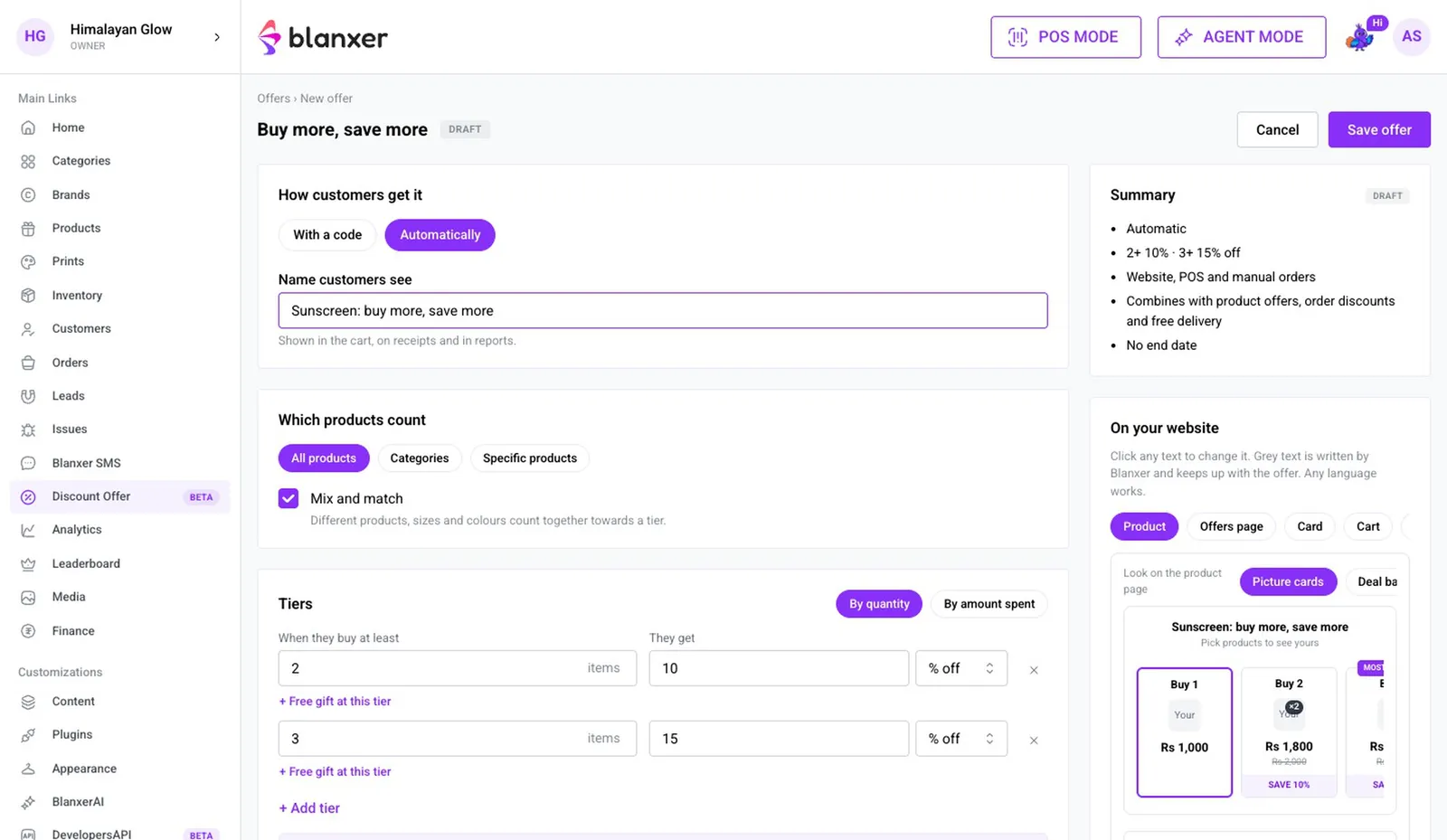
- 2
Pick the products
Under Which products count choose Specific products and add the product. You can also use a whole category or all products.
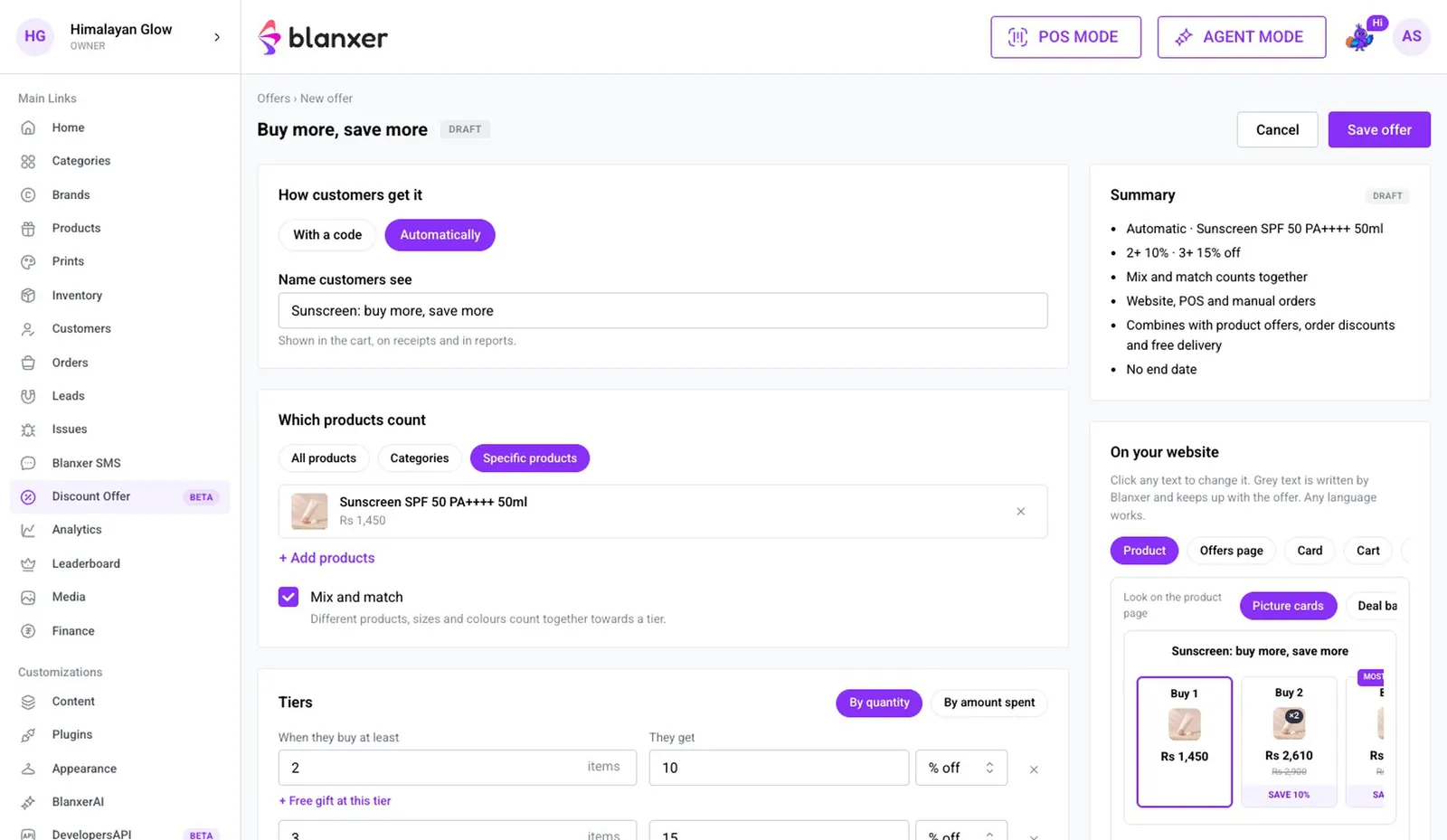
- 3
Set the tiers
For example, 2 items get 10% off, and 3 or more get 15% off.
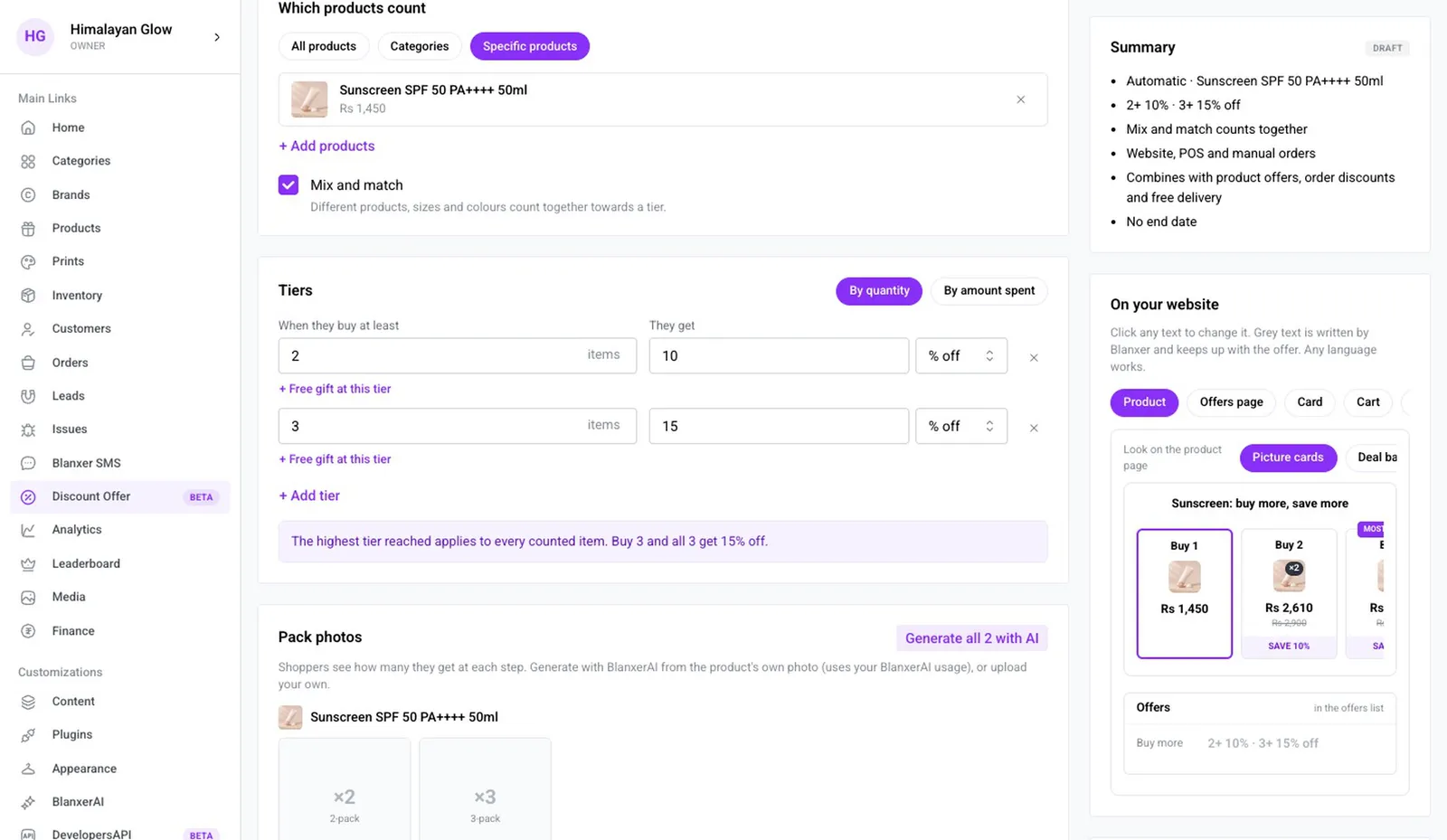
- 4
Get pack photos
Under Shoppers see how many, BlanxerAI makes 2-pack and 3-pack photos from the product's own photo. No photo shoot needed.
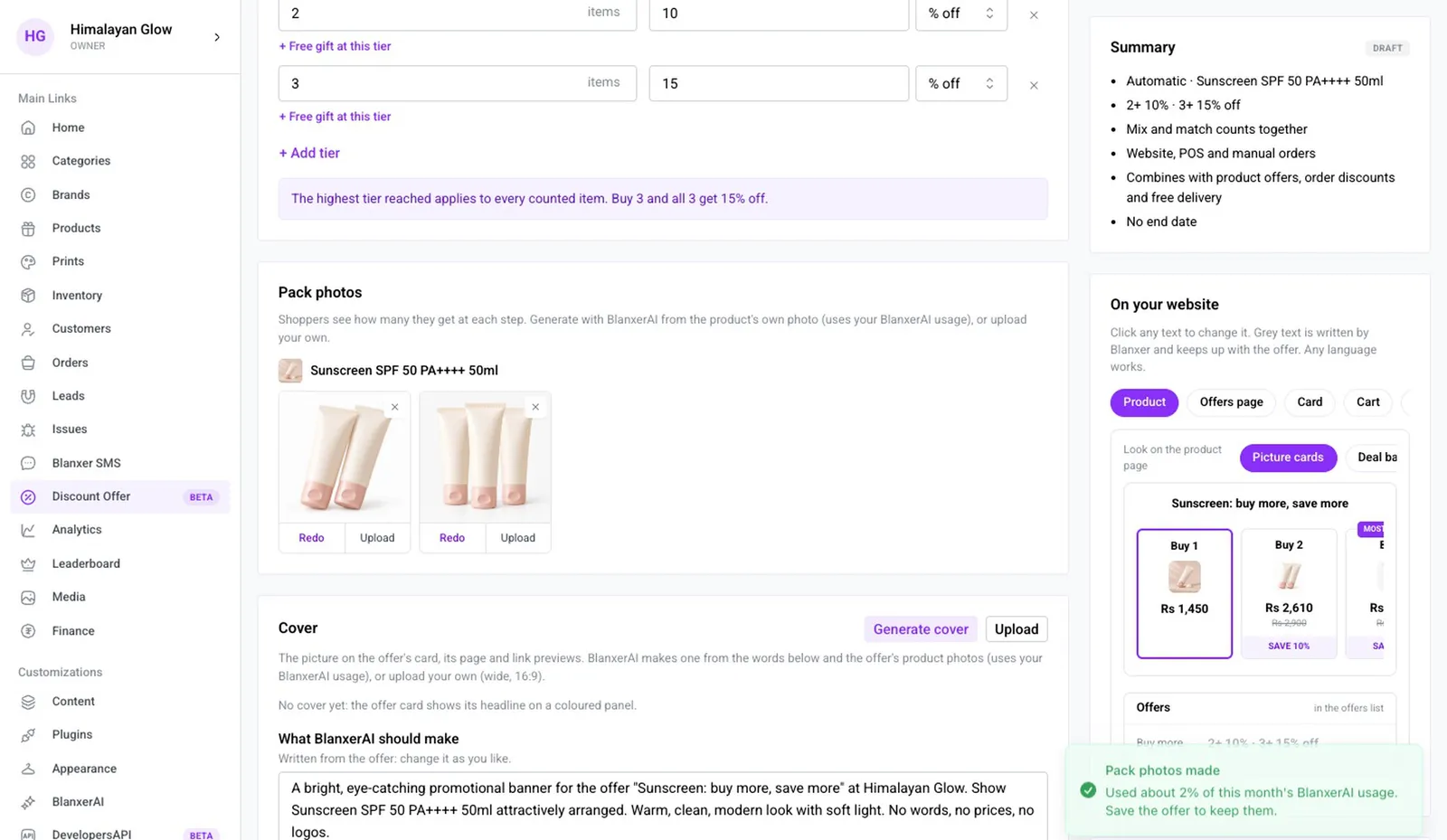
- 5
Turn it on
Click Save and turn on. The offer is live.
Part 2
What your customer sees
- 6
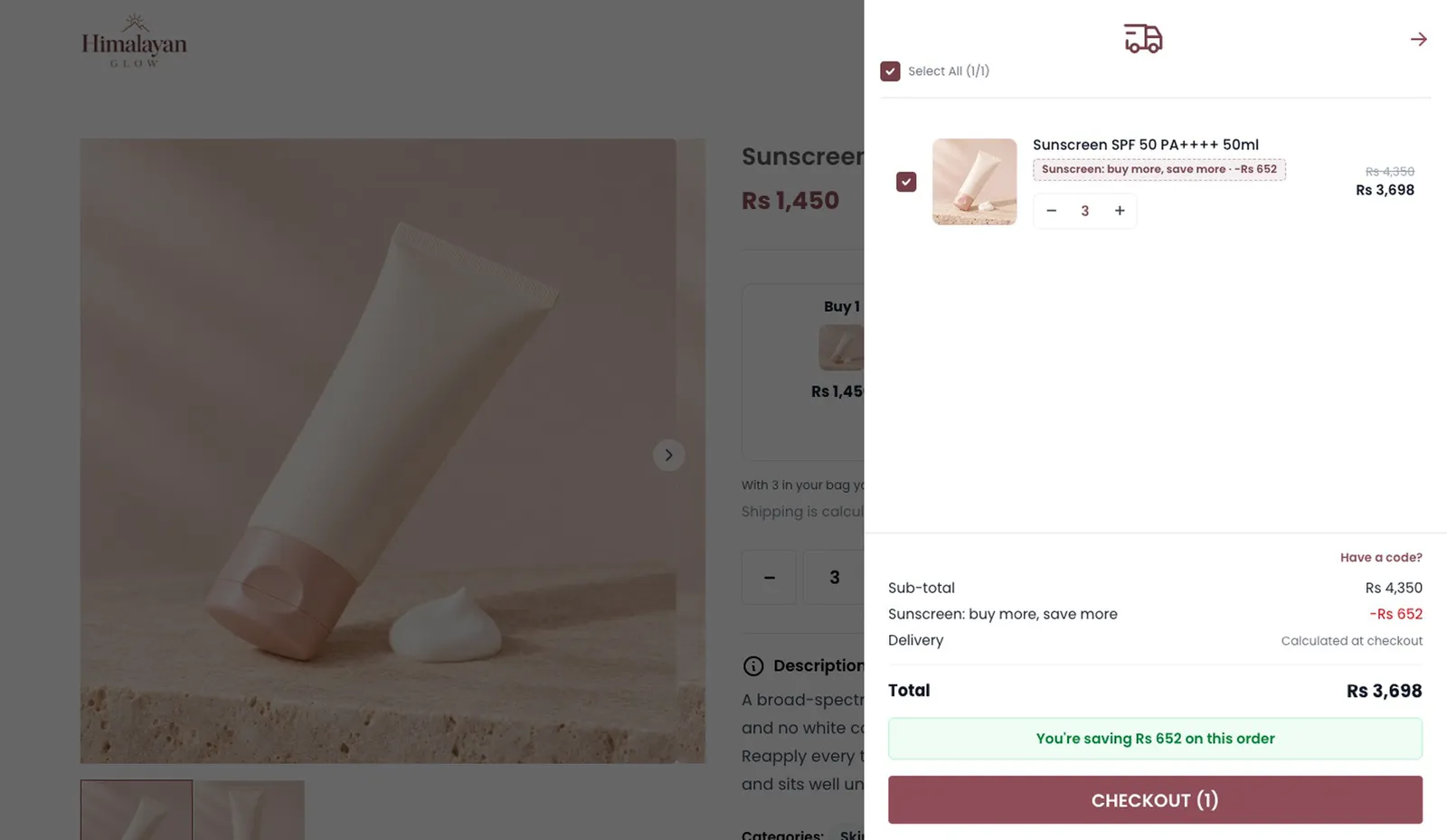
Tiers on the product page
Each tier shows on the product page with its pack photo, and the customer picks how many. Adding 3 to the cart takes 15% off by itself.
- 7
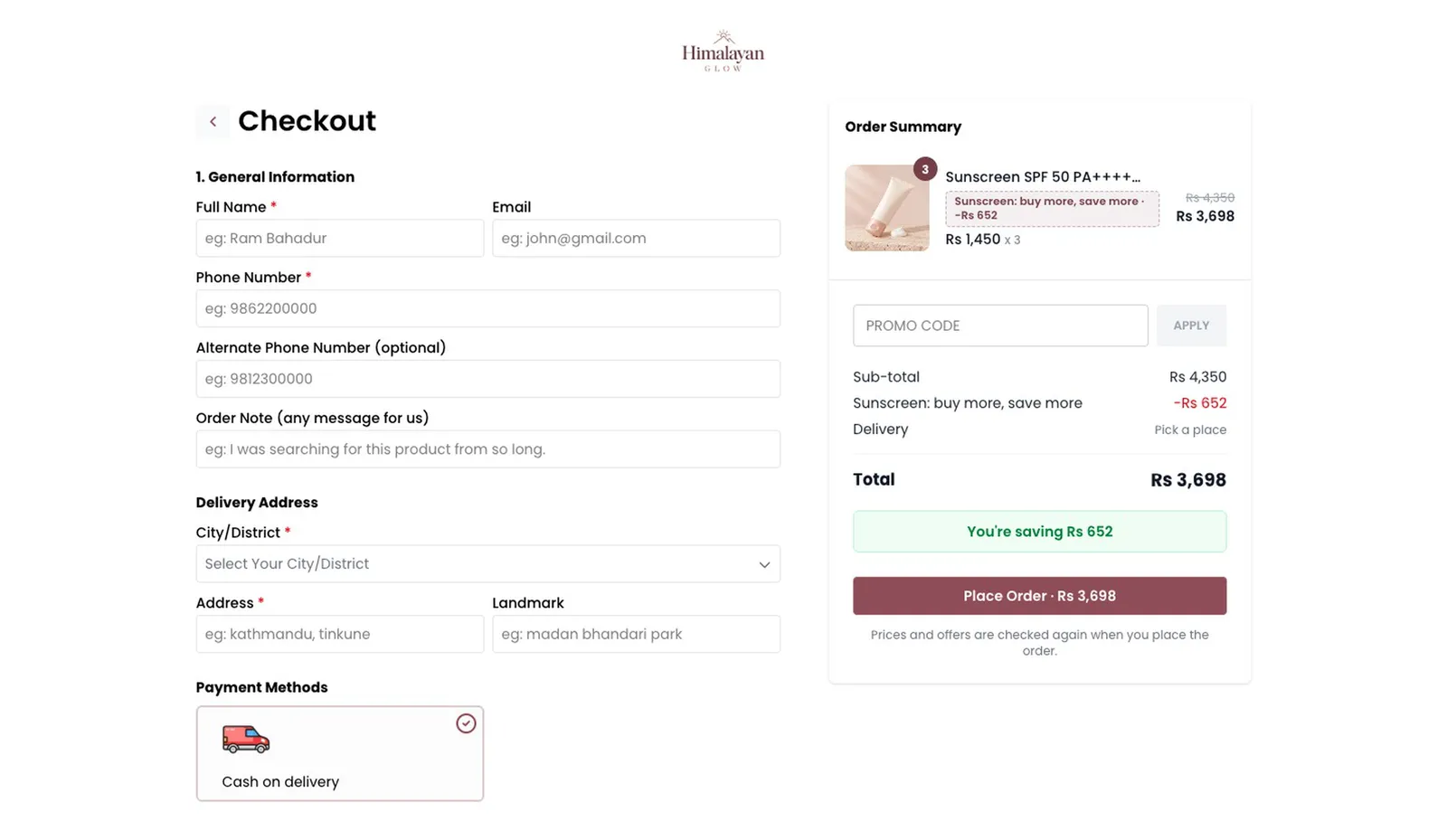
Total and savings at checkout
Checkout shows the total and how much they saved. No email is needed, and they pay by cash on delivery or Fonepay QR.
Part 3
At the counter and on phone orders
- 8
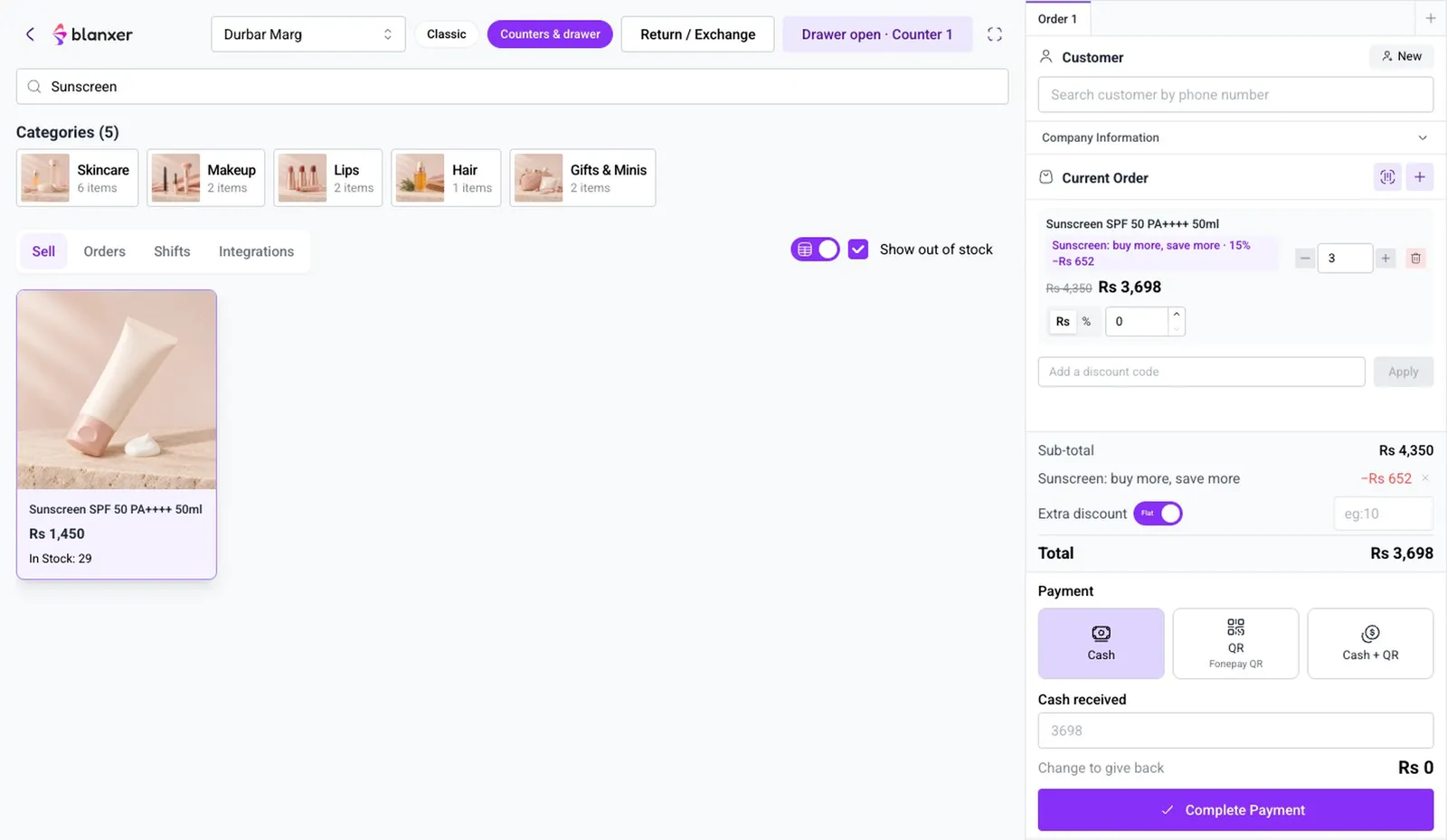
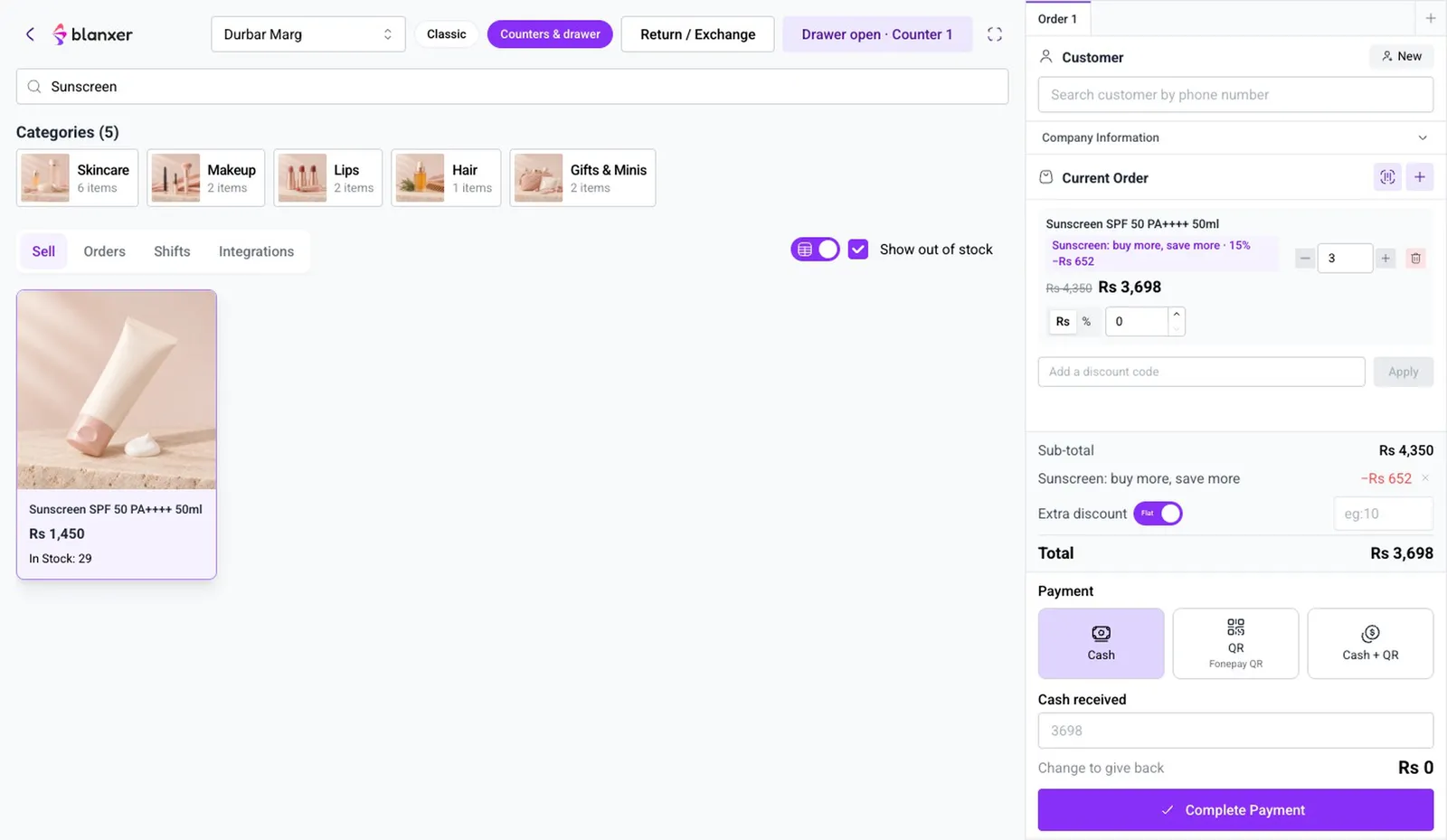
Ring it up at the POS
Open Counters & drawer and add the product three times.
- 9
The discount applies itself
The same 15% comes off on its own, with the same rule as the website. Enter Cash received and click Complete Payment.
- 10
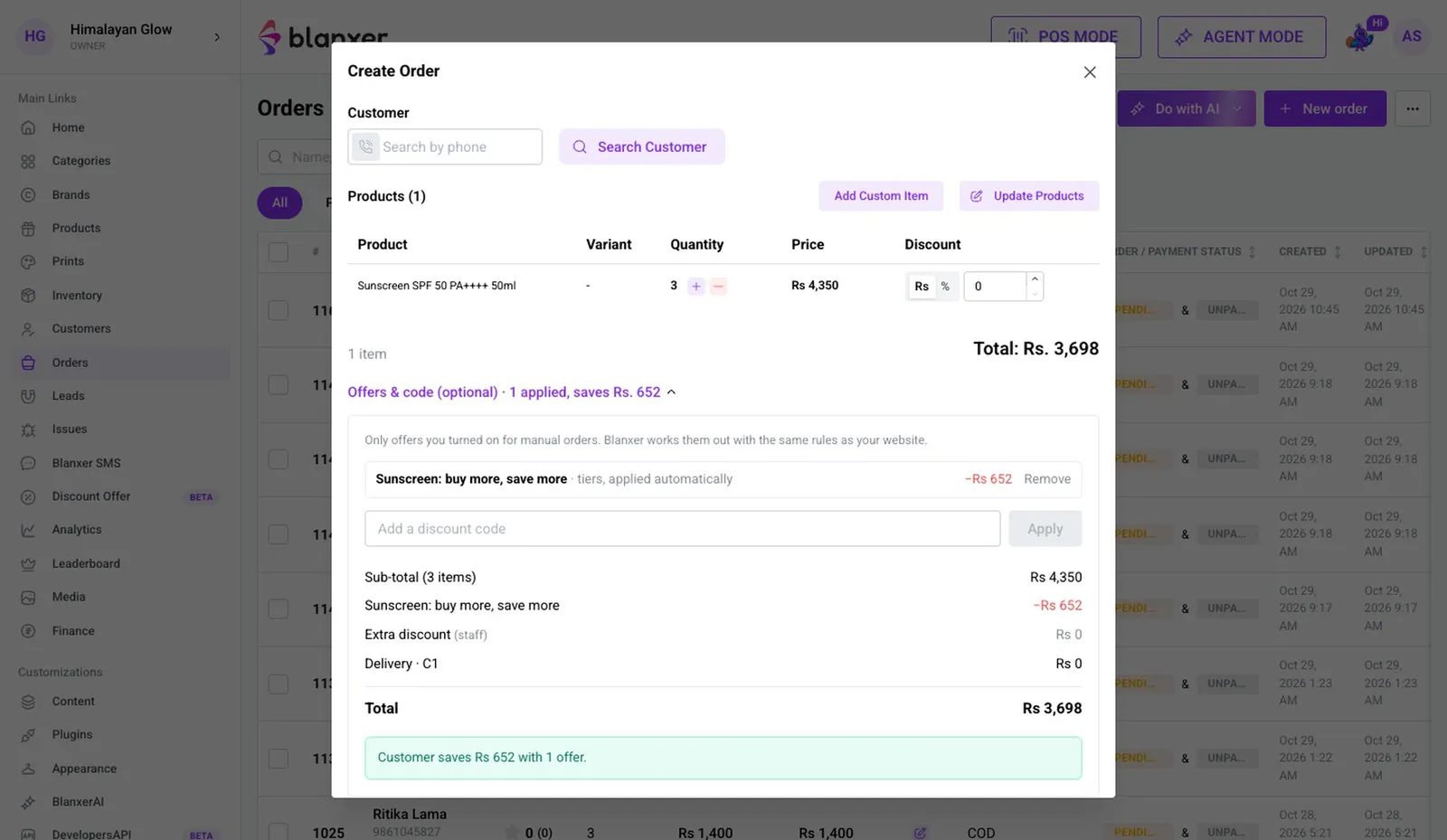
Phone, Instagram or TikTok orders
In Orders, click New order, then Add Products. Pick the product, set the quantity to 3 and open Offers & code: the offer is already applied.
Part 4
See the results
- 11
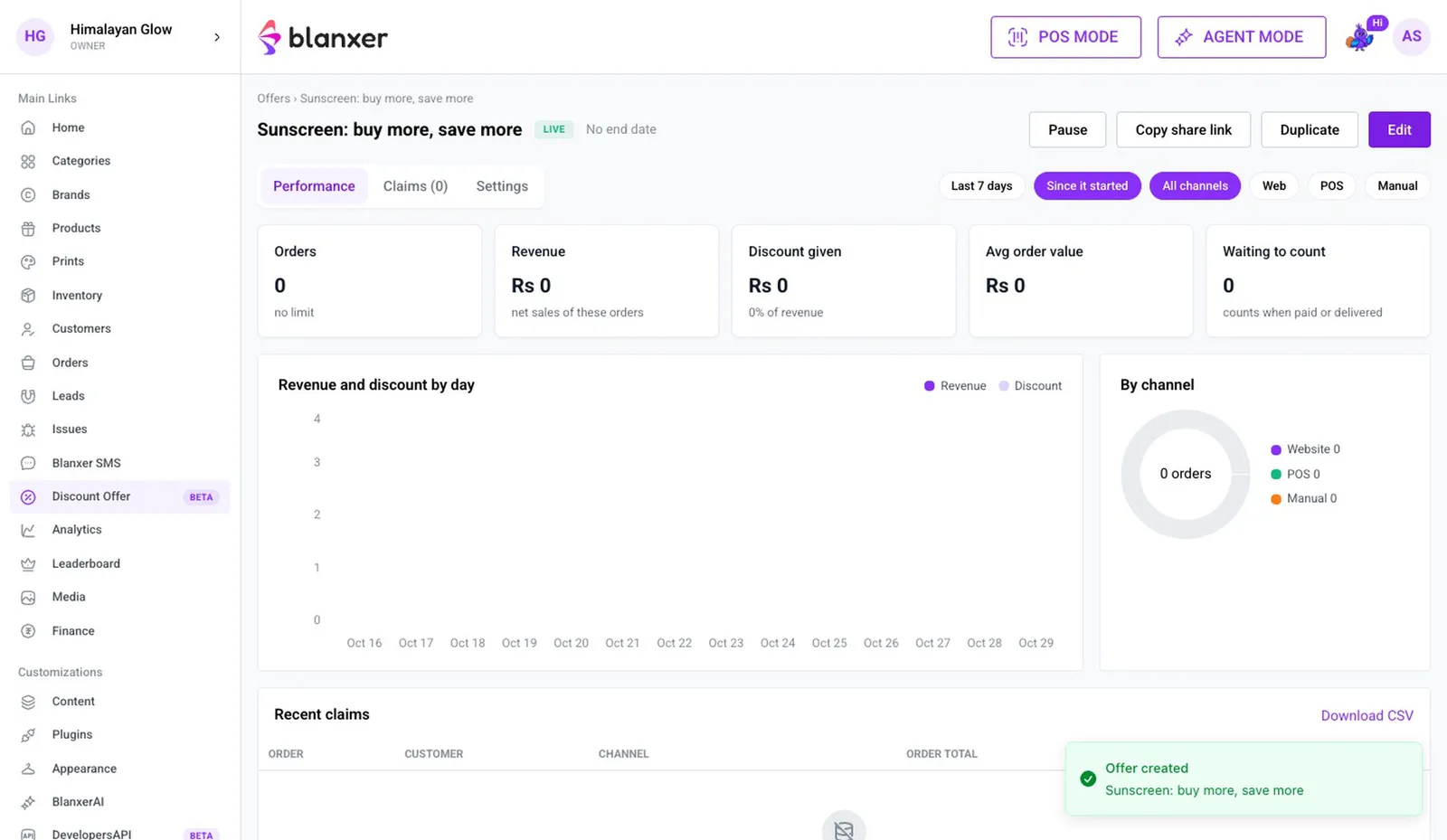
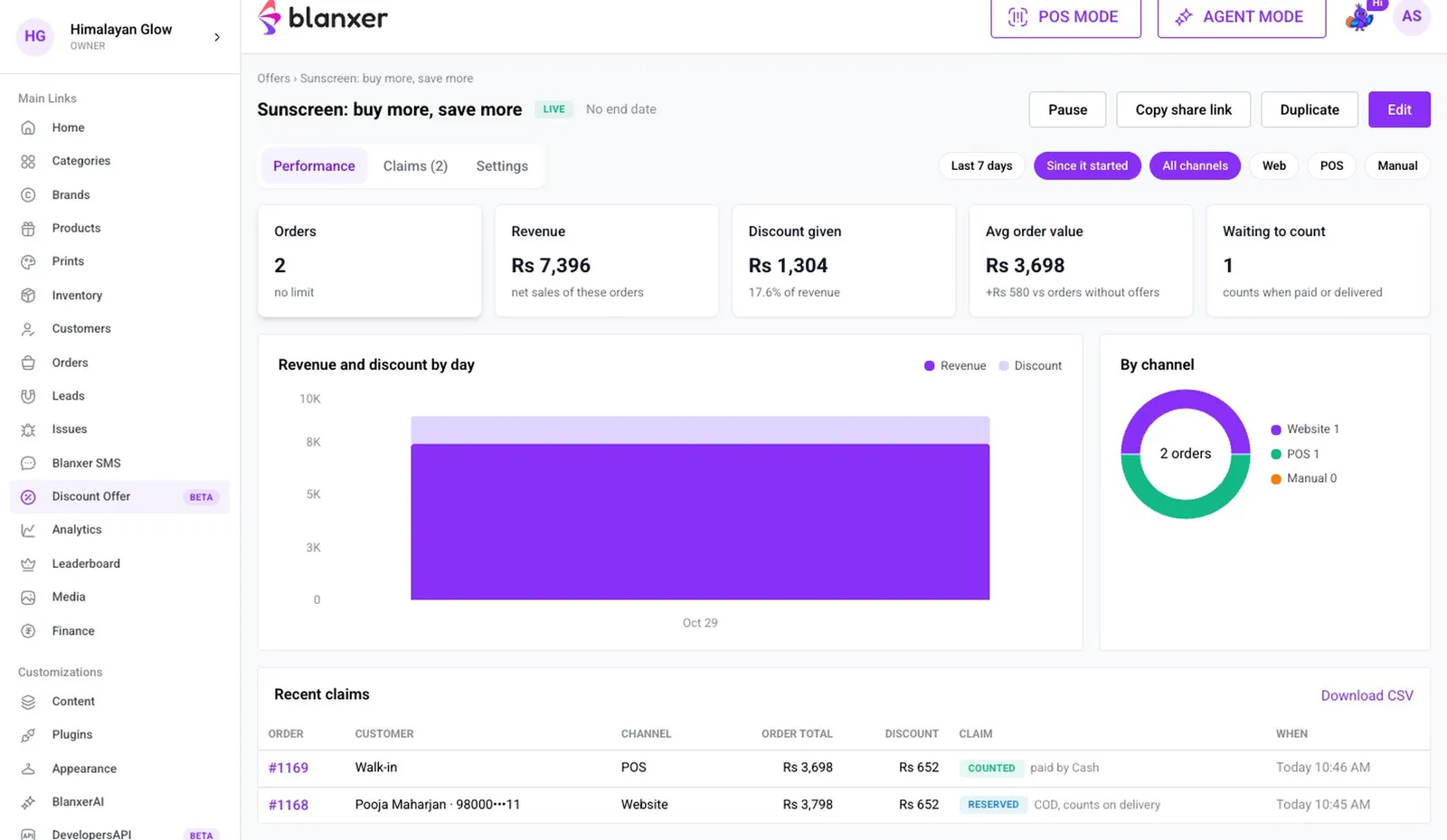
Check the offer page
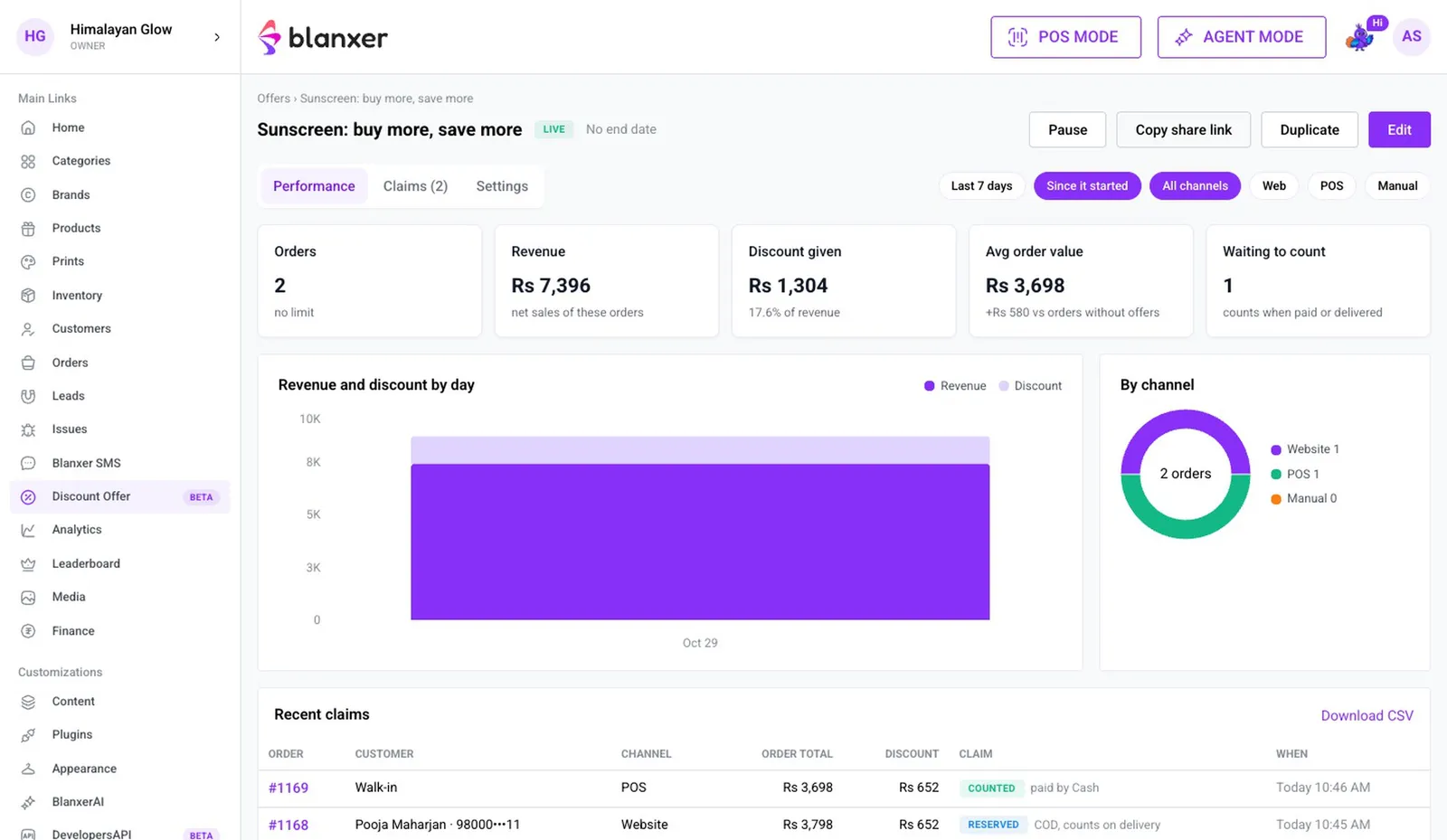
Open the offer to see orders, sales and discount given, split by website, POS and manual. Analytics > By offer compares all your offers in one place.
- 12
Share it in your ads
Click Copy share link and run it as a stock-up offer in summer or festive season, with the pack photos, on Facebook ads and TikTok.
Good to know
- The offer applies automatically on the website, the POS and manual orders. Staff never calculate it.
More videos
All 33 videos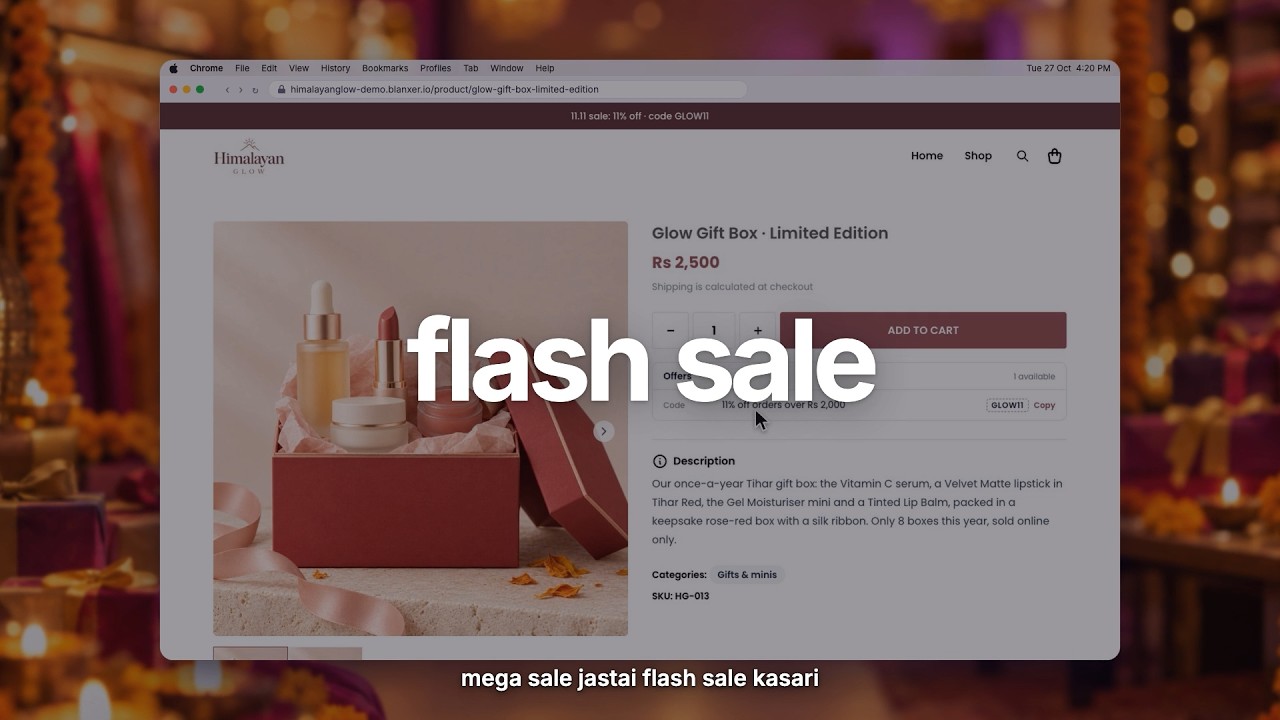 3:53
Offers
Flash sale
Run a sale for a set time: pick the products and the discount, and it starts and ends on its own.
 3:04
Offers
11.11 sale campaign
Set up a store-wide campaign for a big sale day like 11.11, with its own dates and discounts.
 3:27
Offers
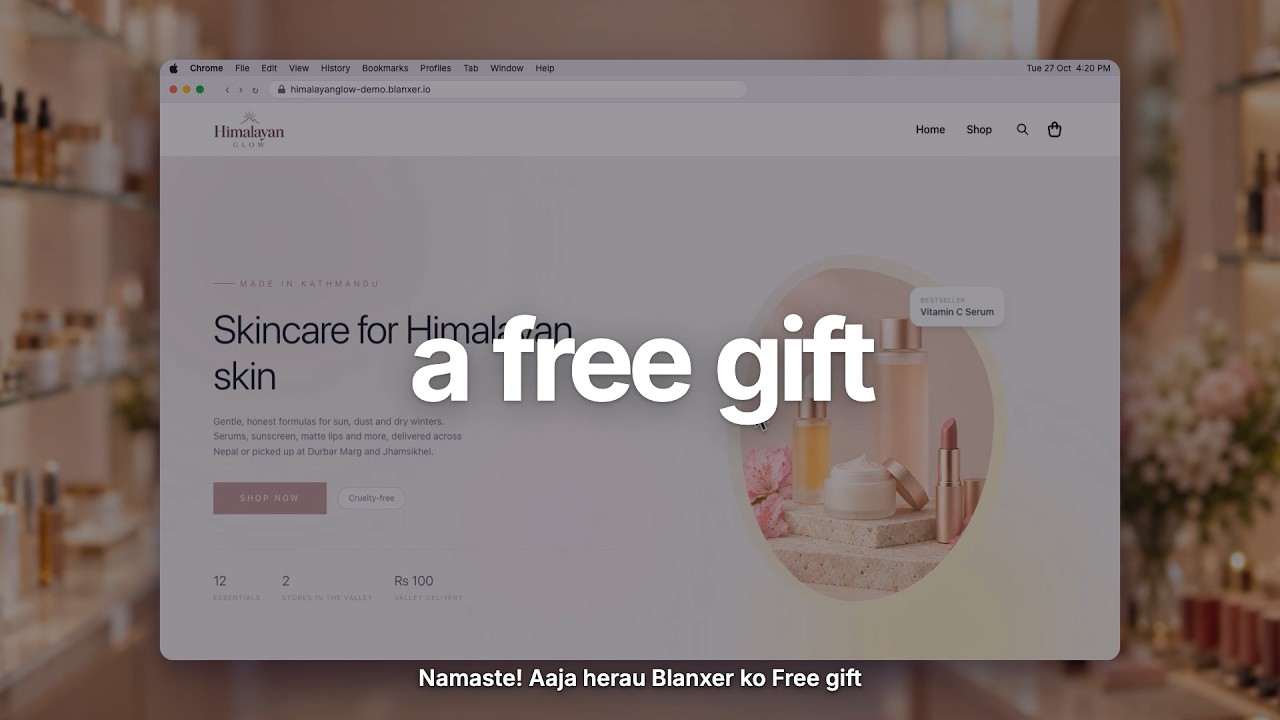
Free gift offer
Add a free gift to orders that meet your conditions, so customers see it in the cart and at checkout.
See Blanxer with your own business in mind.
Book a demo. We'll show you the store, checkout, POS and dashboard, and tell you honestly which plan you need.
Prefer to talk directly?
Already a customer? Support on WhatsApp +977 9802344850, Sun–Fri, 9 AM – 6 PM.
Follow Blanxer
 A Blanxer product
One AI inbox for every customer conversation.
Sambad.io brings WhatsApp, Instagram, Facebook, website chat and email into one inbox. Connect your Blanxer store and its AI answers from your catalogue, checks stock, quotes delivery and places the order right in the chat.
- Website chat
- Gmail
- Outlook
- Zoho Mail