
11.11 sale campaign
Set up a store-wide campaign for a big sale day like 11.11, with its own dates and discounts.
Offers · 3:04 · In Nepali
Schedule a sale like 11.11 that cuts prices at an exact minute and puts them back on its own. No changing every product's price by hand, then changing it back.
Part 1
Create the campaign
- 1
Open Offer Campaigns
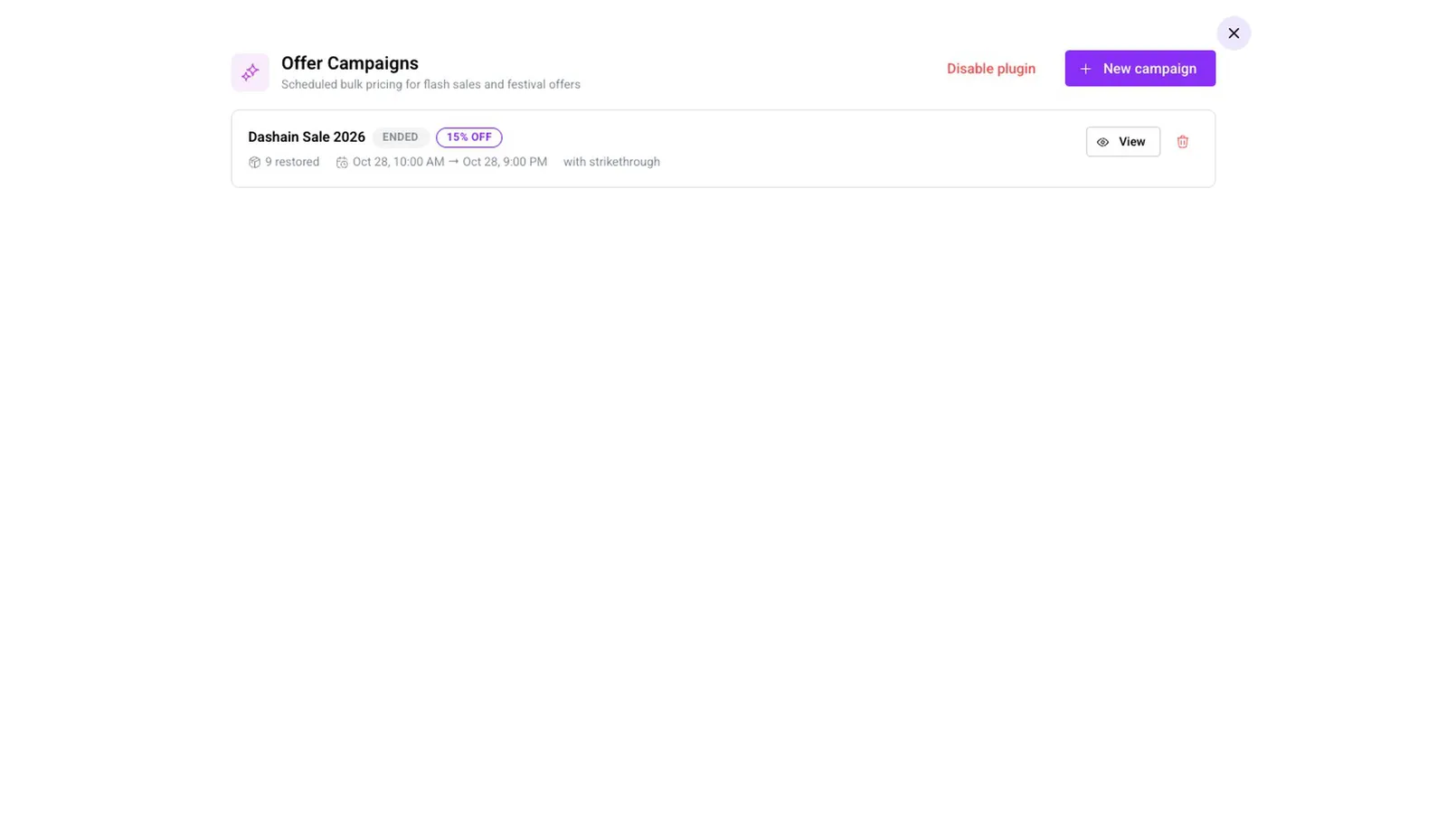
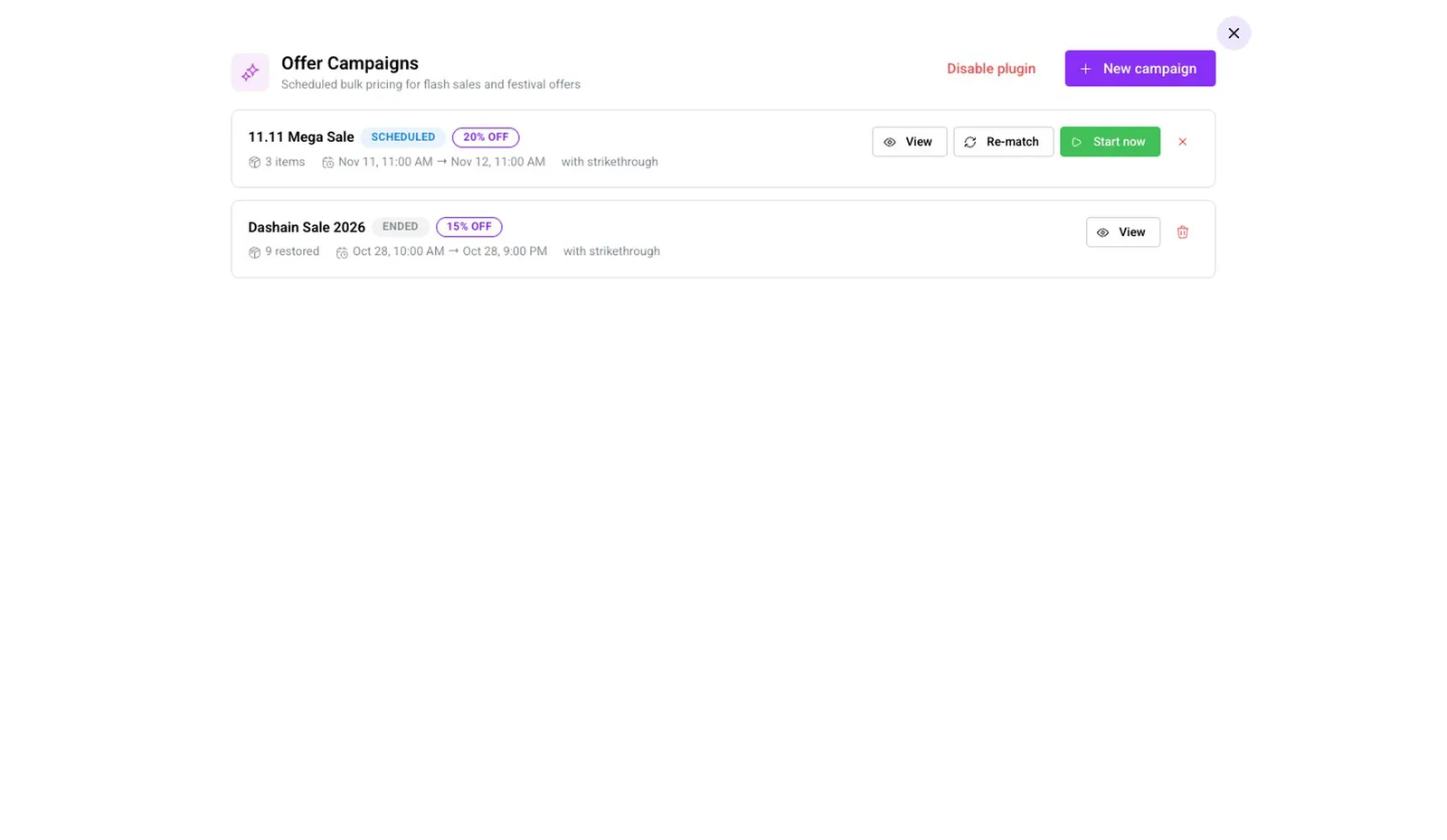
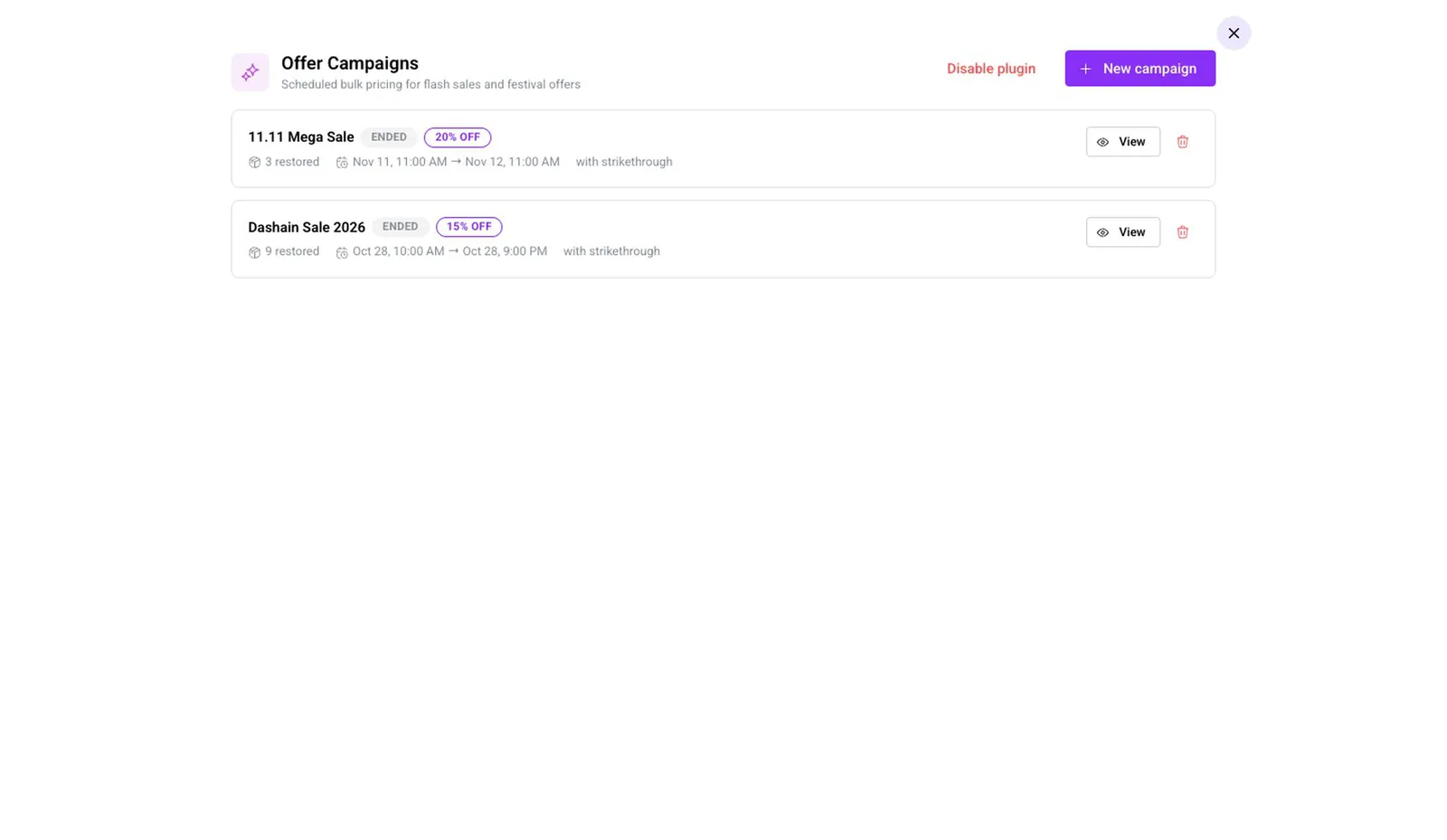
Go to Plugins > Offer Campaigns. Past campaigns are listed here, like a Dashain sale whose prices came back on their own.
- 2
Start a new campaign
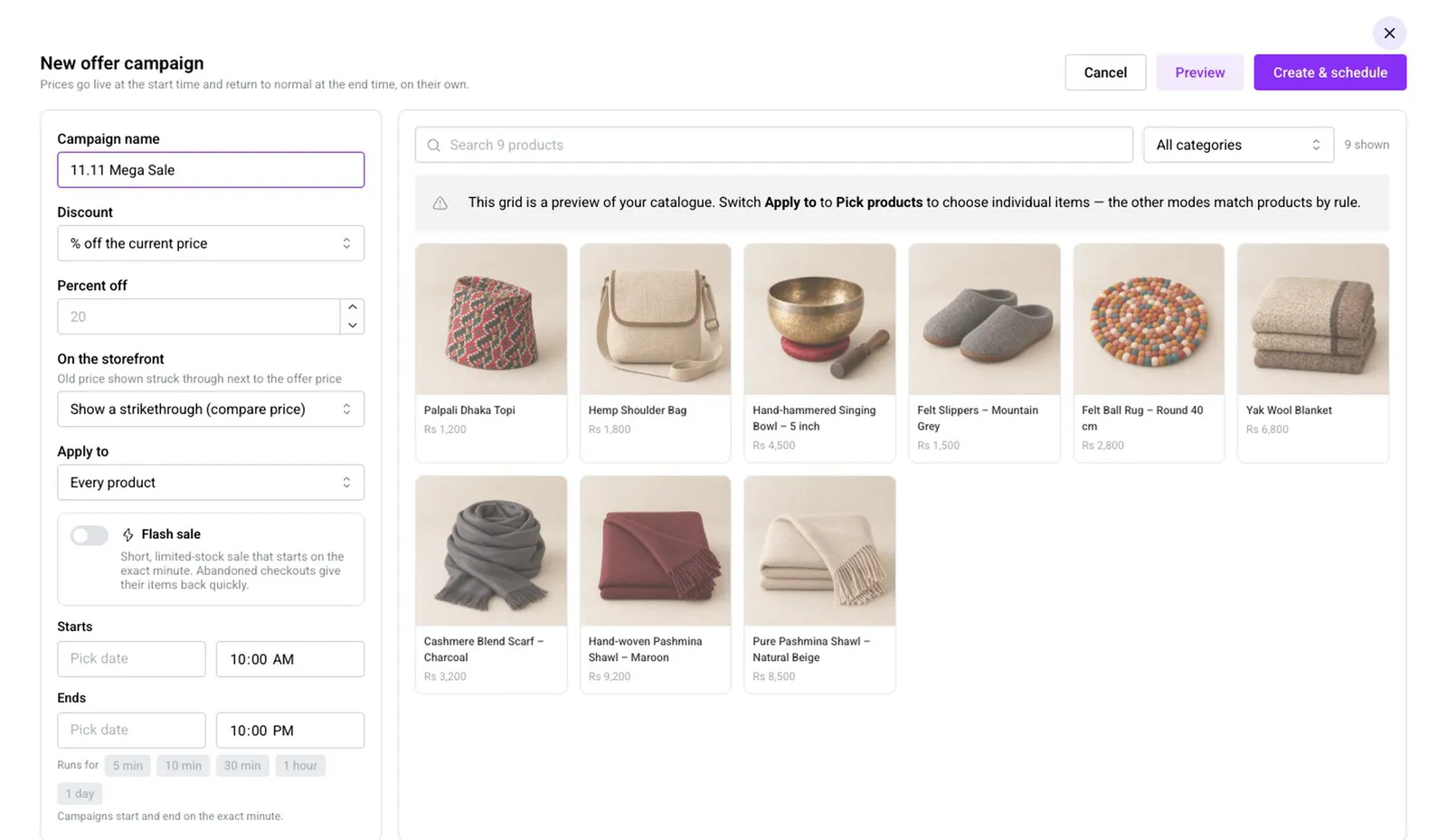
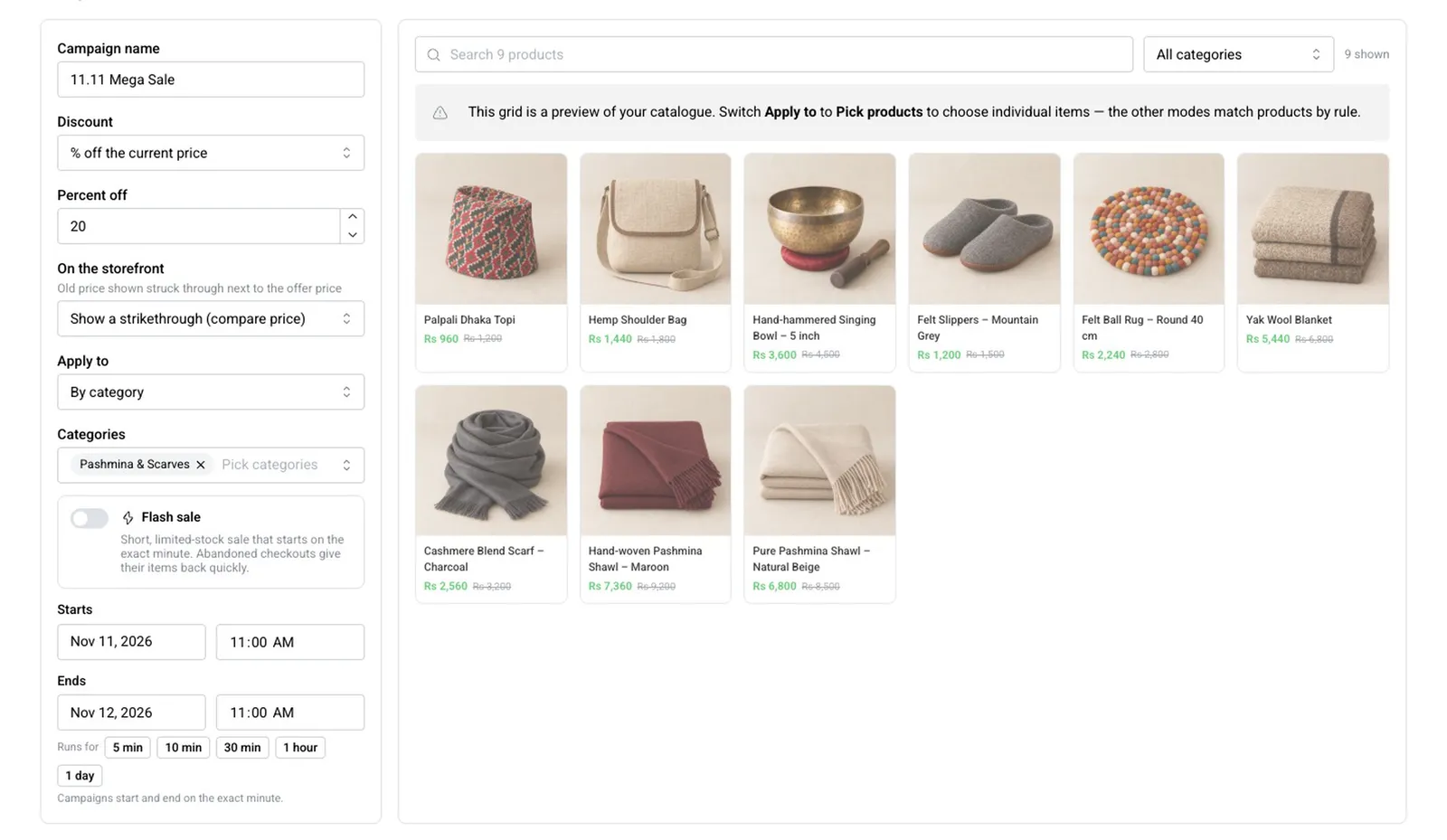
Click New campaign and give it a name, for example 11.11 Mega Sale.
- 3
Set the discount
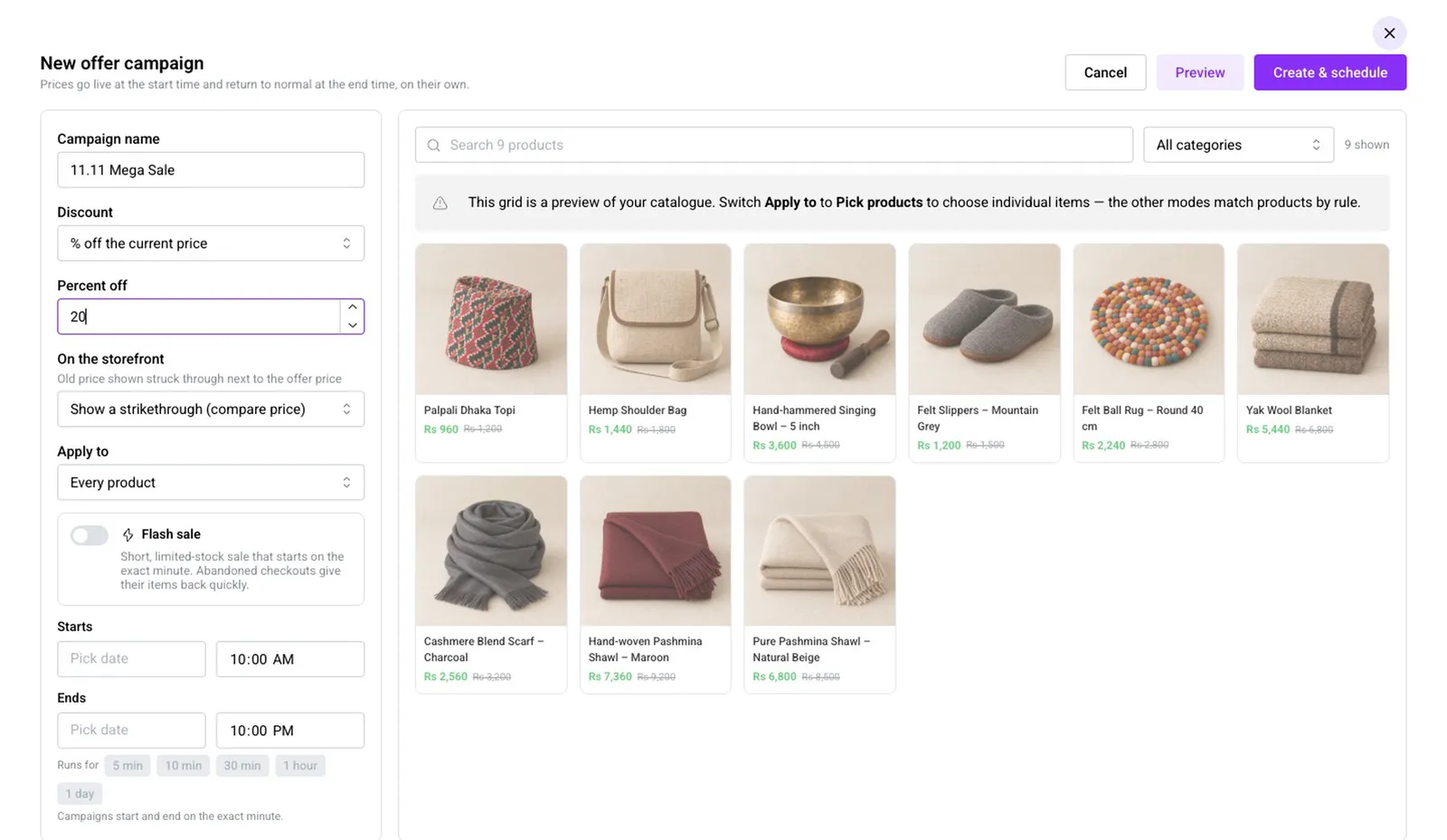
Enter 20 for 20% off the current price. The website shows the old price crossed out, so customers see the saving.
- 4
Choose the products
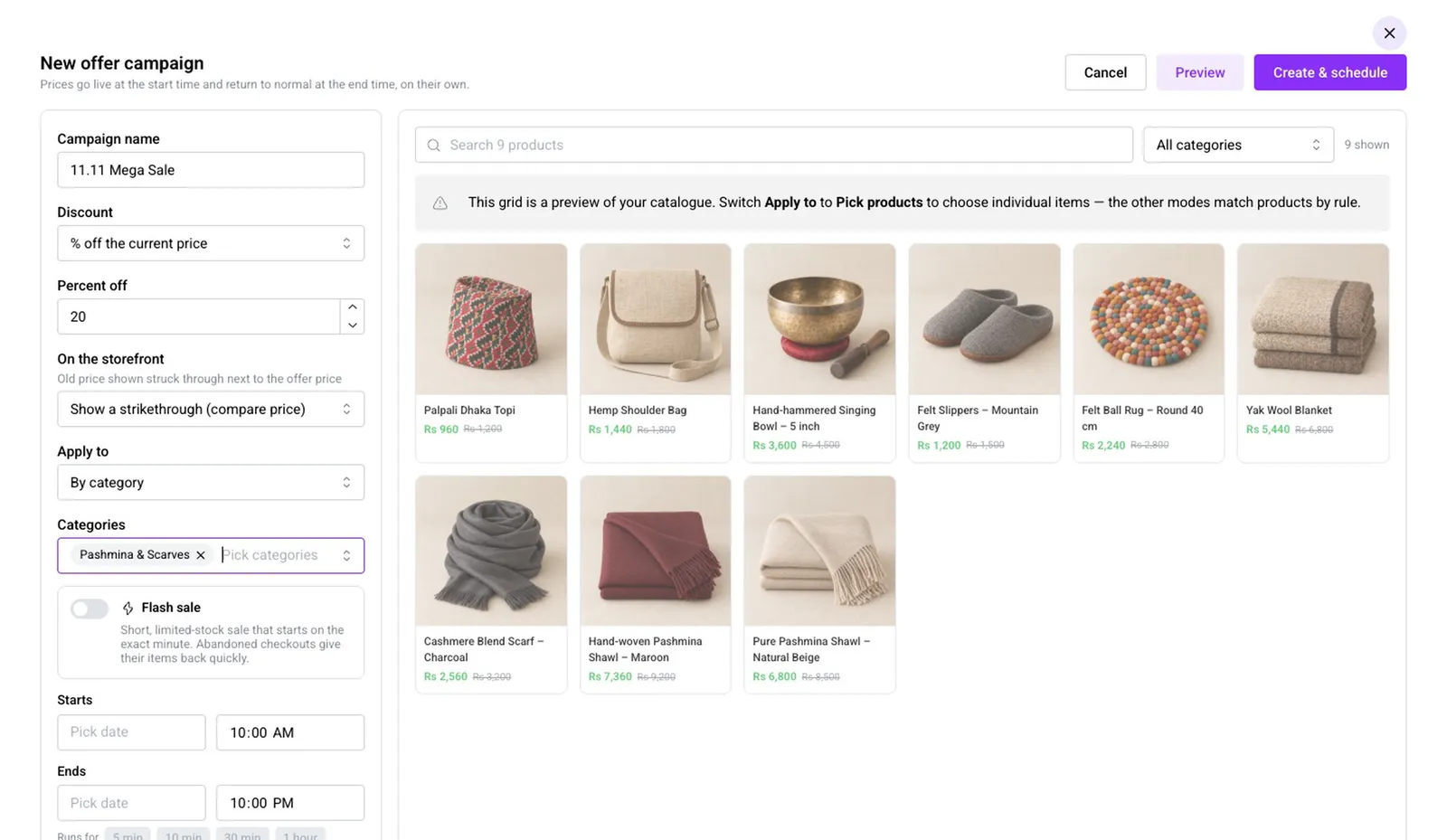
Under Apply to, pick all products, By category, a price range, or choose products yourself. Here it's the Pashmina & Scarves category.
- 5
Set the time
Click Pick date, choose the day and start time, and a duration such as 1 day. The sale starts and ends at that exact minute.
Part 2
Check and schedule
- 6
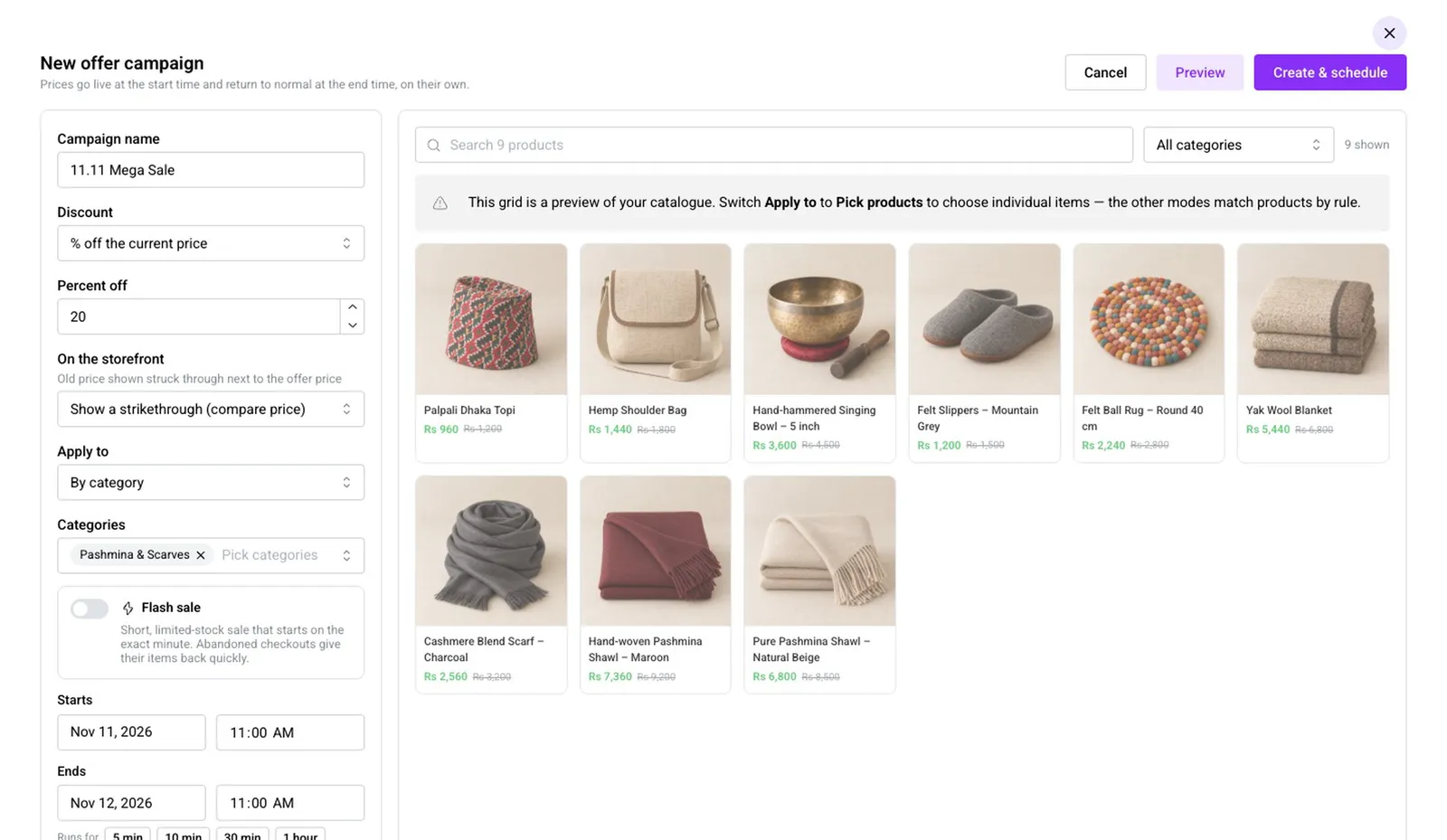
Preview
Click Preview to see how many products will be discounted before anything changes.
- 7
Create & schedule
Click Create & schedule. The campaign shows Scheduled, and prices stay as they are until it starts.
Part 3
The sale goes live
- 8
It starts on its own
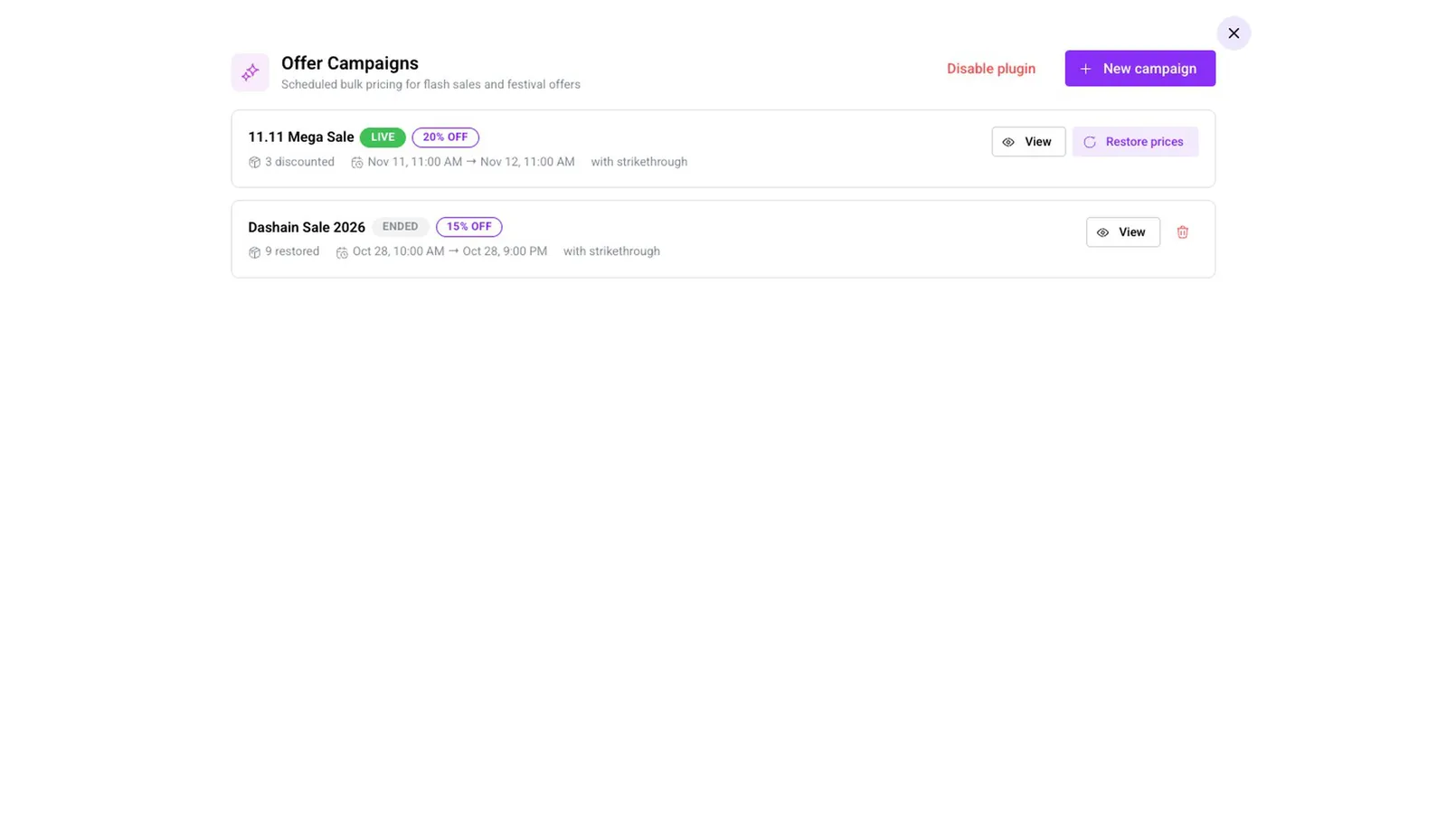
At the set minute the campaign starts by itself. Start now starts it early.
- 9
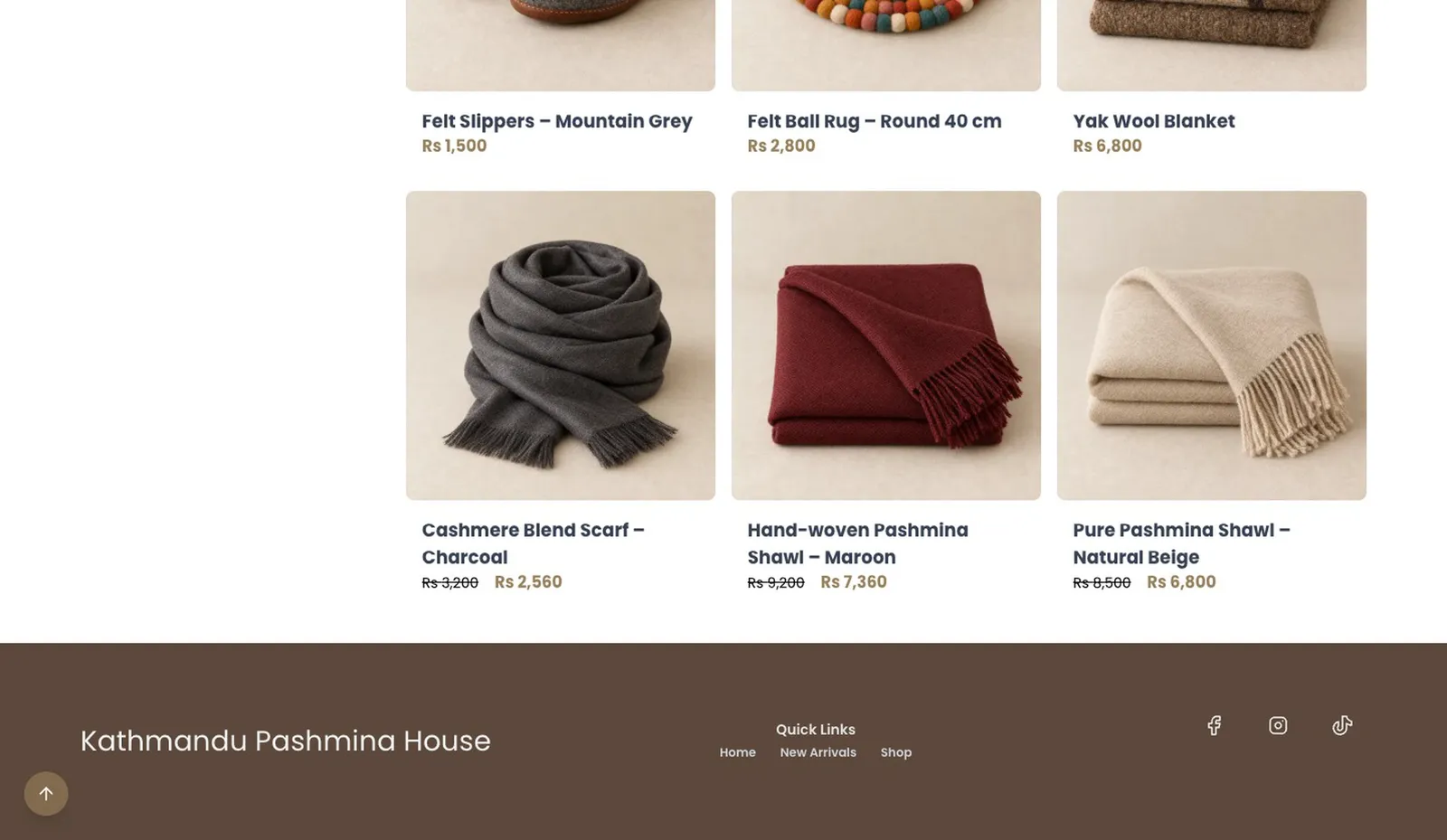
Sale prices on the website
Every product in the sale shows the old price crossed out next to the new one, on the listing and on product pages.
- 10
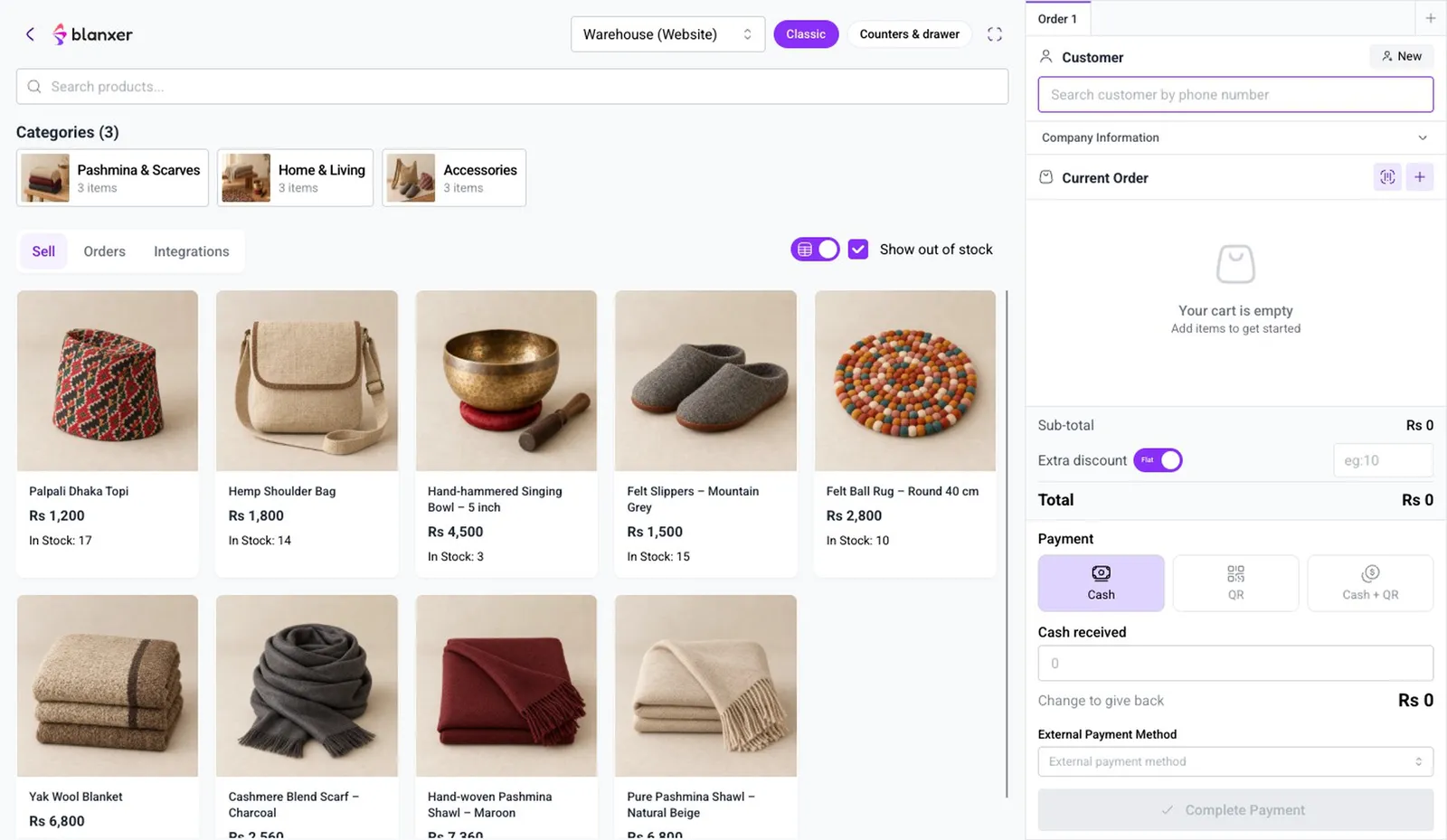
Same price at the POS and on phone orders
The campaign changes the product price itself, so the POS and phone orders get the sale price too.
Part 4
Prices come back
- 11
Prices restore themselves
At the end time every price goes back to what it was. Click Restore prices to end it early.
- 12
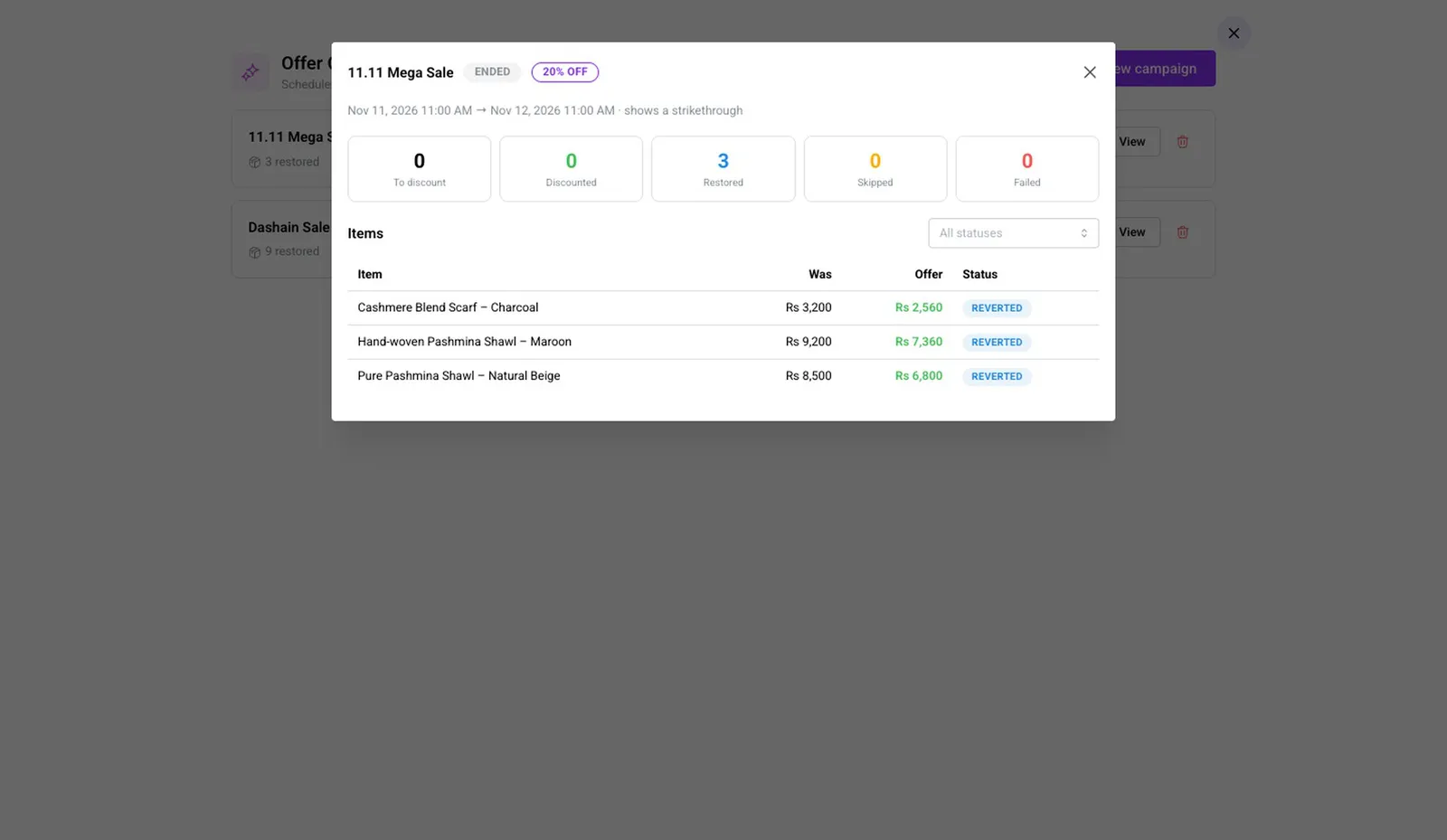
See what changed
Open View to see how many items were discounted and how many were restored.
Good to know
- A campaign changes the product prices themselves, so every channel sells at the sale price until it ends.
- Restore prices ends a campaign before its end time.
More videos
All 33 videos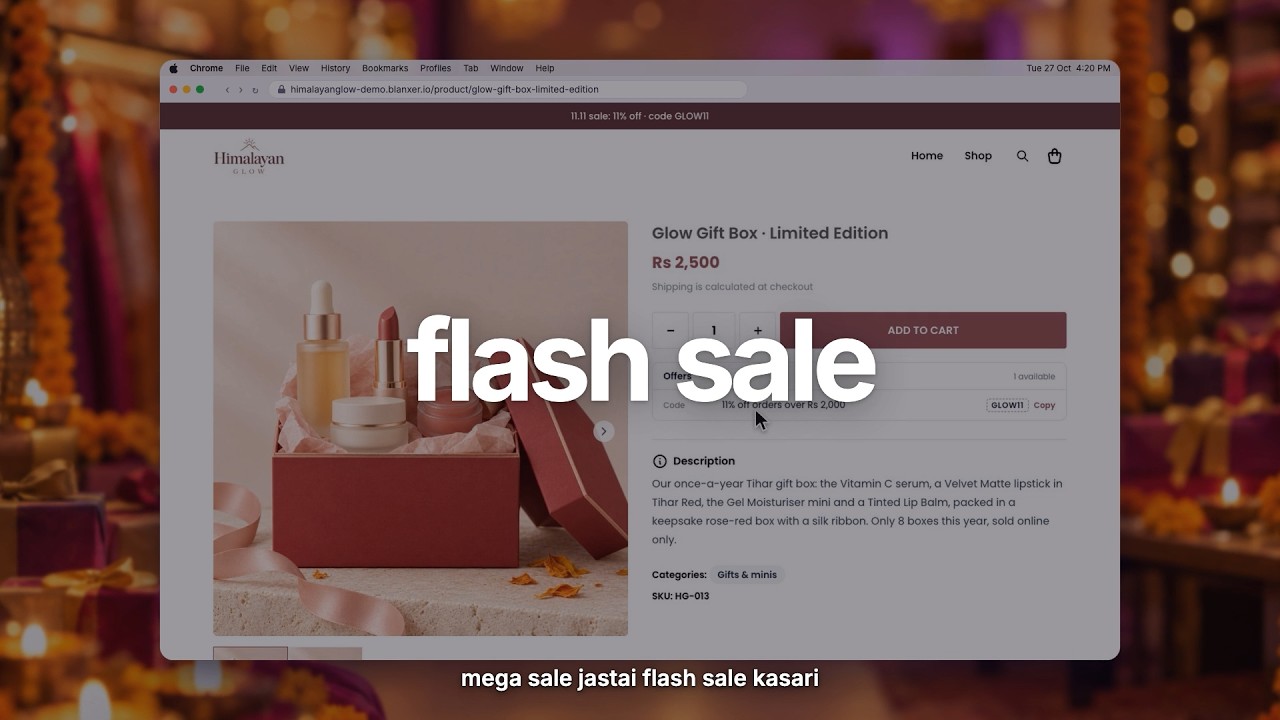 3:53
Offers
Flash sale
Run a sale for a set time: pick the products and the discount, and it starts and ends on its own.
 3:27
Offers
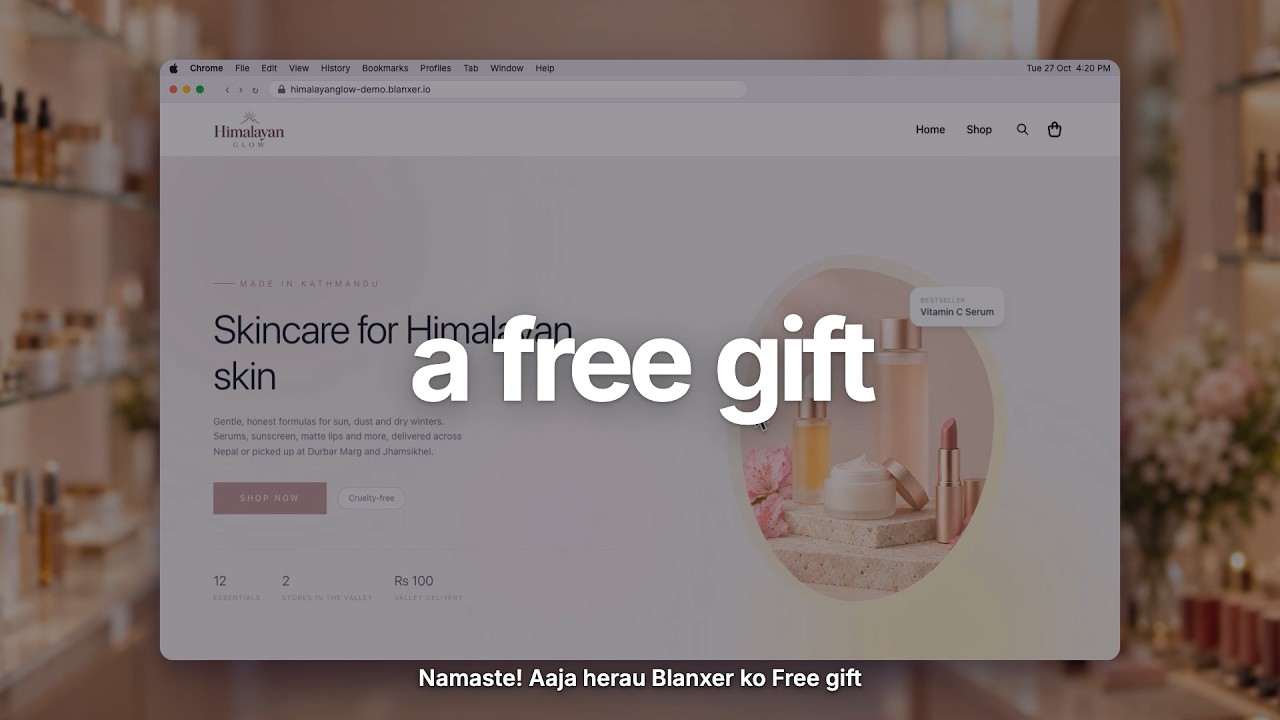
Free gift offer
Add a free gift to orders that meet your conditions, so customers see it in the cart and at checkout.
 3:33
Offers
Buy more, save more
Give a bigger discount the more a customer buys, to grow the size of every order.
See Blanxer with your own business in mind.
Book a demo. We'll show you the store, checkout, POS and dashboard, and tell you honestly which plan you need.
Prefer to talk directly?
Already a customer? Support on WhatsApp +977 9802344850, Sun–Fri, 9 AM – 6 PM.
Follow Blanxer
 A Blanxer product
One AI inbox for every customer conversation.
Sambad.io brings WhatsApp, Instagram, Facebook, website chat and email into one inbox. Connect your Blanxer store and its AI answers from your catalogue, checks stock, quotes delivery and places the order right in the chat.
- Website chat
- Gmail
- Outlook
- Zoho Mail