Know your profits with Advanced Analytics
See what you really earn: sales, costs and profit in one place, and which products, channels and staff bring it in.
Analytics · 9:55 · In Nepali
See your website, manual-order and POS sales together with stock costs and expenses in one Analytics hub, with the maths behind every number. You finally know your real profit, not just your sales.
Part 1
Find your way around
- 1
Three parts
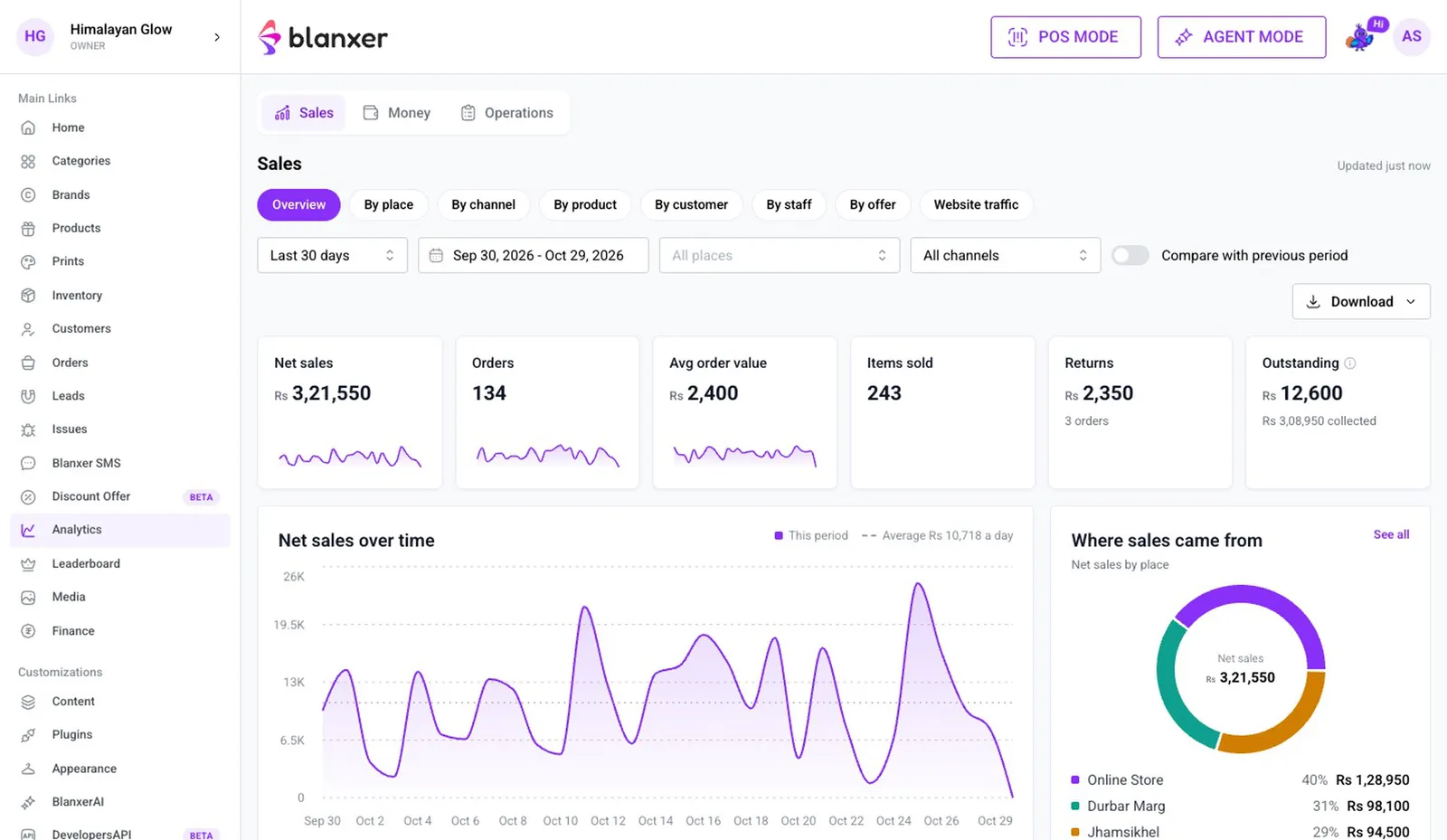
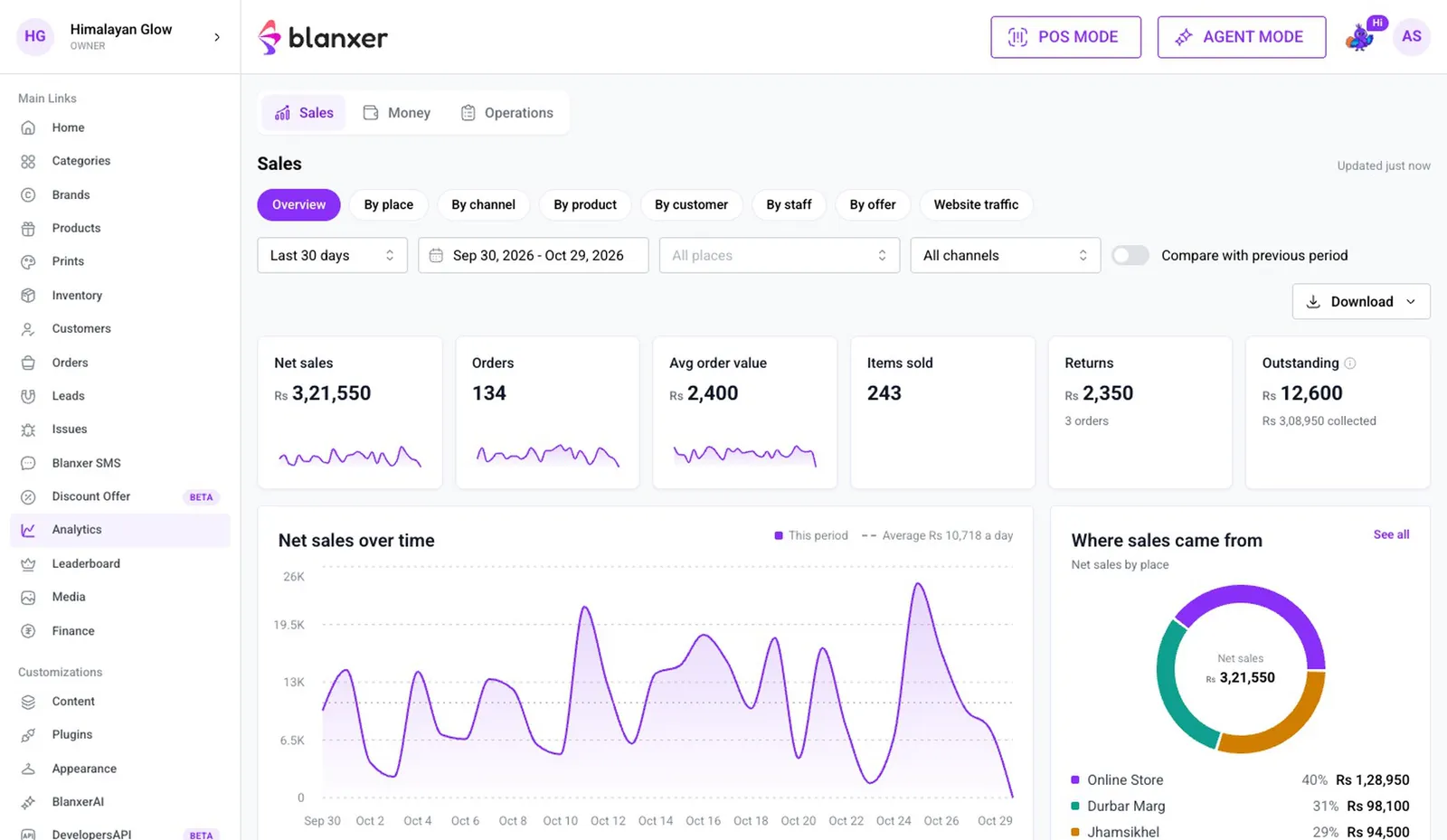
Analytics has three parts: Sales for what you sold, Money for cash and profit, and Operations for how the work is going. Each part has its own sections.
- 2
Filter by time, shop and channel
At the top, pick the time period, a shop or a channel, for example the last 30 days, one shop only, or the website only.
- 3
Compare with last period
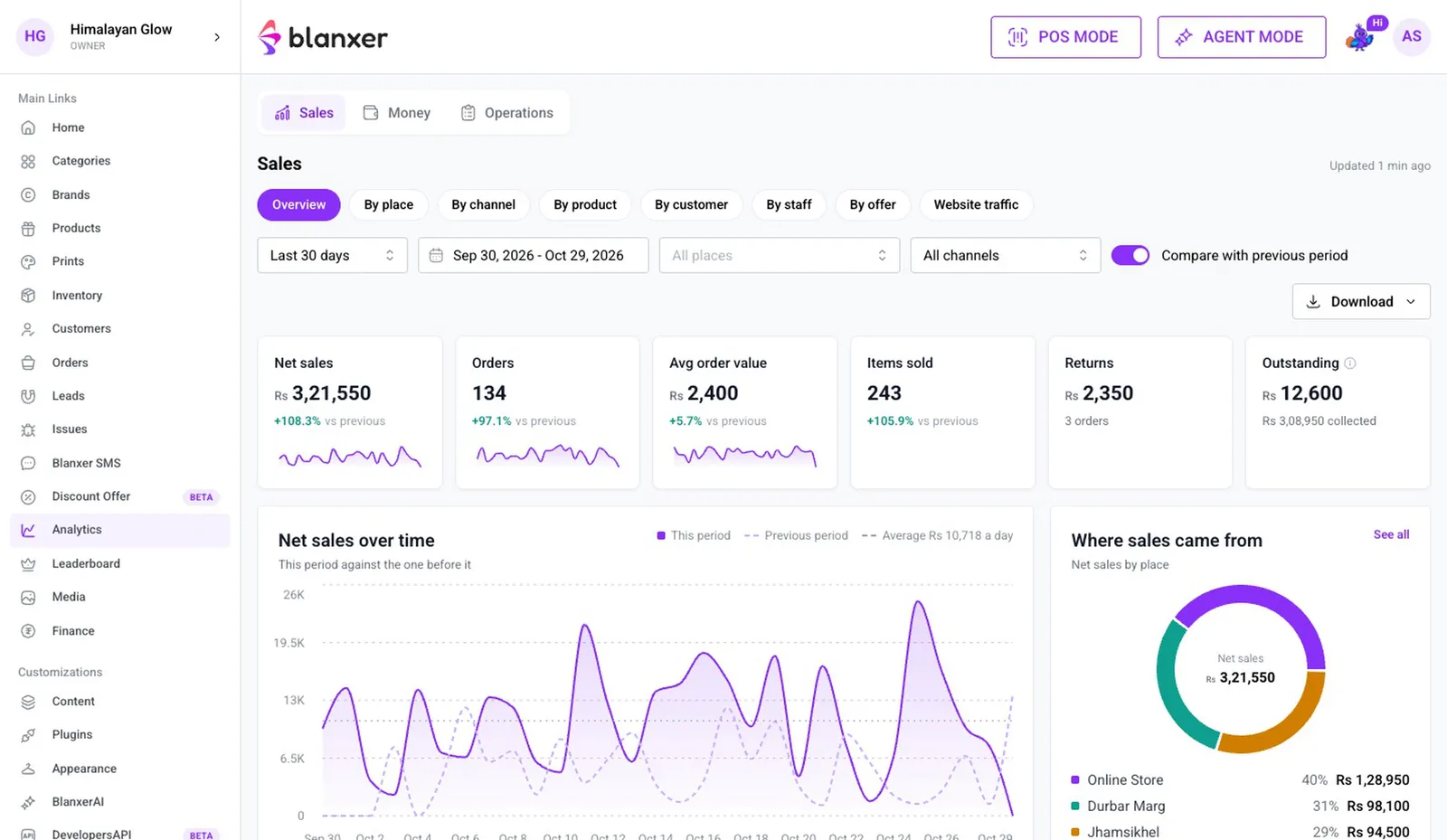
Turn on Compare with previous period and every number is set against the period before.
Part 2
Know what counts as a sale
- 4
Counted on the day it's placed
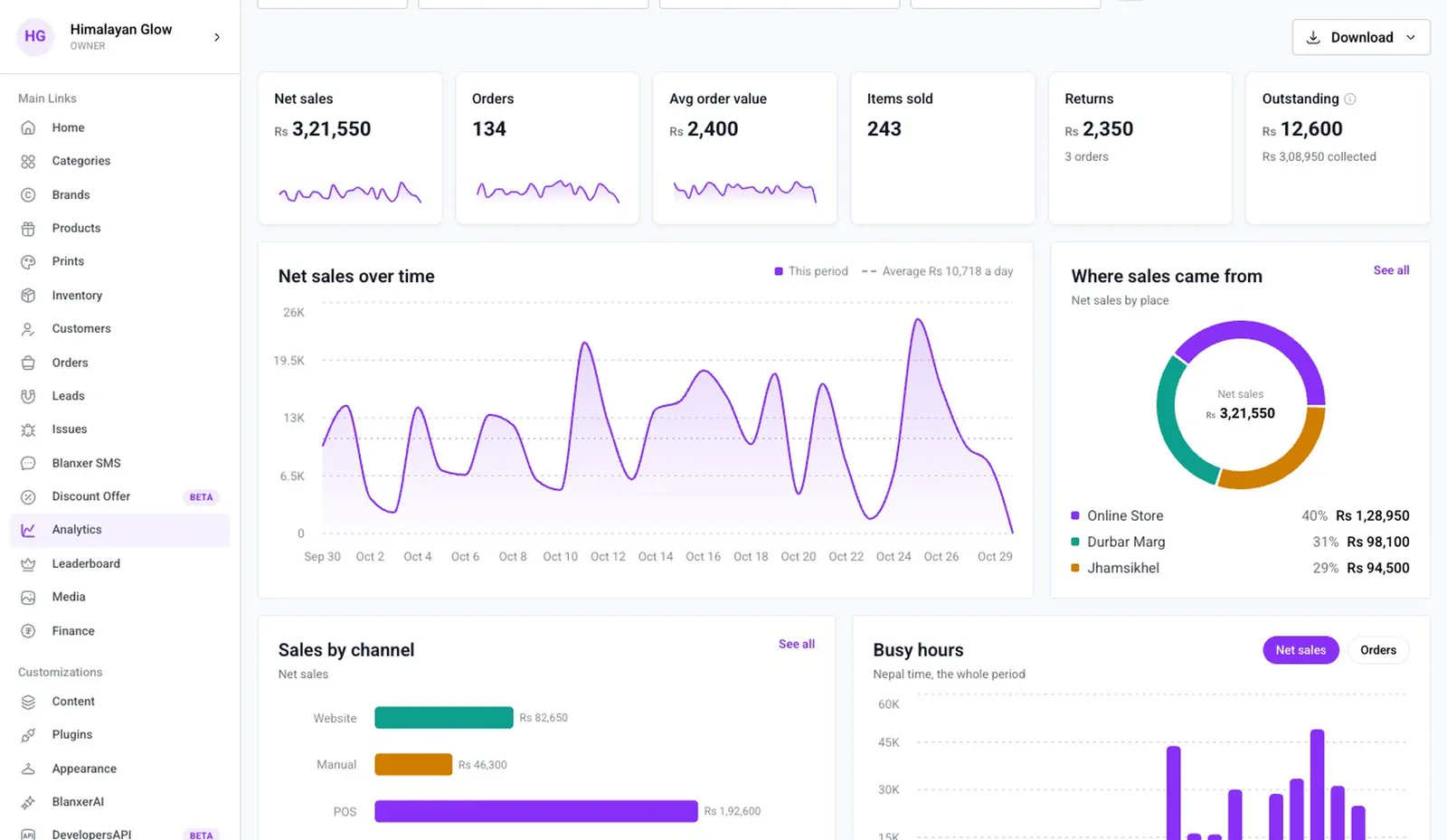
An order counts on the day it comes in, in Nepal time. A COD order counts that same day even though the cash comes later; until it does, it shows as Outstanding.
- 5
What's taken off net sales
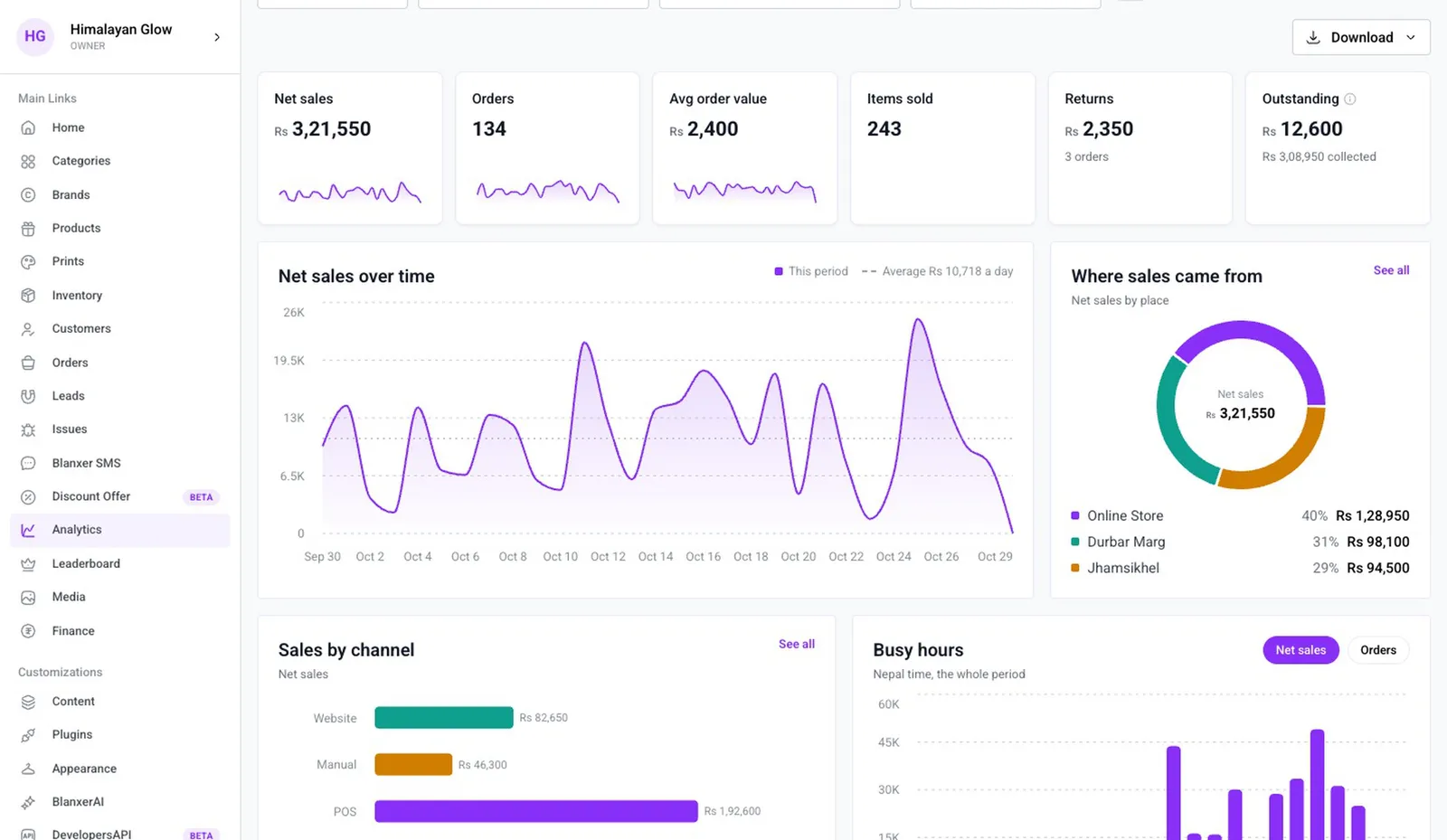
Cancelled orders, orders sent back whole, returned items, discounts and coupons come off. Leads stuck without online payment aren't counted, and the delivery charge is shown separately.
Part 3
Read your sales
- 6
Overview
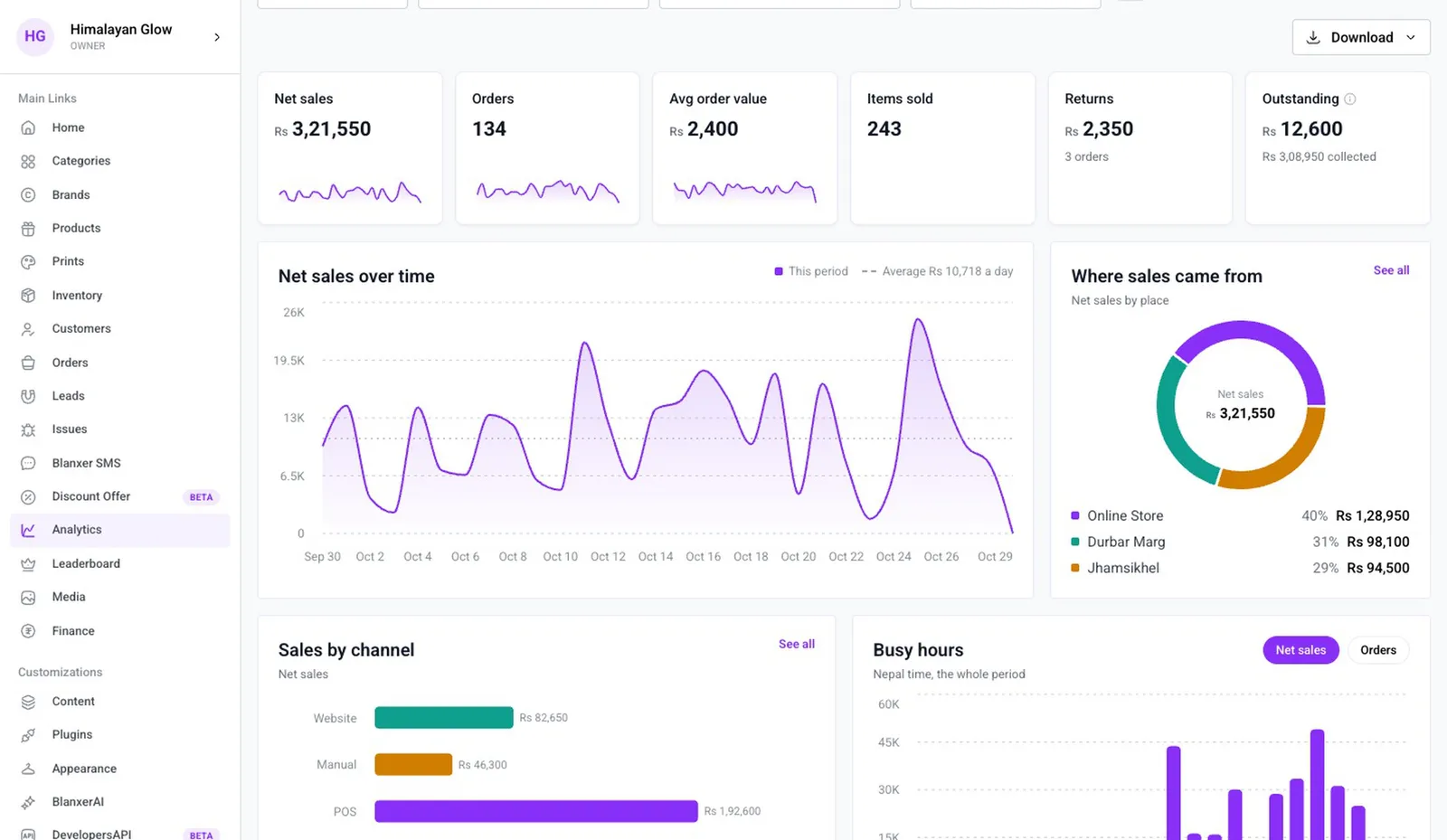
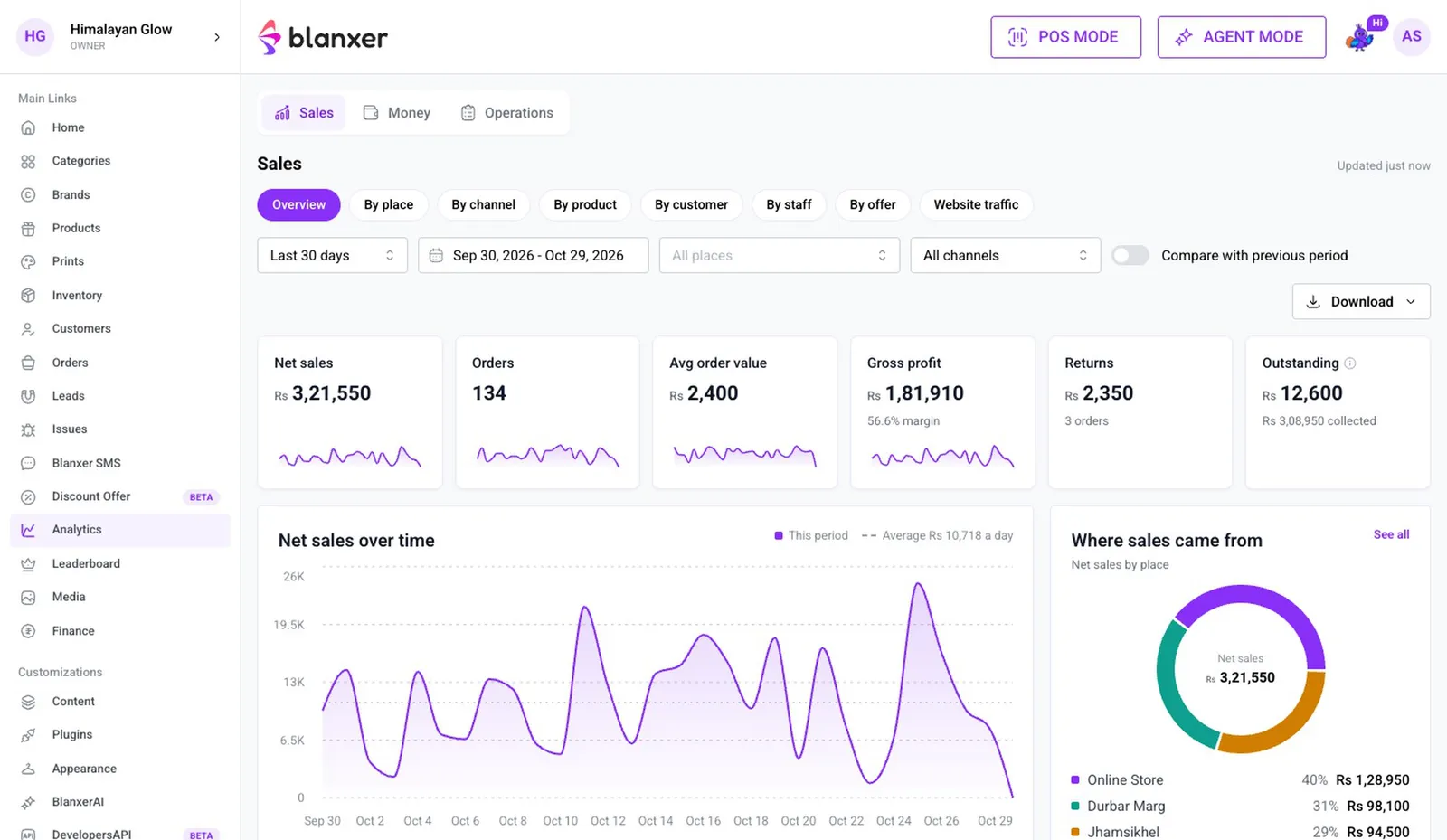
The top line shows net sales, order count, average order, returns and the amount still due. Below, the daily chart shows spikes such as festivals.
- 7
Why Gross profit may be missing
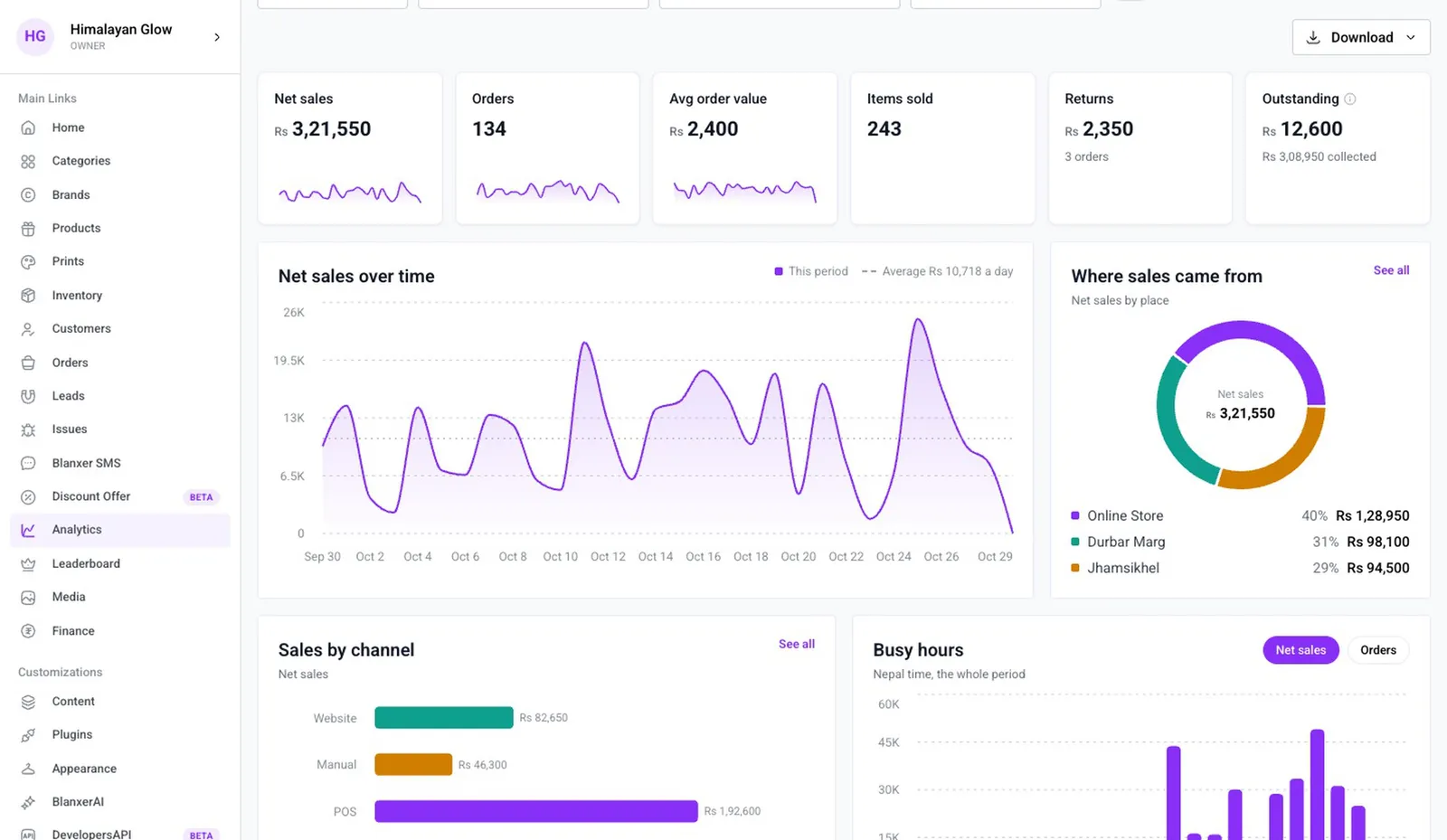
If some products have no cost in Blanxer, Overview shows Items sold instead of Gross profit, rather than a wrong profit. The last section shows how to fix it.
- 8
Sales by channel and Busy hours
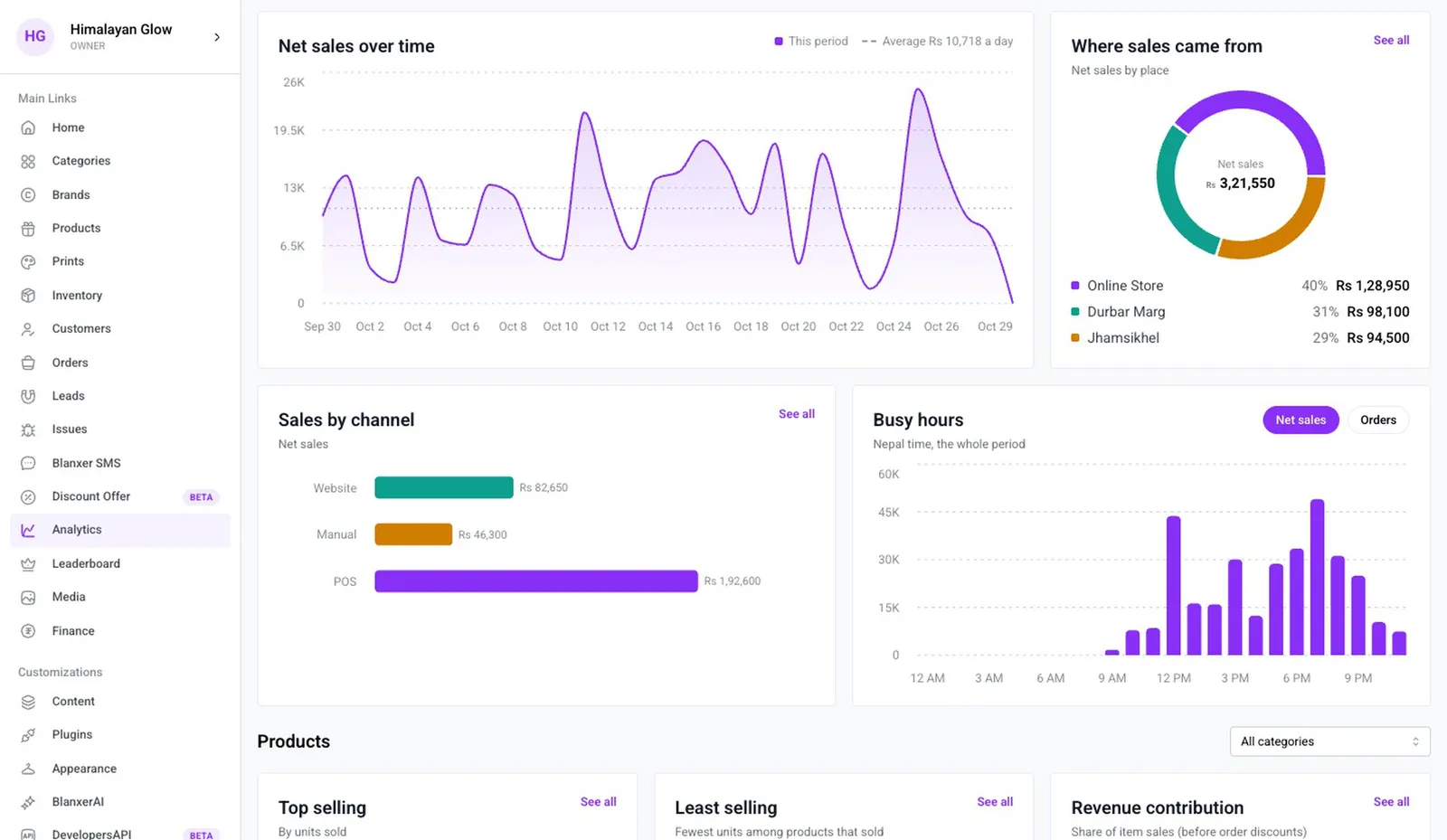
Sales by channel splits website, manual order and POS sales. Busy hours shows the hour of the day you sell most, handy for staff duty.
- 9
By place
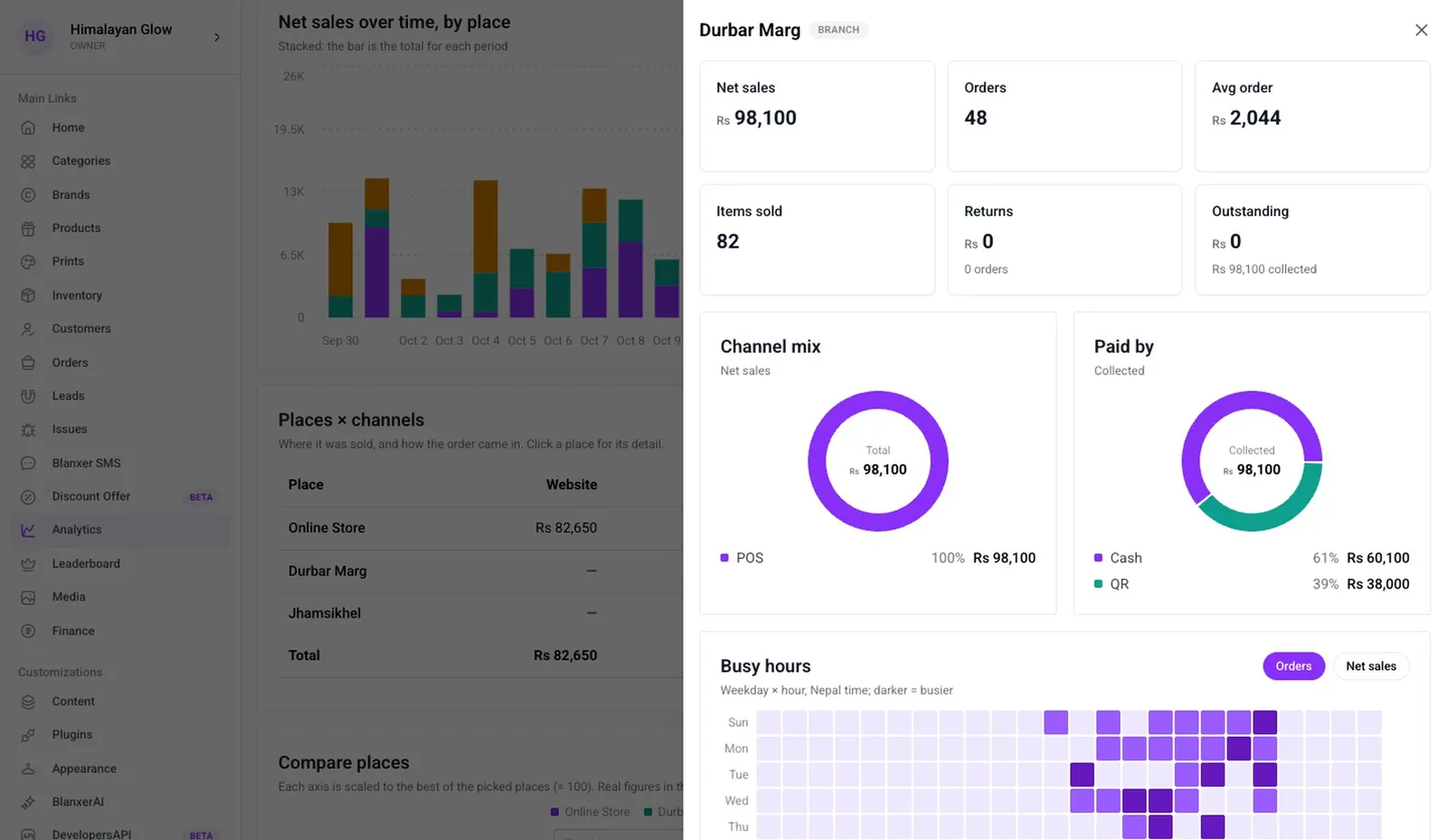
One table shows each shop and channel. Website and manual orders fall under Online Store, POS sales under their own shop; click a shop for its payments, busy hours, staff sales and top products.
Part 4
Slice it by product, staff and more
- 10
By product and By customer
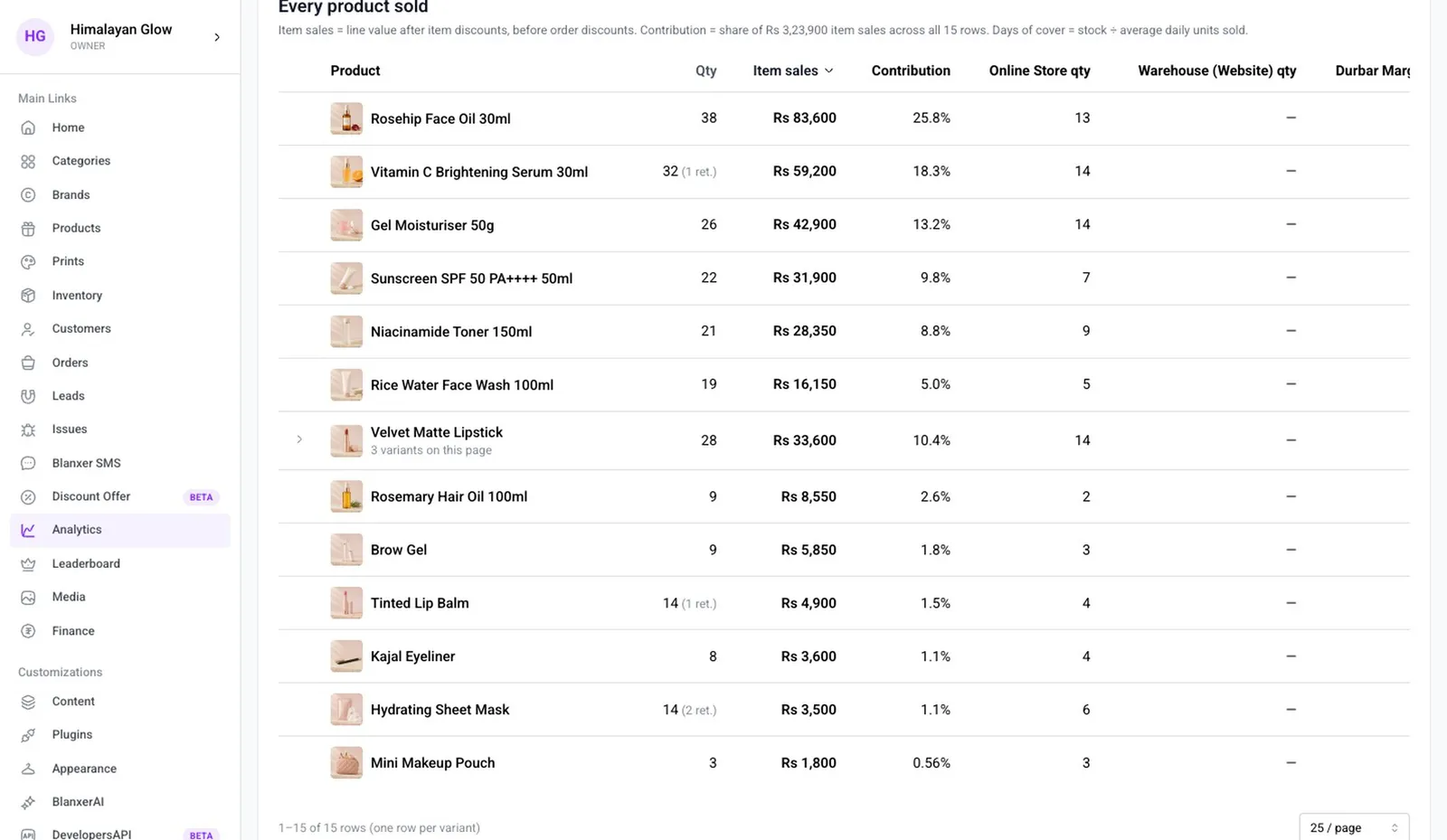
By product shows units sold, which shop, and how many days your stock will last. By customer splits new and returning customers, with the Repeat rate.
- 11
By staff, for commission
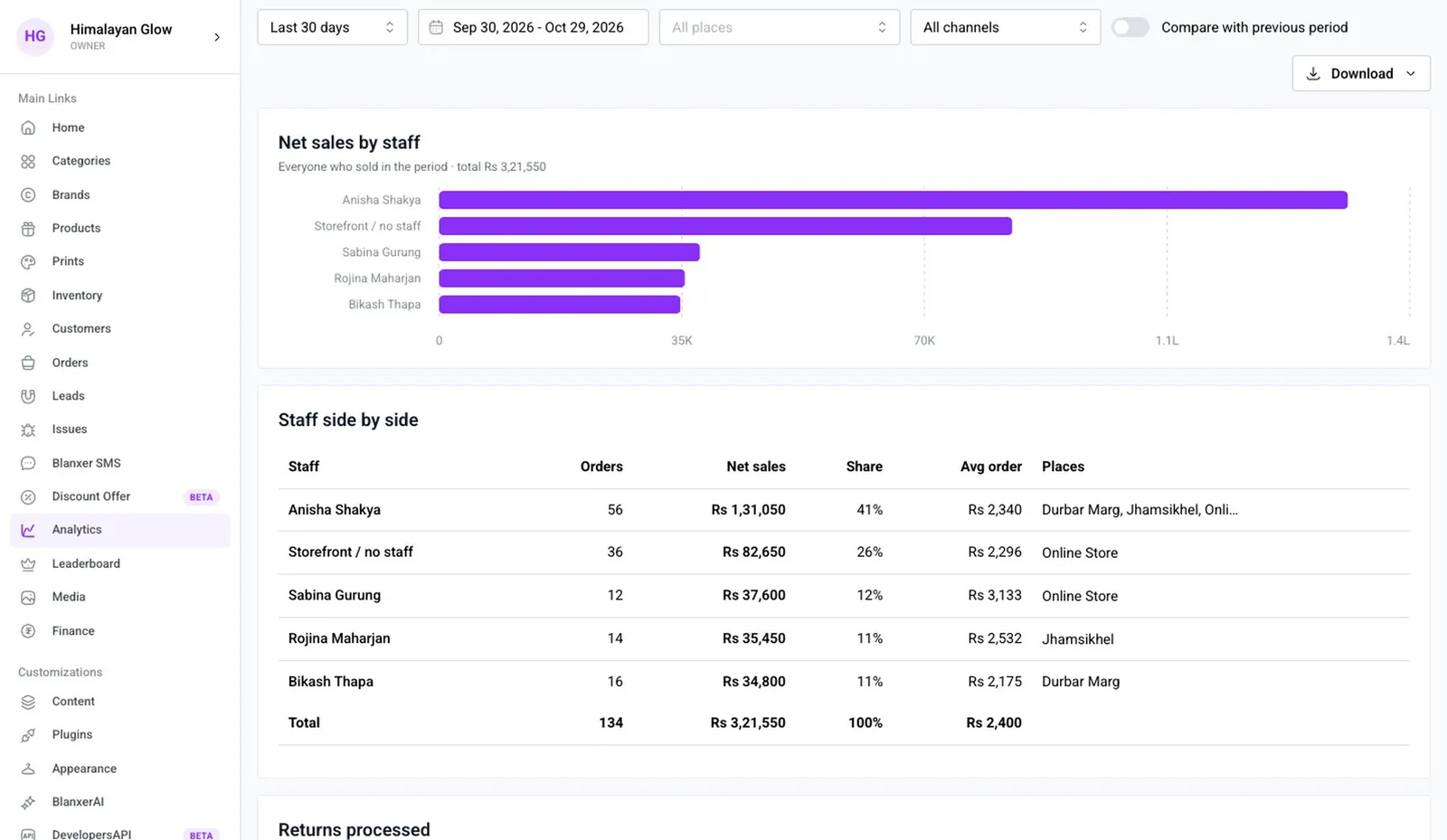
By staff shows how many orders each staff member made and the sales they brought in. Use it to work out commission, for example 3% of manual-order sales.
- 12
Website traffic
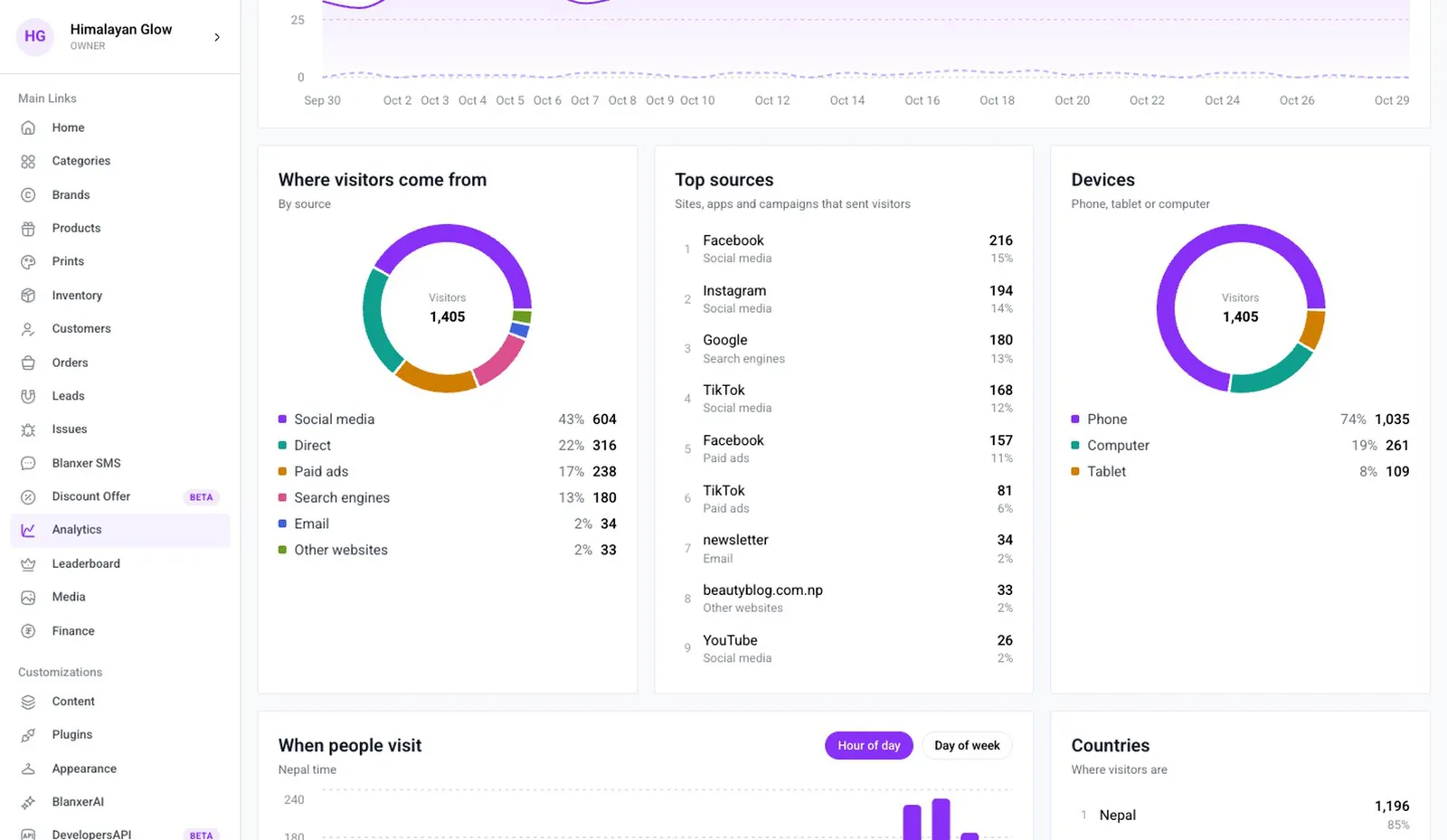
See how many people visited your website and where they came from: Facebook, Instagram, TikTok or Google, plus landing pages and campaigns.
- 13
Payments
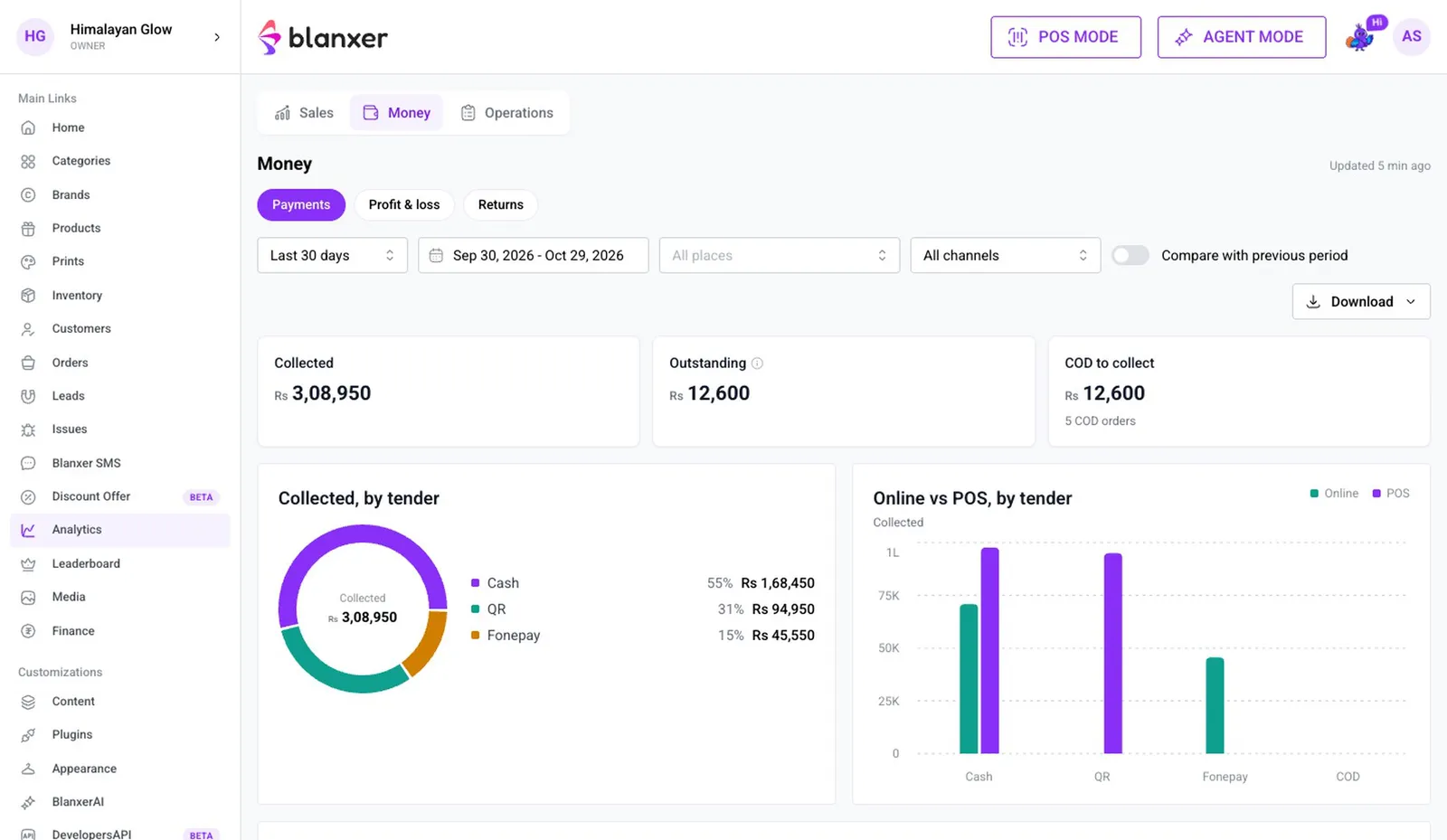
In Money, Payments shows cash, QR and Fonepay collections separately, with money still to collect, like COD, under Outstanding.
Part 5
Profit and loss
- 14
Four numbers
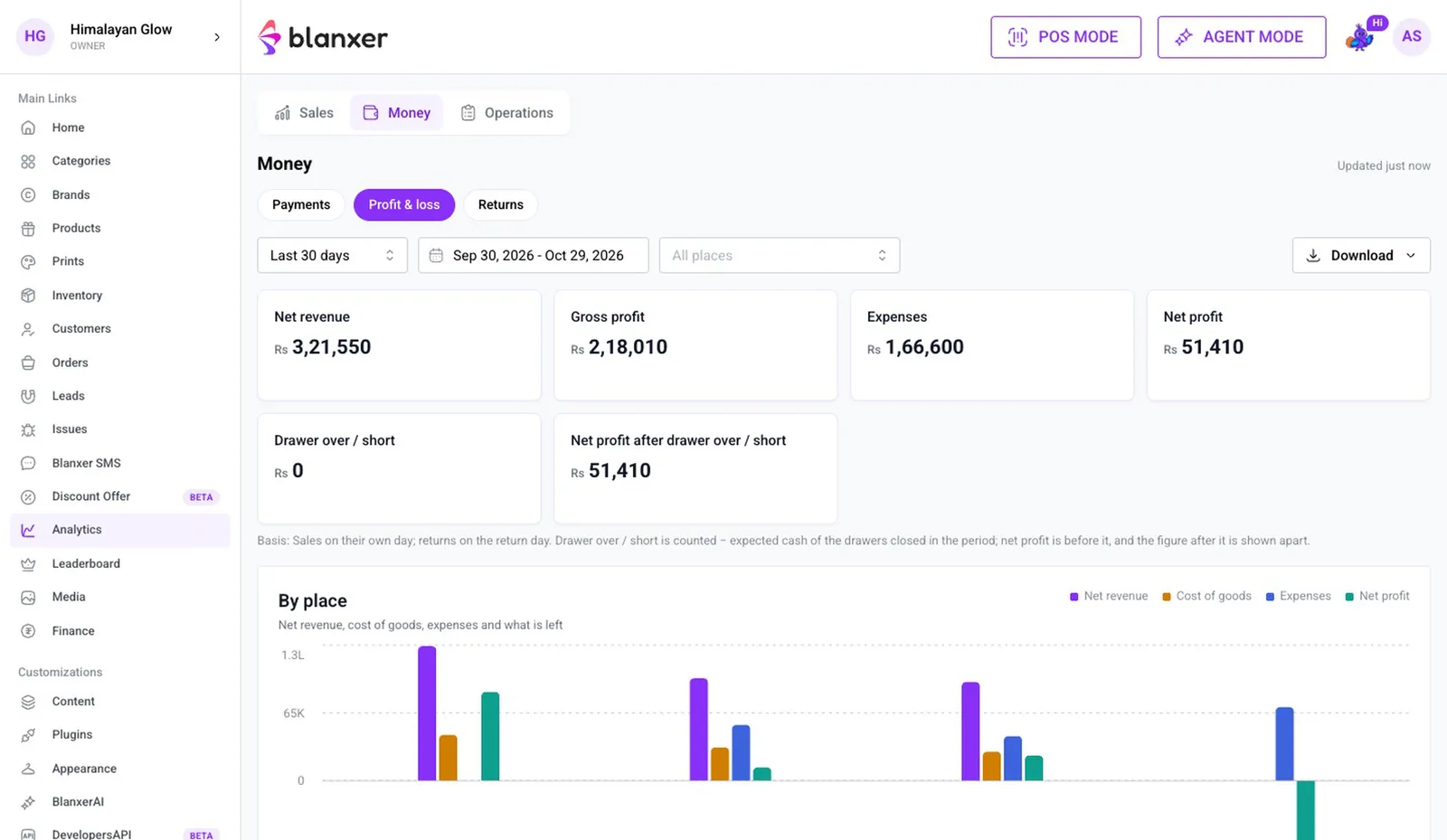
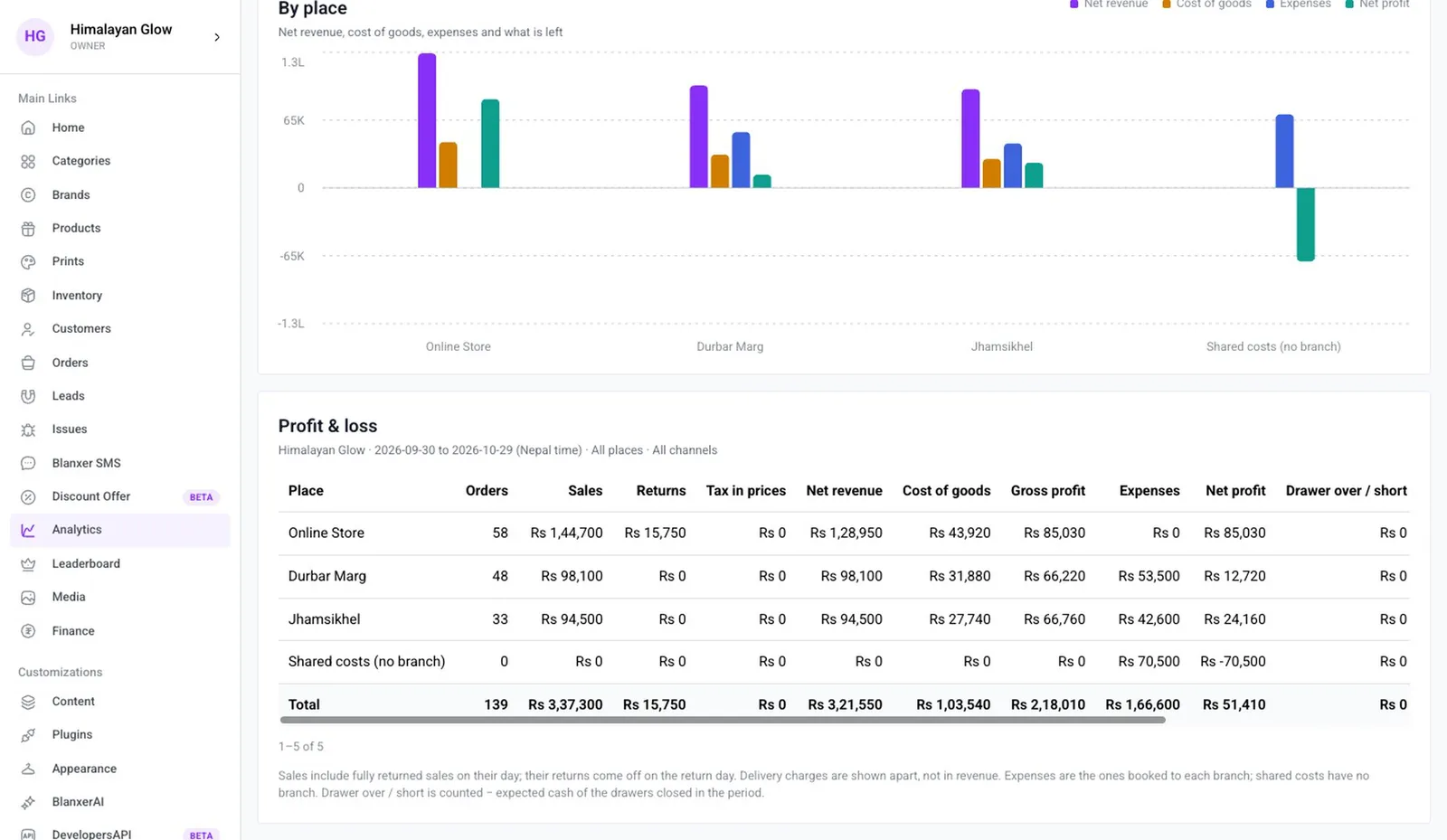
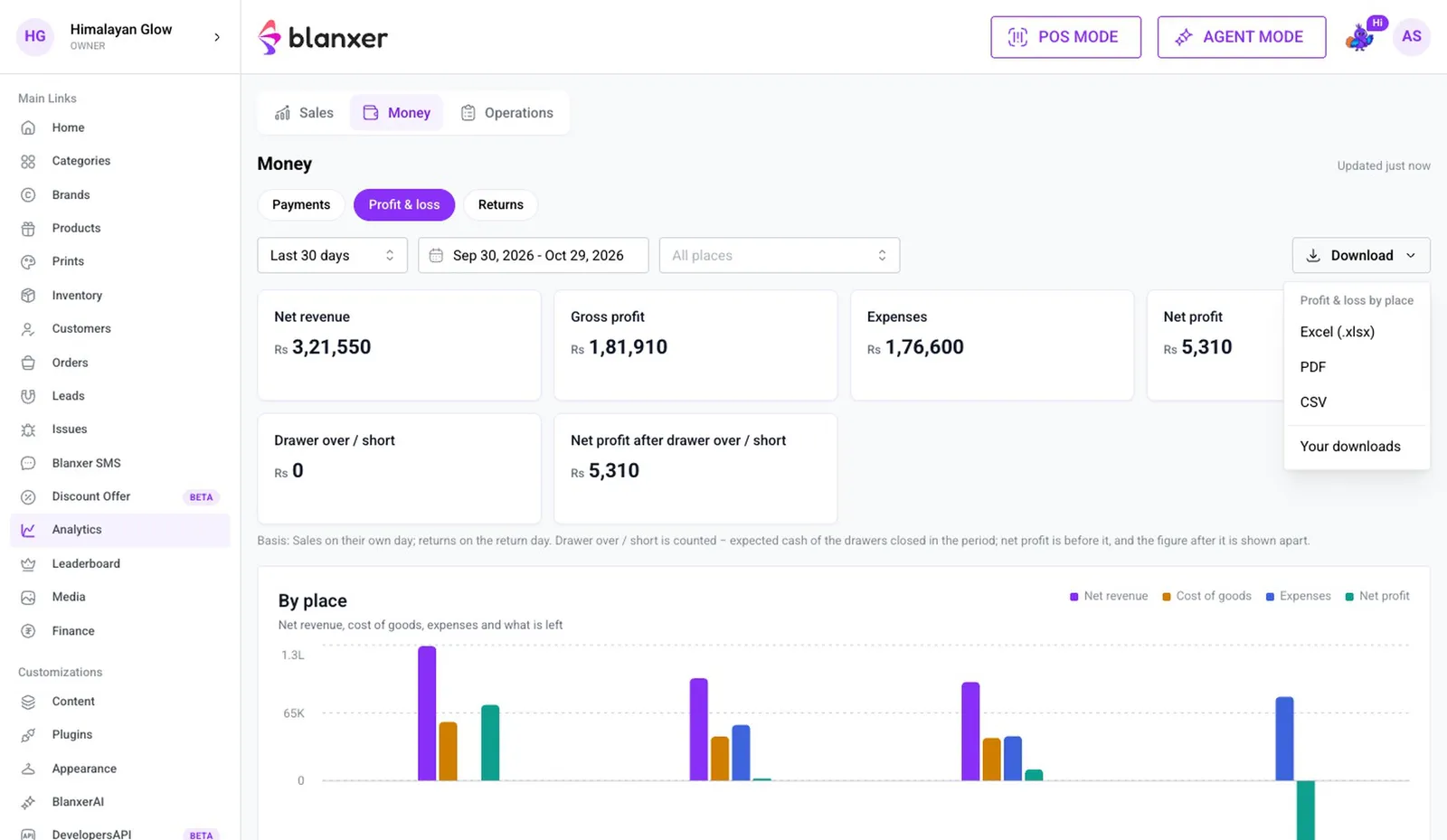
Profit and loss shows Net revenue, Gross profit, expenses and Net profit, with the calculation behind each.
- 15
Cost of goods by batch
Each unit sold uses the cost of the exact batch it came from, so a later cost change doesn't rewrite old sales.
- 16
Profit per shop and Shared costs
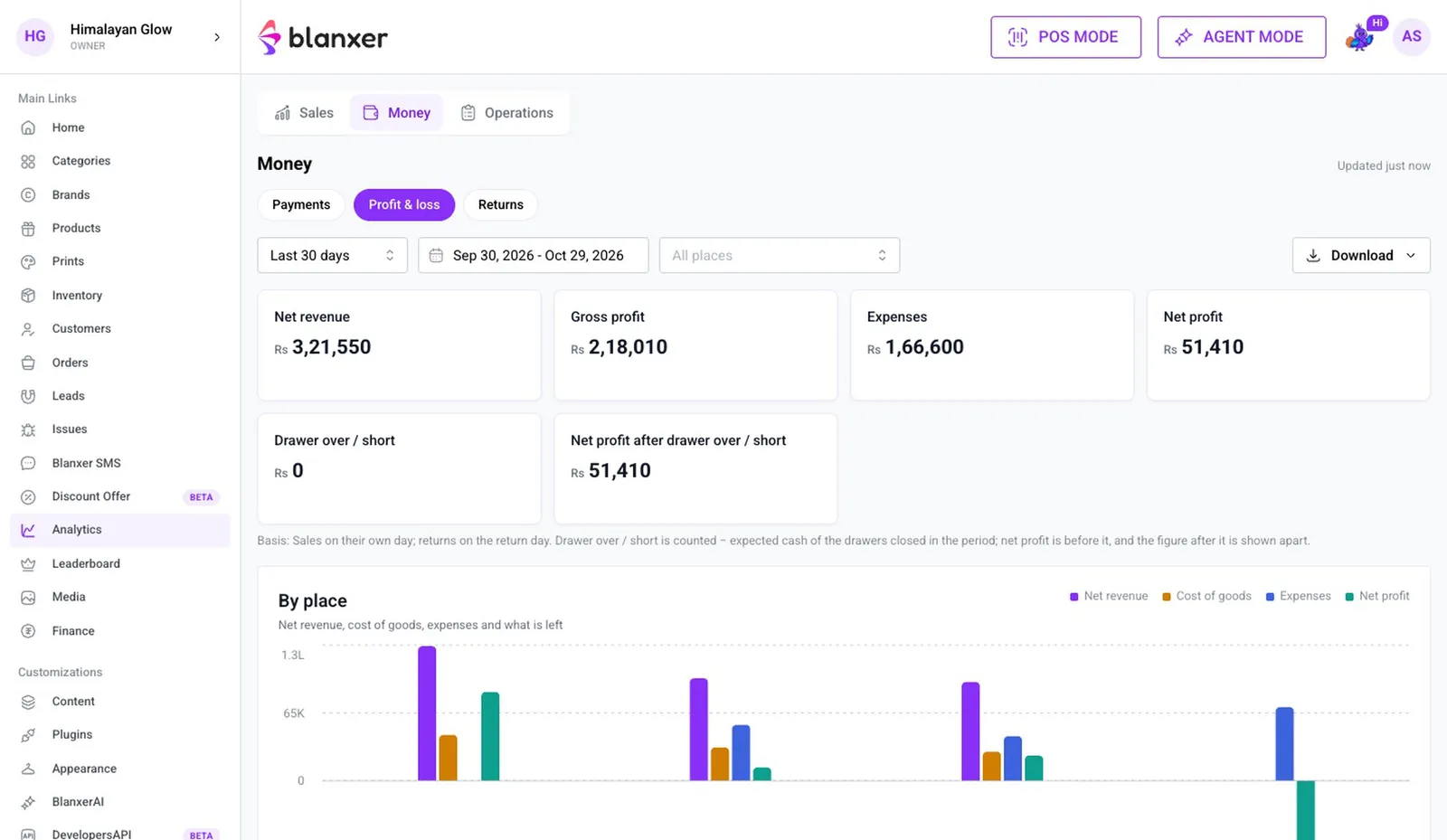
The table shows profit for each shop and the Online Store. Costs that belong to no single shop, like ads or the online team's salary, go to Shared costs.
Part 6
Add your expenses
- 17
Add expense
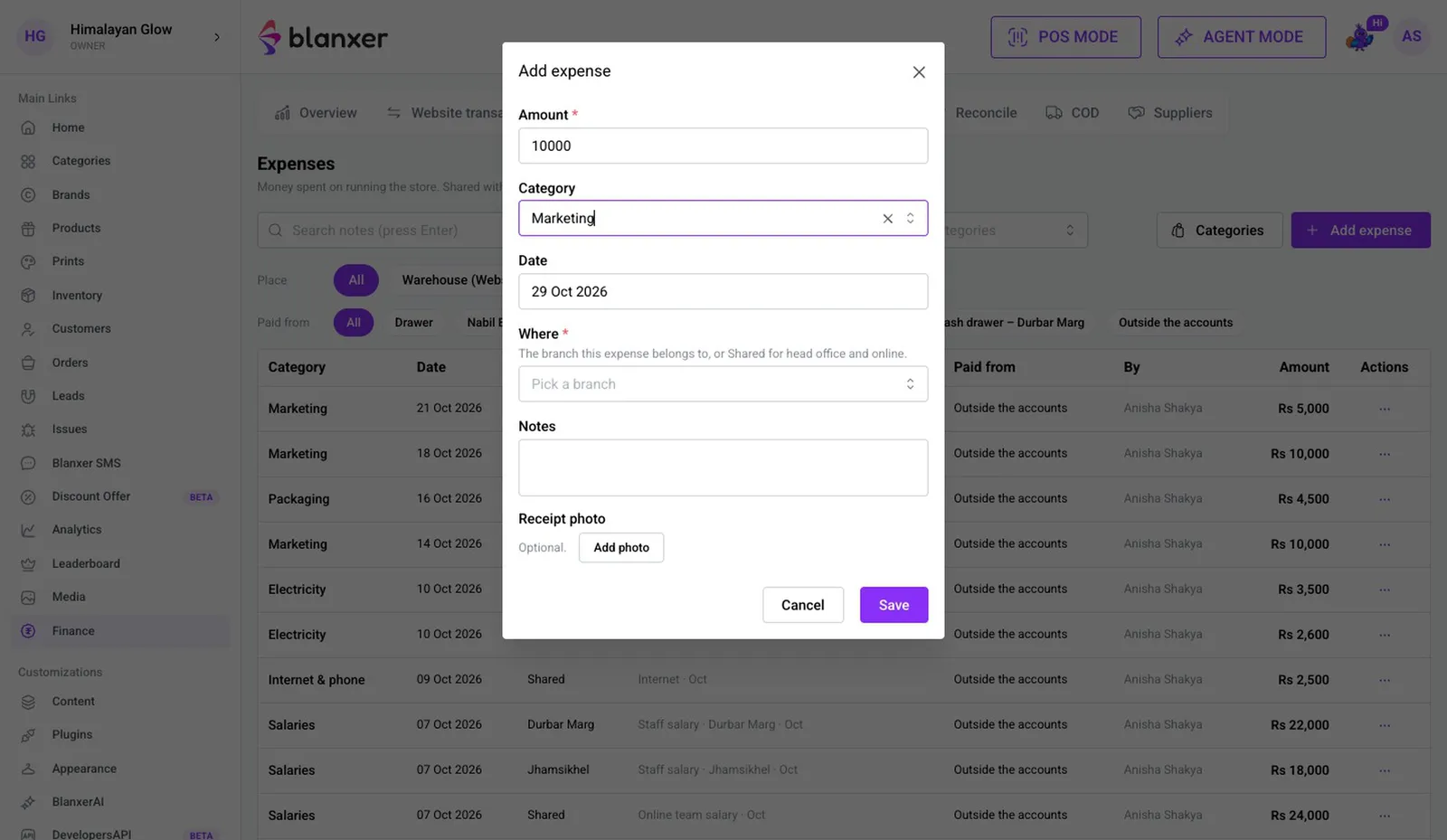
In Finance, Expenses, click Add expense. Enter the amount and a Category, for example Marketing.
- 18
Where and Paid from
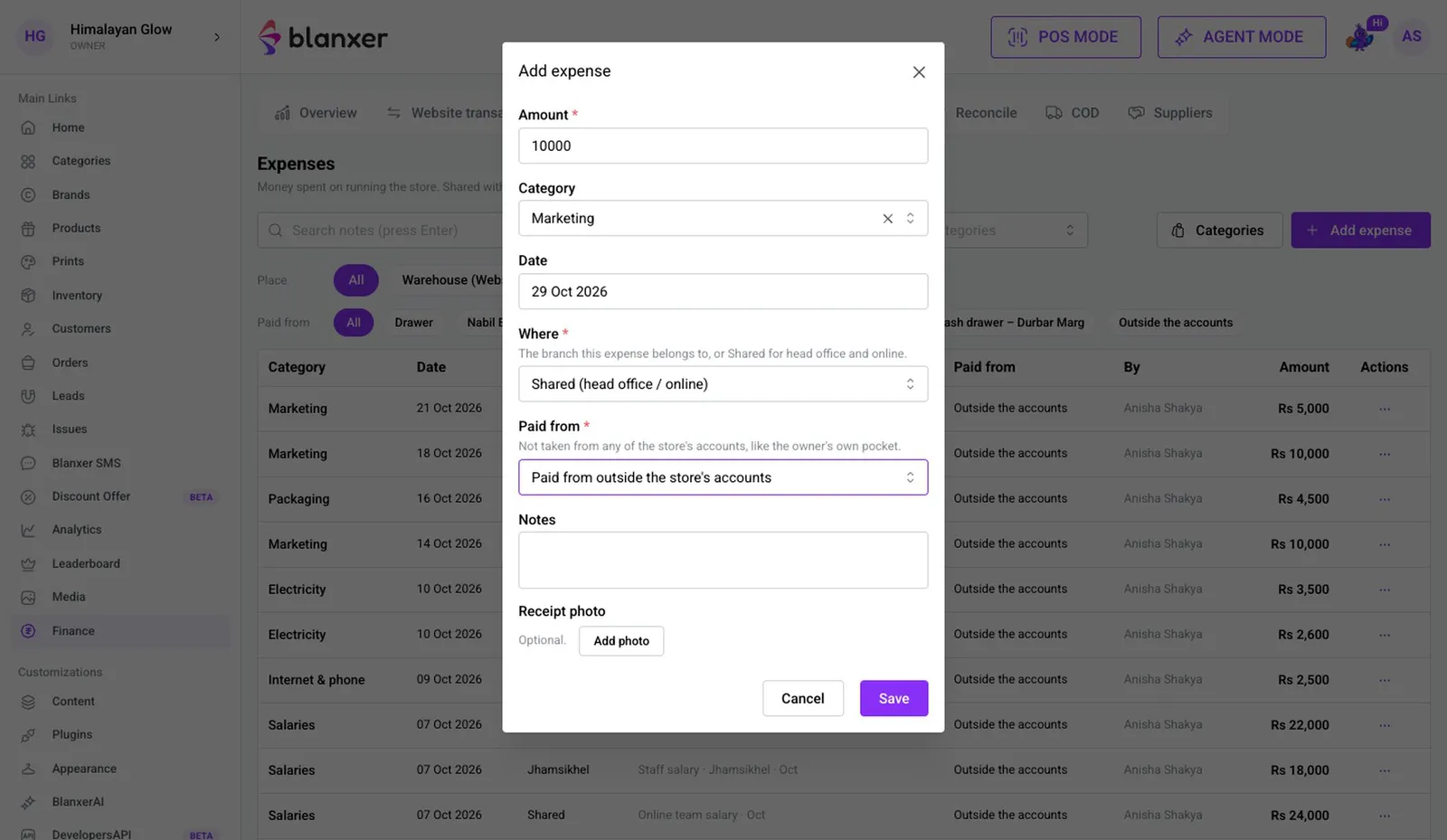
In Where, pick the shop it belongs to, or Shared. In Paid from, pick where the money came from. Add Notes and, if you like, a bill photo.
- 19
Save
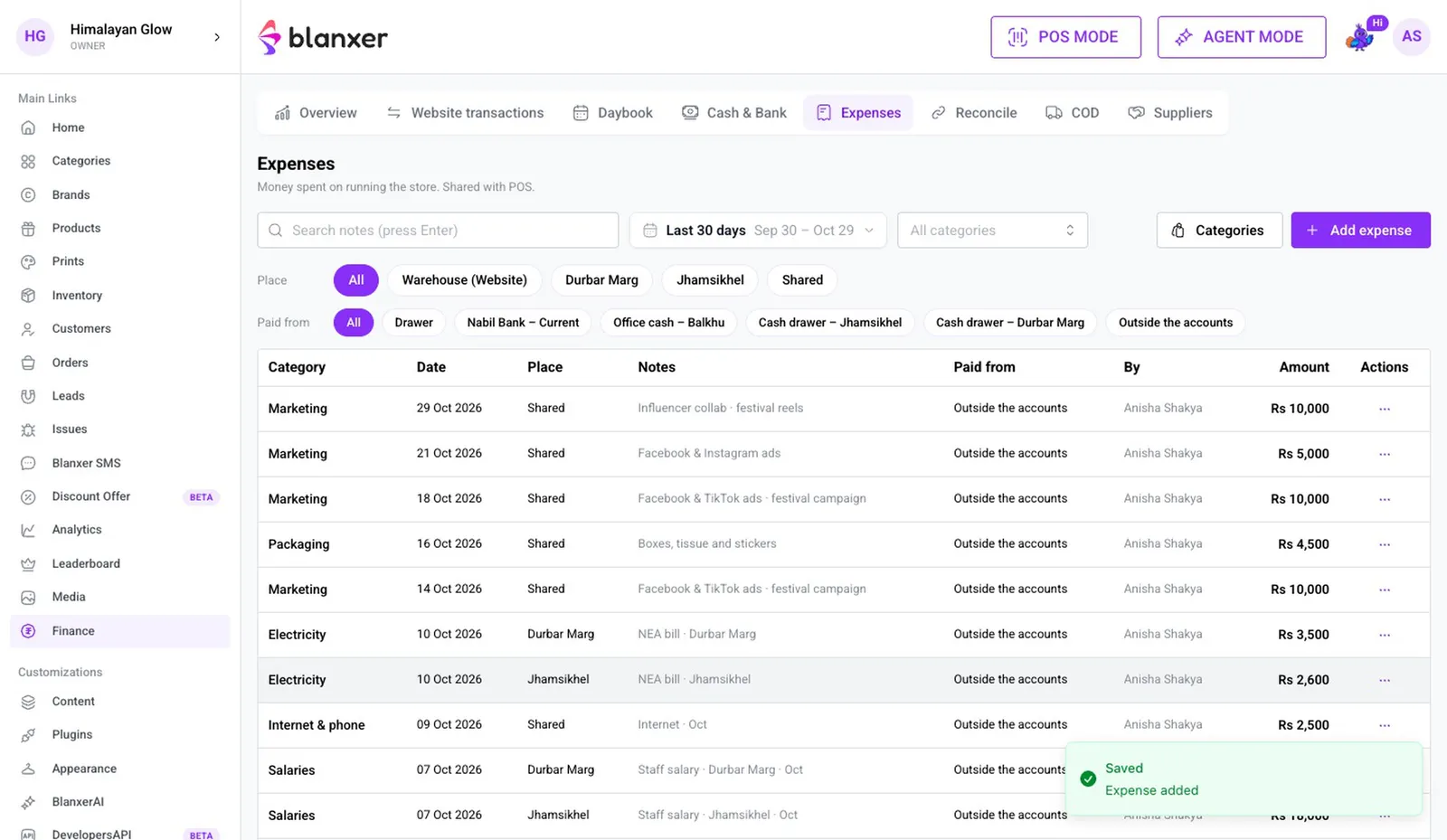
Click Save. A shared expense lands in Shared costs in the P&L by itself. Courier fees and online payment fees are added for you.
Part 7
Fix a missing cost
- 20
Correct cost on the batch
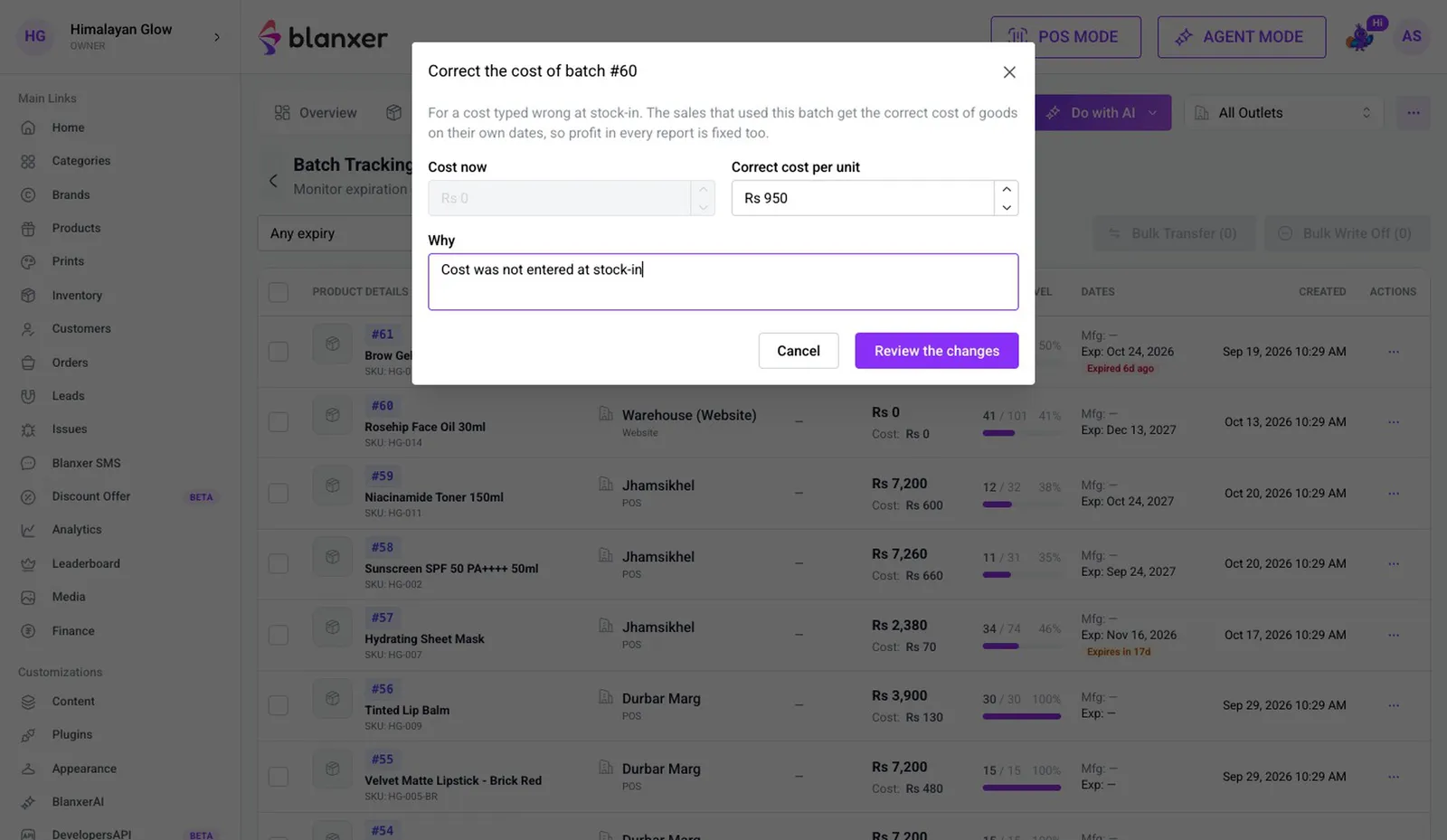
In Inventory, Batches, open the product's batch and click Correct cost. Type the right cost and a short reason.
- 21
Review, then correct
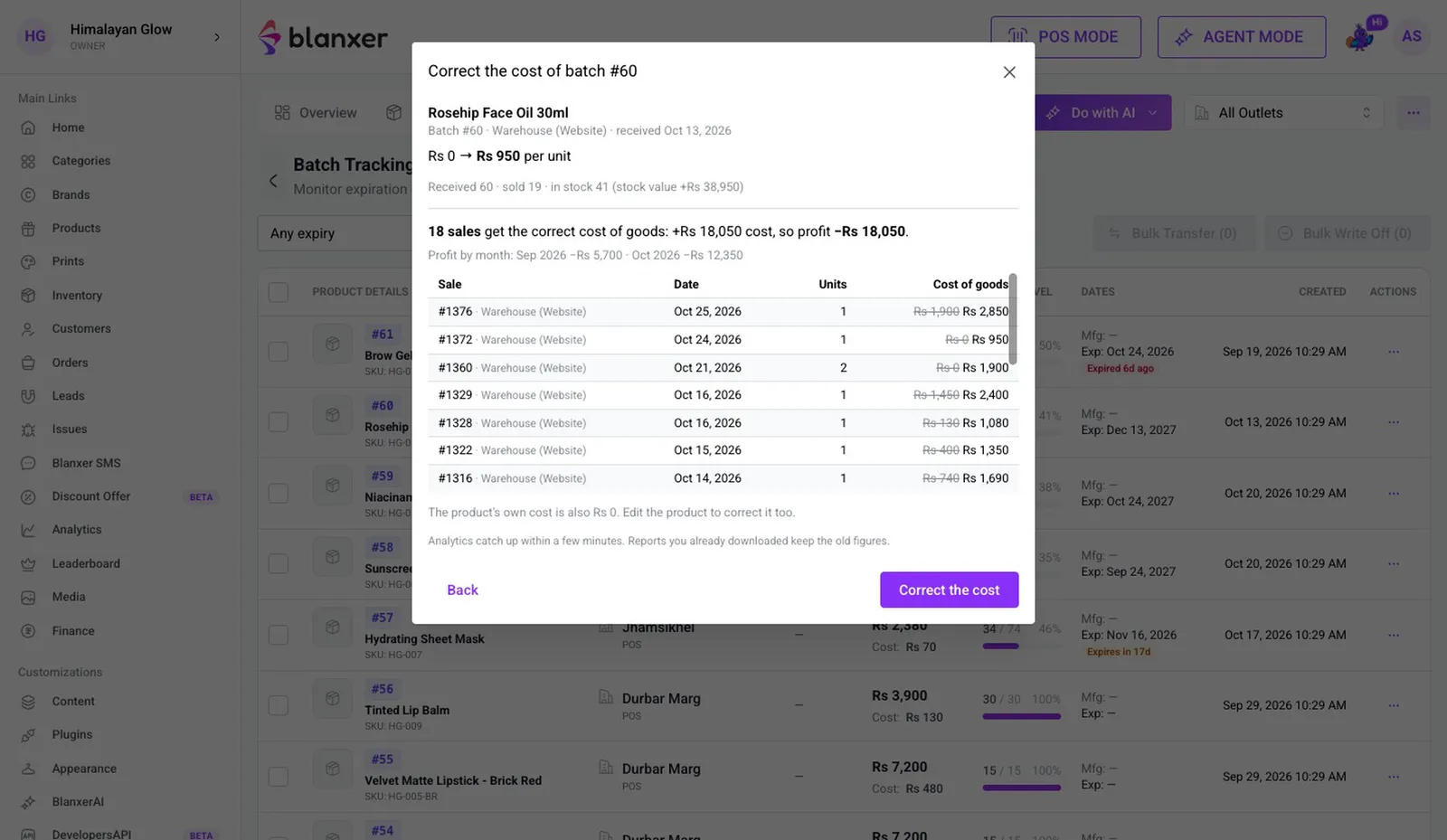
Click Review the changes to see which sales change and by how much profit drops, then click Correct the cost. Past sales are fixed on their own dates, including batches sent to other shops.
- 22
Or from the product
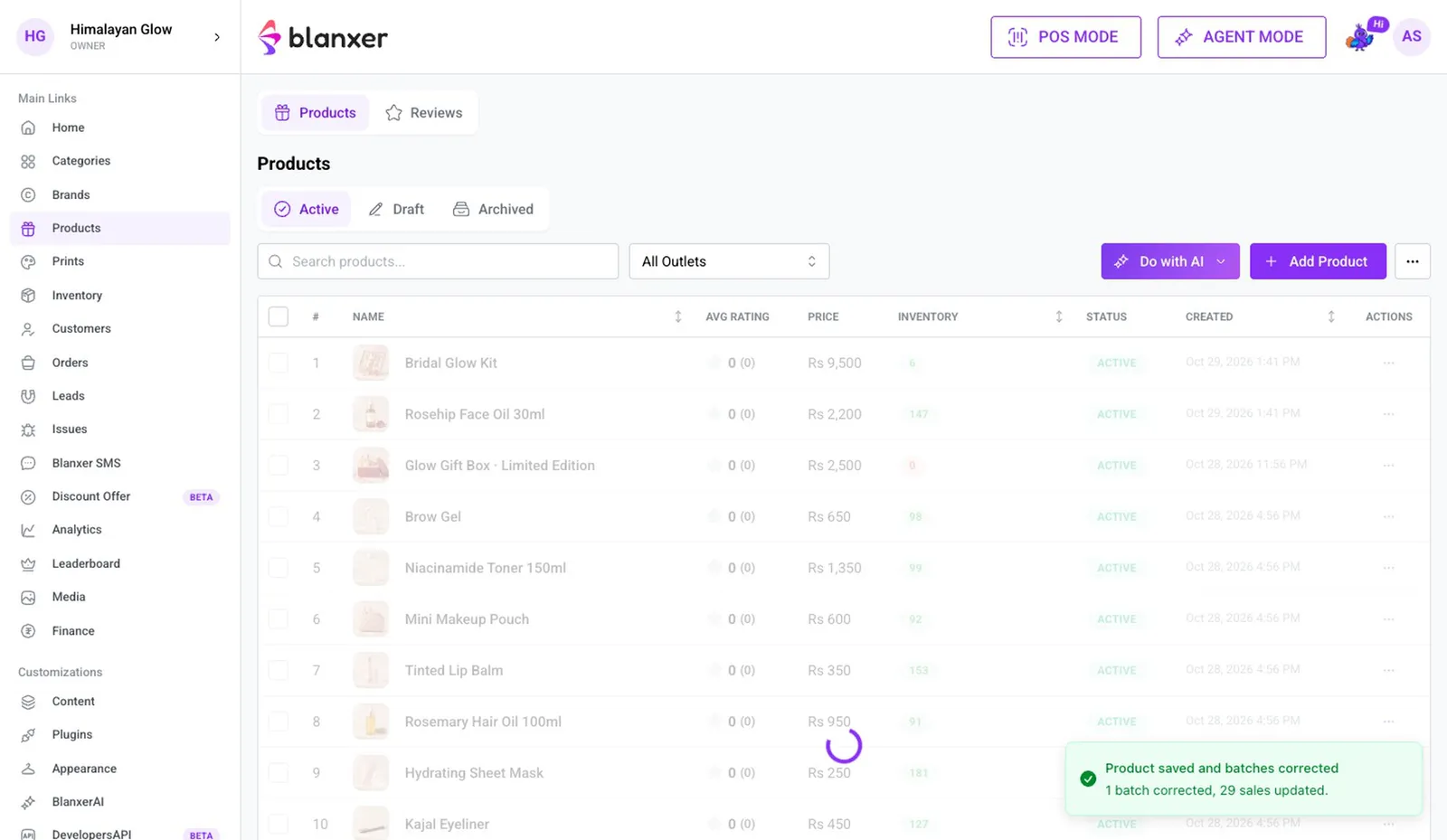
In Products, open the product, click Edit Price & Inventory, set the Cost Price and click Save Changes. Batches with zero cost are already selected; click Review, then Save and correct.
- 23
Gross profit appears
Analytics updates within minutes, and Gross profit shows in place of Items sold.
Part 8
Share it
- 24
Download
Click Download for Excel, PDF or CSV, ready to send to your accountant.
Good to know
- Gross profit is only shown when your products have a cost in Blanxer. Products with zero cost make profit look far higher than it really is.
- Refunds are taken off sales, not booked as expenses.
- Overview net sales and P&L Net revenue can differ when a return comes at the end of a month: Overview takes it off the day of the sale, P&L the day of the return.
- To fix many costs at once, BlanxerAI can do it from one prompt.
More videos
All 33 videos 1:12
Getting started
What is Blanxer?
Start here: what Blanxer is and what it does for your business, before the videos on each feature.
 5:43
Products
Add products (normal inventory)
Add a product with its photos, price, variants and stock, for stores on normal inventory.
 6:18
Products
Add products (advanced inventory)
Add a product and stock it in per outlet, with its cost, for stores on advanced inventory.
See Blanxer with your own business in mind.
Book a demo. We'll show you the store, checkout, POS and dashboard, and tell you honestly which plan you need.
Prefer to talk directly?
Already a customer? Support on WhatsApp +977 9802344850, Sun–Fri, 9 AM – 6 PM.
Follow Blanxer
 A Blanxer product
One AI inbox for every customer conversation.
Sambad.io brings WhatsApp, Instagram, Facebook, website chat and email into one inbox. Connect your Blanxer store and its AI answers from your catalogue, checks stock, quotes delivery and places the order right in the chat.
- Website chat
- Gmail
- Outlook
- Zoho Mail