
Bulk SMS to all your customers
Pick your customers or past orders and send them all one SMS from Blanxer SMS.
Customers · 3:30 · In Nepali
Send an SMS to your customer automatically at every order step, and reach many customers at once with bulk SMS. Customers stop calling to ask where their order is, and your offers reach everyone in one go.
Before you start
SMS credit (buy more with Purchase SMS).
Part 1
Check your SMS credit
- 1
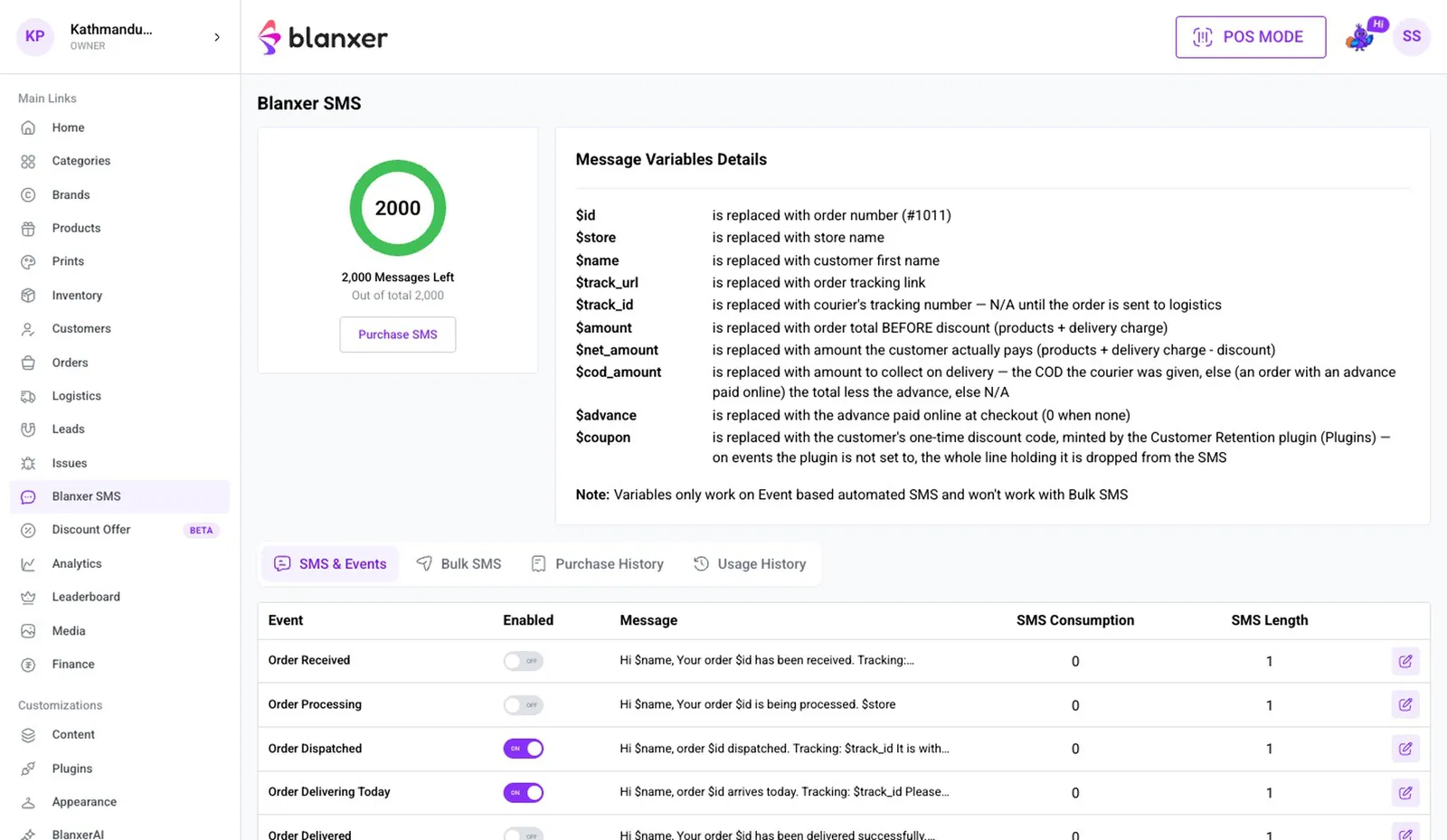
Open Blanxer SMS
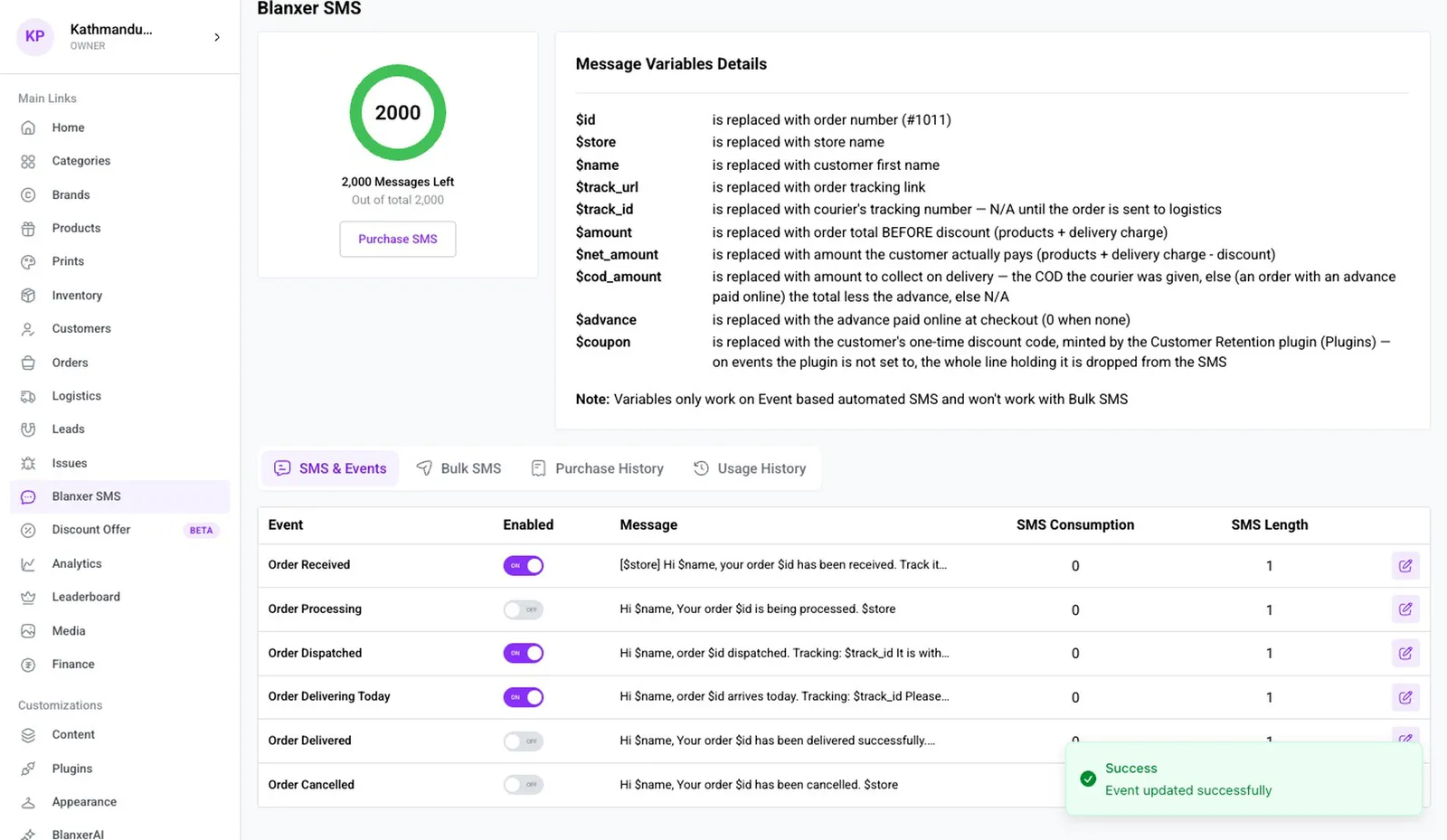
The Blanxer SMS page shows your remaining SMS credit. Each SMS costs Rs 1.20, and you can buy more with Purchase SMS.
Part 2
SMS on every order step
- 2
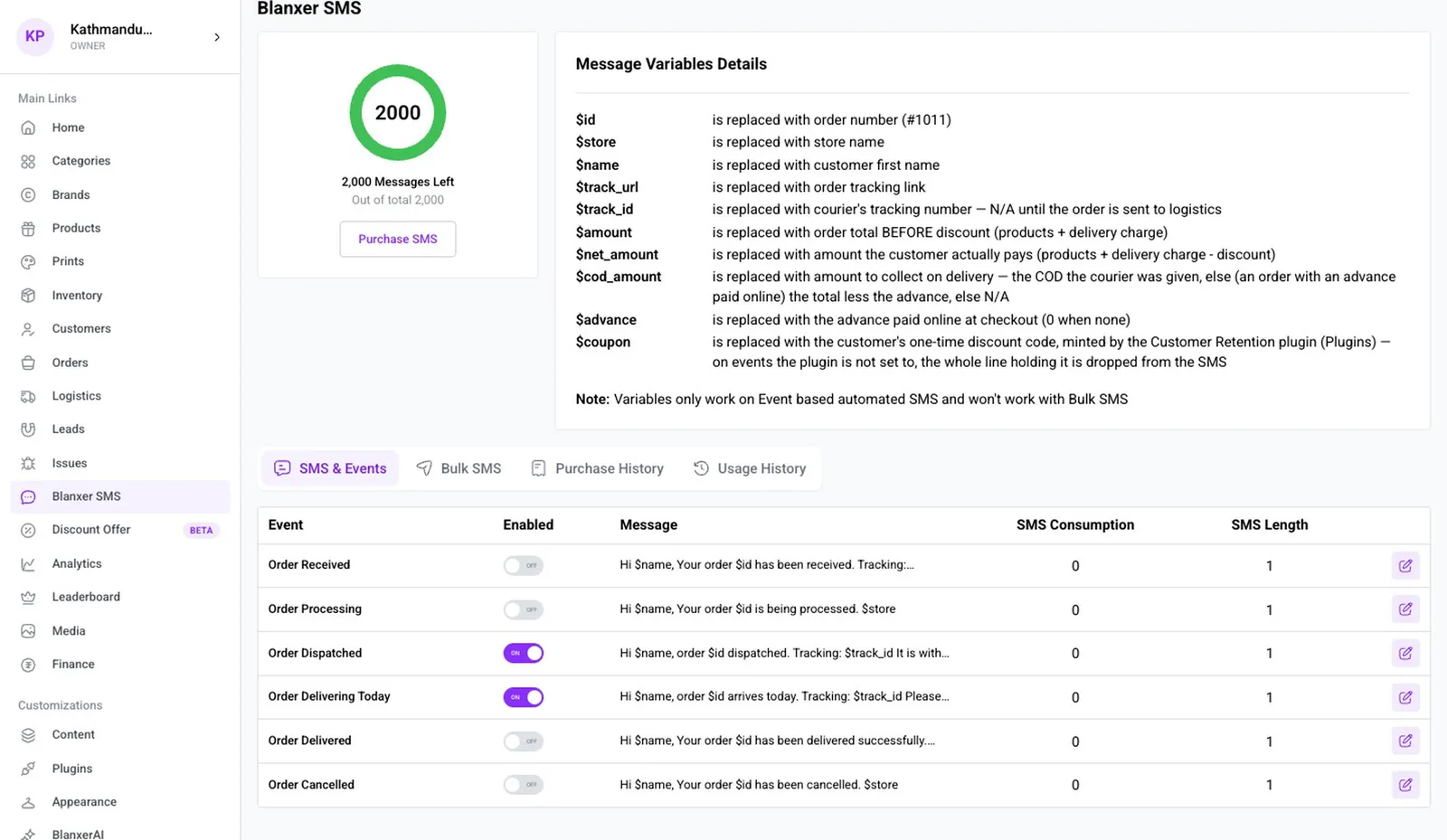
See the SMS & Events tab
Every step has its own SMS, from order received to dispatched, delivering today, delivered and cancelled. Each one goes by itself as soon as the status changes; with a courier connected, statuses like delivering today come from the courier.
- 3
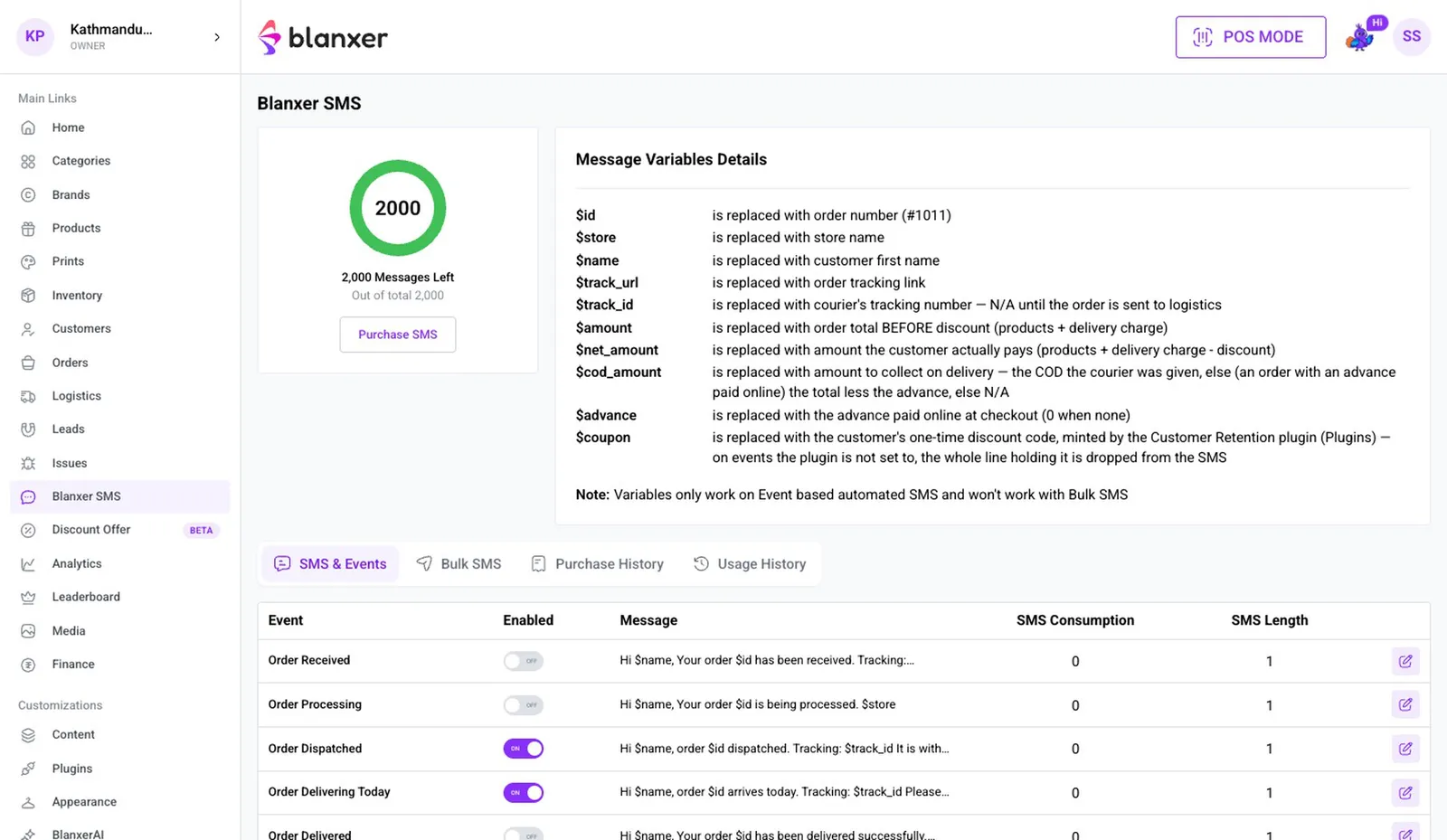
Use tags in the message
Tags in the message are filled in when it is sent: the customer's name, order number, tracking link and your shop name.
- 4
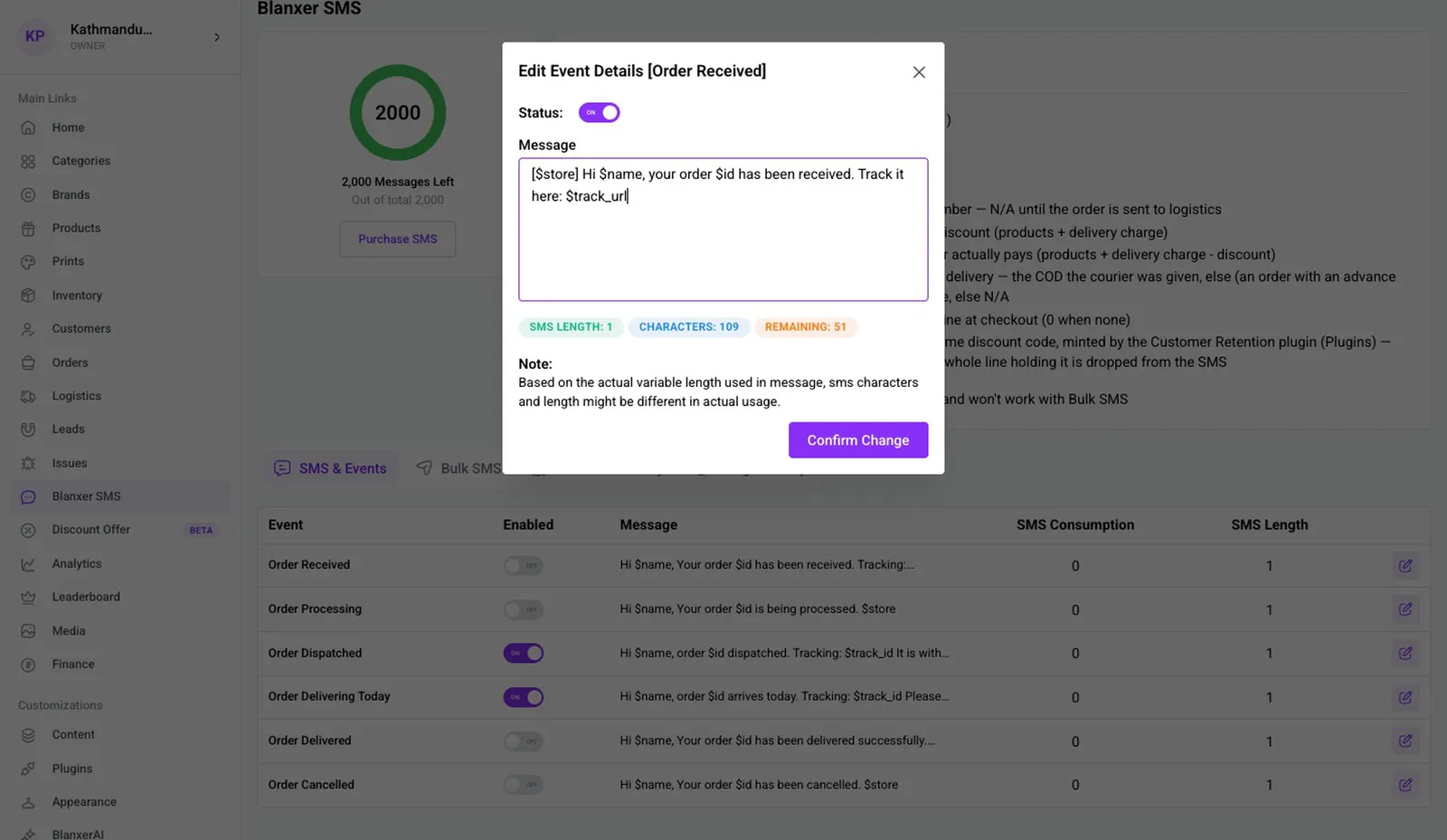
Turn on Order Received and write it
Click Order Received and switch it on. Start the message with your shop name in square brackets, so customers know who sent it.
- 5
Save
The character and SMS count shows right there. Click Confirm Change.
Part 3
Ask for a review after delivery
- 6
Edit the Delivered SMS
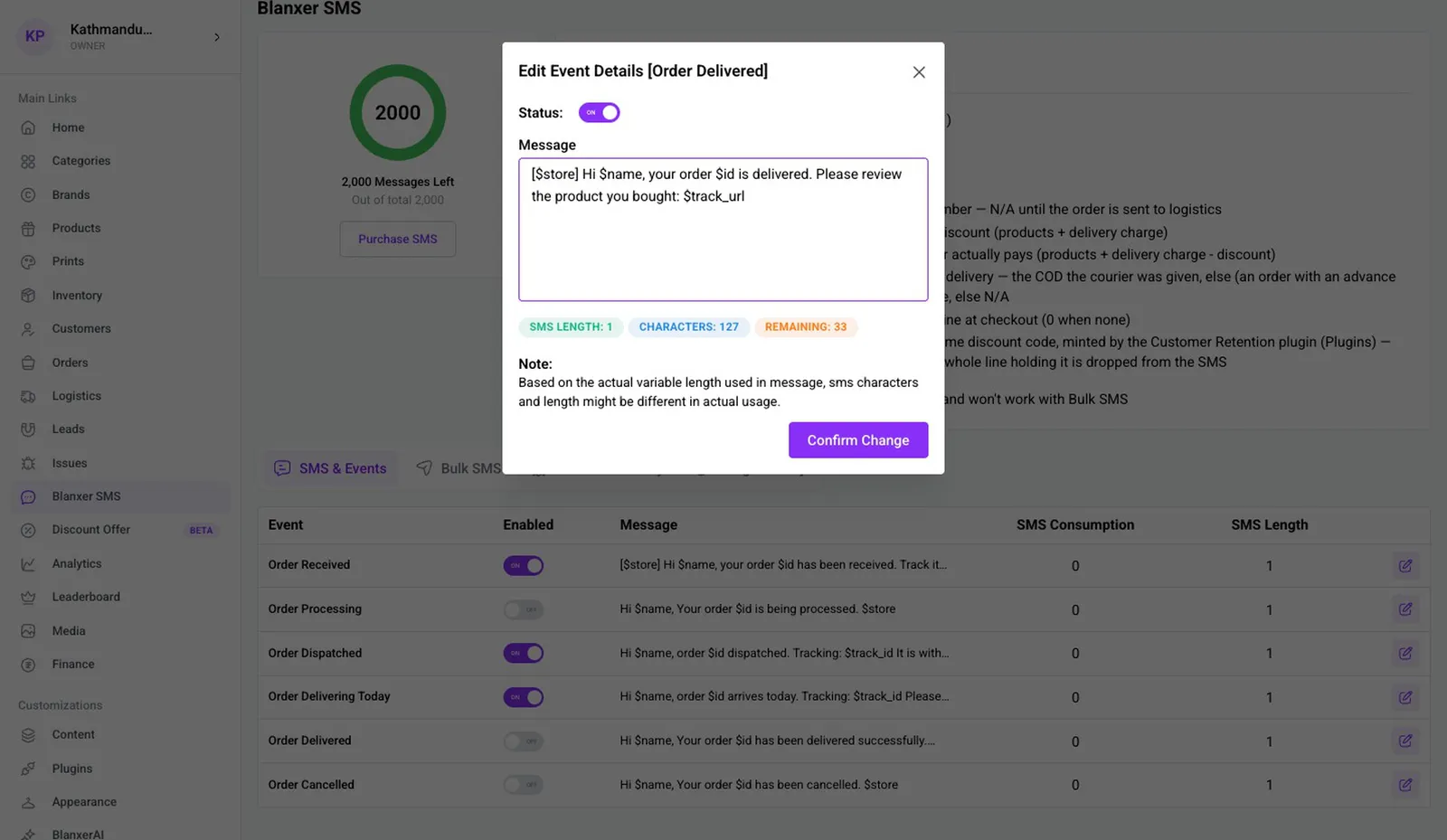
In Order Delivered, ask for a review and give a coupon code, for example 10% off the next order. Create the code in Discount Offer first, then click Confirm Change.
- 7
What the customer sees
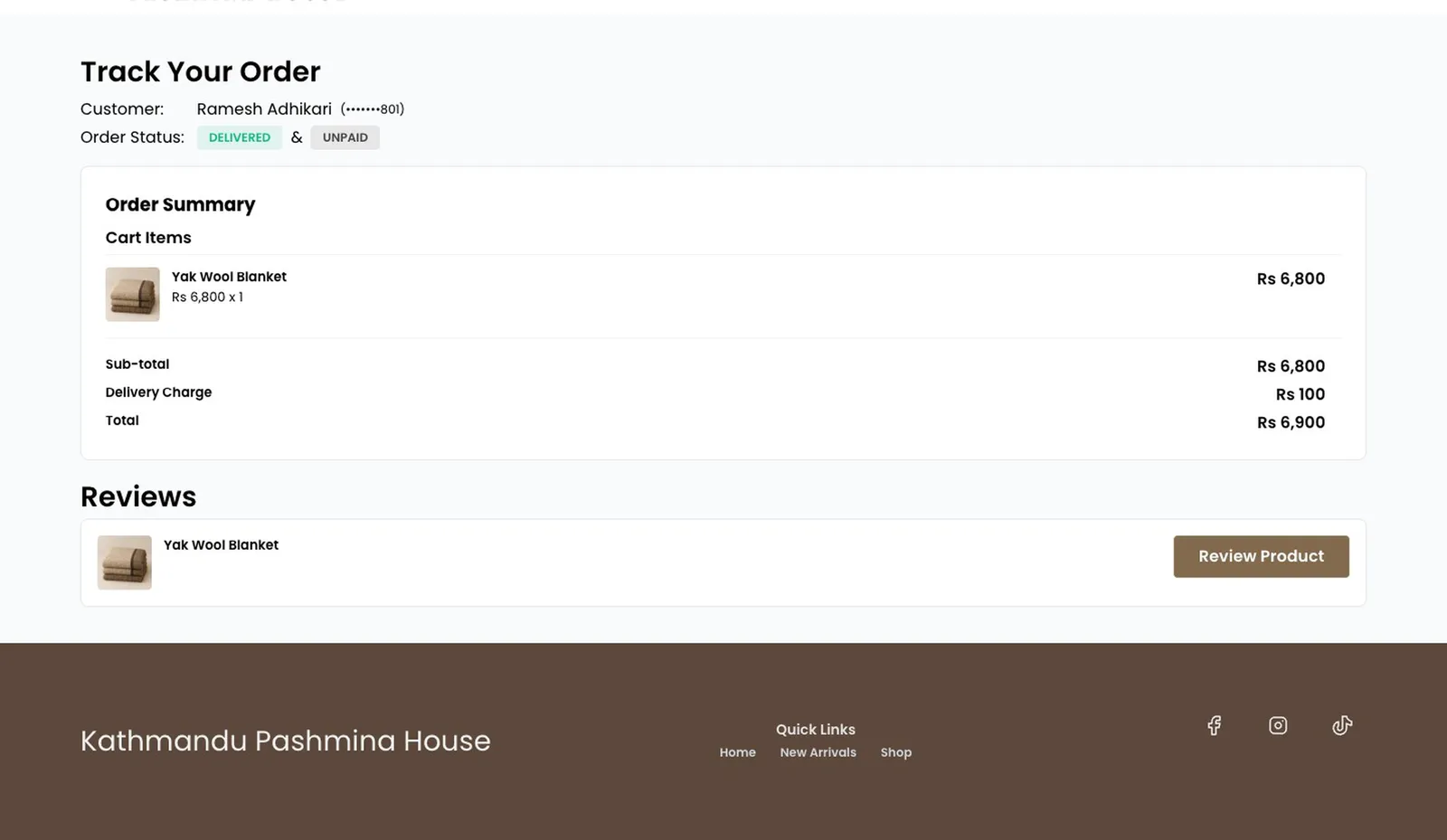
The link in the SMS shows the customer where their order is. Once it is delivered, they can leave a review from the same page.
Part 4
Send a bulk SMS
- 8
Pick who gets it
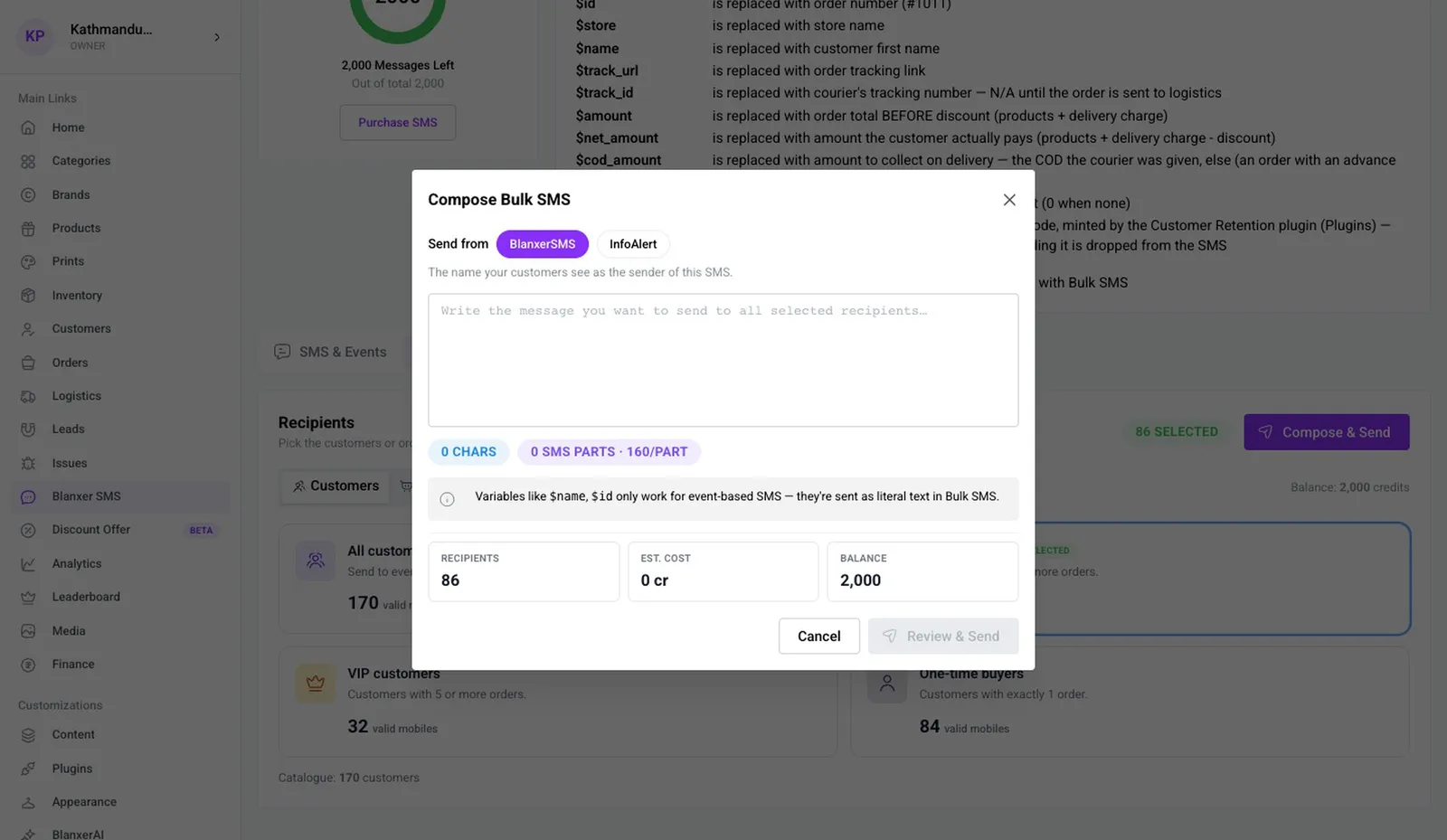
In Bulk SMS, choose all customers, Repeat buyers, VIP or one-time buyers, then click Compose & Send.
- 9
Choose the sender and write
In Send from, choose BlanxerSMS or the newly added InfoAlert. The sender is shared by many shops, so start the message with your shop name in square brackets.
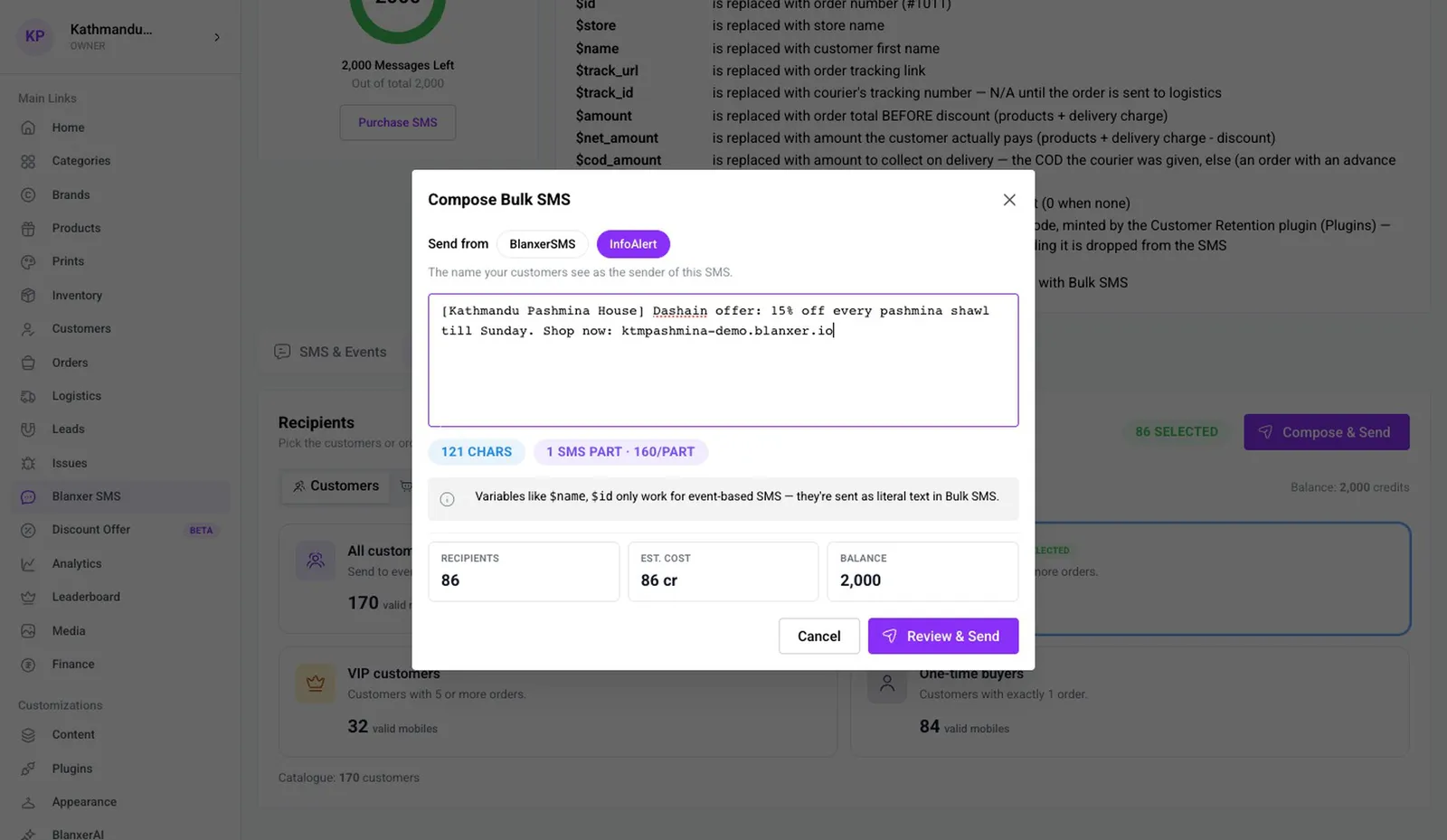
- 10
Check the cost
Characters, parts and credits needed show by themselves. Nepali script fits fewer characters in each part.
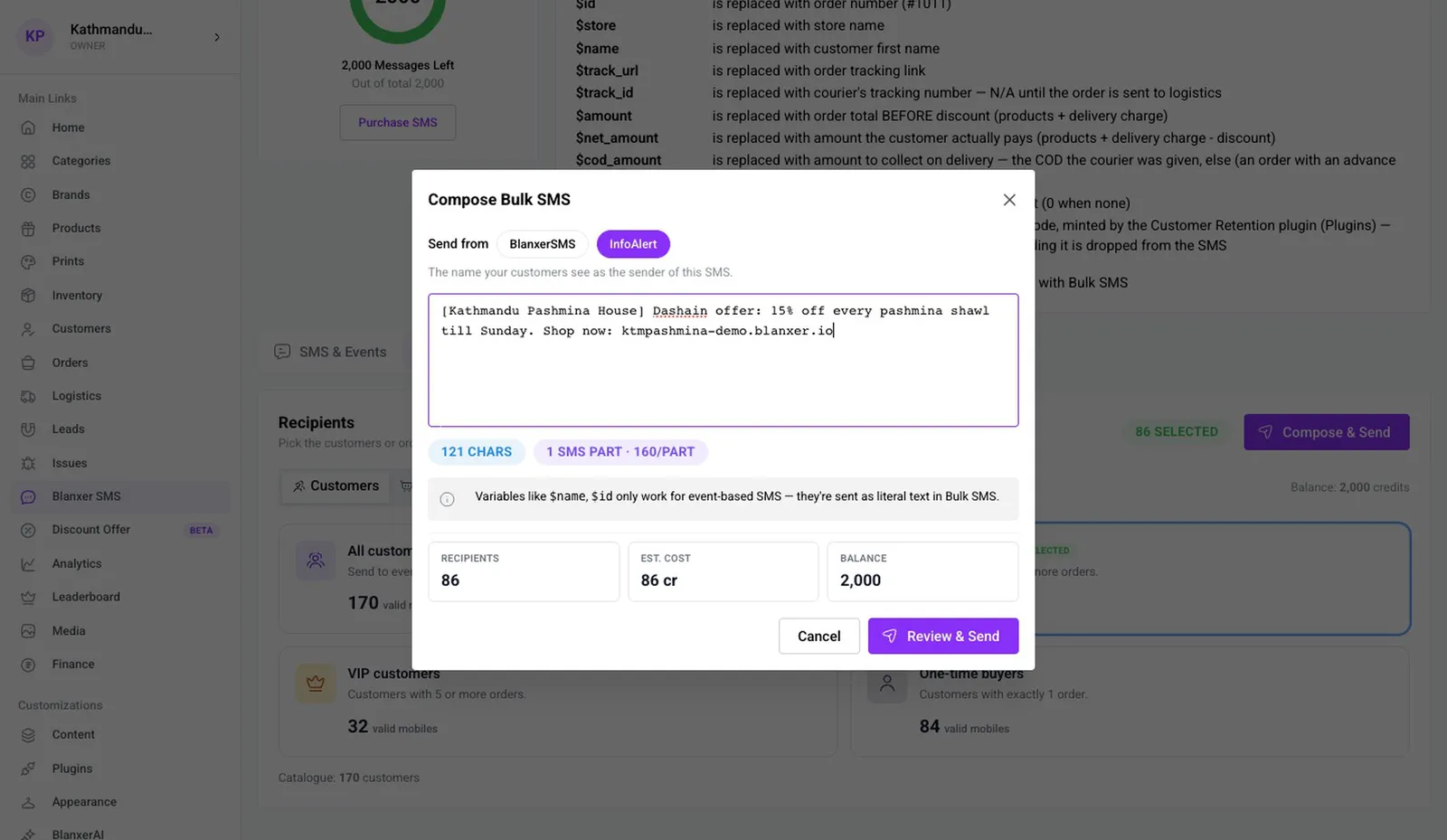
- 11
Send
Check the message in Review & Send, then click Confirm & Send. Everyone gets it at once.
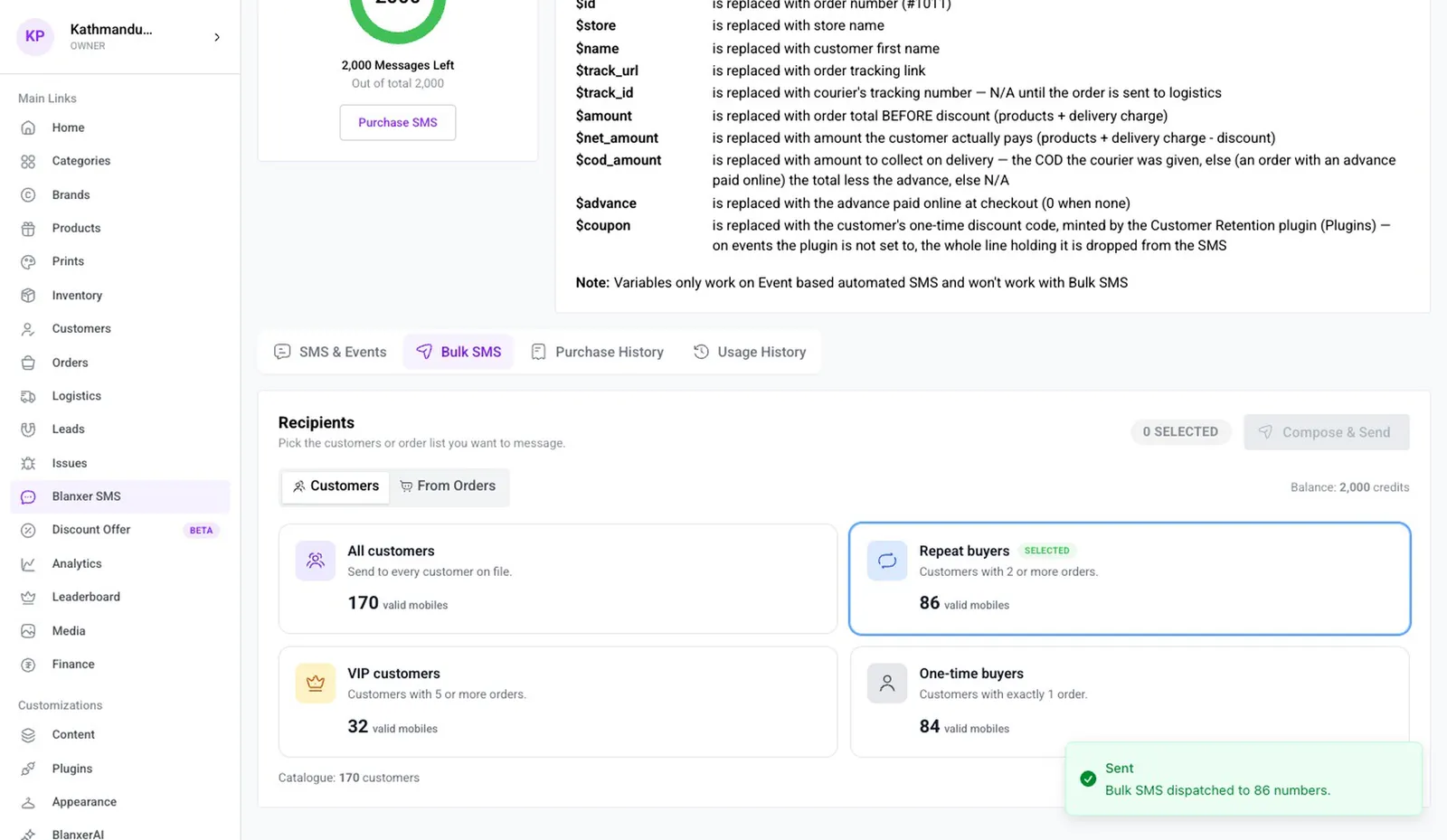
- 12
Or text customers by their orders
In From Orders, choose customers by order status, for example a reminder to people who left items in the cart. You can also select orders in the Orders list and click Send SMS.
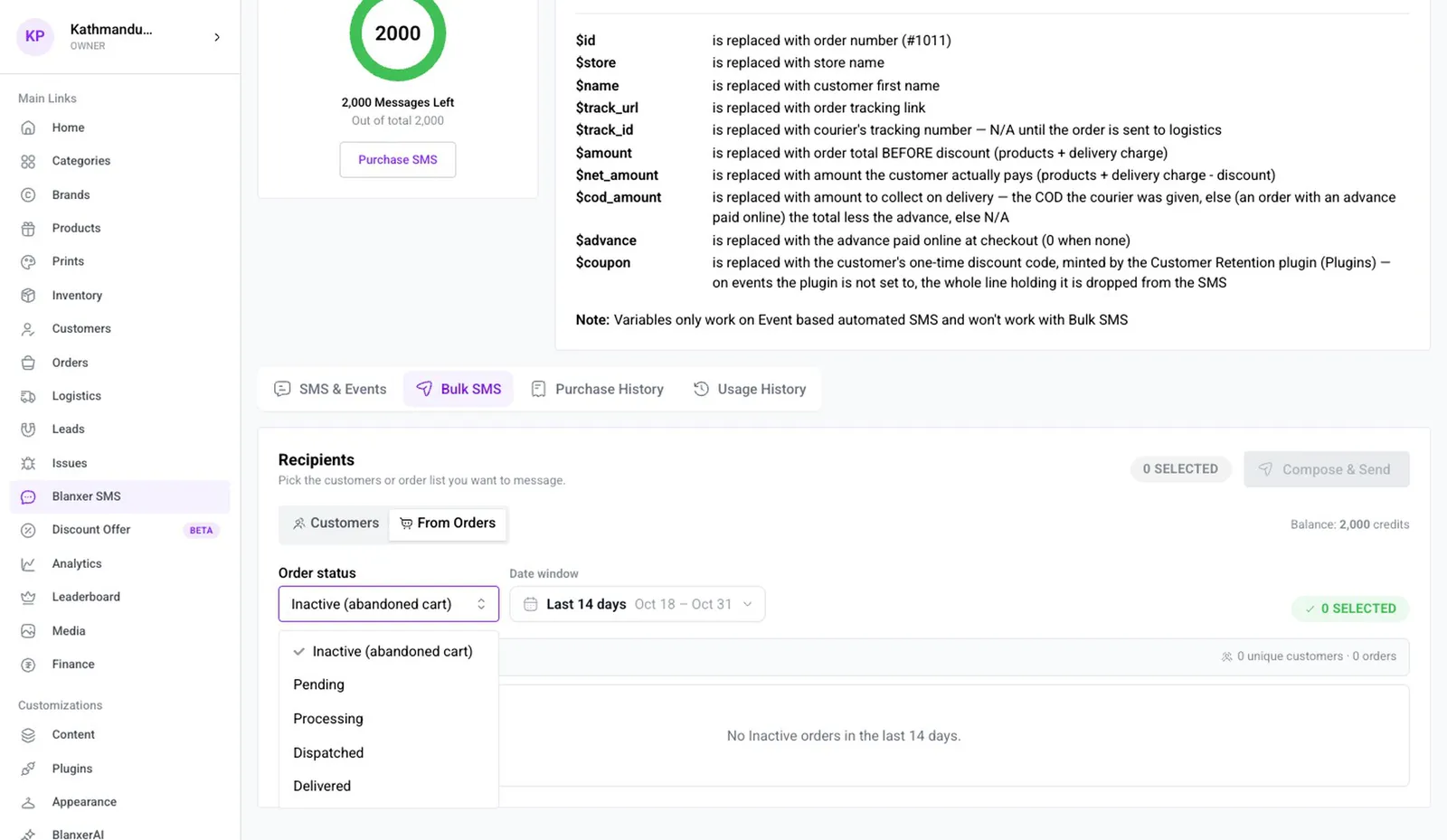
Good to know
- SMS is prepaid credit at Rs 1.20 per SMS.
- Messages in Nepali script take more parts, so they use more credit.
- A coupon in the Delivered SMS only works if you created the code in Discount Offer first.
More videos
All 33 videos 3:29
Customers
Get customers to buy again
Use Blanxer to bring past customers back and raise how often they order from you.
 3:06
Customers
Collect and reply to reviews
Collect product reviews, reply to them, and after calling a customer ask them to edit their review.
 1:12
Getting started
What is Blanxer?
Start here: what Blanxer is and what it does for your business, before the videos on each feature.
See Blanxer with your own business in mind.
Book a demo. We'll show you the store, checkout, POS and dashboard, and tell you honestly which plan you need.
Prefer to talk directly?
Already a customer? Support on WhatsApp +977 9802344850, Sun–Fri, 9 AM – 6 PM.
Follow Blanxer
 A Blanxer product
One AI inbox for every customer conversation.
Sambad.io brings WhatsApp, Instagram, Facebook, website chat and email into one inbox. Connect your Blanxer store and its AI answers from your catalogue, checks stock, quotes delivery and places the order right in the chat.
- Website chat
- Gmail
- Outlook
- Zoho Mail