
Connect Nepal Can Move (NCM)
Connect Nepal Can Move and send orders to it from Blanxer, including returns, exchanges and order comments.
Delivery · 7:54 · In Nepali
Connect Nepal Can Move (NCM) to Blanxer and run your whole NCM work from the order: book parcels, see NCM's charge first, talk to NCM in comments, change details, and handle returns and exchanges. After setup you don't need to open the NCM portal day to day.
Before you start
An NCM vendor account and its API token.
Part 1
Get your NCM token
- 1
Open API Integration
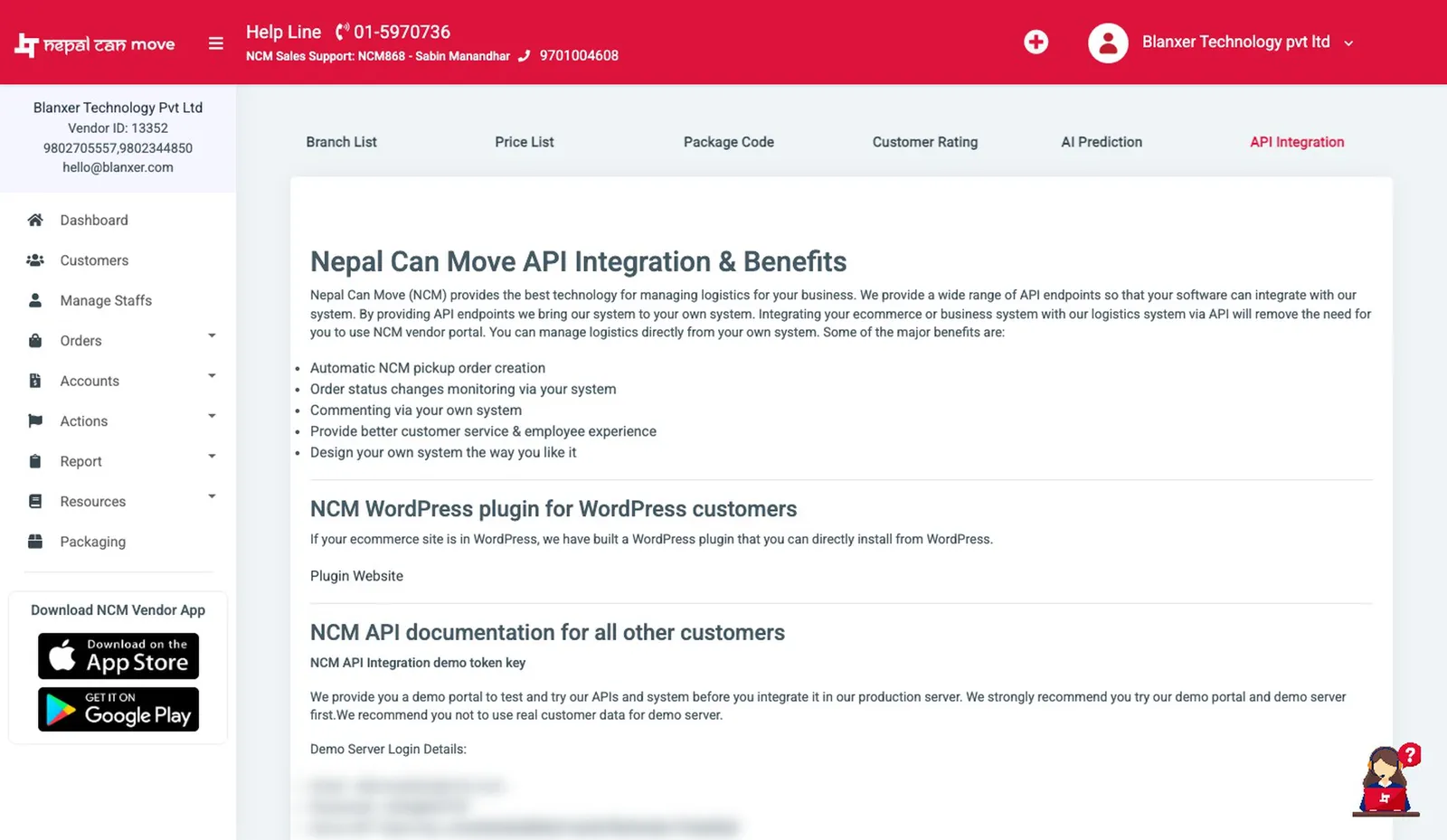
Log in to the NCM vendor portal. In the Resources menu, open API Integration.
- 2
Copy the token
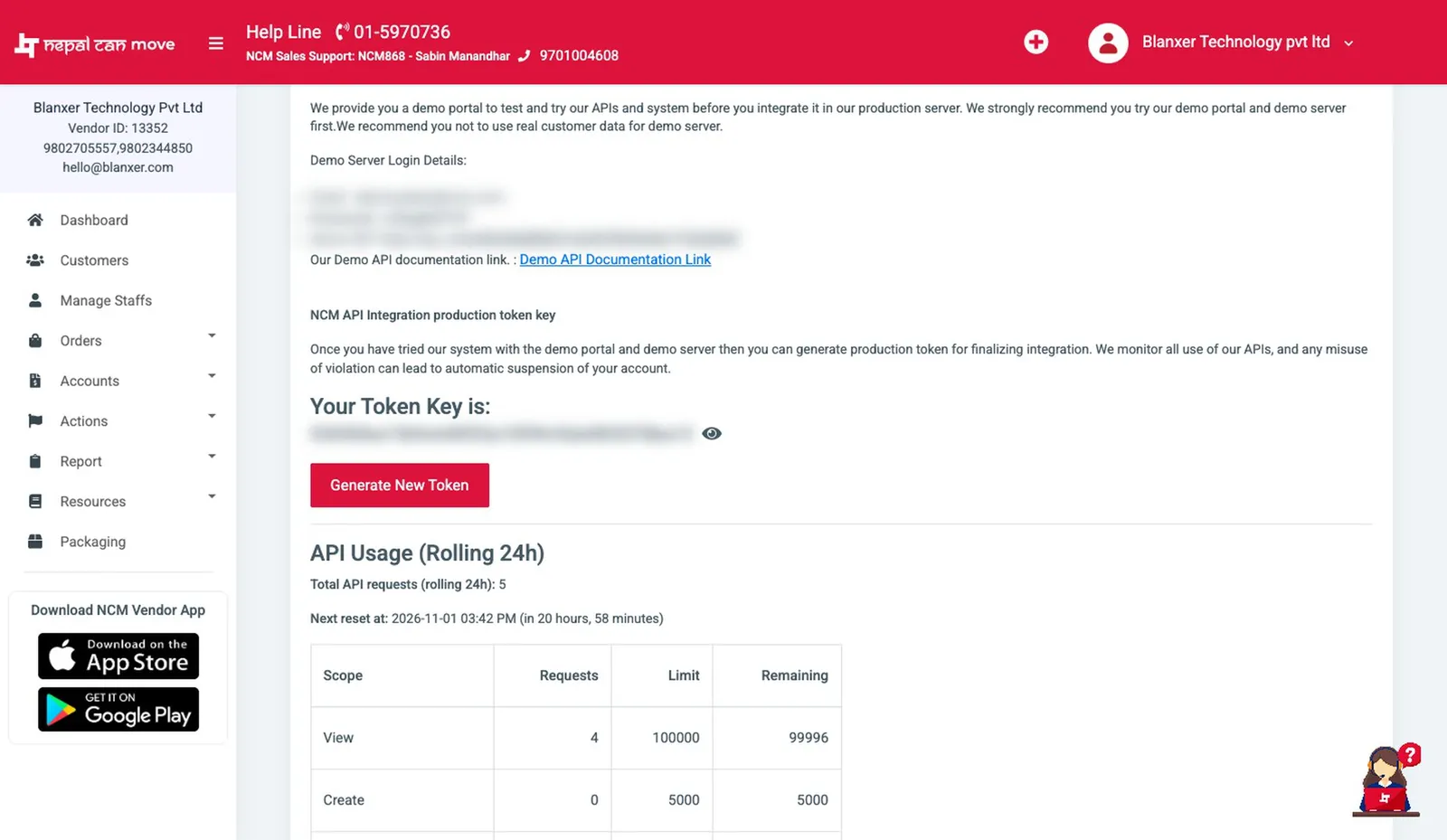
Your token is shown here. Copy it, and don't share it with anyone.
Part 2
Connect NCM in Blanxer
- 3
Paste the token
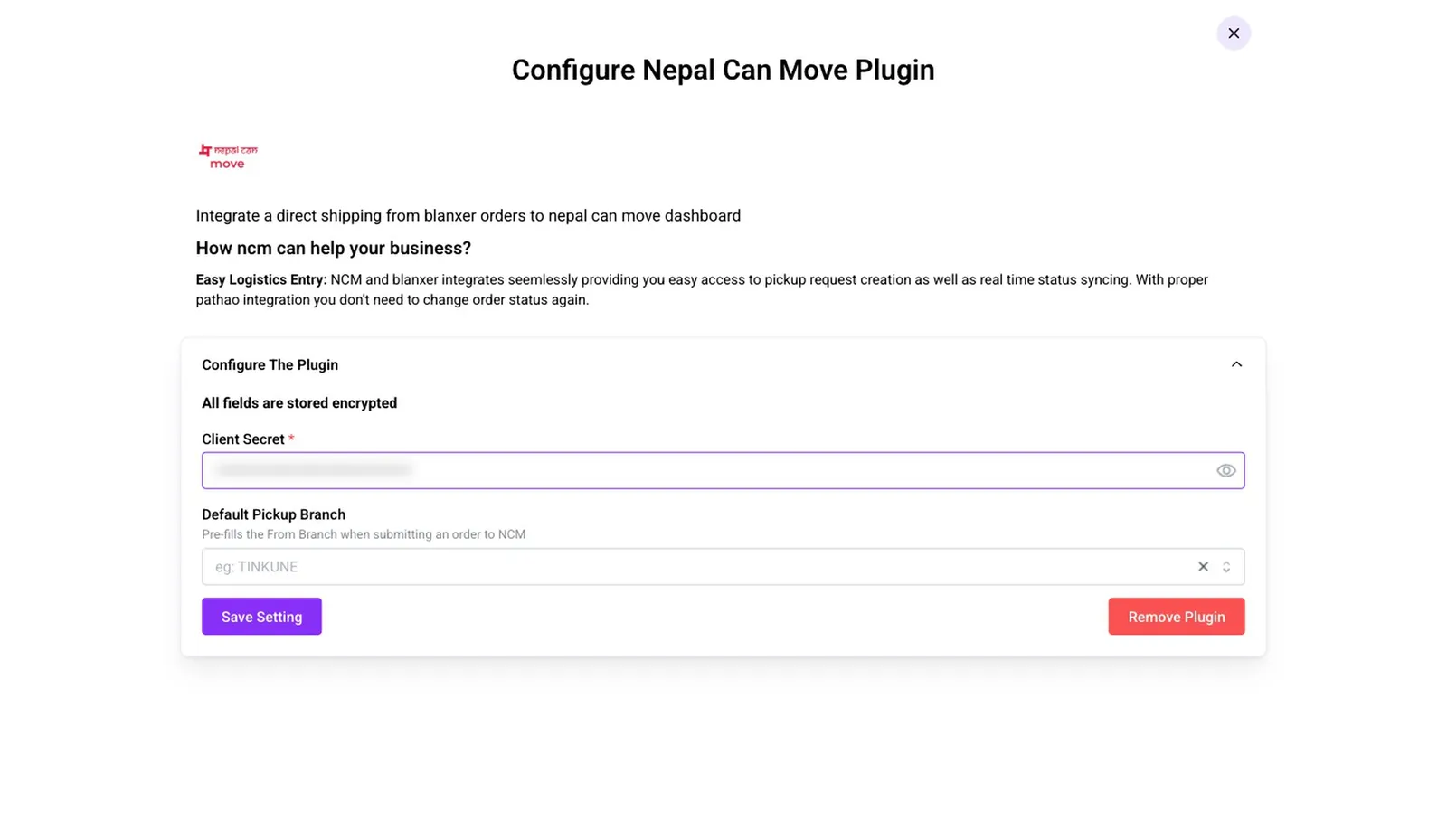
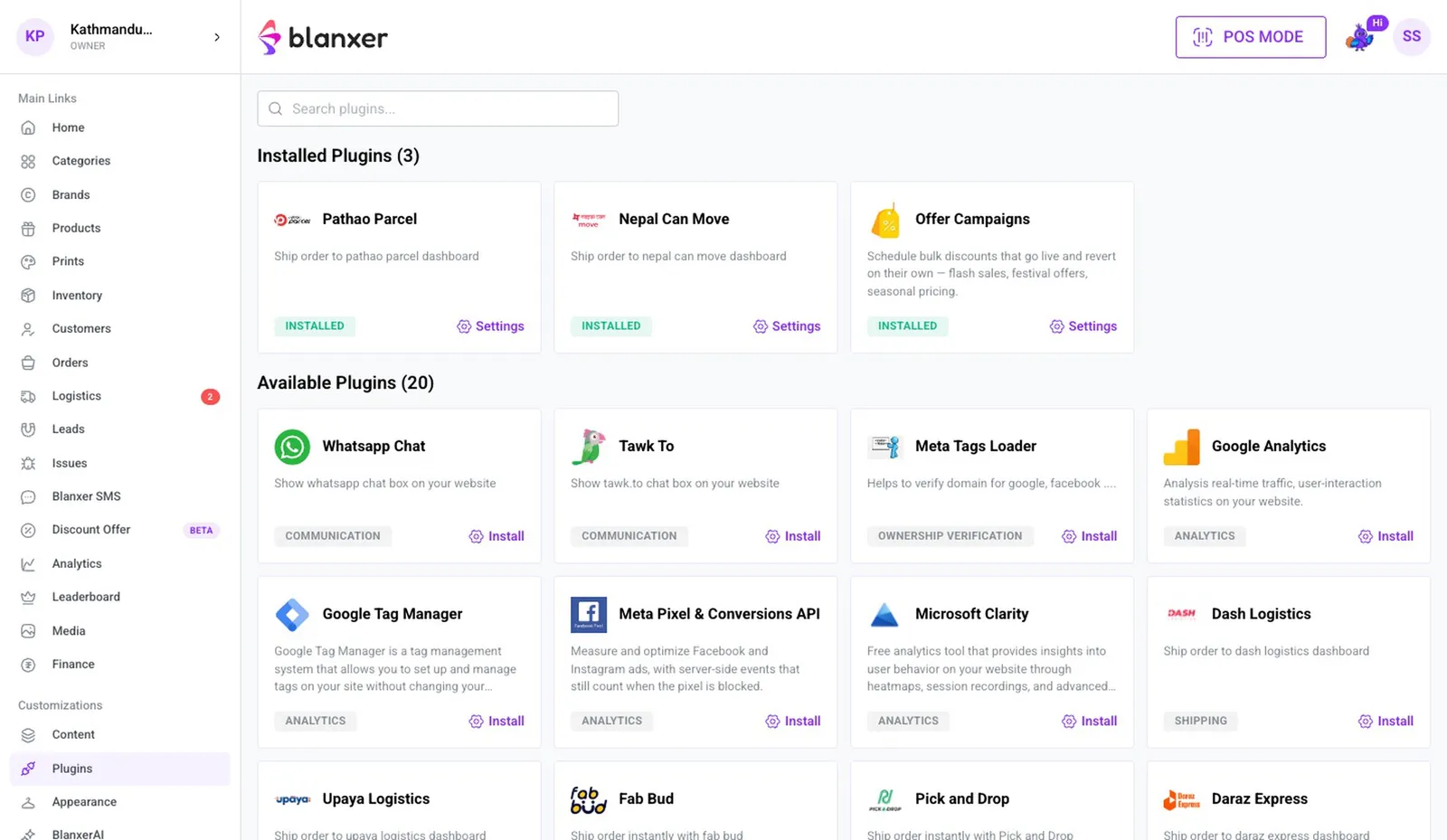
In Plugins, click the Nepal Can Move card and paste the token into Client Secret. Blanxer stores it encrypted.
- 4
Pick your pickup branch
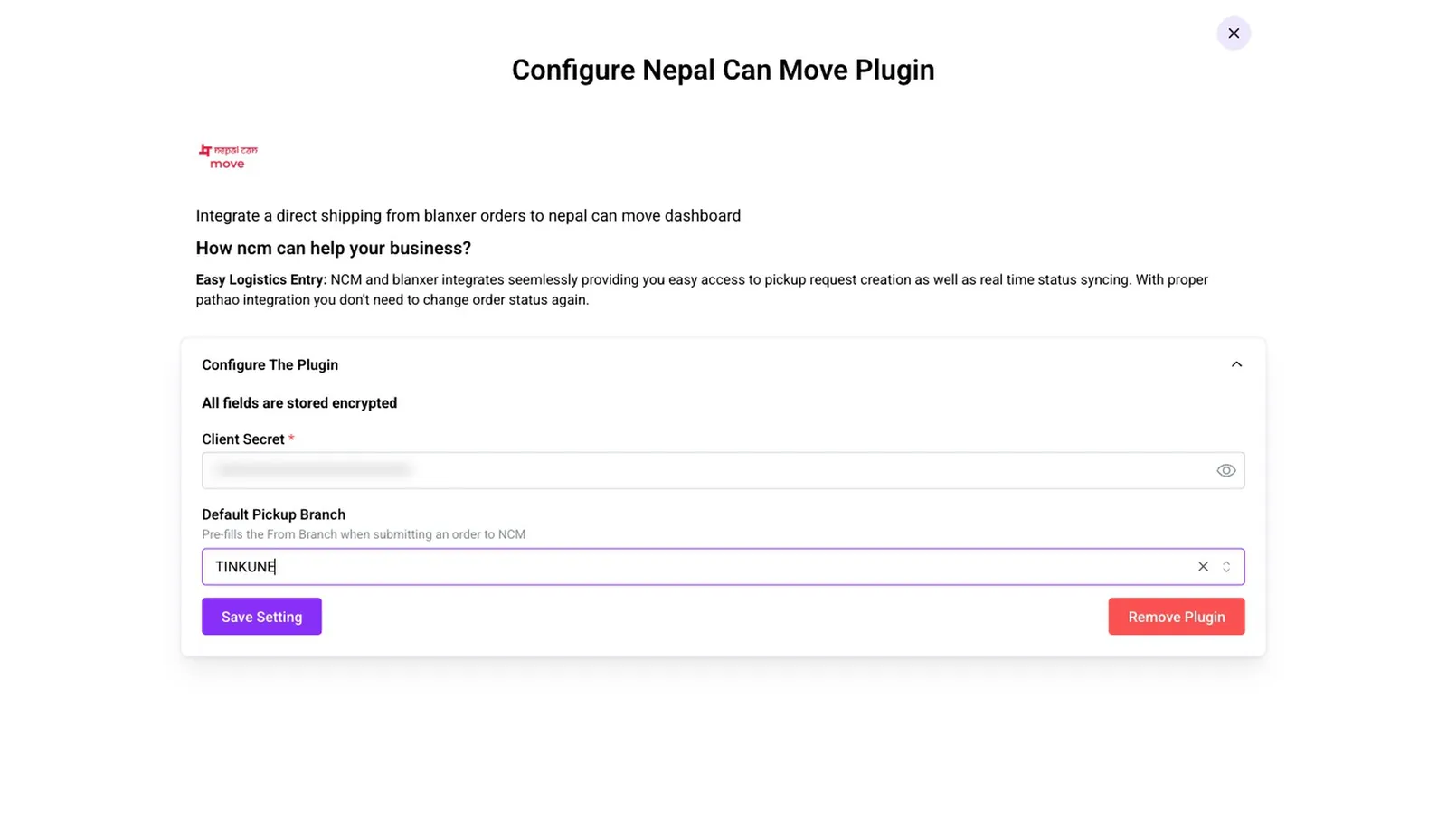
In Default Pickup Branch, choose the NCM branch nearest you that will collect your parcels, for example Tinkune.
- 5
Save
Click Save Setting. Blanxer checks the token and sets up the status webhook in NCM by itself.
Part 3
Get NCM's comments too
- 6
Copy the comment link
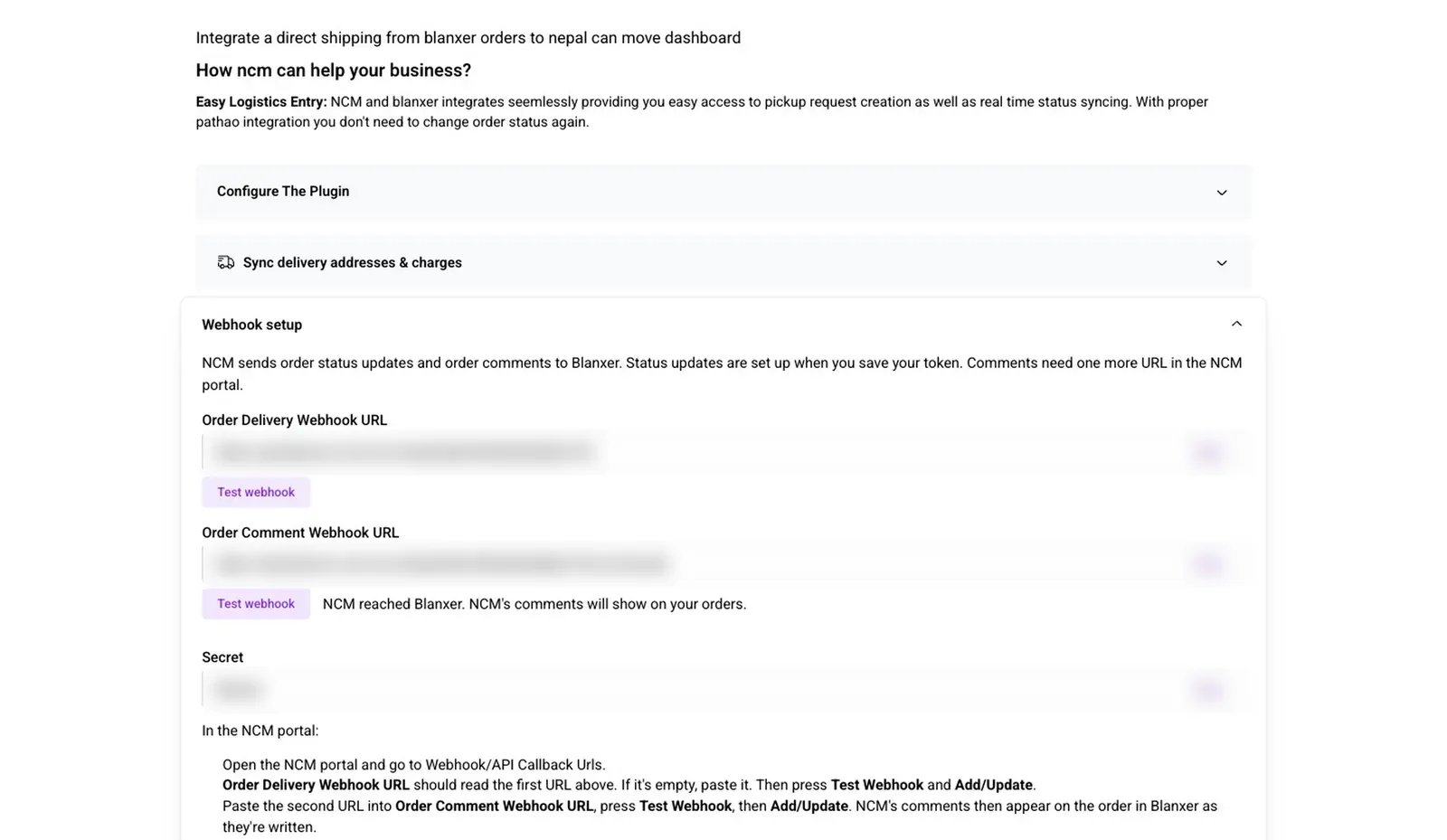
In Webhook setup, the status link is already in NCM. Copy the second one, the Order Comment Webhook URL, and click Test webhook; a green message means NCM can reach Blanxer.
- 7
Paste it into NCM
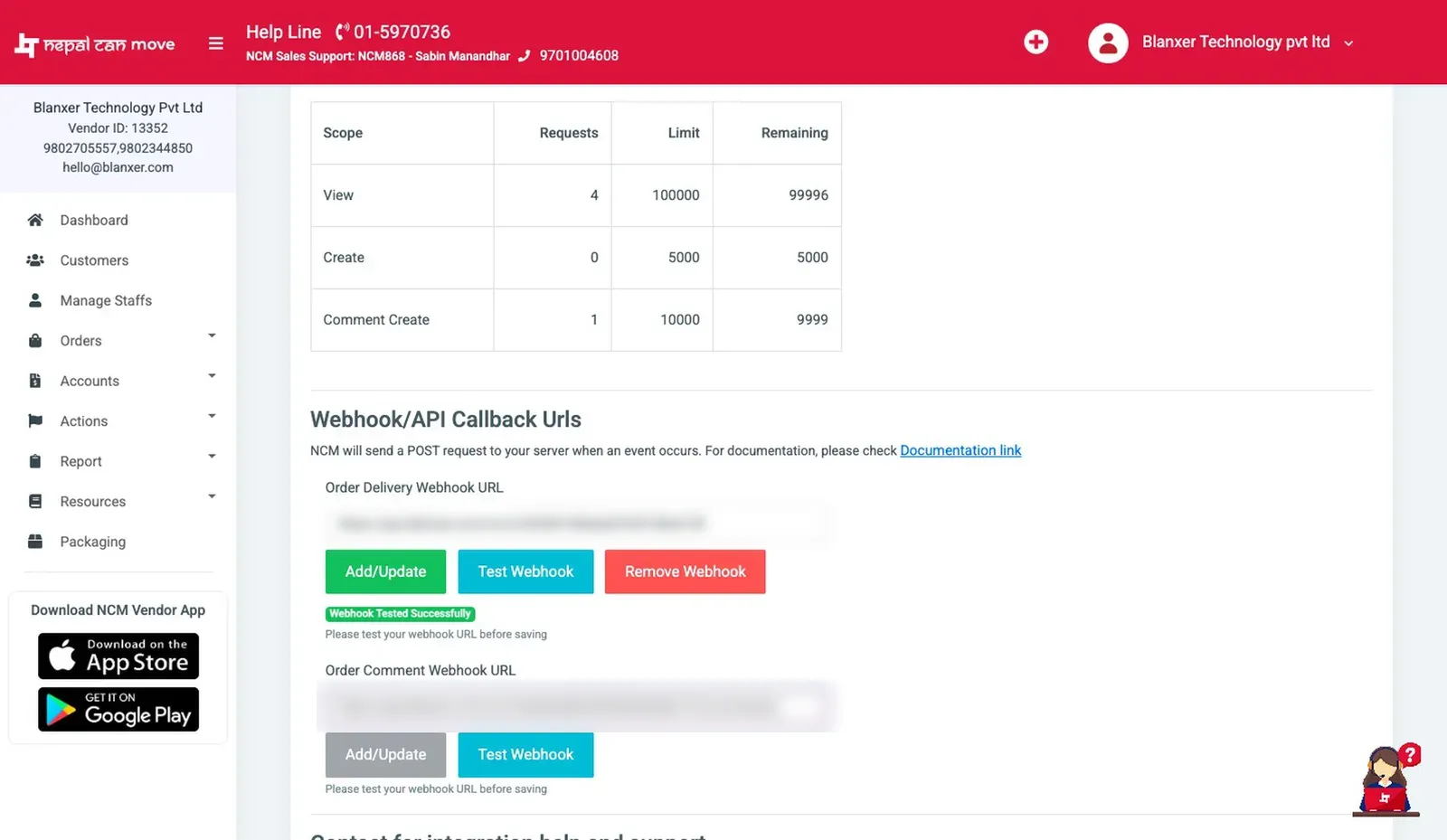
On the same API Integration page in the NCM portal, paste the link into Order Comment Webhook, click Test Webhook, then Add/Update. You only do this once.
Part 4
NCM's places and charges (optional)
- 8
Sync NCM's places
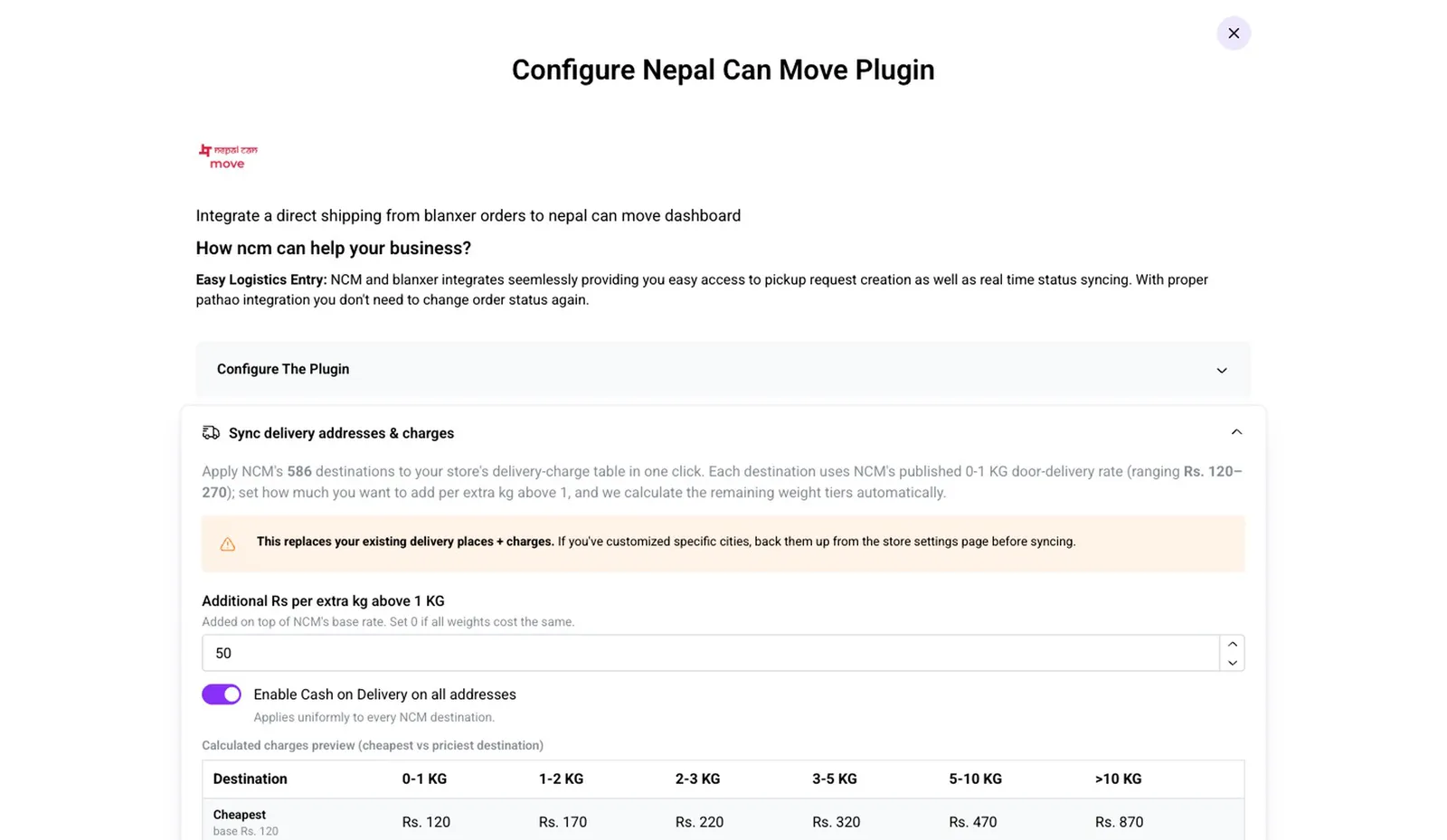
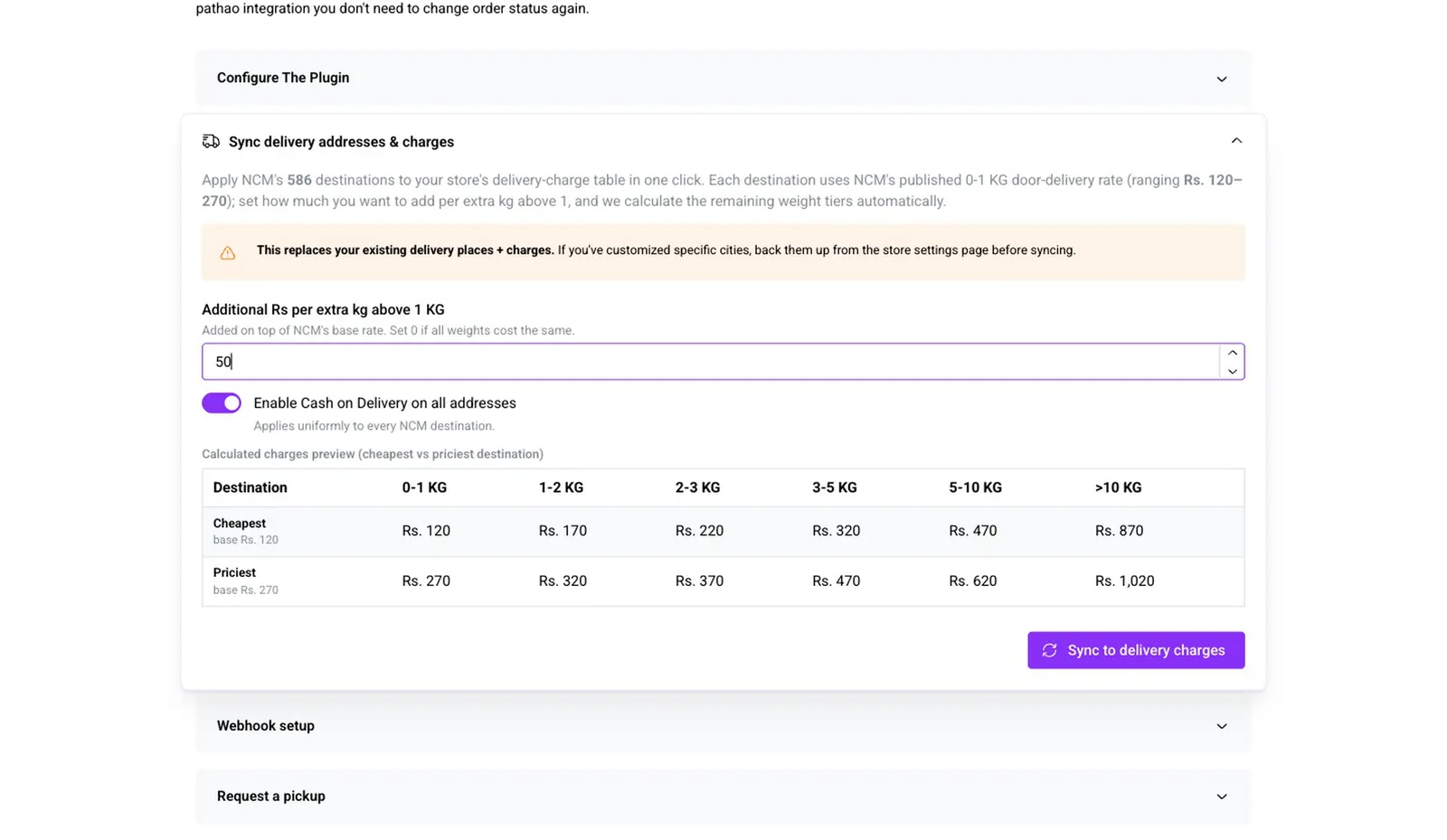
To charge customers what NCM charges, sync all of NCM's places and charges at once. Customers then pick NCM's own places at checkout, so bulk sends match every address. A flat charge of your own is fine too, and can bring more orders.
- 9
Set the extras and confirm
Enter the extra per KG above 1 KG, and turn on Cash on Delivery for all places if you need it. Syncing replaces your old places and charges, so check the cheapest and dearest before Yes, sync now.
- 10
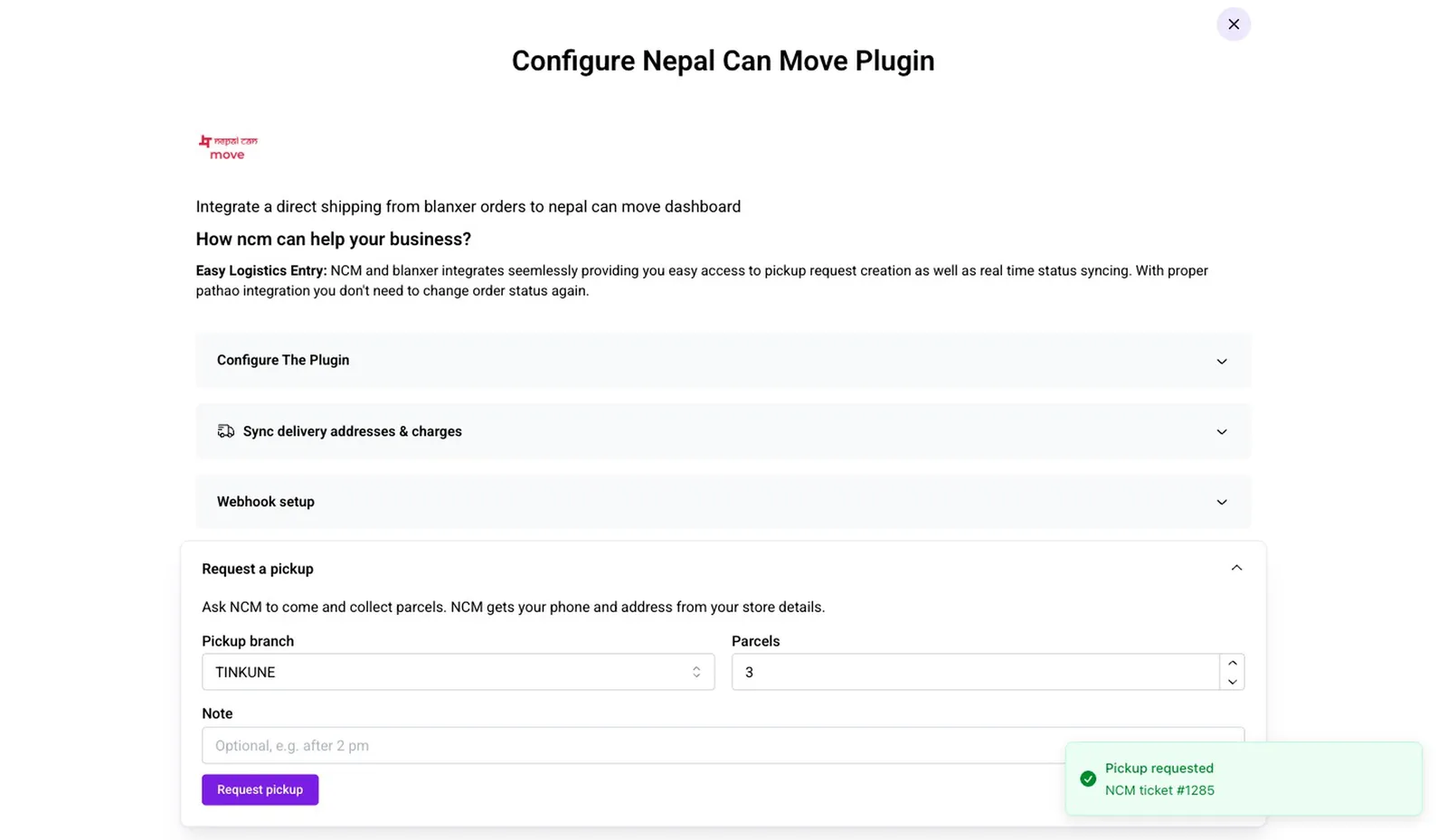
Request a pickup
Click Request a pickup, choose the branch, number of parcels and a note, then Request pickup. A ticket opens in NCM and their rider comes.
Part 5
Send orders to NCM
- 11
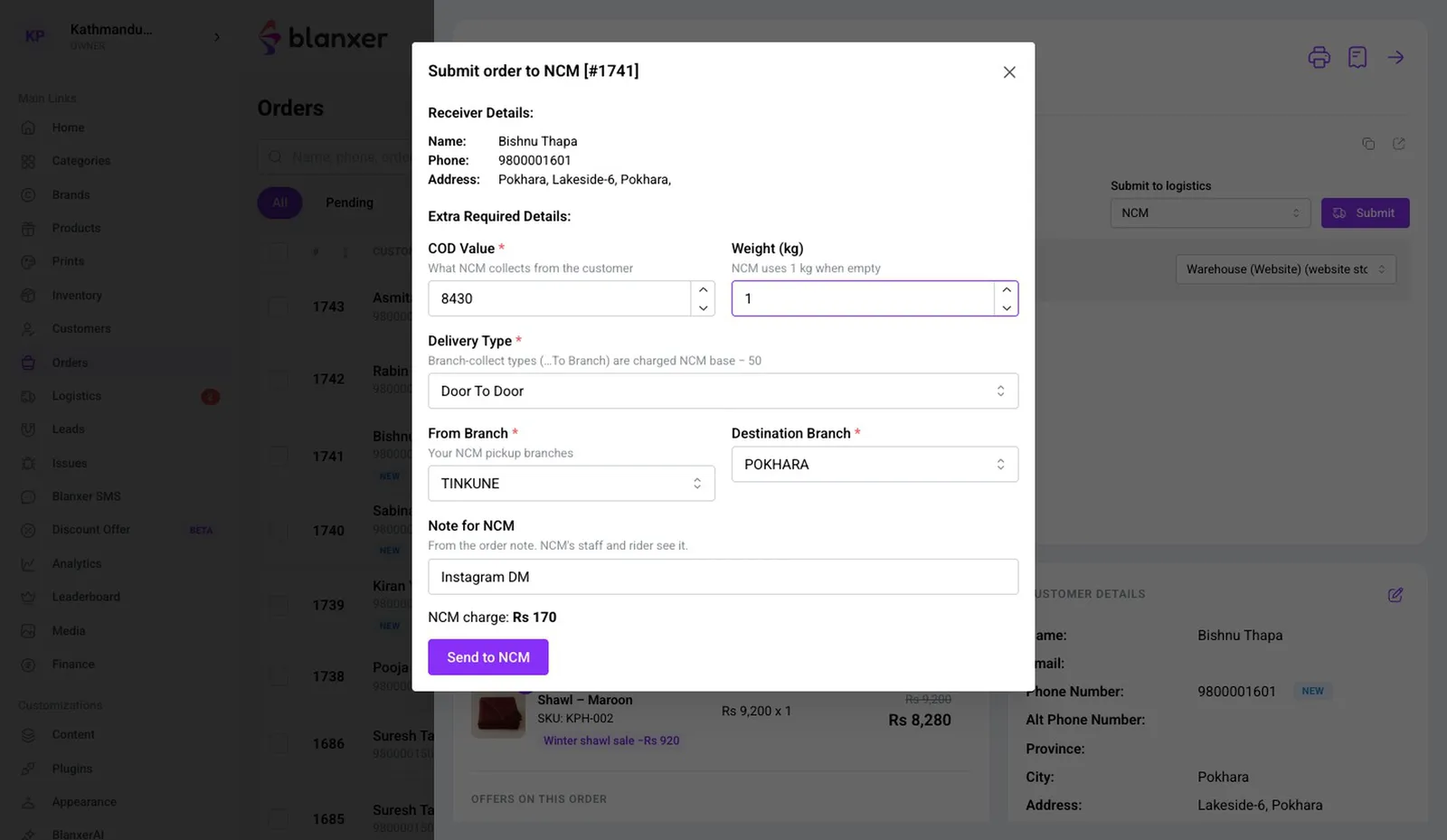
Send one order
Open the order, click Submit to logistics, choose NCM and Submit. Pick the Destination Branch, delivery type and weight; NCM's charge shows here.
- 12
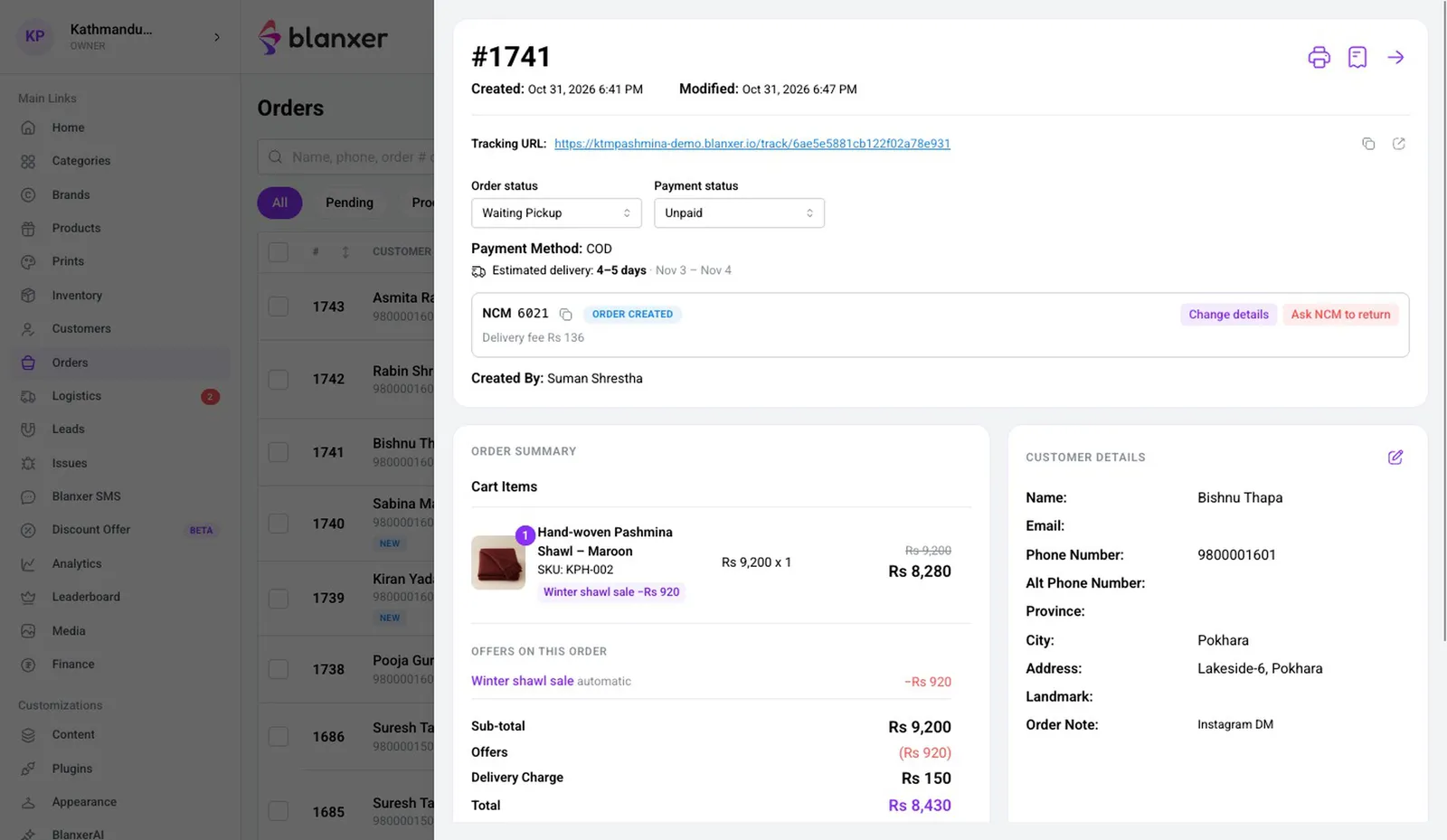
Tracking number back
Once sent, NCM's tracking number comes back and the order moves to Waiting Pickup. From then on, statuses update by themselves until delivery.
- 13
Send many at once
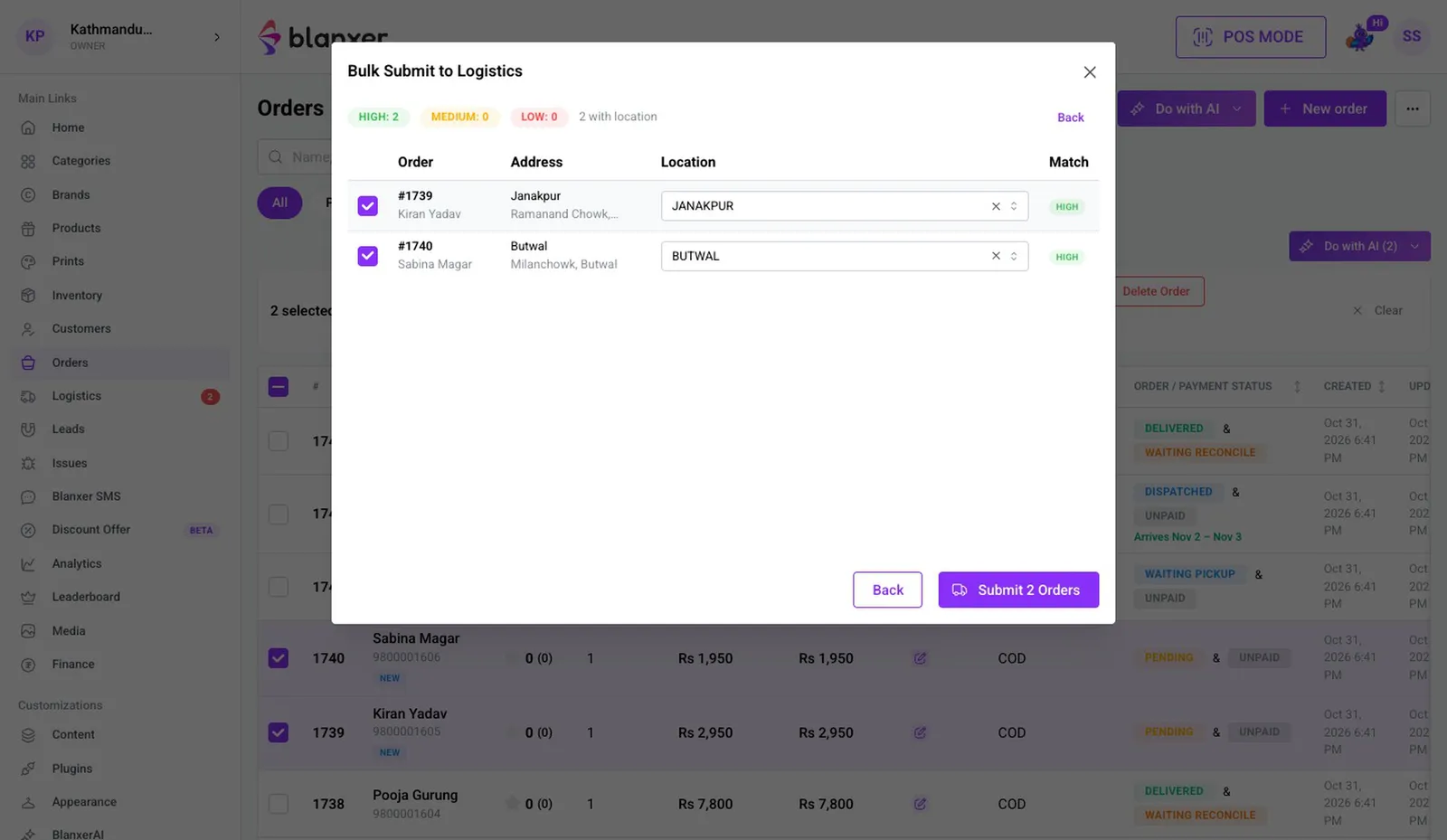
Select the orders, click Submit to Logistics and choose NCM. Preview Matches matches each address to NCM's places; with all High matches, Submit them in one go.
Part 6
Talk to NCM on the order
- 14
Comment to NCM
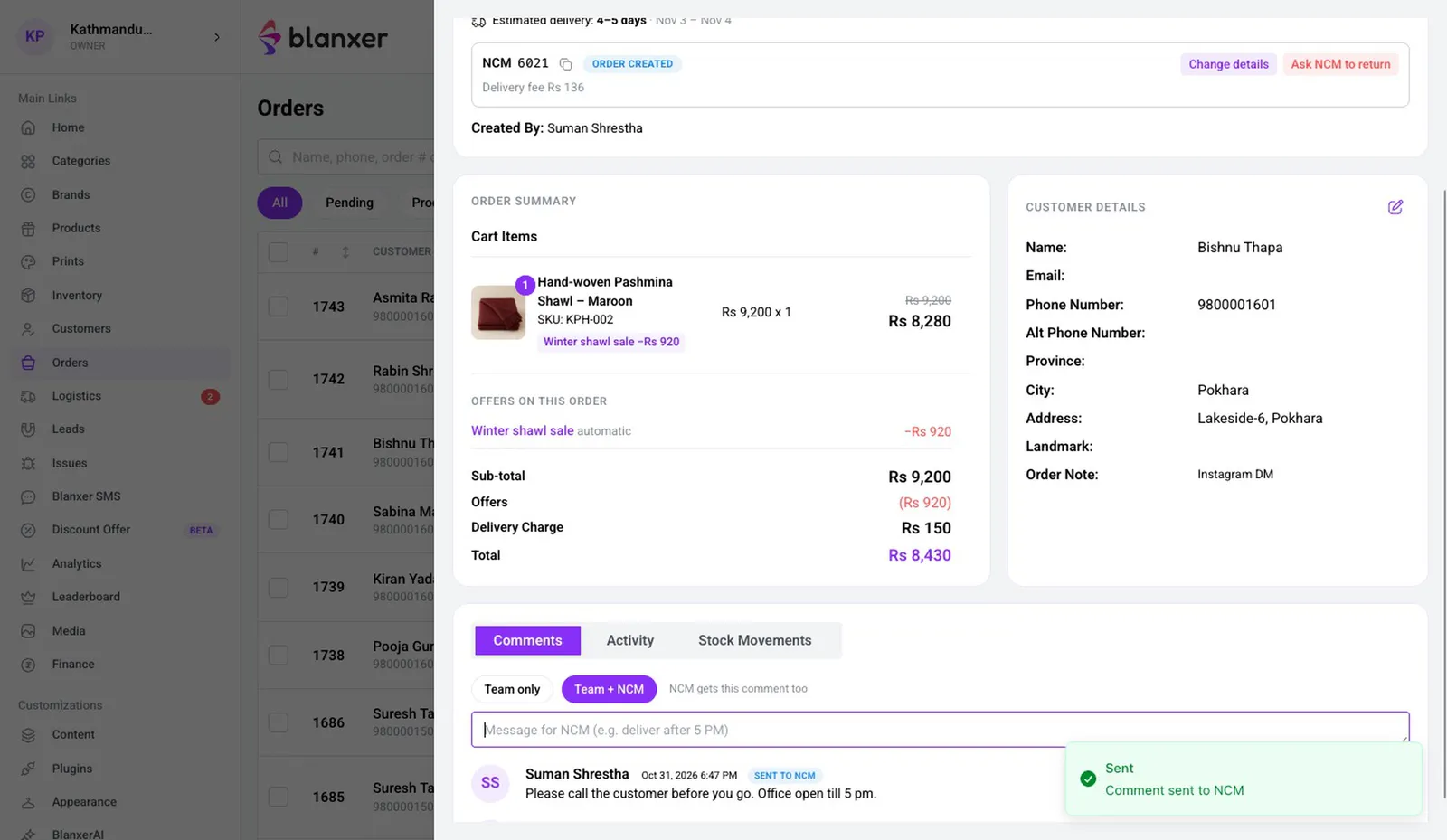
In the order's comments, choose Team + NCM and write. The comment goes straight to NCM.
- 15
NCM's reply
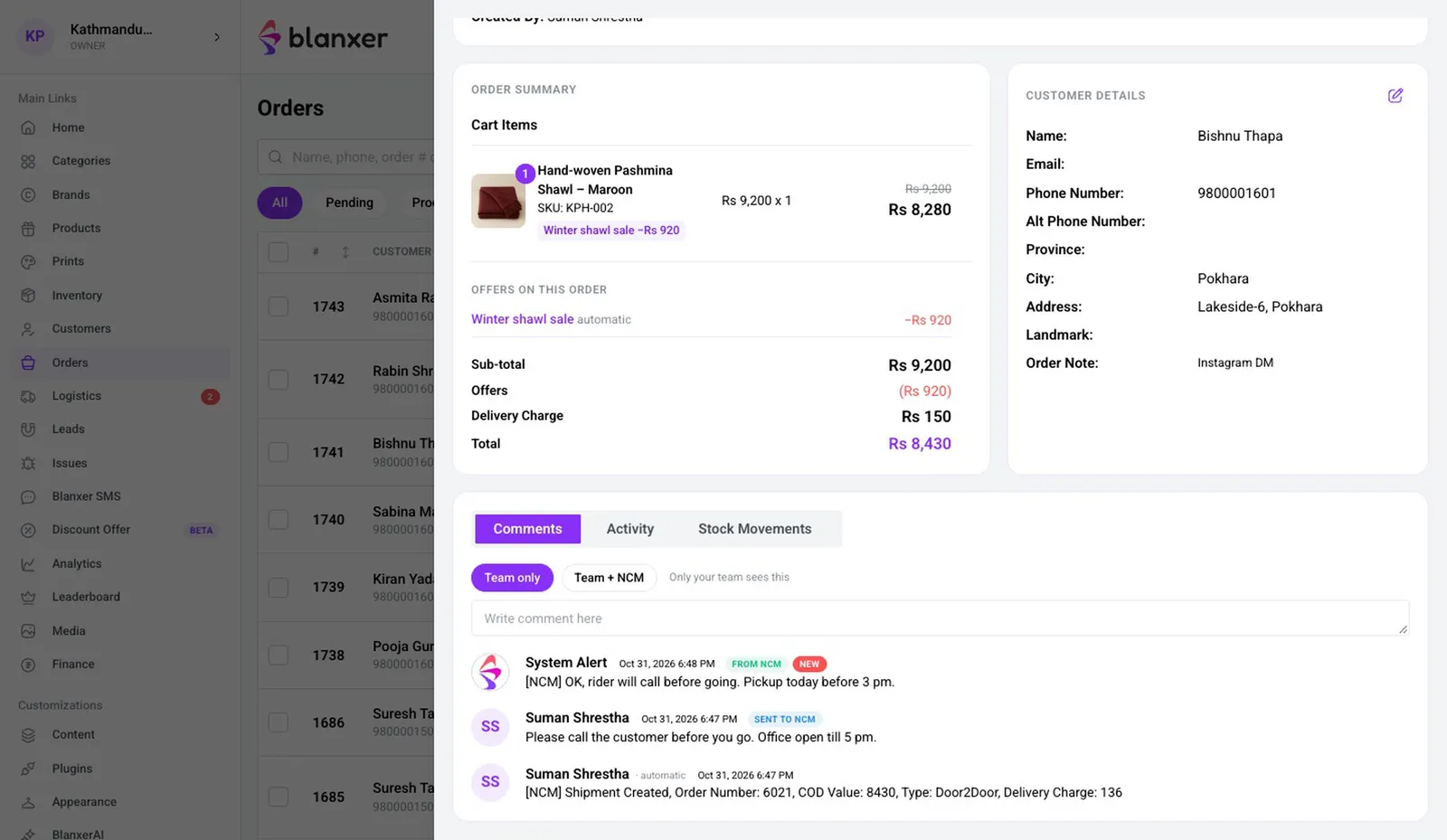
NCM's reply shows on the order, marked From NCM with a red New.
- 16
All comments in one place
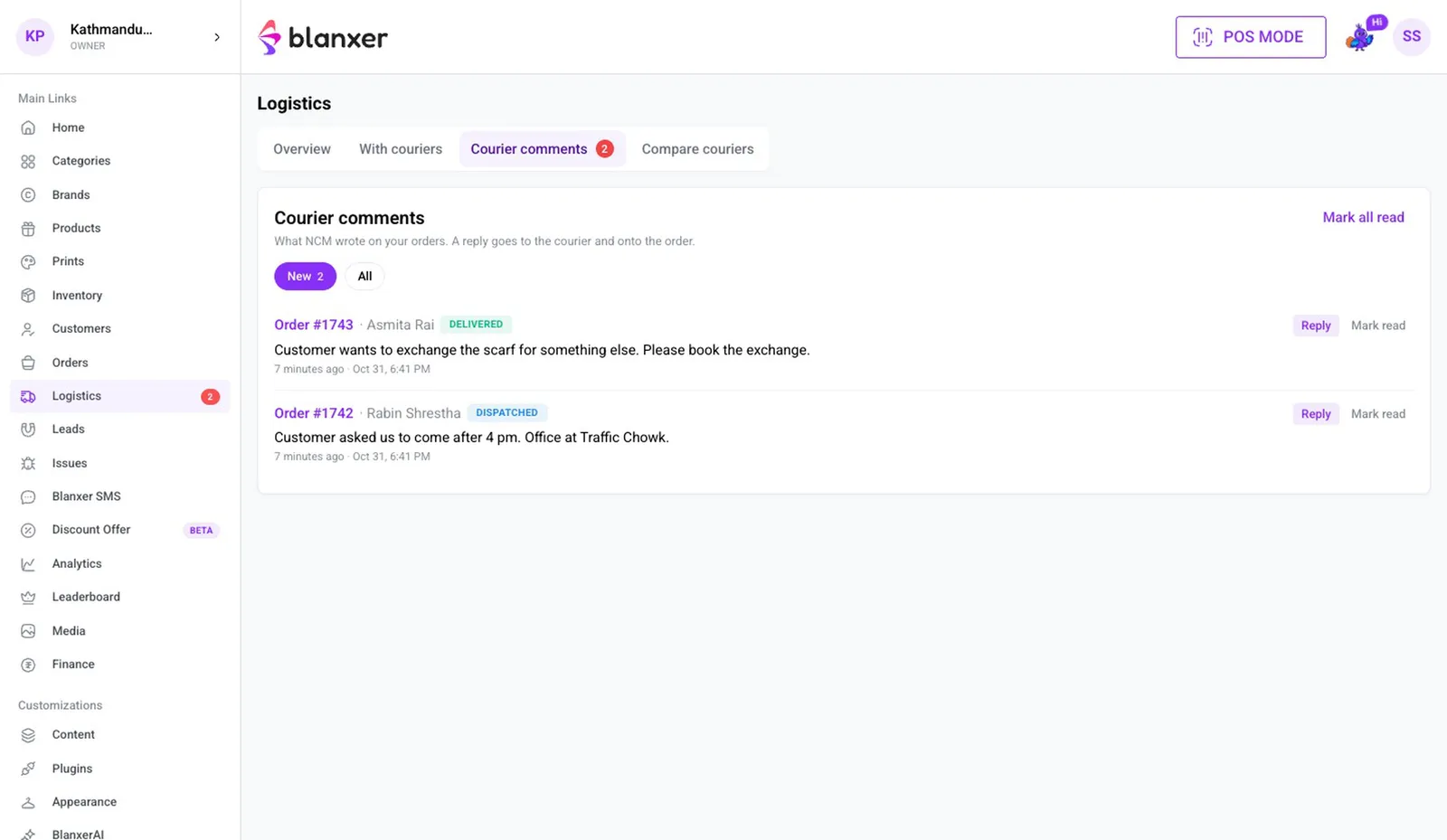
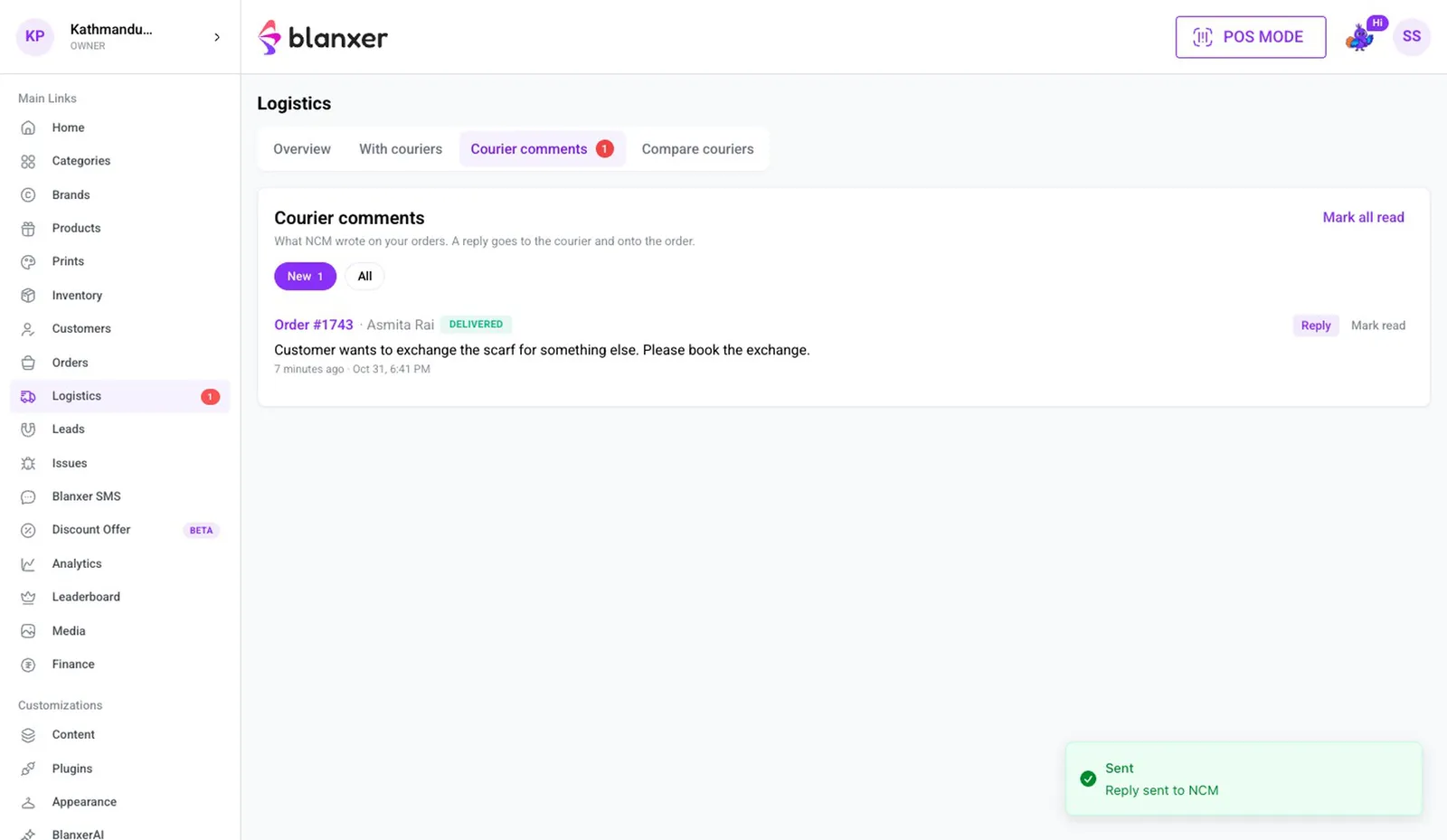
The count of new comments shows on Logistics in the side menu. The Courier comments tab lists them all; click an order number to open it.
- 17
Reply and mark read
Click Reply, write and click Send to NCM; the reply stays on the order too. When done, click Mark all read.
Part 7
Returns with NCM
- 18
Change details
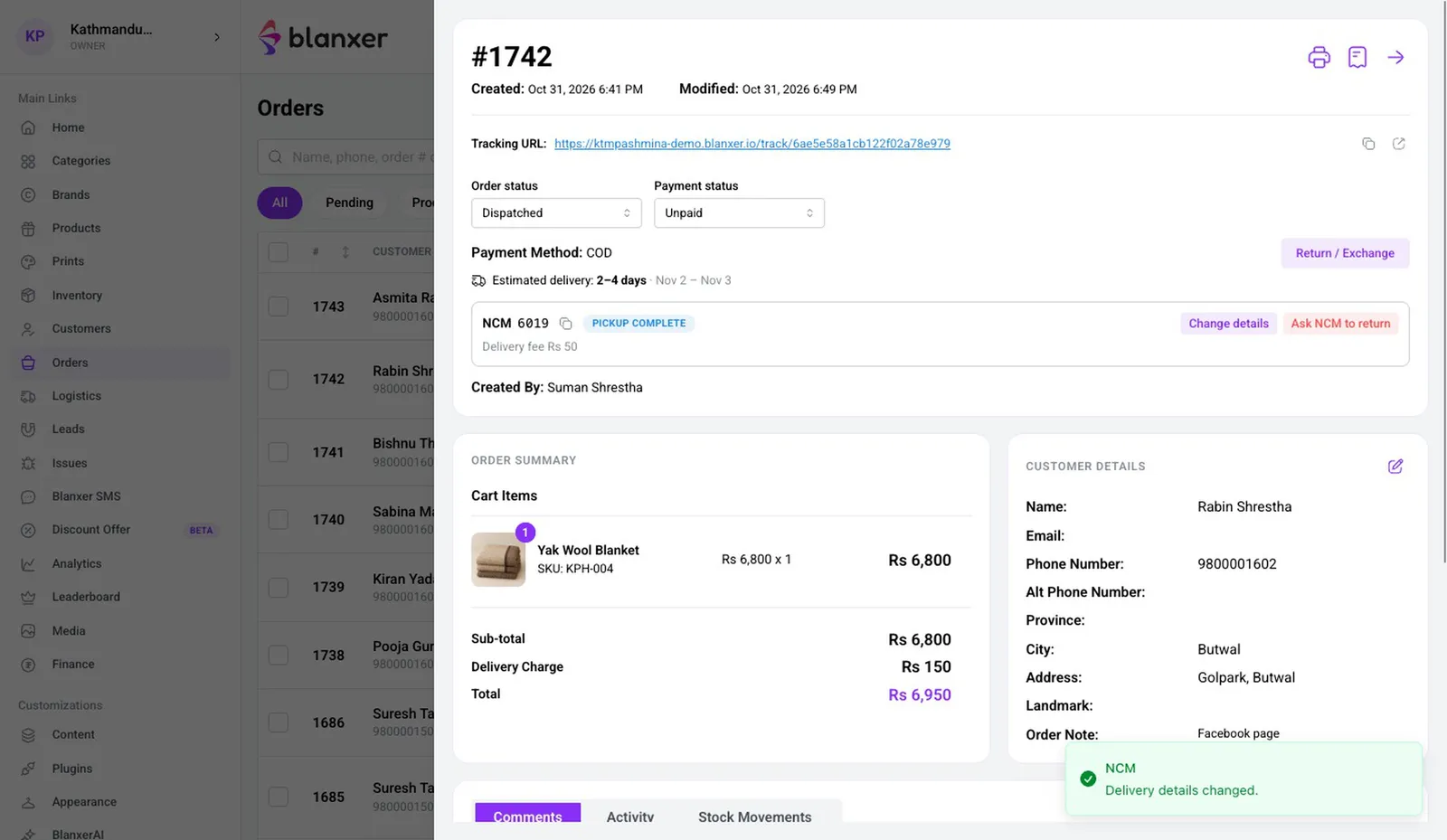
On a parcel NCM has picked up, use Change details to update the name, phone, address or COD, then Save with NCM. NCM charges extra for this.
- 19
Ask NCM to return
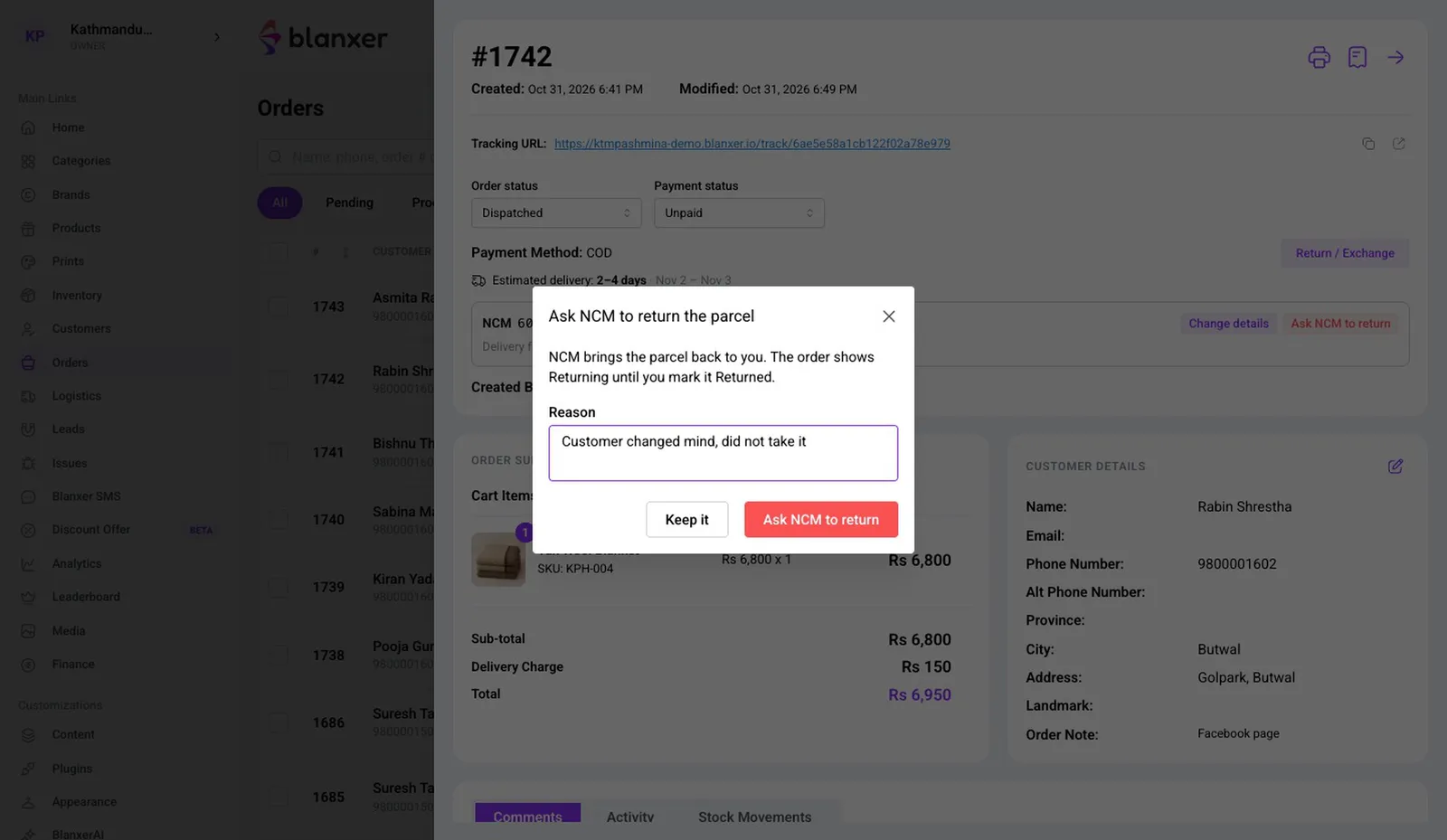
If the customer won't take the parcel, click Ask NCM to return and write the reason.
- 20
Returning, then Returned
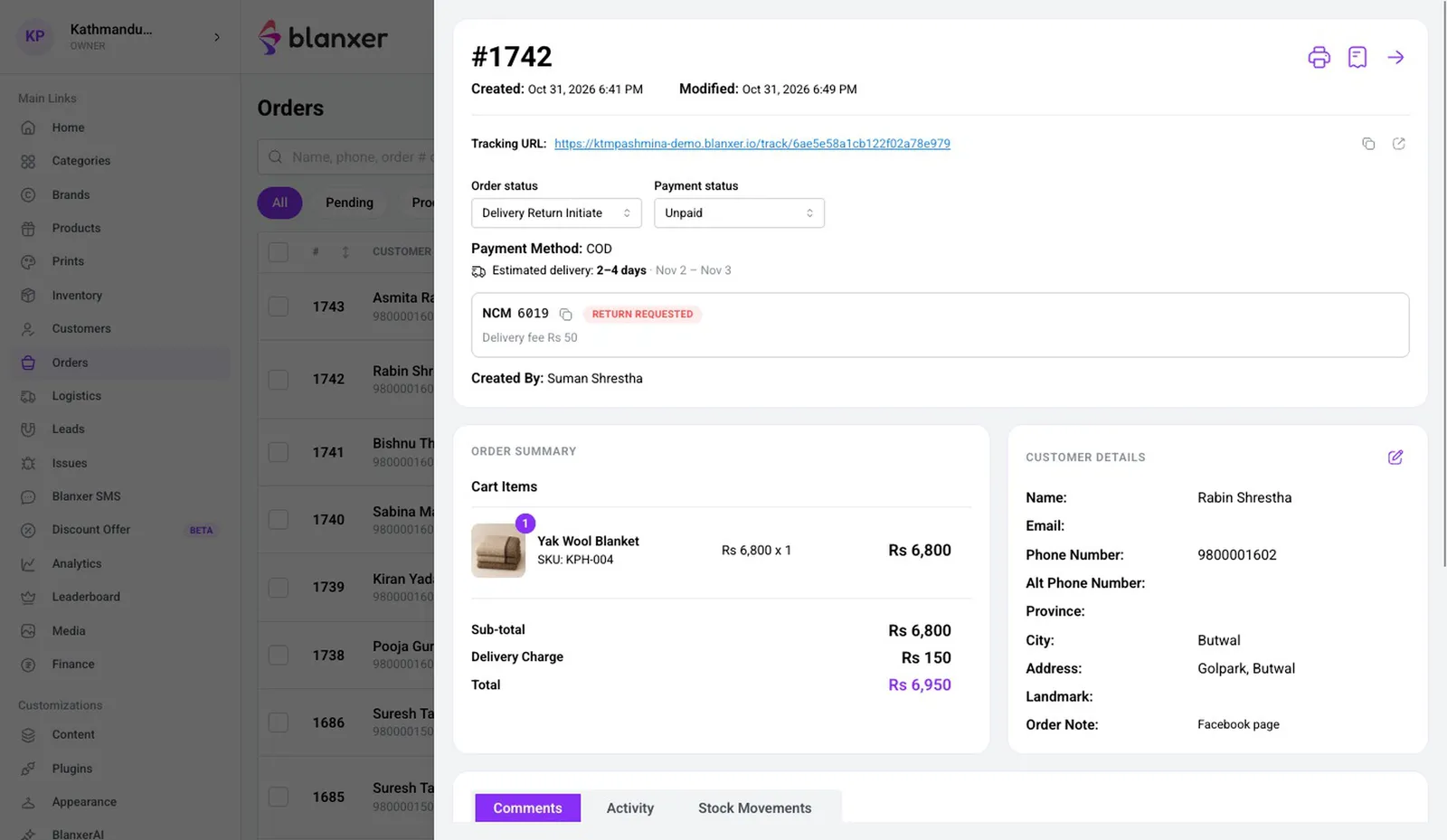
The order moves to Returning. When the parcel is back with you, set the status to Returned and the stock is added back.
Part 8
Exchanges with NCM
- 21
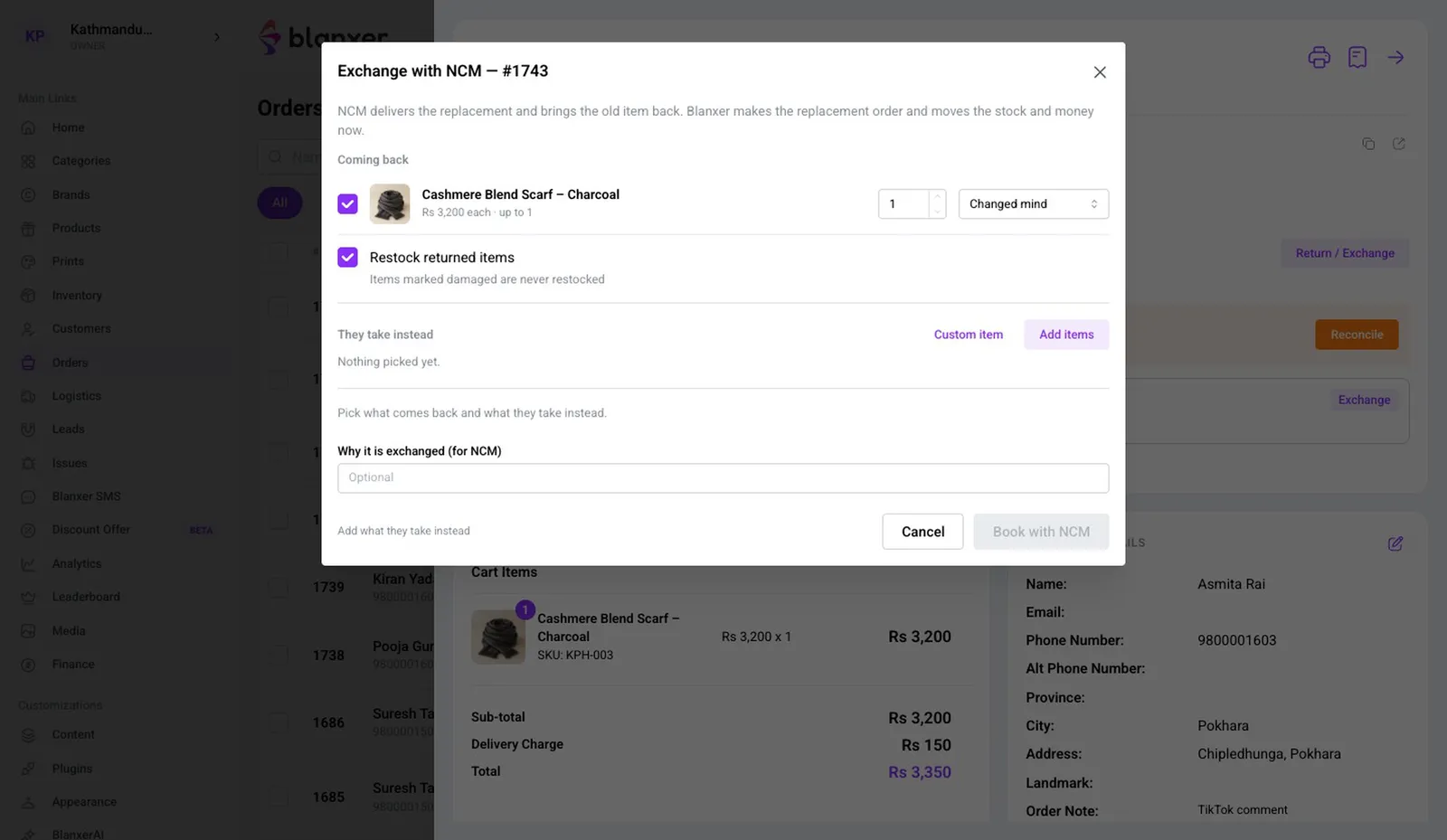
Click Exchange
A delivered NCM order has an Exchange button. At the top, choose what is coming back and why; it goes back into stock.
- 22
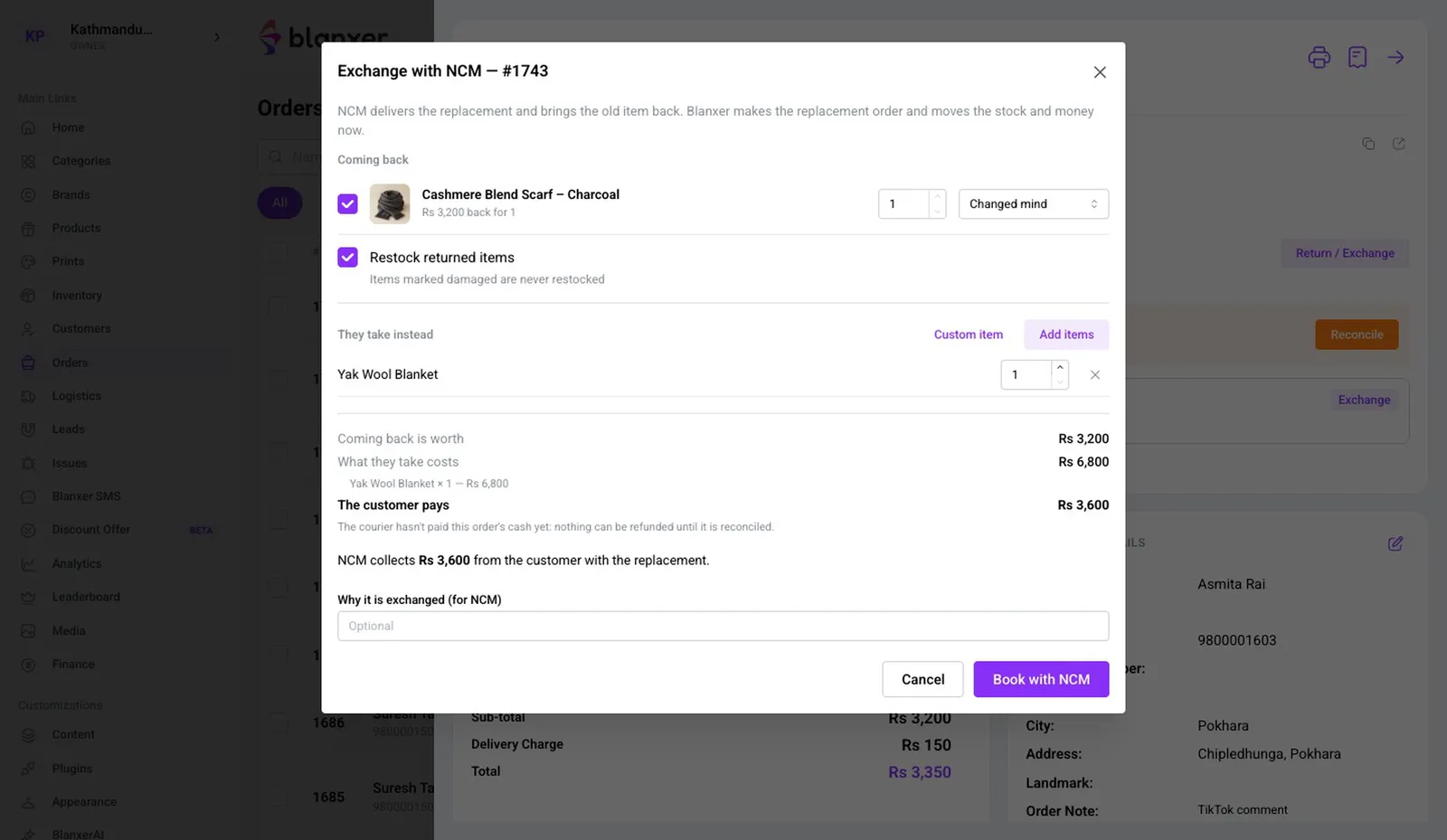
Add what they take instead
Choose the new item with Add items. Blanxer works out the difference, so the customer pays only the extra.
- 23
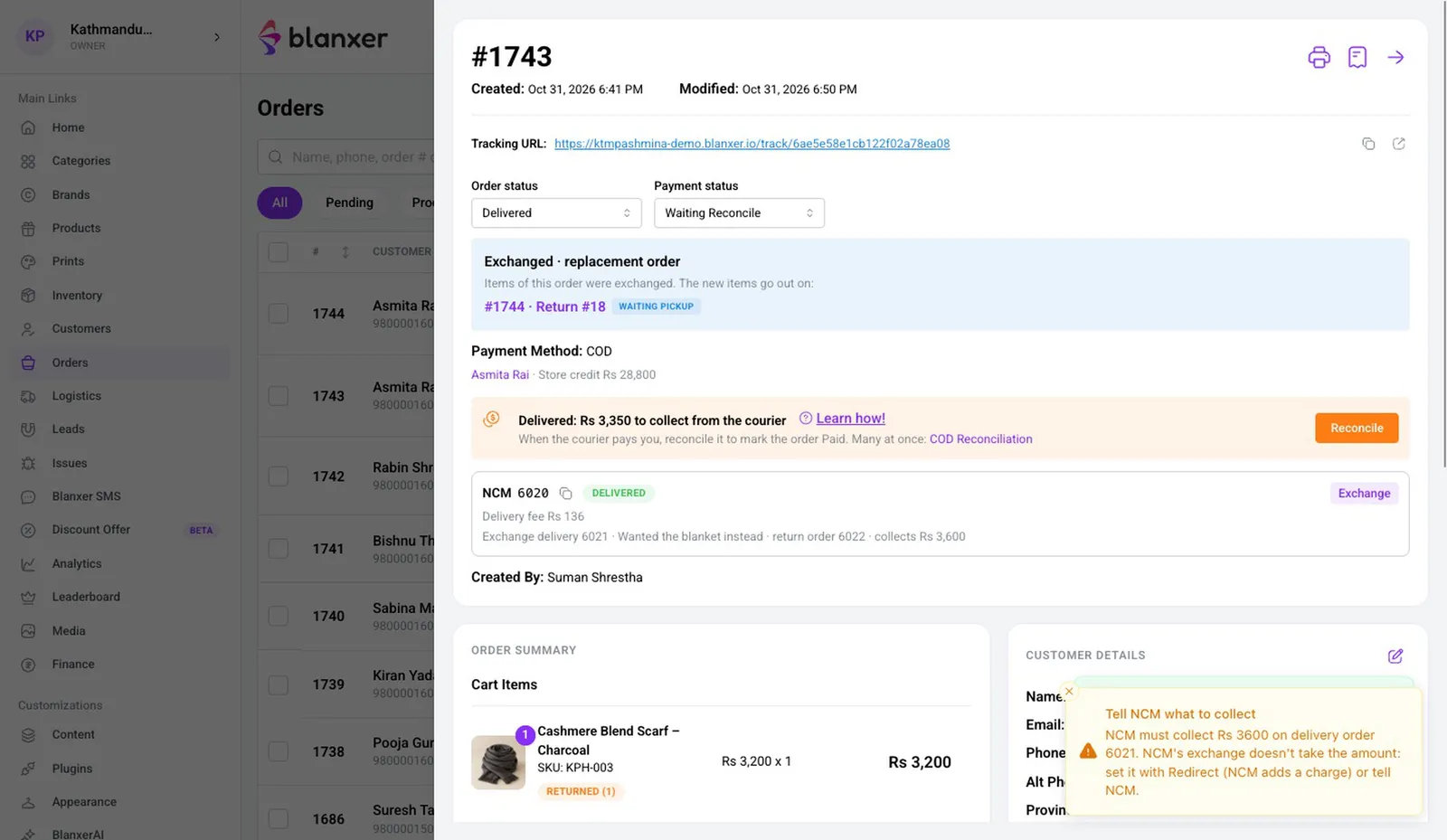
Book with NCM
Write a reason for NCM and click Book with NCM. NCM delivers the new item and brings the old one back, and Blanxer makes the new order with stock and money balanced.
Good to know
- The Order Comment Webhook URL must be pasted into the NCM portal once, or NCM's comments won't reach Blanxer.
- Syncing NCM's charges replaces your existing places and delivery charges.
- Change details costs an extra NCM charge.
- An NCM exchange doesn't set the amount to collect by itself. Add it with Change details on the new order, or tell NCM.
More videos
All 33 videos 4:22
Delivery
Connect Pathao Parcel
Connect your Pathao account, then send any order to Pathao in one click and let its status update on its own.
 3:03
Delivery
Deliver with your own riders (Shipday)
Connect Shipday to send orders to your own riders and follow every delivery yourself.
 2:13
Delivery
Store pickup and multi-store fulfilment
Let customers pick up from your store, and fulfil orders from more than one store location.
See Blanxer with your own business in mind.
Book a demo. We'll show you the store, checkout, POS and dashboard, and tell you honestly which plan you need.
Prefer to talk directly?
Already a customer? Support on WhatsApp +977 9802344850, Sun–Fri, 9 AM – 6 PM.
Follow Blanxer
 A Blanxer product
One AI inbox for every customer conversation.
Sambad.io brings WhatsApp, Instagram, Facebook, website chat and email into one inbox. Connect your Blanxer store and its AI answers from your catalogue, checks stock, quotes delivery and places the order right in the chat.
- Website chat
- Gmail
- Outlook
- Zoho Mail