
Connect Pathao Parcel
Connect your Pathao account, then send any order to Pathao in one click and let its status update on its own.
Delivery · 4:22 · In Nepali
Connect your Pathao Parcel merchant account to Blanxer. You then send any order to Pathao from the order itself, see Pathao's charge before you send, and every parcel status comes back to Blanxer on its own.
Before you start
A Pathao Parcel merchant account.
Your pickup store set up in the Pathao panel.
Part 1
Get your keys from Pathao
- 1
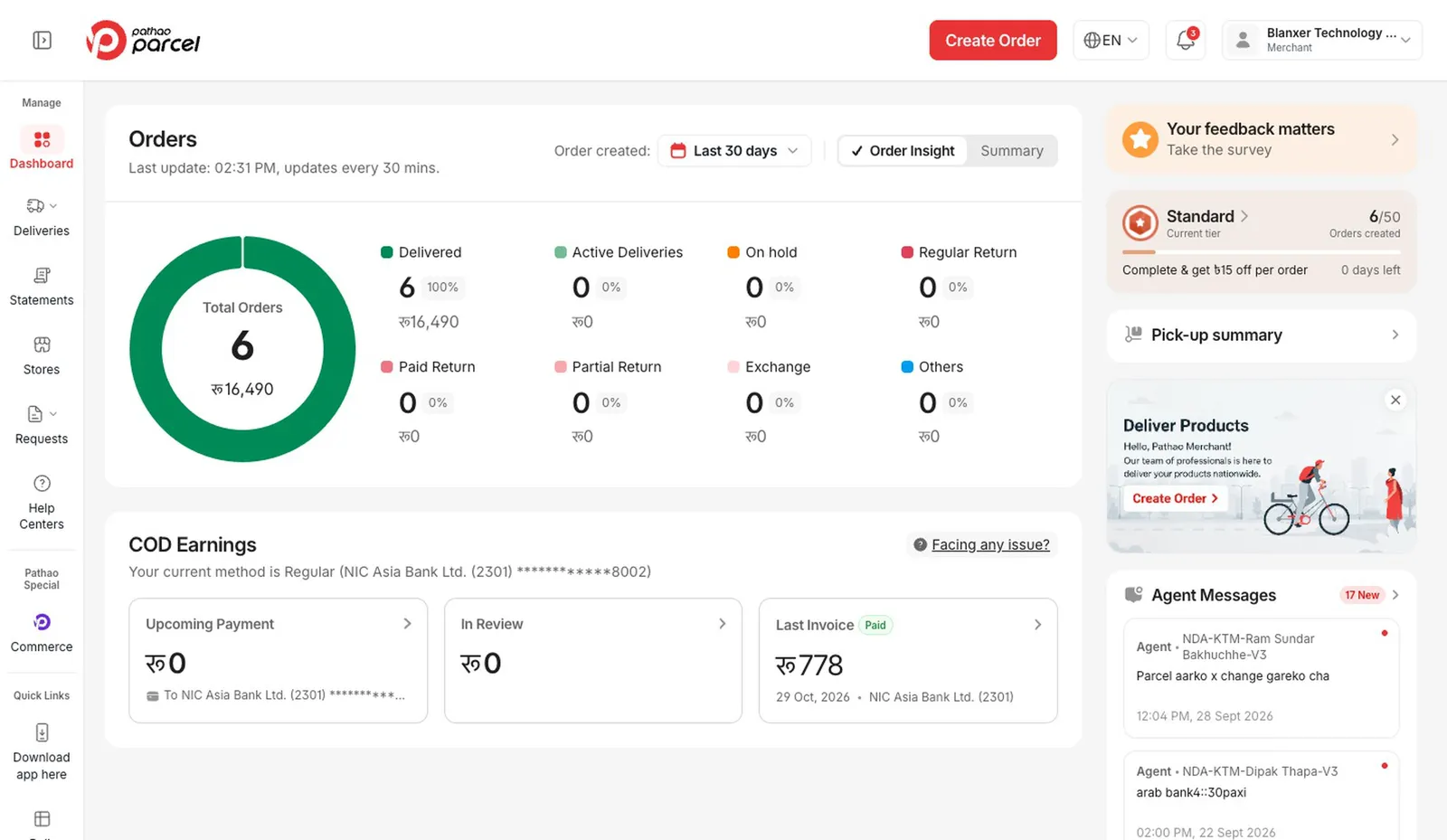
Log in to the Pathao merchant panel
Open parcel.pathao.com and log in. This is your Pathao dashboard.
- 2
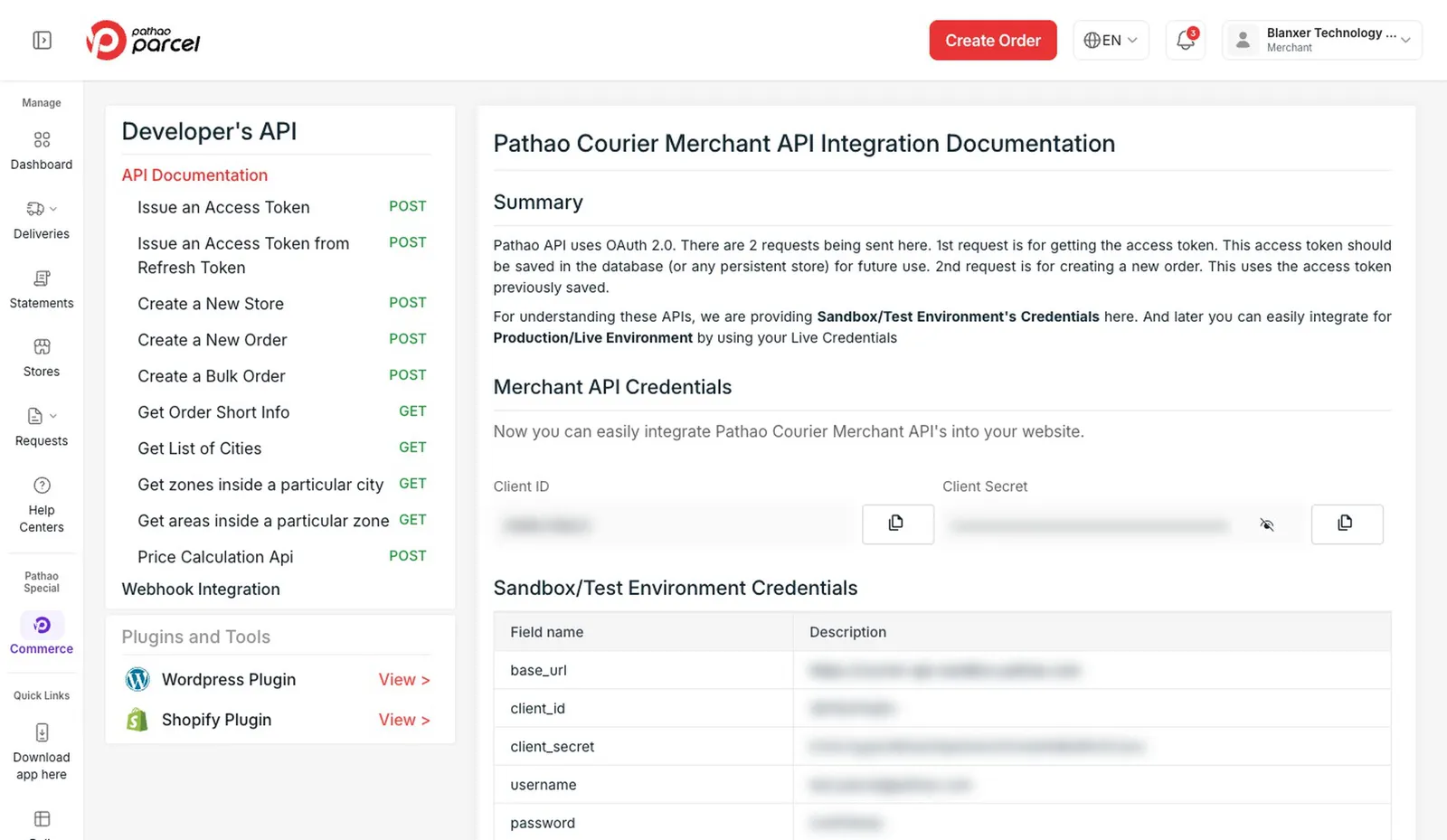
Open Developer's API
Under Merchant API Credentials you'll find your Client ID and Client Secret. Keep them private.
- 3
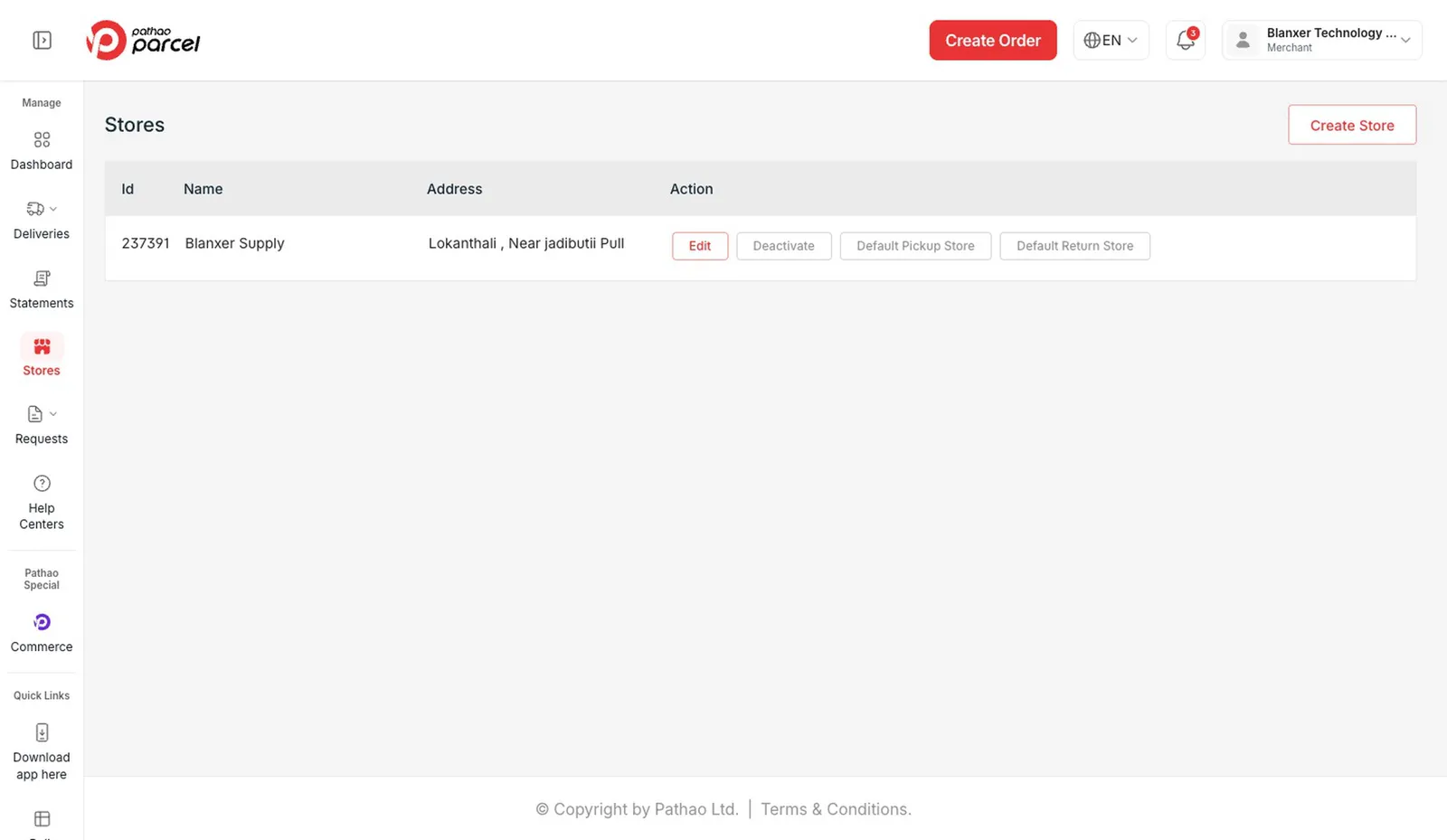
Copy your Store ID
Open Stores. Your pickup store's ID is listed there; Blanxer needs it too.
Part 2
Connect Pathao in Blanxer
- 4
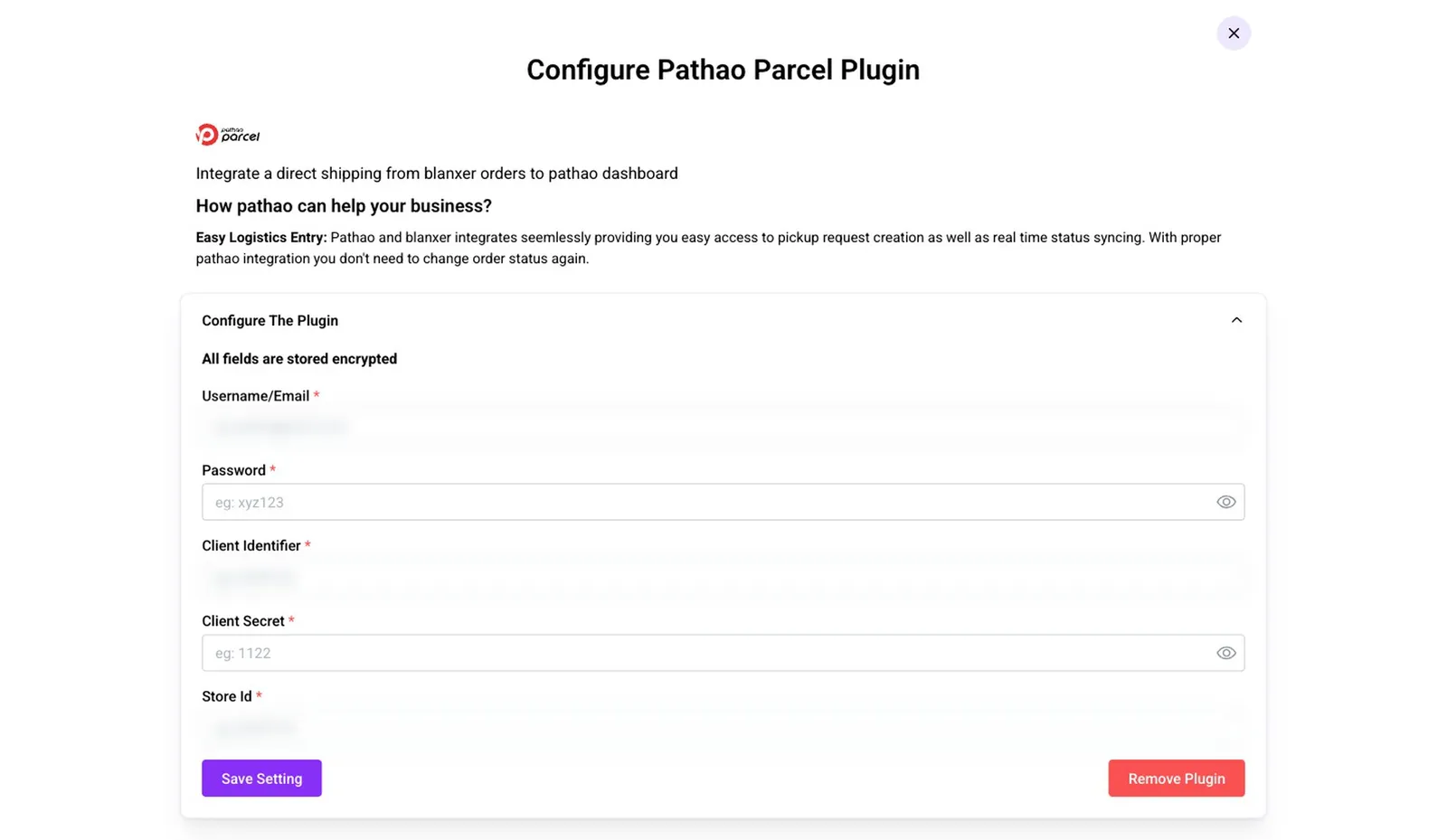
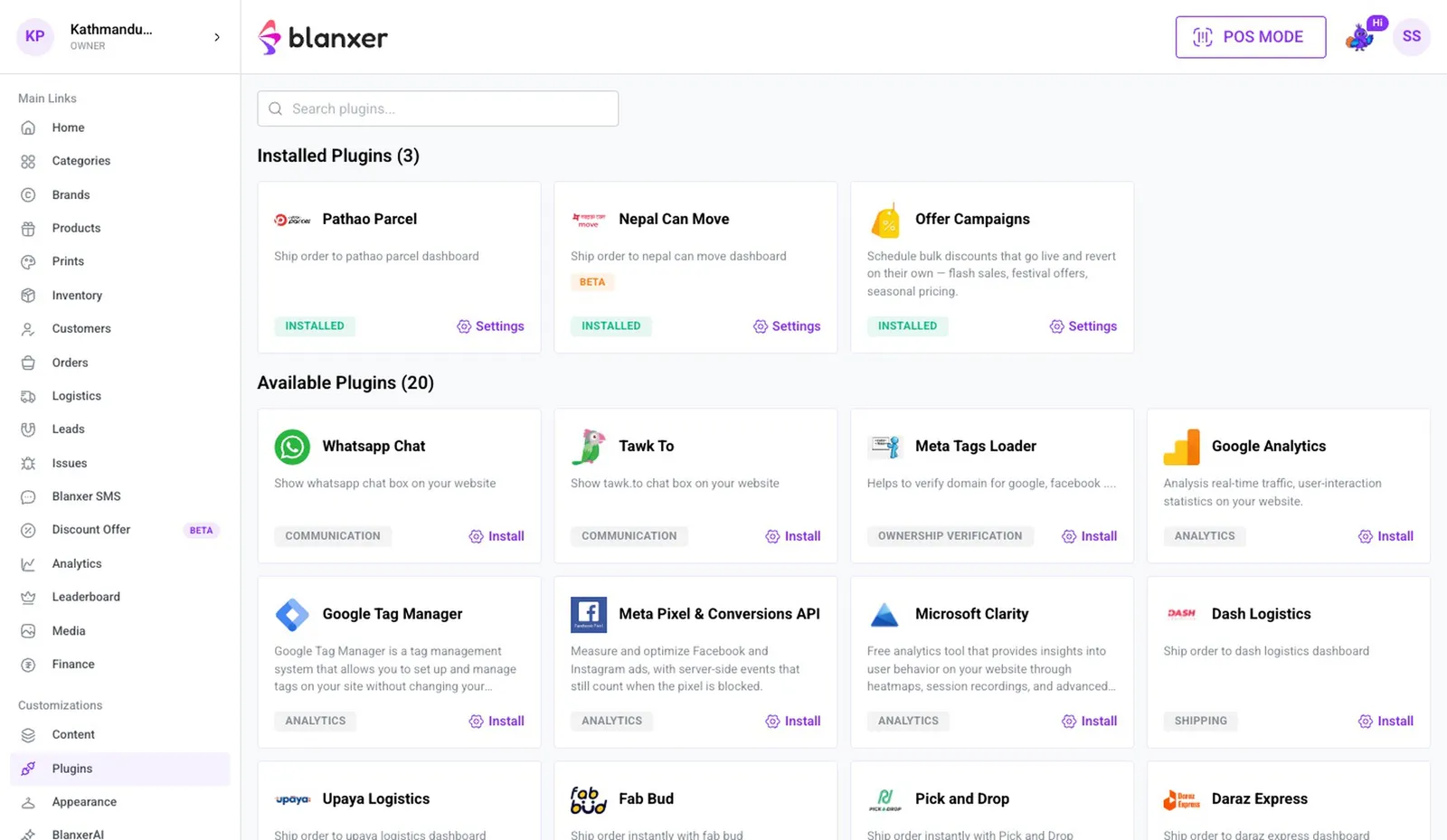
Open the Pathao Parcel plugin
In Blanxer, go to Plugins and click the Pathao Parcel card.
- 5
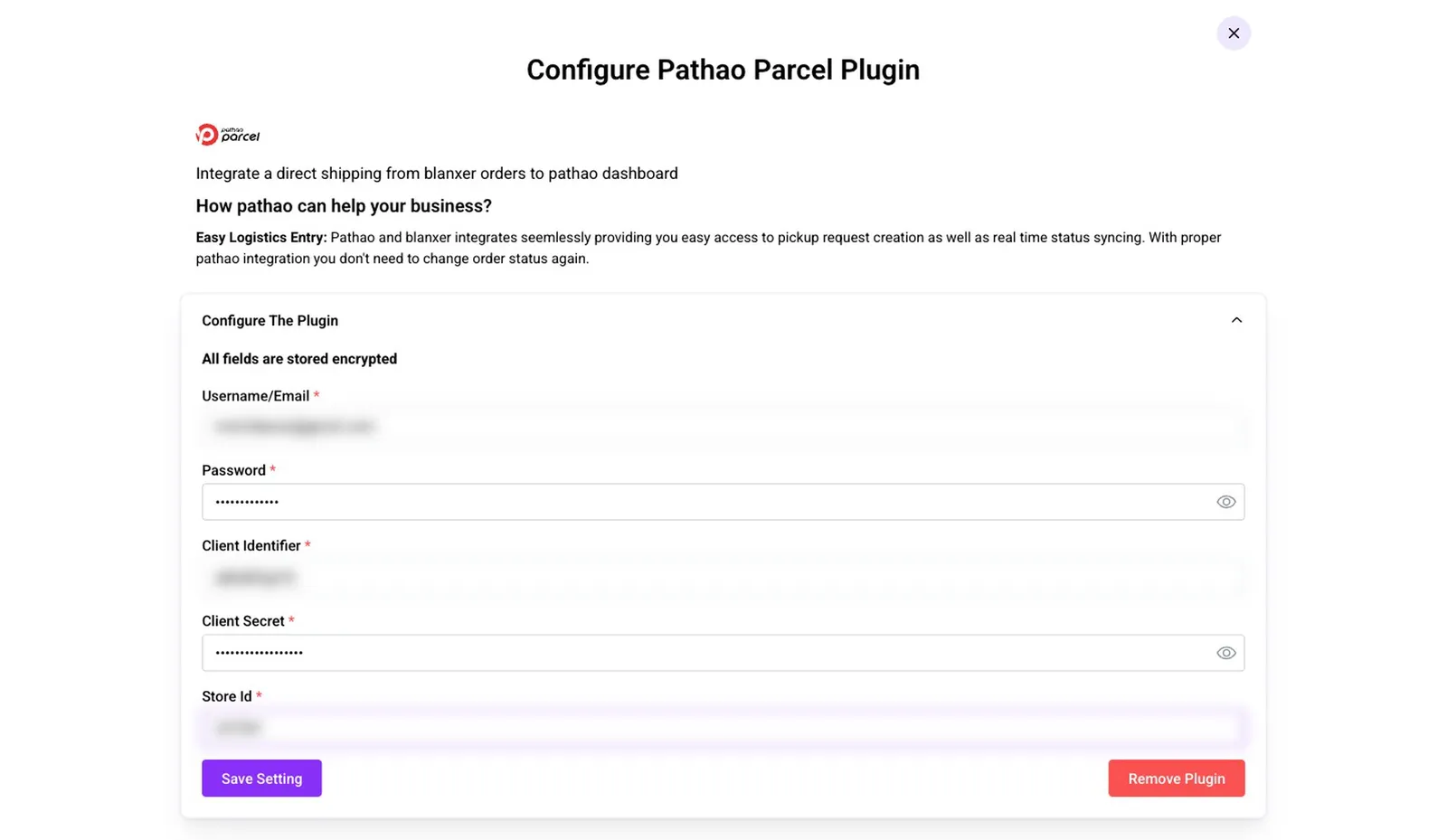
Enter your login and keys
Type the email and password you use for the Pathao panel, then the Client ID, Client Secret and Store ID. Blanxer stores them encrypted.
- 6
Save
Click Save Setting. Blanxer checks the details with Pathao and the plugin is connected.
Part 3
Get statuses back from Pathao
- 7
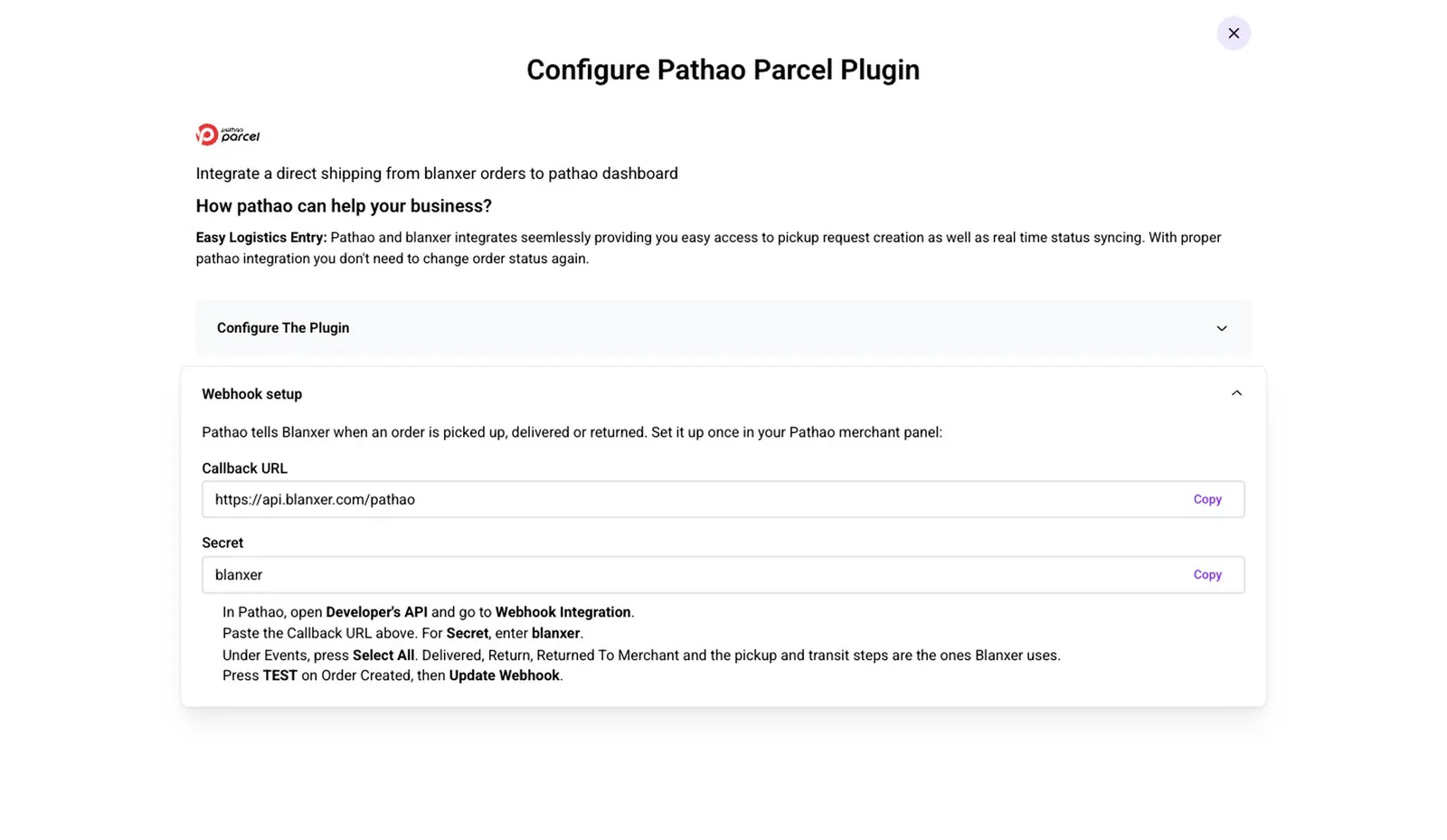
Copy the webhook details
In the plugin, open Webhook setup. It shows a Callback URL and a Secret.
- 8
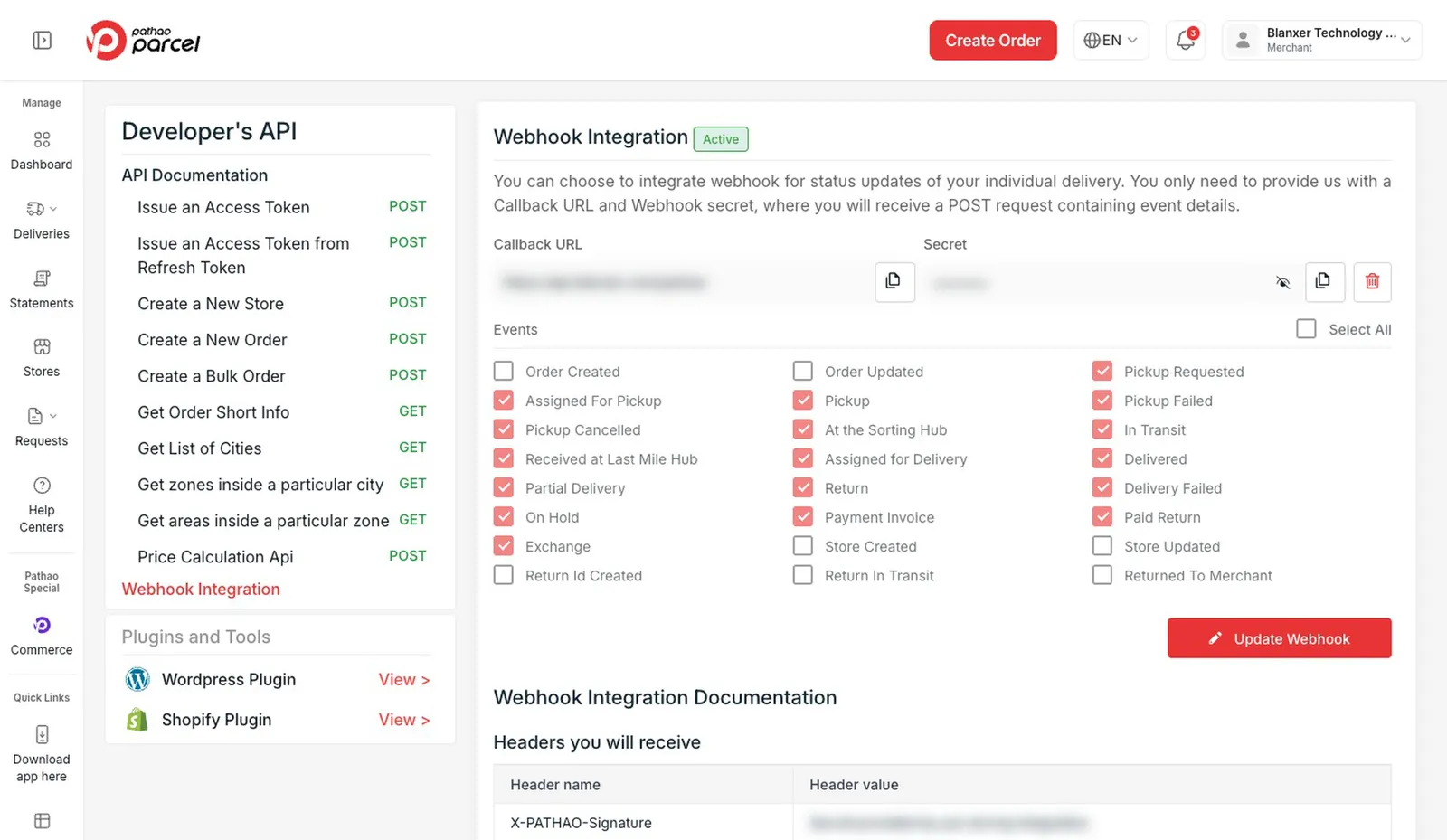
Paste them into Pathao
In the Pathao panel, open Webhook Integration, paste the URL and Secret, select all events and update. From now on Blanxer knows when Pathao picks up, moves, delivers or returns a parcel.
Part 4
Send an order to Pathao
- 9
Submit to logistics
Open the order, click Submit to logistics, choose Pathao and click Submit.
- 10
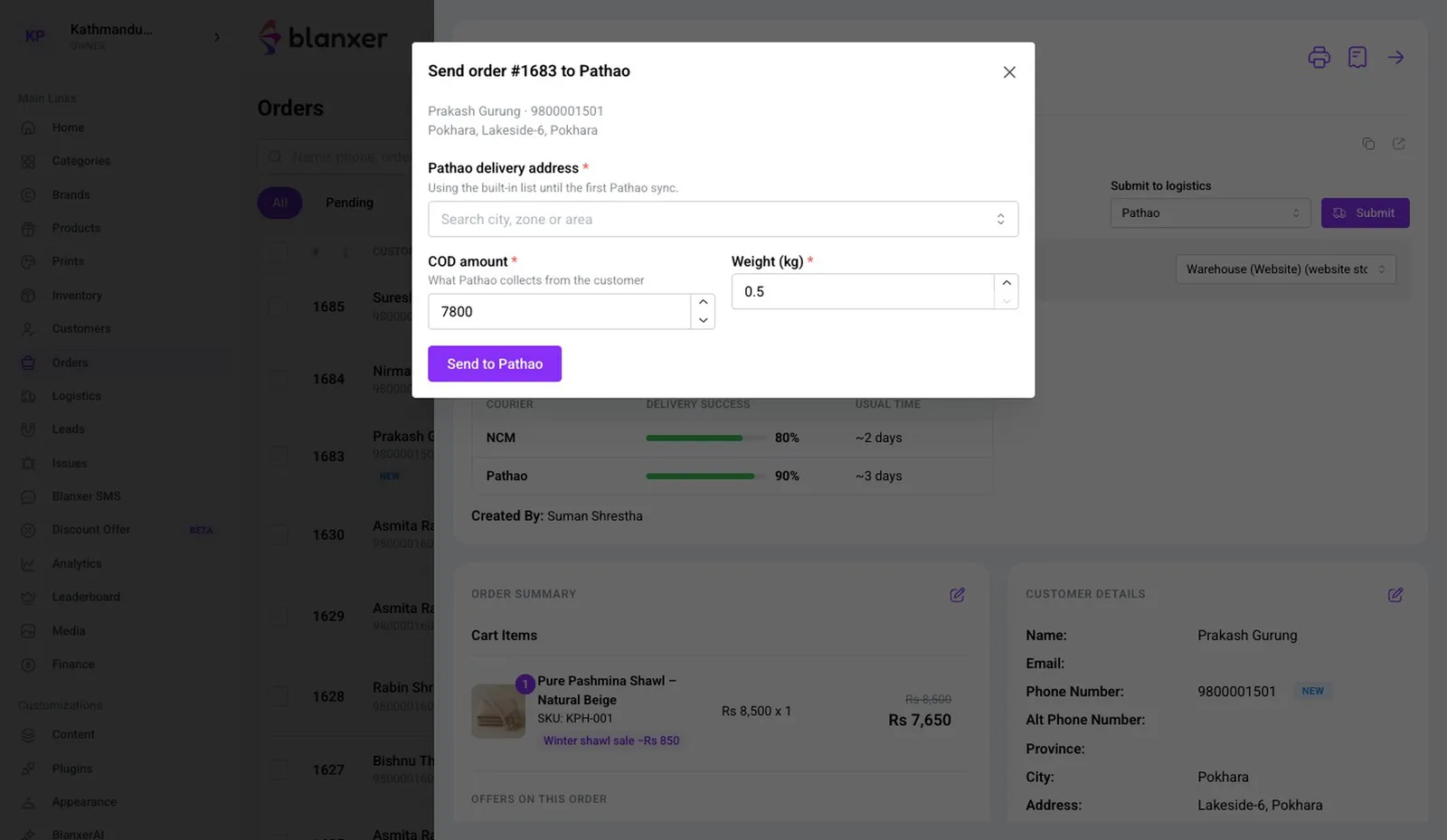
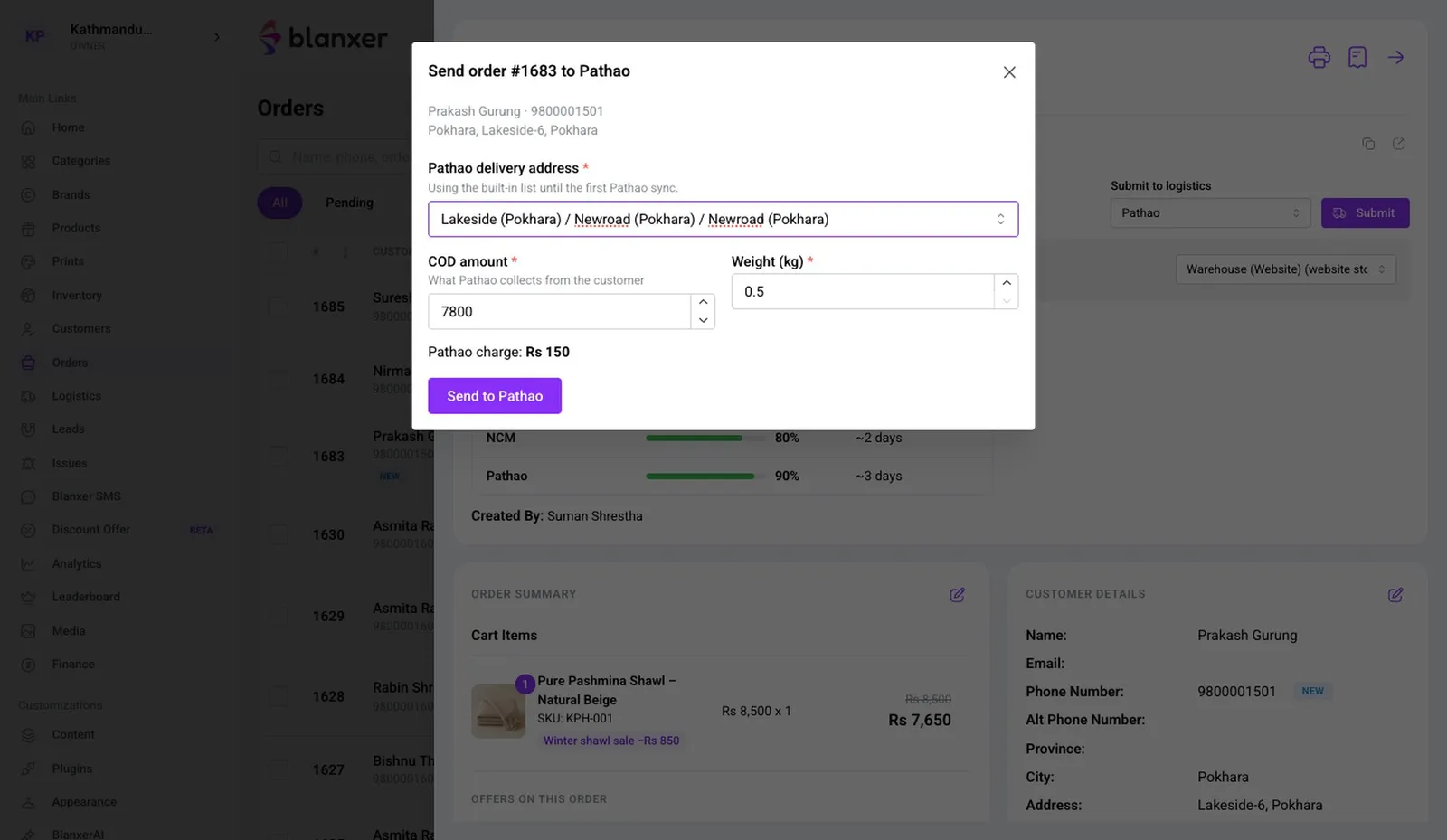
Check the address, COD and charge
Search and pick the Pathao address. Check the COD amount and weight. Pathao's charge shows before you send.
- 11
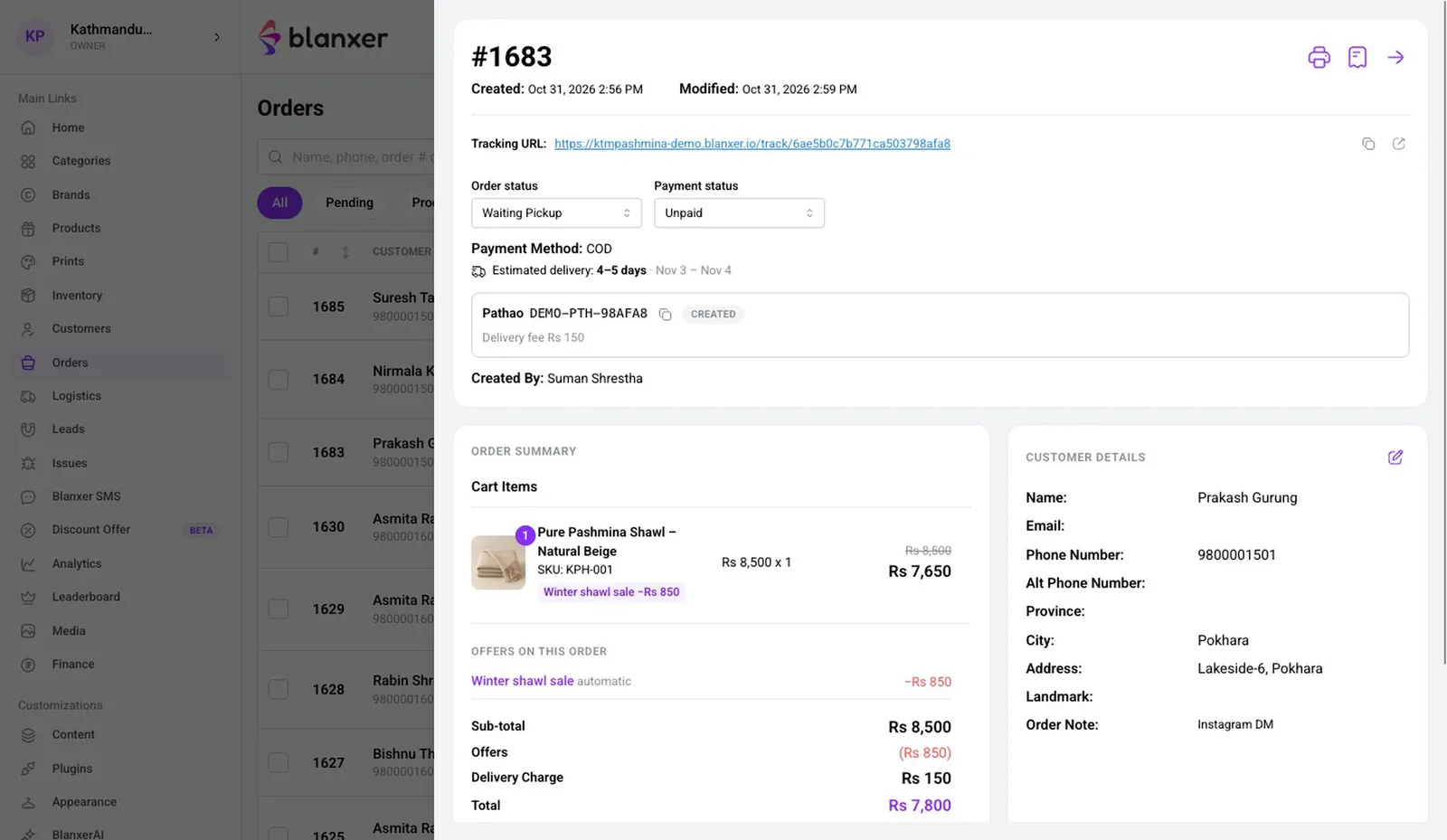
Send to Pathao
Click Send to Pathao. The tracking number comes back and the order moves to Waiting Pickup.
Part 5
Statuses update on their own
- 12
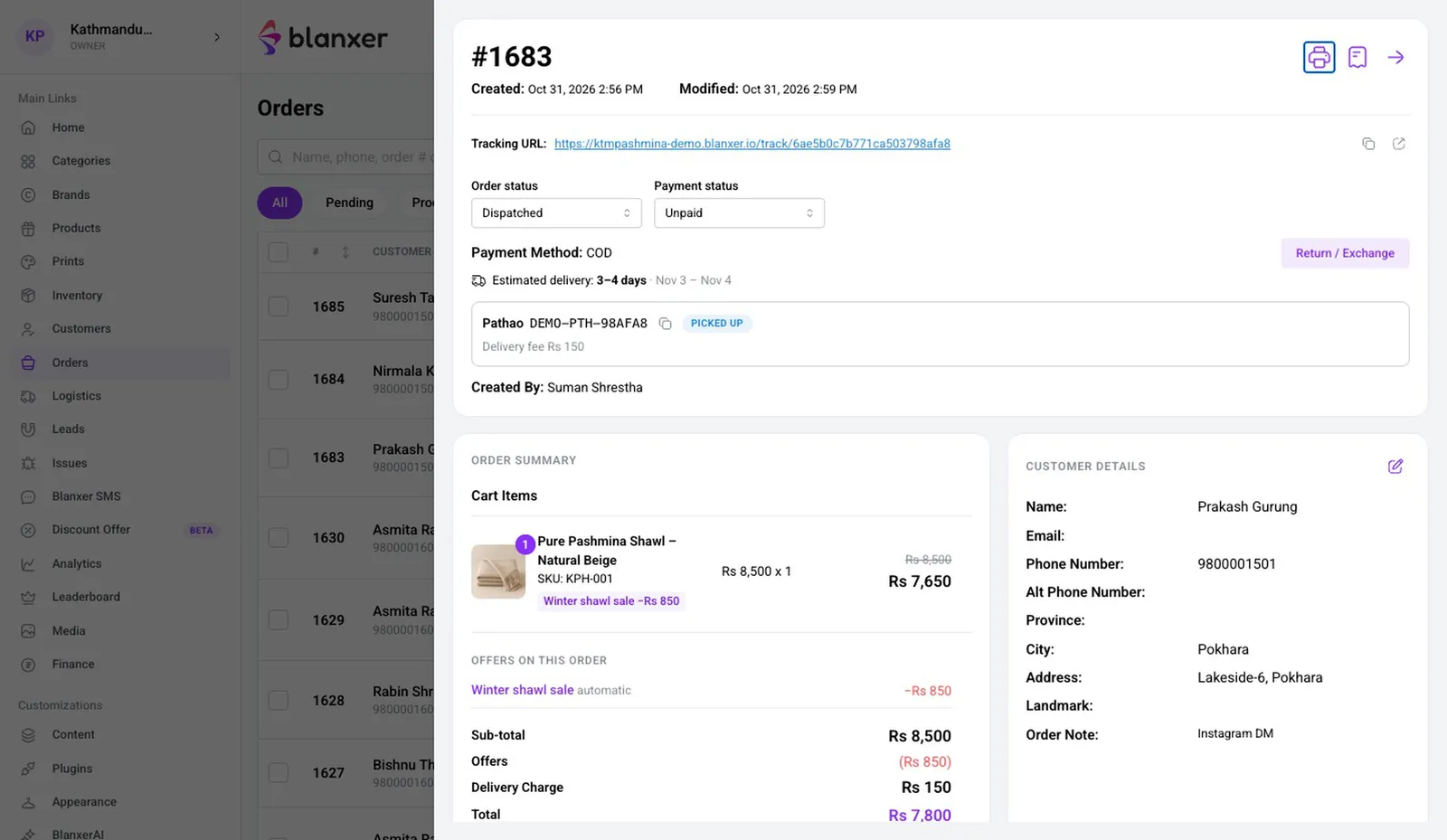
Picked up: Dispatched
You don't do anything. As soon as Pathao picks the parcel up, the order moves to Dispatched.
- 13
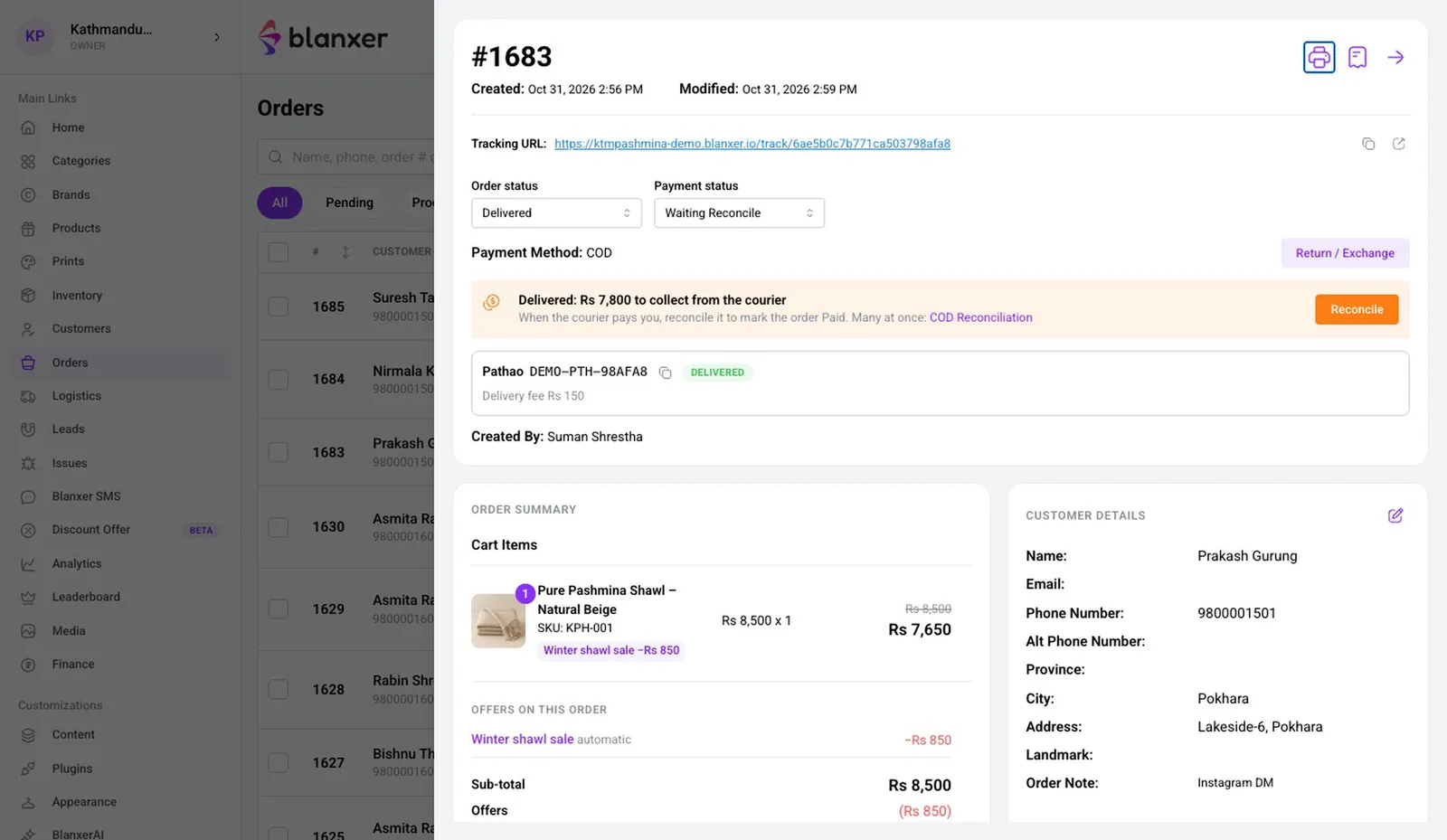
Delivered: Waiting Reconcile
In transit, delivery day and delivered all update by themselves. Once delivered, the payment shows Waiting Reconcile, because the cash is with Pathao until it's paid out.
Part 6
Returns with Pathao
- 14
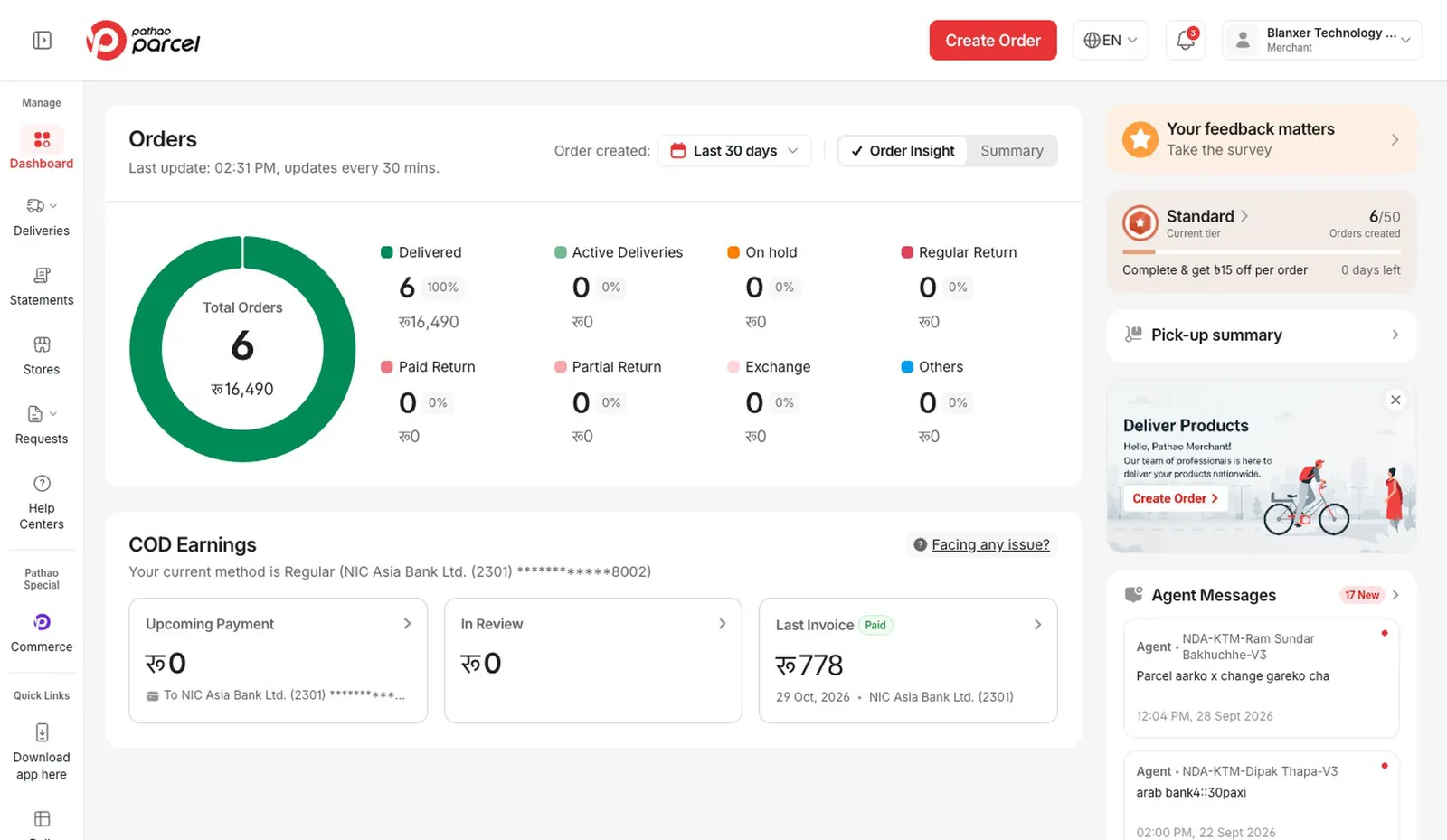
Ask Pathao for the return
There is no return button for Pathao inside Blanxer. Ask for the return from the Pathao panel's Facing any issue link, or tell your Pathao agent.
- 15
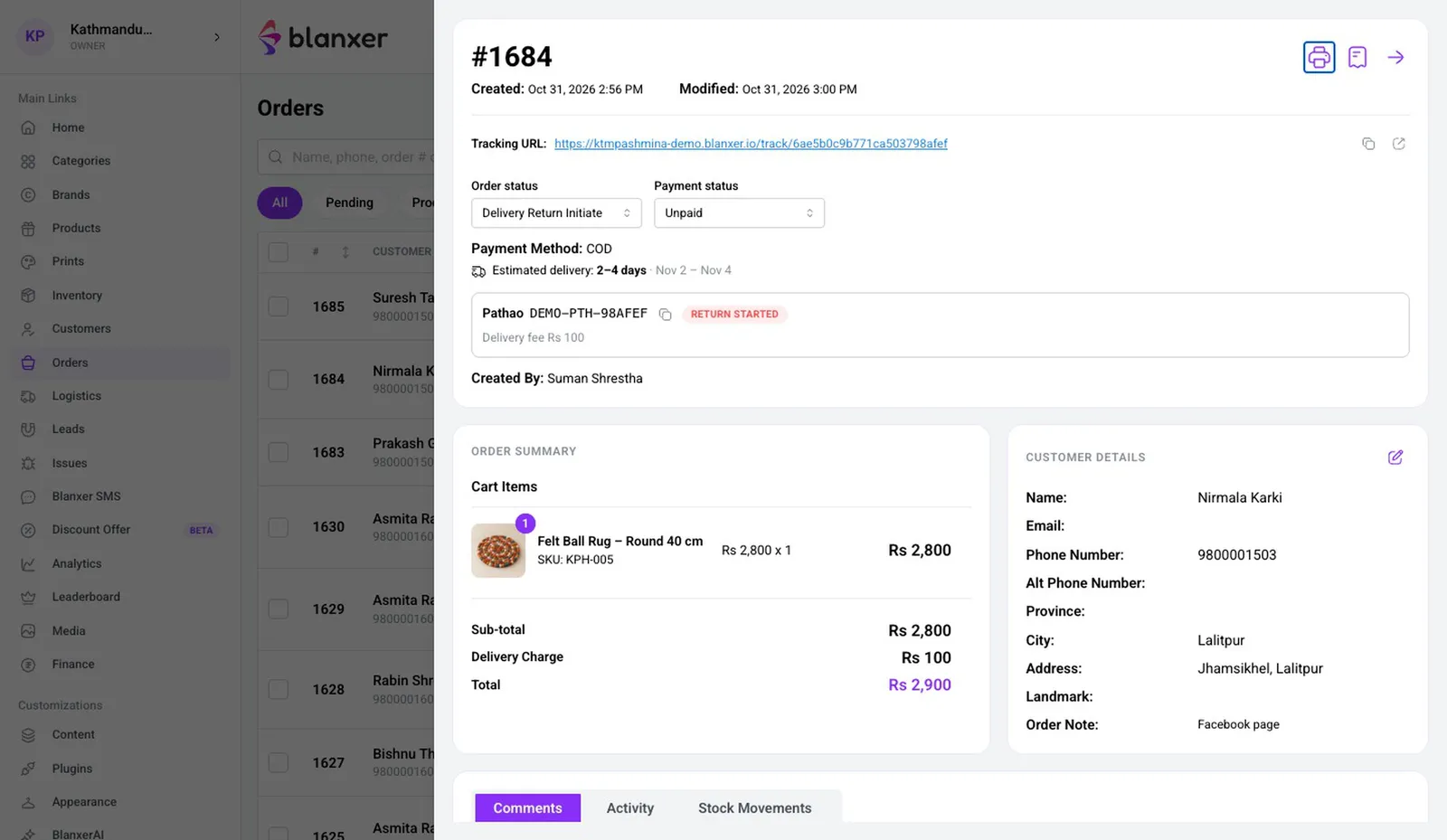
Return started
When Pathao starts the return, Blanxer shows Return started on its own.
- 16
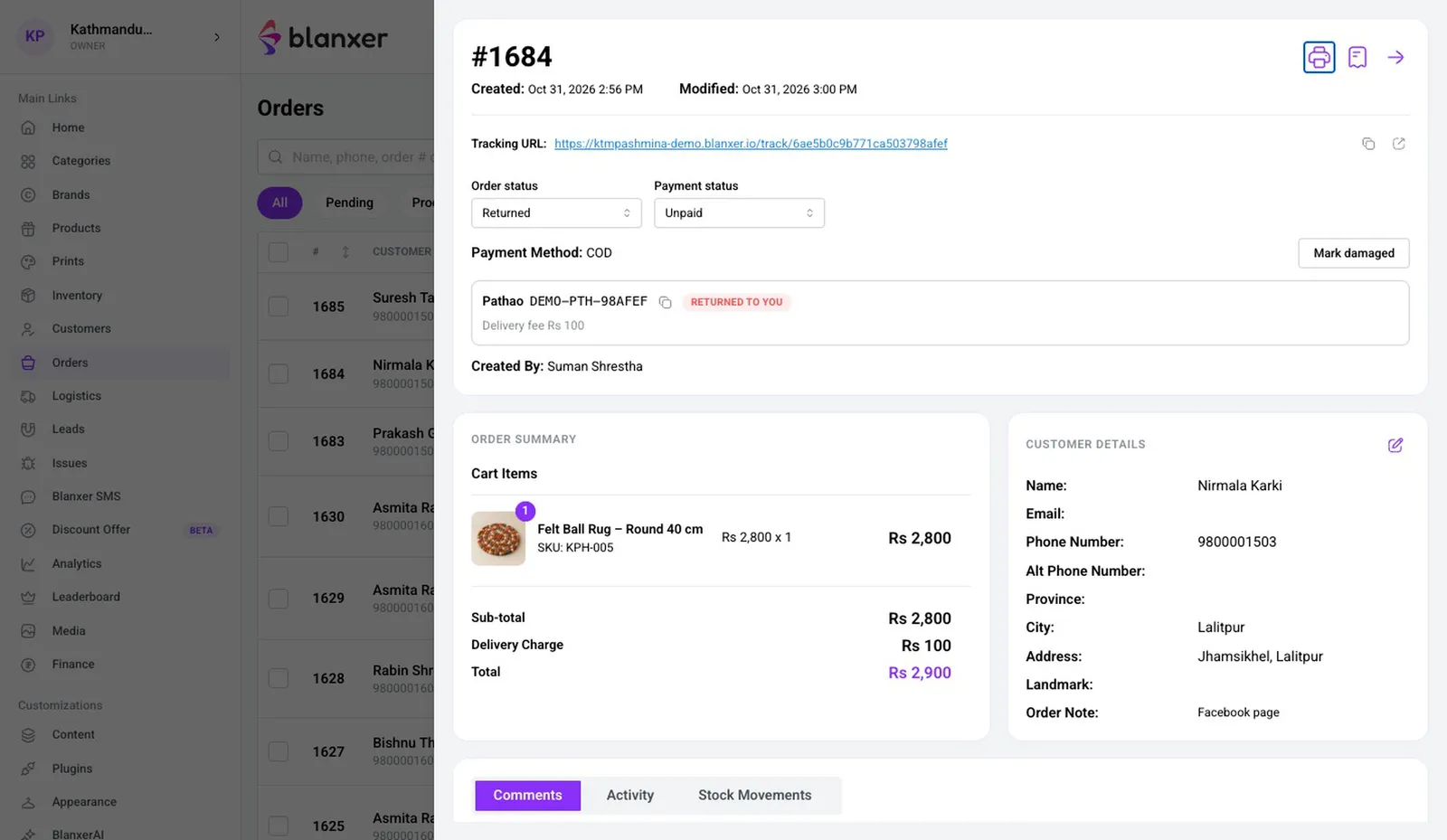
Returned, and back in stock
When the parcel reaches you, the order becomes Returned and the items go back into stock.
Part 7
Exchanges with Pathao
- 17
Arrange the exchange with Pathao
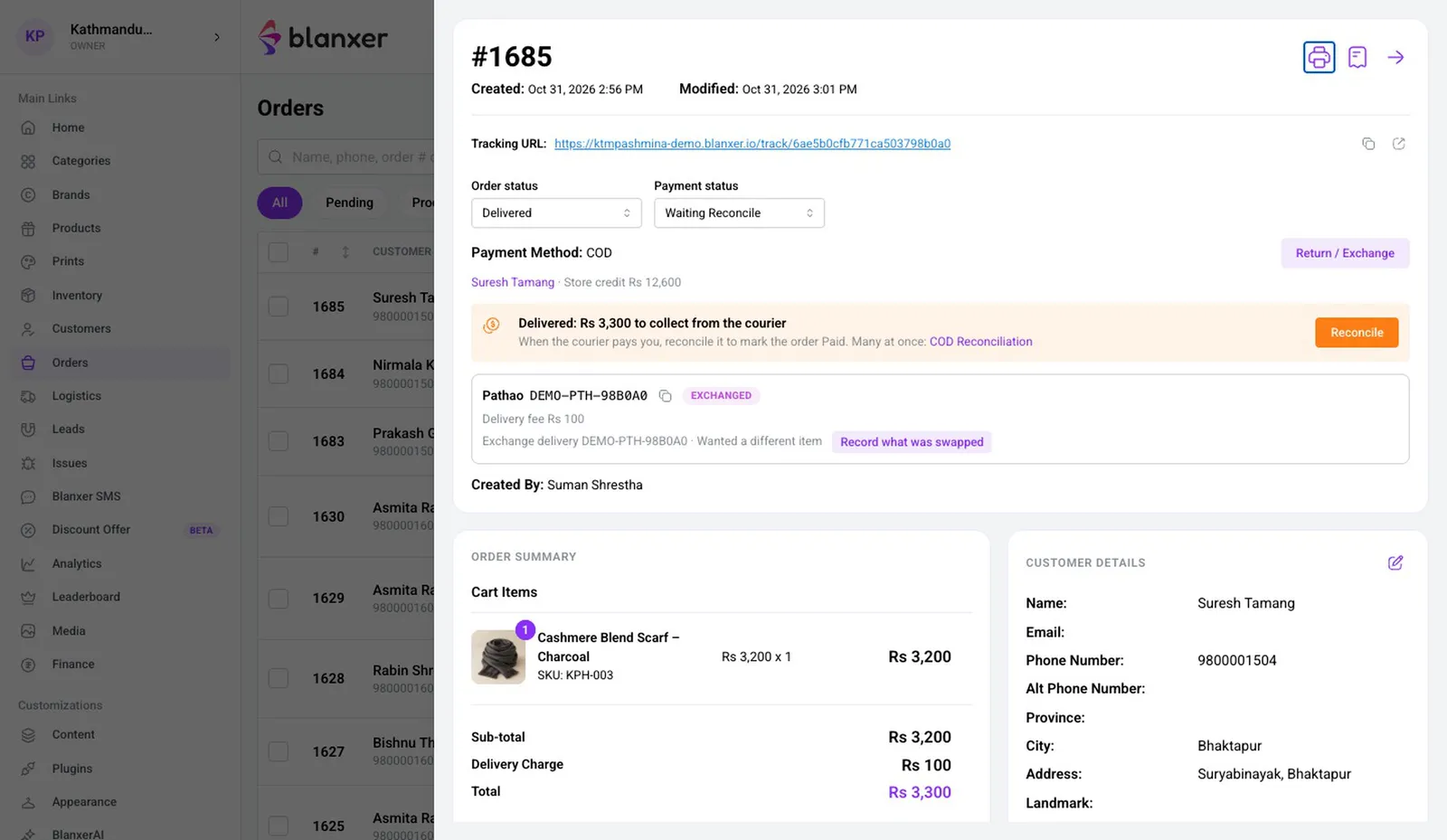
Agree the exchange with Pathao; the rider swaps the item at the door. Pathao then tells Blanxer, and the order shows a Record what was swapped button.
- 18
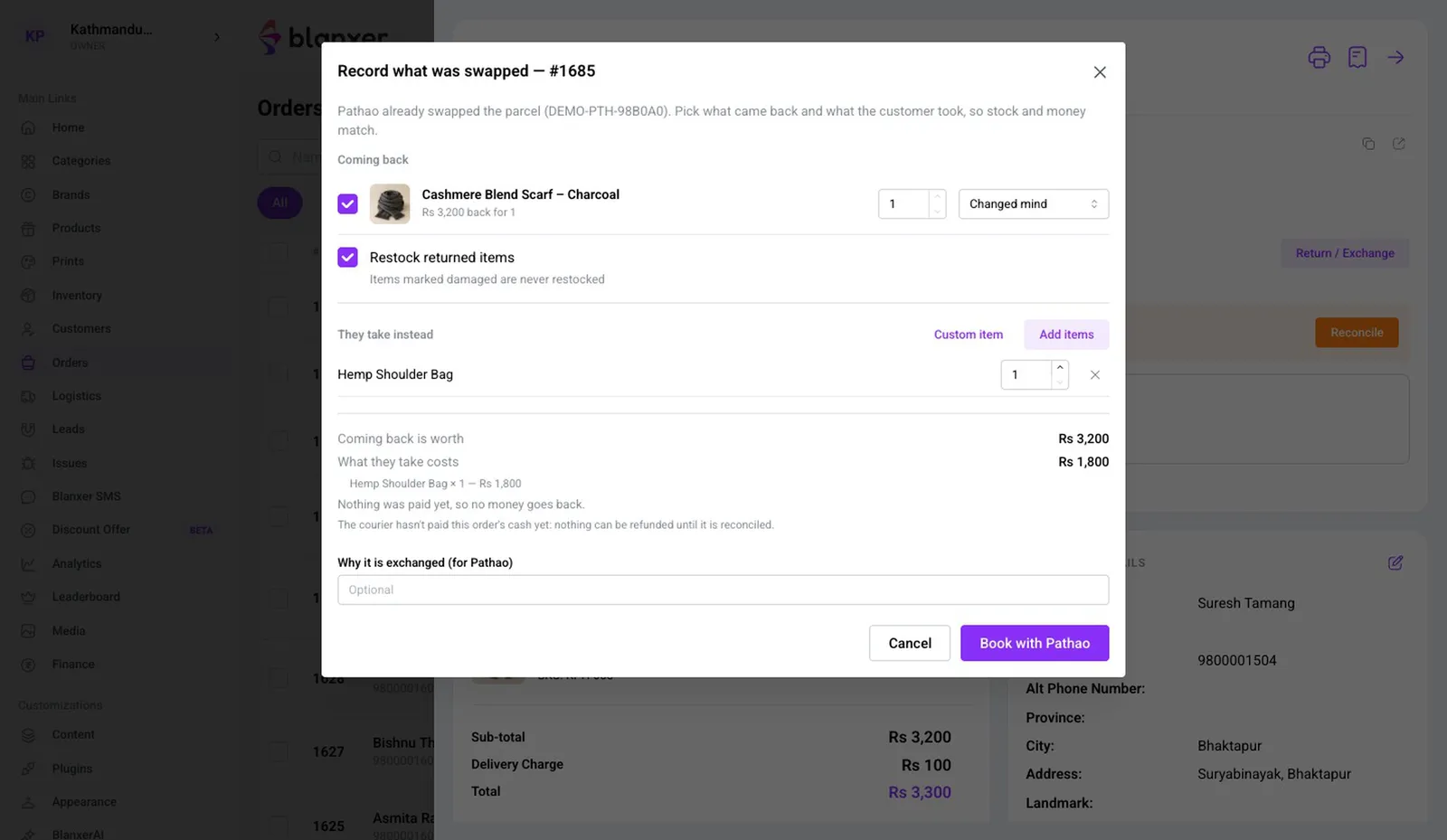
Record what was swapped
The returned item is already selected. Add what the customer took instead with Add items.
- 19
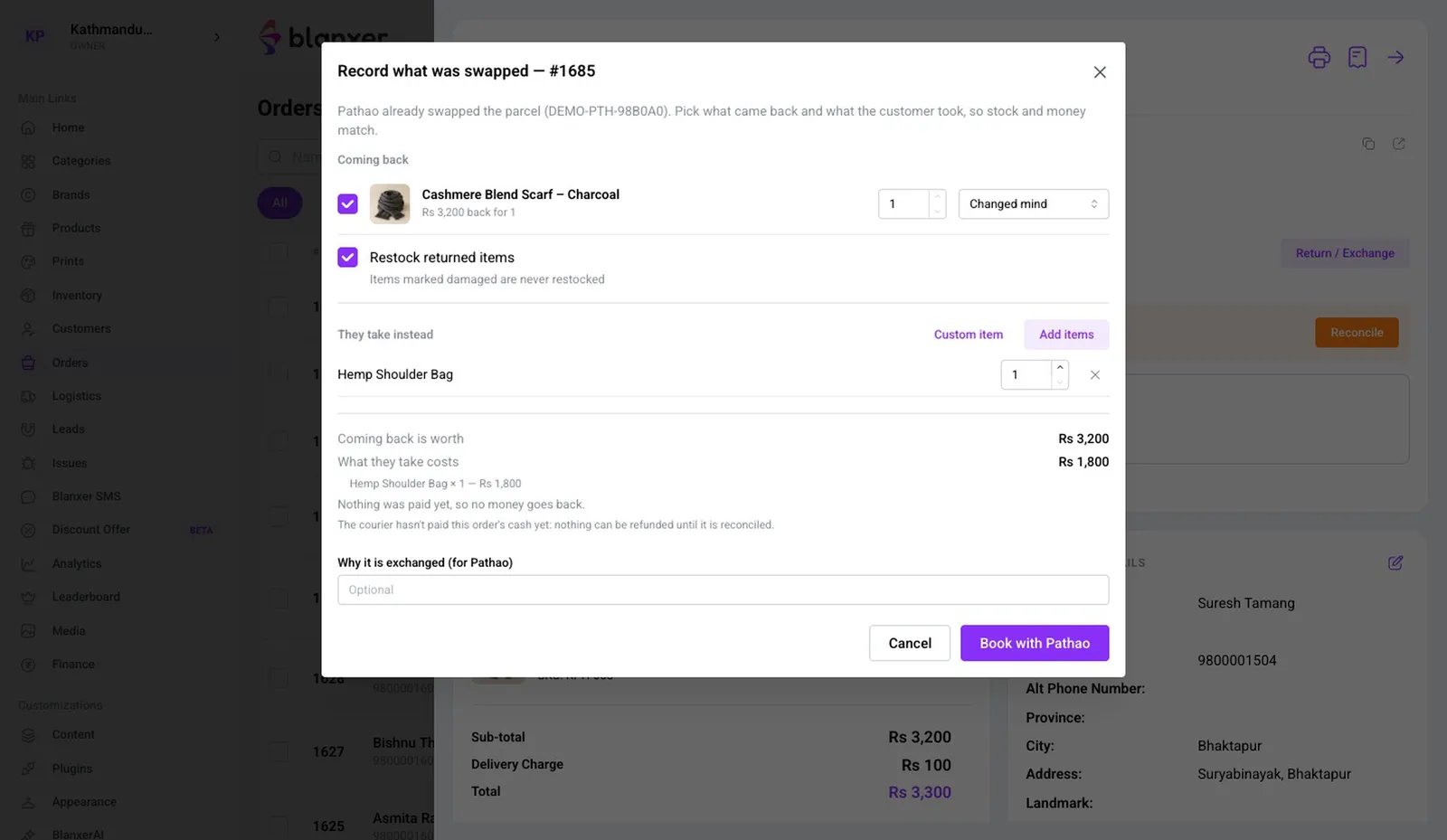
Blanxer works out the difference
The price difference is calculated for you, and stock is balanced both ways.
- 20
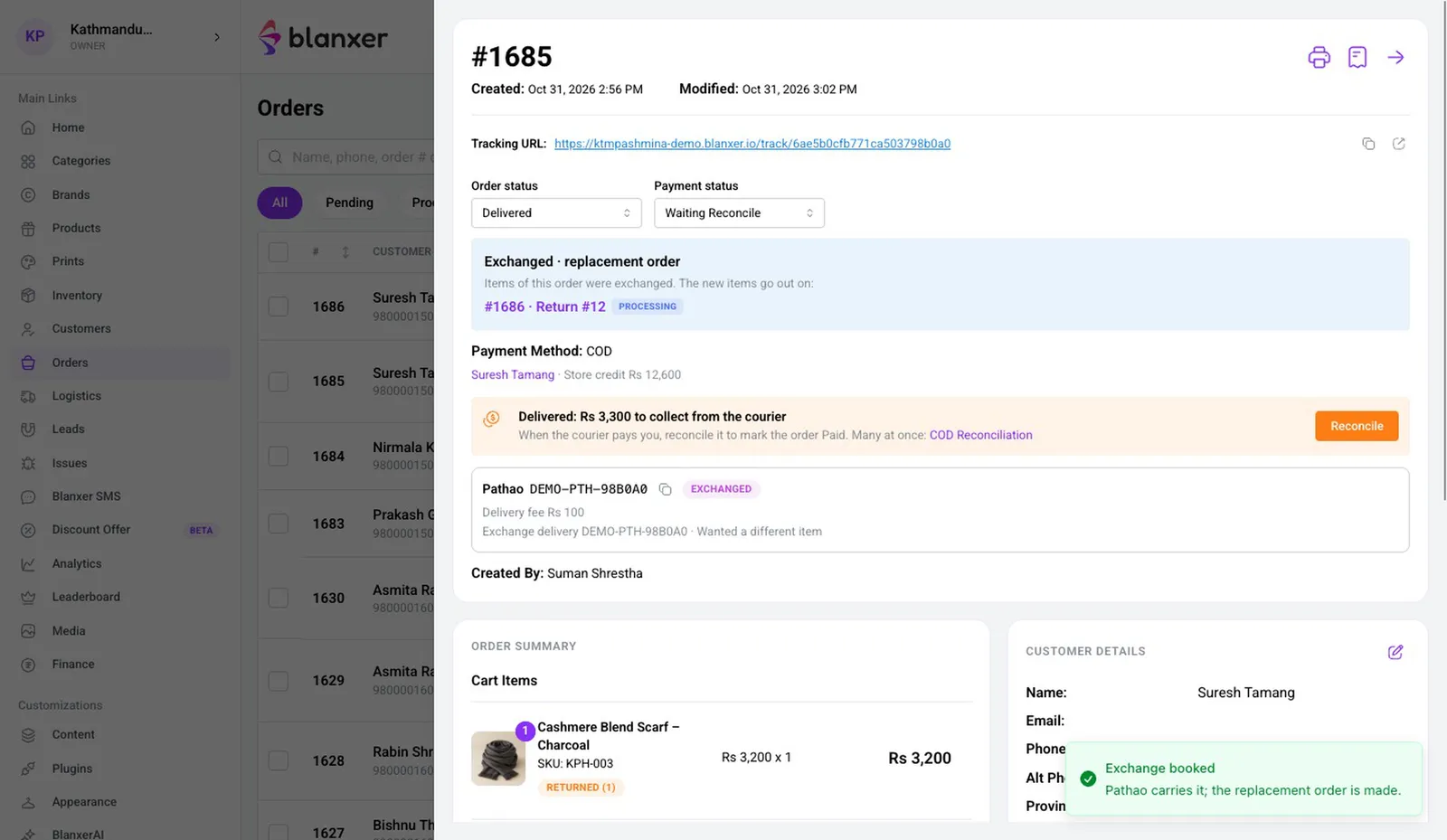
A new order, with stock and money right
Confirm, and Blanxer creates the new order with stock and money both correct.
Good to know
- Returns and exchanges are started with Pathao, not from Blanxer. Blanxer records them when Pathao reports back.
- Delivered COD orders stay in Waiting Reconcile until you record Pathao's payout in COD Reconciliation.
More videos
All 33 videos 7:54
Delivery
Connect Nepal Can Move (NCM)
Connect Nepal Can Move and send orders to it from Blanxer, including returns, exchanges and order comments.
 3:03
Delivery
Deliver with your own riders (Shipday)
Connect Shipday to send orders to your own riders and follow every delivery yourself.
 2:13
Delivery
Store pickup and multi-store fulfilment
Let customers pick up from your store, and fulfil orders from more than one store location.
See Blanxer with your own business in mind.
Book a demo. We'll show you the store, checkout, POS and dashboard, and tell you honestly which plan you need.
Prefer to talk directly?
Already a customer? Support on WhatsApp +977 9802344850, Sun–Fri, 9 AM – 6 PM.
Follow Blanxer
 A Blanxer product
One AI inbox for every customer conversation.
Sambad.io brings WhatsApp, Instagram, Facebook, website chat and email into one inbox. Connect your Blanxer store and its AI answers from your catalogue, checks stock, quotes delivery and places the order right in the chat.
- Website chat
- Gmail
- Outlook
- Zoho Mail